1. Pengenalan
This manual provides instructions for the Monoprice Dark Matter 27-inch 165Hz Gaming Monitor. This monitor features an IPS panel, a 165Hz refresh rate, and a 1920x1080p Full HD resolution. It includes Adaptive Sync technology for smooth visuals and offers multiple connectivity options, including HDMI and DisplayPort inputs.
2. Maklumat Keselamatan
- Read all instructions before operating the monitor.
- Keep the monitor away from water or damp persekitaran.
- Jangan menyekat bukaan pengudaraan.
- Gunakan hanya penyesuai kuasa yang disediakan oleh pengilang.
- Elakkan meletakkan monitor pada permukaan yang tidak stabil.
- Putuskan sambungan kabel kuasa semasa ribut petir atau apabila tidak digunakan untuk jangka masa yang lama.
- Rujuk semua servis kepada kakitangan yang berkelayakan.
3. Kandungan Pakej
Sahkan bahawa pakej anda mengandungi item berikut:
- Monoprice Dark Matter 27-inch Gaming Monitor
- Stand Monitor (Asas dan Leher)
- Penyesuai Kuasa dan Kabel Kuasa
- Kabel HDMI
- Manual Pengguna (dokumen ini)
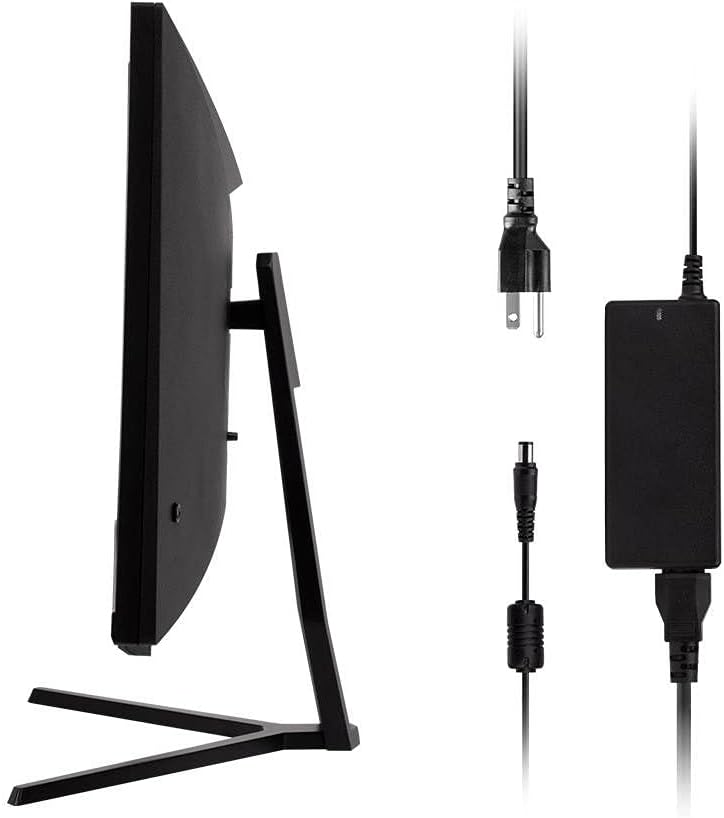
Image: Monitor side view with included power adapter and cable.
4. Monitor Overview
Depan View
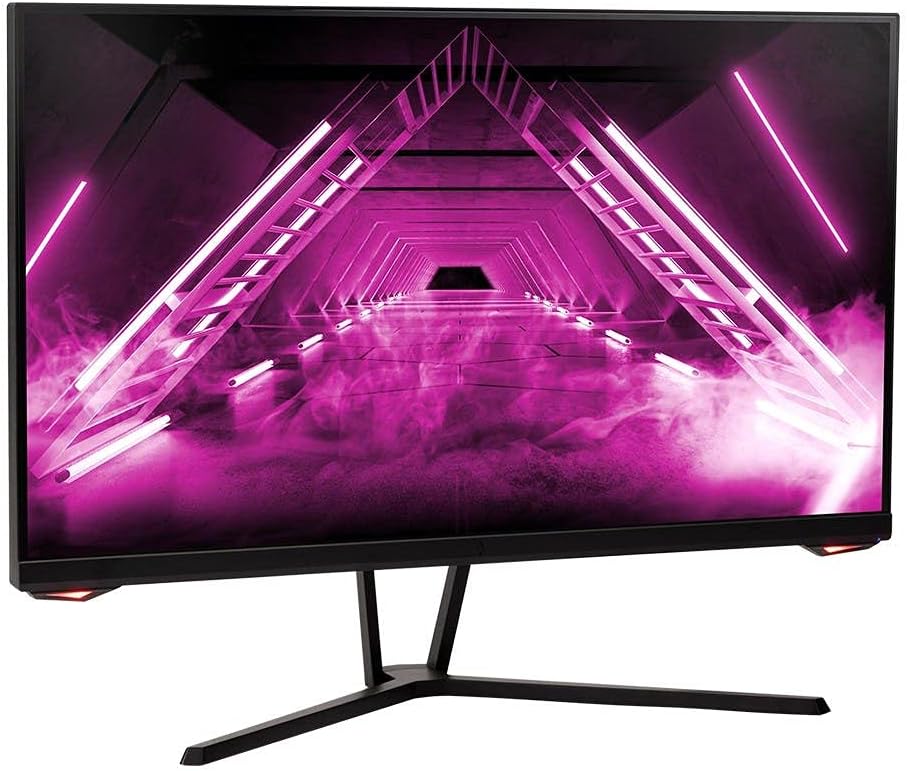
Imej: Depan view daripada monitor.
belakang View dan Pelabuhan
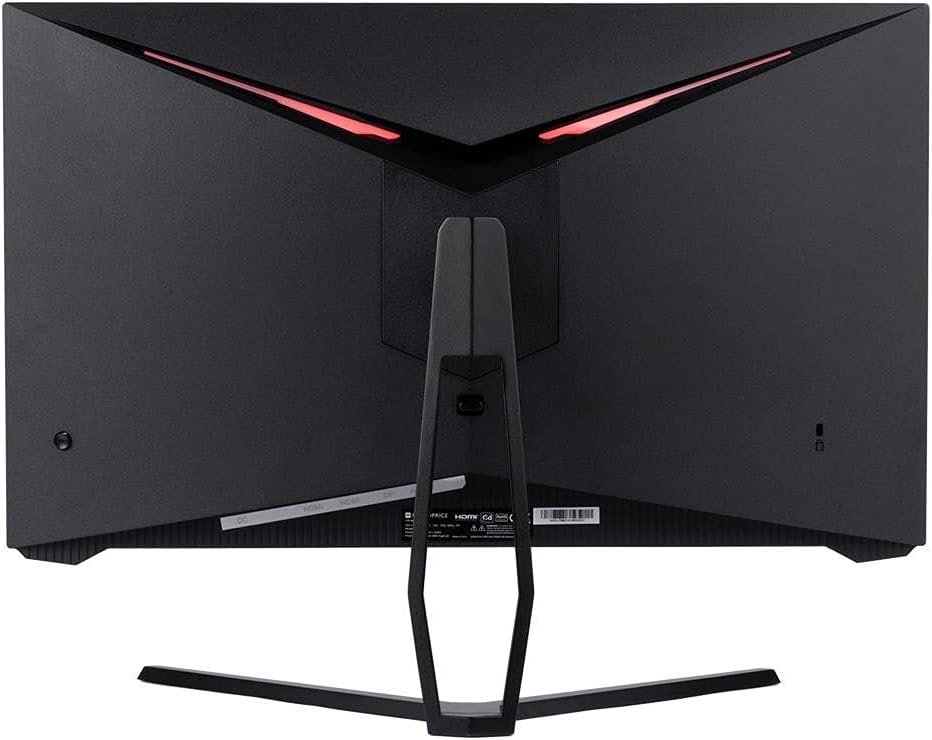
Imej: Belakang view of the monitor, highlighting the VESA mount and stand attachment.

Image: Close-up of the monitor's input ports.
5. Persediaan
5.1 Perhimpunan Berdiri
- Keluarkan monitor dengan berhati-hati daripada bungkusannya, pastikan ia dilindungi pada permukaan yang lembut.
- Attach the stand neck to the monitor's rear panel by aligning the tabs and securing any screws if present.
- Attach the stand base to the stand neck, ensuring it is firmly secured.
- Letakkan monitor yang dipasang pada permukaan yang stabil dan rata.
5.2 Pemasangan VESA
The monitor supports a 75x75mm VESA mount pattern. To use a wall or desk mount:
- Remove the pre-attached stand by unscrewing it from the monitor's rear panel.
- Attach your VESA-compatible mount to the monitor using the appropriate screws (not included).
- Ensure the mount is securely fastened before releasing monitor.
5.3 Menyambung ke Komputer
Sambungkan monitor ke komputer anda menggunakan salah satu kaedah berikut:
- DisplayPort: Connect one end of a DisplayPort cable to the DisplayPort output on your computer's graphics card and the other end to the DisplayPort input on the monitor.
- HDMI: Connect one end of an HDMI cable to an HDMI output on your computer's graphics card and the other end to one of the HDMI inputs on the monitor.
After connecting the video cable, connect the power adapter to the monitor's DC input and then plug the power cable into a wall outlet.
6. Mengendalikan Monitor
6.1 Hidupkan/Mati Kuasa
Press the power button, typically located on the rear or bottom of the monitor, to turn the monitor on or off. The power indicator light will illuminate when the monitor is on.
6.2 Menu Paparan Pada Skrin (OSD).
The OSD menu allows you to adjust various monitor settings. Access the OSD menu by pressing the menu button (often a joystick or a series of buttons) on the monitor. Navigate through the options using the directional controls and confirm selections.
Tetapan OSD biasa termasuk:
- Tetapan Gambar: Kecerahan, Kontras, Ketajaman, Suhu Warna.
- Pilihan Input: Pilih antara input DisplayPort dan HDMI.
- Audio: Volume control for the audio output.
- Ciri-ciri Permainan: Overdrive, FreeSync/Adaptive Sync settings.
6.3 Ciri-ciri Utama
- Kadar Refresh 165Hz: This monitor supports a 165Hz refresh rate, providing smoother motion and reduced input lag compared to standard 60Hz monitors. Ensure your graphics card and system settings are configured to utilize this refresh rate.
- Penyegerakan Adaptif: This technology synchronizes the monitor's refresh rate with your graphics card's frame rate, eliminating screen tearing and stuttering for a smoother gaming experience. Enable Adaptive Sync in your graphics card's control panel and the monitor's OSD menu.
- Full HD Resolution (1920x1080p): The monitor displays content at 1920x1080 pixels, offering clear and detailed visuals.
7. Penyelenggaraan
To maintain your monitor and ensure its longevity:
- Membersihkan Skrin: Lap skrin perlahan-lahan dengan kain lembut yang tidak berbulu. Untuk kesan degil, gunakan penyelesaian pembersihan khusus monitor yang digunakan pada kain, bukan terus ke skrin.
- Membersihkan Casing: Gunakan kain lembut dan kering untuk mengelap monitor casing. Elakkan pembersih yang kasar.
- Pengudaraan: Ensure the monitor's ventilation openings are clear of dust and obstructions to prevent overheating.
- Matikan: Matikan monitor apabila tidak digunakan untuk tempoh yang lama.
8. Penyelesaian masalah
Jika anda menghadapi masalah dengan monitor anda, rujuk panduan penyelesaian masalah berikut:
| Masalah | Kemungkinan Punca | Penyelesaian |
|---|---|---|
| No image on screen / Power LED off | Monitor not powered on; Power cable loose; Power outlet faulty. | Press the power button; Check power cable connections; Try a different power outlet. |
| No image / "No Signal" message | Video cable loose; Incorrect input selected; Computer not outputting signal. | Check video cable connections; Select the correct input via OSD; Ensure computer is on and outputting video. |
| Screen flickers or goes black intermittently | Loose video cable; Graphics driver issue; Monitor overheating; Faulty cable. | Ensure video cable is secure; Update graphics drivers; Ensure adequate ventilation around the monitor; Try a different video cable. |
| Terlalu Panas / Asap | Blocked ventilation; Internal component issue. | Immediately unplug the monitor. Ensure ventilation is clear. Do not use the monitor if smoke is present. Contact support. |
| Red line or other display artifacts | Faulty panel; Graphics card issue. | Test with a different video cable and computer. If the issue persists, contact support. |
| Backlight turns off, requires power cycle | Power management settings; Internal fault. | Check computer's power saving settings. If issue persists, contact support. |
9. Spesifikasi
| Ciri | Spesifikasi |
|---|---|
| Nombor Model | 142771 |
| Saiz Skrin | 27 Inci |
| Jenis Panel | IPS |
| Resolusi | 1920 x 1080 (FHD 1080p) |
| Kadar Segar Semula | 165Hz |
| Nisbah Aspek | 16:9 |
| Input Video | 2x HDMI 1.4, 1x DisplayPort 1.2a |
| Gunung VESA | 75x75mm |
| Dimensi (LxWxH) | 28.8 x 7.1 x 19.3 inci |
| Berat Barang | 15.77 paun |
10. Waranti dan Sokongan
10.1 Maklumat Waranti
This Monoprice monitor is backed by a 1 Year PixelPerfect Guarantee. This warranty covers defects in materials and workmanship under normal use for one year from the date of purchase. Please refer to Monoprice's official webtapak untuk terma dan syarat jaminan penuh.
10.2 Sokongan Pelanggan
For technical assistance, warranty claims, or further information, please contact Monoprice Customer Support. Contact details can typically be found on the official Monoprice webtapak atau dokumentasi pembelian anda.
11. Sumber Video
Tiada video produk rasmi daripada penjual ditemui untuk model ini.


