1. Pengenalan
This manual provides detailed instructions for the setup, operation, and maintenance of your CHERRY DW 9100 Slim Wireless Keyboard and Mouse Set. This rechargeable desktop set offers both 2.4 GHz wireless and Bluetooth connectivity, featuring a slim design and silent keystroke SX Scissor Mechanism for comfortable and efficient use in various environments.

Image 1.1: The CHERRY DW 9100 Slim Wireless Keyboard and Mouse Set, including the USB nano receiver.
2. Kandungan Pakej
Sila semak kandungan bungkusan semasa membuka kotak untuk memastikan semua komponen ada:
- CHERRY DW 9100 Slim Wireless Keyboard
- CHERRY DW 9100 Slim Wireless Mouse
- Penerima Nano USB
- Kabel Pengecas USB-C
- Manual Pengguna (dokumen ini)
3. Persediaan
3.1 Mengecas Peranti
Kedua-dua papan kekunci dan tetikus dilengkapi dengan bateri litium yang boleh dicas semula.
- Connect the supplied USB-C charging cable to the USB-C port on the keyboard and mouse.
- Sambungkan hujung kabel yang satu lagi ke port USB berkuasa (cth., komputer, penyesuai dinding USB).
- The status LED on each device will indicate the charging status. A full charge is indicated when the LED changes color or turns off (refer to Section 4.3 for LED indicators).
3.2 Menyambung melalui Tanpa Wayar 2.4 GHz
For a stable and fast wireless connection, use the included USB nano receiver.
- Locate the USB nano receiver.
- Pasangkan penerima nano USB ke port USB yang tersedia pada komputer anda.
- On both the keyboard and mouse, locate the connectivity switch. Set the switch to the 2.4 GHz position (often indicated by a receiver icon or "RF").
- Peranti tersebut sepatutnya bersambung secara automatik ke komputer anda.
3.3 Menyambung melalui Bluetooth
The set supports Bluetooth connectivity for devices that have Bluetooth capabilities.
- On both the keyboard and mouse, locate the connectivity switch. Set the switch to the Bluetooth position (often indicated by a Bluetooth icon).
- On your computer or device, open the Bluetooth settings.
- Initiate the pairing process on your device. The keyboard and mouse should appear in the list of discoverable devices (e.g., "CHERRY DW 9100 Keyboard", "CHERRY DW 9100 Mouse").
- Select each device to pair them. Follow any on-screen prompts, such as entering a pairing code for the keyboard.
Nota: The keyboard and mouse can be paired with multiple Bluetooth devices. Use the connectivity switch to toggle between paired devices or 2.4 GHz mode.
4. Arahan Operasi
4.1 Fungsi Papan Kekunci
The CHERRY DW 9100 Slim Keyboard features a full-size layout with an SX Scissor Mechanism for silent and precise keystrokes.
- Kekunci Standard: Semua kekunci alfanumerik dan simbol standard berfungsi seperti yang dijangkakan.
- Kekunci Fungsi (F1-F12): These keys may have secondary functions (e.g., media control, volume, brightness) accessible by pressing the Fn key simultaneously. Refer to your operating system's settings for specific function key behavior.
- Papan kekunci angka: Provides dedicated number entry.

Imej 4.1: Pro sampinganfile of the CHERRY DW 9100 Slim Keyboard, highlighting its thin design.

Image 4.2: Visual representation of the CHERRY SX Scissor Mechanism, responsible for silent and precise keystrokes.
4.2 Fungsi Tetikus
The CHERRY DW 9100 Slim Mouse features 6 buttons and a scroll wheel for versatile navigation.
- Klik Kiri/Kanan: Butang tetikus standard.
- Roda Tatal: Untuk menatal menegak dan sebagai butang klik tengah.
- Butang Sisi: Typically used for forward/backward navigation in web penyemak imbas.
- Suis DPI: A button, usually near the scroll wheel, allows adjustment of the mouse's sensitivity (DPI - Dots Per Inch). Pressing this button cycles through different DPI settings, indicated by the mouse's status LED.

Imej 4.3: Atas view of the CHERRY DW 9100 Slim Mouse, showing the left/right click buttons, scroll wheel, and DPI switch.
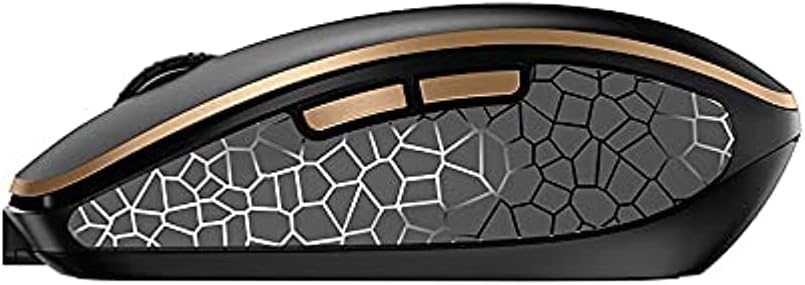
Imej 4.4: Sisi view of the CHERRY DW 9100 Slim Mouse, illustrating the ergonomic design and side buttons.
4.3 Status LED
Both the keyboard and mouse feature status LEDs to provide information on battery level, charging status, and mouse resolution.
- Bateri Rendah: The LED will flash or illuminate in a specific color (e.g., red) when the battery level is low, indicating that charging is required.
- mengecas: The LED will illuminate while charging and typically change color or turn off when fully charged.
- Mouse Resolution (DPI): When adjusting the DPI, the mouse LED may briefly flash to indicate the current setting.
5. Penyelenggaraan
5.1 Pembersihan
To maintain the performance and appearance of your devices:
- Putuskan sambungan peranti daripada komputer anda sebelum membersihkannya.
- Gunakan kain lembut dan tidak berbulu sedikit dampdisapu dengan air atau larutan pembersih lembut.
- Elakkan menggunakan bahan kimia yang keras, pembersih yang melelas, atau pelarut, kerana ini boleh merosakkan permukaan.
- For the keyboard, use compressed air to remove dust and debris from between the keys.
5.2 Penjagaan Bateri
The integrated lithium batteries are designed for long-term use.
- Recharge the devices when the low battery indicator appears.
- Elakkan daripada kerap mencas bateri sepenuhnya untuk memanjangkan jangka hayatnya.
- If storing the devices for an extended period, charge them to approximately 50% before storage.
6. Penyelesaian masalah
If you encounter issues with your CHERRY DW 9100 Slim set, refer to the following common solutions:
6.1 Isu Ketersambungan
- No Connection (2.4 GHz):
- Ensure the USB nano receiver is securely plugged into a working USB port.
- Verify the keyboard and mouse connectivity switches are set to the 2.4 GHz kedudukan.
- Cuba palamkan penerima ke port USB yang berbeza.
- Ensure the devices are sufficiently charged.
- Tiada Sambungan (Bluetooth):
- Ensure the keyboard and mouse connectivity switches are set to the Bluetooth kedudukan.
- Confirm Bluetooth is enabled on your computer/device.
- Remove previous pairings from your device's Bluetooth settings and attempt to re-pair.
- Ensure the devices are sufficiently charged.
6.2 Power and Charging Issues
- Peranti Tidak Mengecas:
- Check that the USB-C charging cable is properly connected to both the device and the power source.
- Try a different USB-C cable or a different USB power source.
- Pastikan sumber kuasa aktif.
- Hayat Bateri Pendek:
- Pastikan peranti dicas sepenuhnya sebelum digunakan.
- Battery life can vary based on usage patterns.
6.3 Mouse Tracking Issues
- Inaccurate or No Tracking:
- Ensure the mouse sensor is clean and free of debris.
- Use the mouse on a suitable surface (e.g., mouse pad). Highly reflective or transparent surfaces may cause issues.
- Laraskan tetapan DPI menggunakan suis DPI pada tetikus.
7. Spesifikasi
| Ciri | Perincian |
|---|---|
| Nombor Model | JD-9100US-2 |
| Dimensi Produk | 17.32 x 5.12 x 0.59 inci |
| Berat Barang | 2.35 paun |
| Bateri | Rechargeable Lithium (USB-C) |
| Teknologi Ketersambungan | Bluetooth, 2.4 GHz Radio Frequency (USB) |
| Ciri Khas | Rechargeable, Silent Keystroke (SX Scissor Mechanism) |
| Peranti Serasi | Komputer Peribadi |
| Pengeluar | CHERRY |
Note on Batteries: The product description indicates USB-C rechargeable lithium batteries. The specification "1 AA batteries required. (included)" in the source data appears to be a discrepancy. Please rely on the USB-C rechargeable feature for this model.
8. Waranti dan Sokongan
CHERRY products are manufactured to high-quality standards. For detailed warranty information, including terms and conditions, please refer to the official CHERRY webtapak atau kad jaminan yang disertakan dengan produk anda.
For technical support, troubleshooting assistance beyond this manual, or to inquire about replacement parts, please visit the official CHERRY support portal or contact their customer service directly.
- Official CHERRY Webtapak: www.cherry.de/en/ (or regional equivalent)
- Sokongan Pelanggan: Rujuk kepada weblaman web untuk maklumat hubungan.


