1. Pengenalan
This manual provides essential instructions for the safe and efficient use of your Epson EcoTank L3156 multifunction printer. It covers initial setup, operational procedures for printing, scanning, and copying, routine maintenance, and troubleshooting common issues. Please read this manual thoroughly before using the product and retain it for future reference.
2. Produk Lebihview
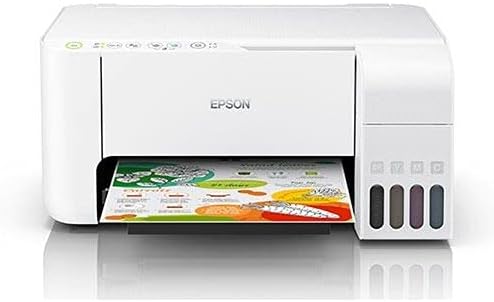
The Epson EcoTank L3156 is a 3-in-1 inkjet printer designed for home and small office use, offering print, scan, and copy functionalities. It features an integrated ink tank system for ultra-low-cost printing and supports wireless connectivity via Wi-Fi and Wi-Fi Direct.
Ciri-ciri Utama:
- Integrated Ink Tank System: Designed for high-volume, low-cost printing, eliminating the need for traditional cartridges.
- Pelbagai fungsi: Capable of printing, scanning, and copying documents and photos.
- Kesambungan Tanpa Wayar: Supports Wi-Fi and Wi-Fi Direct for printing from various devices, including smartphones and tablets.
- Hasil Halaman Tinggi: Delivers a high number of pages per ink refill, reducing operational costs.
- Borderless Photo Printing: Supports printing borderless photos up to 10x15cm.
Komponen Produk:


3. Persediaan
3.1 Pembongkaran dan Penempatan Awal
- Keluarkan pencetak dengan berhati-hati daripada pembungkusannya.
- Keluarkan semua pita pelindung dan bahan pembungkusan dari bahagian luar dan dalam pencetak.
- Place the printer on a flat, stable surface with adequate space around it for operation and ventilation.
3.2 Mengisi Tangki Dakwat
The EcoTank system uses ink bottles for refilling. Ensure you use genuine Epson ink bottles designed for your model to prevent damage and ensure optimal print quality.
- Buka penutup unit tangki dakwat di sebelah kanan pencetak.
- Open the cap for the ink tank you wish to fill (Black, Cyan, Magenta, Yellow).
- Uncap the corresponding ink bottle and insert it into the filling port. The bottle is designed to prevent overfilling and ensure the correct color is used.
- Allow the ink to drain into the tank. Do not squeeze the bottle.
- Once the tank is full, remove the bottle and securely close the ink tank cap and the unit cover.
- Ulangi untuk semua warna.
3.3 Power Connection and Initial Ink Charge
- Connect the power cord to the printer and then to an electrical outlet.
- Tekan butang kuasa untuk menghidupkan pencetak.
- Follow the on-screen instructions on the printer's control panel (if applicable) or refer to the quick start guide for initiating the initial ink charge. This process primes the print head and can take several minutes. Do not turn off the printer during this process.
3.4 Pemasangan Perisian
- Insert the software CD-ROM into your computer's CD/DVD drive, or download the latest drivers and software from the official Epson support webtapak.
- Follow the on-screen instructions to install the printer drivers and utility software.
- During installation, you will be prompted to choose a connection method (USB, Wi-Fi).
4. Mengendalikan Pencetak
4.1 Memuatkan Kertas
- Open the paper support and pull out the output tray.
- Slide the edge guides to their outermost positions.
- Load paper print-side up into the rear paper feed slot.
- Slide the edge guides against the sides of the paper, ensuring the paper is straight.
4.2 Mencetak
- Ensure the printer is turned on and connected to your computer or network.
- Buka dokumen atau imej yang ingin anda cetak pada komputer anda.
- Pilih "Cetak" daripada menu aplikasi (cth., File > Cetak).
- Choose "Epson L3156 Series" as your printer.
- Adjust print settings such as paper size, type, orientation, and quality as needed.
- Klik "Cetak".
4.3 Mengimbas
- Place the document or photo face-down on the scanner glass, aligning it with the corner mark.
- Tutup penutup pengimbas dengan perlahan.
- Pada komputer anda, buka perisian Epson Scan atau aplikasi pengimbasan yang serasi.
- Select your scanner (Epson L3156 Series) and choose your scanning mode (e.g., Home Mode, Professional Mode).
- Adjust settings such as resolution, document type, and destination folder.
- Click "Scan".
4.4 Menyalin
- Place the original document face-down on the scanner glass.
- Tutup penutup pengimbas.
- On the printer's control panel, press the Black & White copy button or the Color copy button, depending on your desired output.
- To make multiple copies, press the respective copy button multiple times for the desired number of copies.
4.5 Wireless Connectivity (Wi-Fi / Wi-Fi Direct)
The Epson L3156 supports connecting to a wireless network (Wi-Fi) or directly to a device (Wi-Fi Direct).
Menyambung ke Rangkaian Wi-Fi:
- Ensure your wireless router is on and functioning.
- Use the printer's control panel to navigate to the Wi-Fi setup menu.
- Select "Wi-Fi Setup Wizard" and follow the on-screen prompts to select your network and enter the password.
- Alternatively, use the WPS (Wi-Fi Protected Setup) button on your router and the printer for a simpler connection.
Using Wi-Fi Direct:
- Enable Wi-Fi Direct on your printer via the control panel.
- On your mobile device (smartphone or tablet), go to Wi-Fi settings and select the printer's Wi-Fi Direct network (e.g., DIRECT-xx-EpsonL3156).
- Enter the password displayed on the printer's control panel.
- You can now print directly from your mobile device using the Epson iPrint app or other compatible printing applications.
5. Penyelenggaraan
5.1 Memeriksa Tahap Dakwat dan Pengisian Semula
Regularly check the ink levels in the transparent ink tanks. When an ink tank is low, refill it promptly using genuine Epson ink bottles. Refer to Section 3.2 for detailed ink refilling instructions.
5.2 Pembersihan Kepala Cetak
If print quality declines (e.g., missing lines, faded prints), perform a print head cleaning. This can be done through the printer's utility software on your computer or via the printer's control panel. This process clears clogged nozzles.
5.3 Print Head Alignment
If prints appear blurry or misaligned, perform a print head alignment. This adjusts the print head position to ensure proper vertical and horizontal alignment. This function is typically accessed through the printer's utility software.
5.4 Membersihkan Pencetak
- Luaran: Lap bahagian luar pencetak dengan lembut, damp, kain bebas bulu. Elakkan menggunakan pembersih atau pelarut yang kasar.
- Kaca Pengimbas: Bersihkan kaca pengimbas dengan lembut menggunakan kain lembut dan tidak berbulu yang dilembapkan dengan sedikit pembersih kaca. Jangan semburkan pembersih terus ke atas kaca.
6. Penyelesaian masalah
Bahagian ini membincangkan isu biasa yang mungkin anda hadapi dengan pencetak Epson EcoTank L3156 anda.
6.1 Pencetak Tidak Bertindak Balas
- Ensure the printer is powered on and the power cord is securely connected.
- Periksa status sambungan kabel USB (jika menggunakan USB) atau sambungan Wi-Fi.
- Mulakan semula pencetak dan komputer anda.
- Verify that the correct printer is selected in your application's print dialog.
6.2 Kualiti Cetakan Lemah
- Periksa paras dakwat dan isi semula sebarang tangki yang hampir habis.
- Perform a print head cleaning (refer to Section 5.2).
- Perform a print head alignment (refer to Section 5.3).
- Pastikan anda menggunakan tetapan kertas yang sesuai untuk jenis media anda.
6.3 Kesesakan Kertas
- Matikan pencetak dan cabut palam kord kuasa.
- Carefully remove any jammed paper from the input tray, output tray, or inside the printer. Pull paper slowly to avoid tearing.
- Ensure paper is loaded correctly and not exceeding the maximum capacity.
- Remove any small pieces of torn paper.
- Reconnect power and turn on the printer.
6.4 Isu Sambungan Wi-Fi
- Ensure your wireless router is powered on and broadcasting.
- Check that the printer is within range of your wireless router.
- Sahkan kata laluan Wi-Fi yang dimasukkan adalah betul.
- Restart your router, printer, and computer/mobile device.
- Try re-running the Wi-Fi setup wizard on the printer.
7. Spesifikasi
| Ciri | Spesifikasi |
|---|---|
| Nombor Model | C11CG86414 |
| Jenis Pencetak | Inkjet Multifunction (Print, Scan, Copy) |
| Ketersambungan | USB, Wi-Fi, Wi-Fi Terus |
| warna | putih |
| Peranti Serasi | Computers, Smartphones (Android, iOS) |
| Media Cetak | Plain paper, Glossy photo paper |
| Berat Barang | 5.66 Kilogram |
| Dimensi Pakej | 42.2 x 40.4 x 23.8 cm |
| EAN-13 | 8715946667522 |
8. Waranti dan Sokongan
For information regarding your product's warranty, please refer to the warranty card included with your printer or visit the official Epson support website for your region. The website also provides access to drivers, FAQs, and contact information for technical support.
Epson Official Support: www.epson.com/support


