1. Pengenalan
This manual provides detailed instructions for the proper use and maintenance of your Tera 5100 Wireless 1D Laser Barcode Scanner. Please read this manual thoroughly before operating the device to ensure optimal performance and longevity.

Image 1.1: Tera 5100 Wireless 1D Laser Barcode Scanner
2. Kandungan Pakej
Sahkan bahawa semua item terdapat dalam pakej:
- Tera 5100 Barcode Scanner
- Kabel USB
- Dongle Tanpa Wayar 2.4Ghz
- Manual Pengguna (dokumen ini)

Image 2.1: Included Package Contents
3. Produk Lebihview
3.1 Reka Bentuk Ergonomik
The Tera 5100 scanner features an extended and widened curved handle for a comfortable grip during prolonged use. The trigger is designed to be smooth and flat for ease of operation.
3.2 Penunjuk Aras Bateri
The scanner is equipped with a unique battery indicator light on top, displaying the remaining battery level. This feature helps users monitor power status and avoid unexpected power loss during operation.
- 1 Light On: Battery below 1/4, charging required.
- 2 Lights On: Half remaining.
- 3 Lights On: 3/4 remaining.
- 4 Lights On: Fully charged.

Image 3.1: Battery Level Indicator
Video 3.1: Battery Level Indicator Demonstration
3.3 Ketahanan
The scanner is designed with a grey anti-shock silicone protective cover to prevent scratches and reduce impact from drops up to 6.56 feet (2 meters). It also features IP54 technology, providing protection against dust and splashes.

Image 3.2: Rugged Design for Drop Resistance
4. Persediaan
4.1 Wireless Connection (2.4Ghz)
- Insert the 2.4Ghz USB wireless dongle into an available USB port on your computer (PC or Laptop).
- The scanner will automatically pair with the dongle. No additional drivers are required.
- A successful connection is indicated by a beep and the blue indicator light on the scanner.
4.2 Wired Connection (USB 2.0)
- Sambungkan pengimbas ke komputer anda menggunakan kabel USB yang disediakan.
- The scanner will function as a wired device. No additional drivers are required.
Note: The Model 5100 operates using a 2.4G wireless connection and does not support Bluetooth. It is not compatible with 2D QR codes or codes displayed on digital screens. Square POS systems are not supported.

Image 4.1: Two Connectivity Options

Image 4.2: Plug and Play Compatibility
Video 4.1: Tera 5100 Barcode Scanner Overview
5. Mod Operasi
5.1 Mod Muat Naik Segera
In this mode, scanned barcode data is immediately transmitted to the connected device (computer) as soon as a barcode is successfully read.
5.2 Mod Storan
This mode allows the scanner to store multiple barcode scans internally. Data can be uploaded to the connected device at a later time, which is useful for batch scanning or when out of wireless range.

Image 5.1: Instant Upload and Storage Modes
5.3 Mod Pencetus Manual
In this mode, the scanner will only activate its laser and attempt to read a barcode when the trigger button is pressed.
5.4 Mod Imbasan Berterusan
When set to continuous scan mode, the scanner's laser remains active, continuously attempting to read barcodes without requiring a trigger press. This is suitable for hands-free operation or high-volume scanning.

Image 5.2: Manual Trigger and Continuous Scan Modes
6. Keupayaan Pengimbasan
The Tera 5100 is designed to scan almost all standard 1D barcodes, including:
- Febraban Bank Code
- Codabar
- Kod 11
- Kod93
- MSI
- Kod 128
- EAN-128
- Kod 39
- EAN-8
- EAN-13
- UPC-A
- ISBN (International Standard Book Number)
- Perindustrian 25
- Selang 25
- Standard 25
- Matriks
It can effectively read damaged, fuzzy, reflective, and smudged barcodes, ensuring reliable data capture.
Important: This scanner exclusively scans 1D barcodes and is not compatible with 2D QR codes or codes displayed on digital screens.

Image 6.1: Supported Barcode Types (1D Only)
7. Tetapan Lanjutan
7.1 Prefix and Suffix
The scanner supports adding custom prefixes or suffixes to scanned data. This feature can be configured using specific programming barcodes found in the full user manual.

Image 7.1: Prefix and Suffix Customization
7.2 Keyboard Languages
The scanner supports multiple keyboard layouts to accommodate various international languages, including English, Italian, German, Japanese, Spanish, and French. This ensures compatibility with different regional systems.
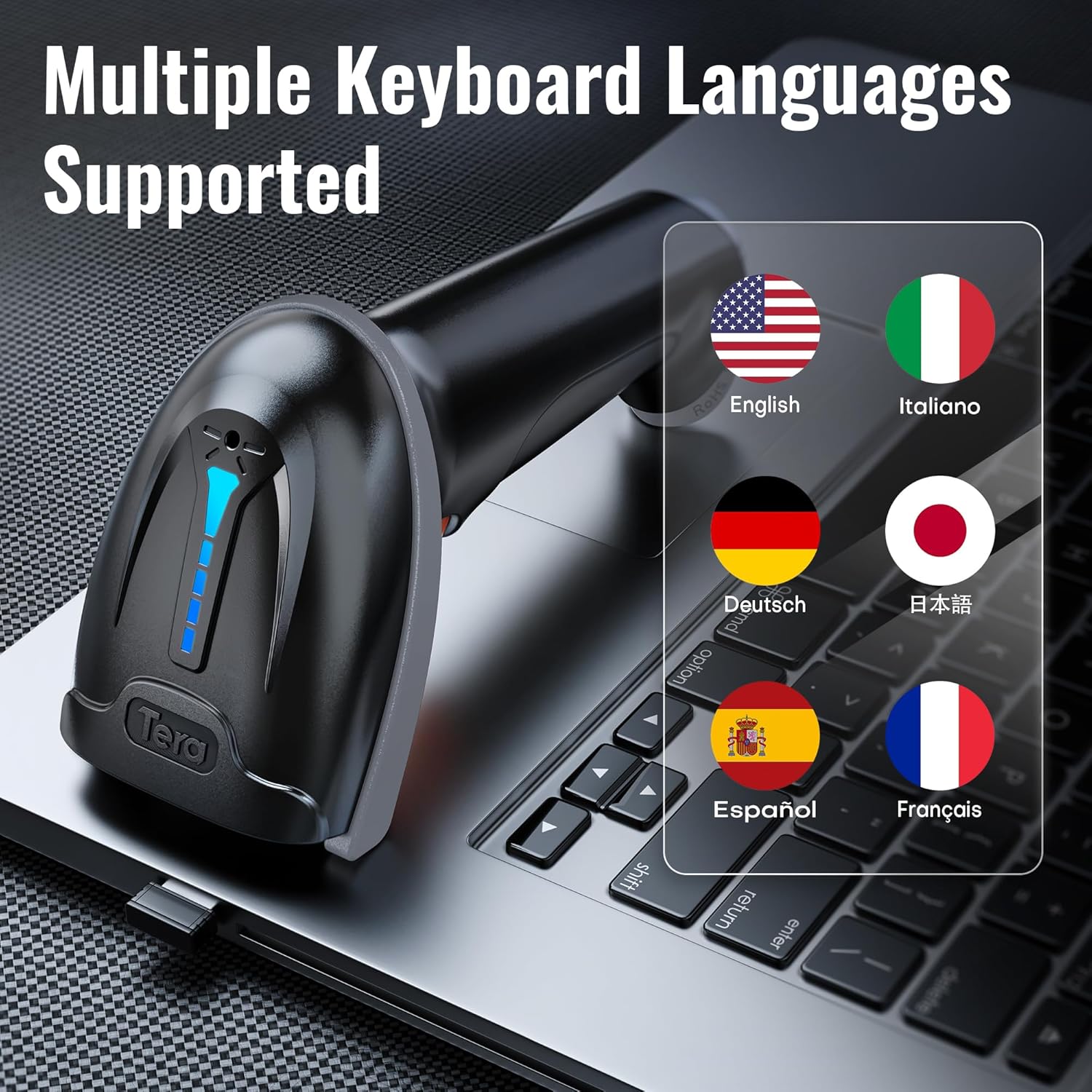
Image 7.2: Multiple Keyboard Languages Supported
7.3 Pelarasan Kelantangan
The scanner's beep volume can be adjusted to suit your environment. Options typically include Low, Medium, High, or Mute (Turn off).

Image 7.3: Volume Adjustment Options
8. Penyelenggaraan
8.1 Pembersihan
To maintain optimal scanning performance, keep the scanner's optical window clean. Use a soft, lint-free cloth, slightly dampened with water or a mild cleaning solution. Avoid abrasive materials or harsh chemicals.
8.2 Penjagaan Bateri
The scanner is powered by a rechargeable Lithium Ion battery. For best battery life, avoid fully discharging the battery frequently. Charge the device when the battery indicator shows a low level. The typical charging time is approximately 3.5 hours.
9. Penyelesaian masalah
- Pengimbas tidak bersambung: Ensure the USB dongle is securely plugged into your computer or the USB cable is firmly connected. Try a different USB port.
- Tiada output imbasan: Verify the scanner is powered on and the battery has sufficient charge. Check if the scanner is in the correct operating mode (e.g., Instant Upload).
- Incorrect data output: Confirm the correct keyboard language setting is selected for your computer's operating system.
- Cannot scan 2D barcodes: The Tera 5100 is a 1D-only scanner and cannot read 2D barcodes (like QR codes) or barcodes from digital screens.
Video 9.1: Tera 5100 Barcode Scanner Preview
10. Spesifikasi
| Ciri | Perincian |
|---|---|
| Model | 5100 |
| Dimensi Produk | 2.5 x 3.9 x 6.6 inci |
| Berat Barang | 11.6 auns |
| Teknologi Ketersambungan | Wayarles 2.4G, Kabel USB |
| Sumber Kuasa | Dikuasakan Bateri |
| Jenis Bateri | 1 bateri Lithium Ion diperlukan (2200mAh) |
| Masa Bekerja | > 14 jam |
| Masa Mengecas | ~3.5 jam |
| Masa Tunggu Sedia | > 900 jam |
| Jarak Penghantaran | Up to 328 ft (barrier-free environment) |
| Rintangan Jatuh | Sehingga 6.56 kaki (2 meter) |
| Perlindungan Alam Sekitar | IP54 (tahan habuk dan percikan) |
| Peranti Serasi | Desktop, Laptop (Windows, iOS, Android, Linux) |
| Jenis Kod Bar yang Disokong | 1D Barcodes (e.g., UPC-A, EAN-13, Code 128, Code 39, ISBN) |
11. Waranti dan Sokongan
Tera is a U.S.-based company established in 2004. For any support inquiries or warranty information, please refer to the contact details provided with your product packaging or visit the official Tera webtapak. Simpan resit pembelian anda untuk tuntutan waranti.


