1. Pengenalan
The Xprinter XP-C300H is a high-speed thermal receipt printer designed for various business environments. It features robust construction with water, oil, and dust resistance, ensuring durability and reliable performance. This printer offers versatile connectivity options including USB, Serial, and LAN, making it compatible with a wide range of operating systems. With a printing speed of 300mm per second, it efficiently handles high-volume printing tasks. This manual provides detailed instructions for setting up, operating, and maintaining your XP-C300H printer.
2. Maklumat Keselamatan
- Sentiasa sambungkan pencetak ke soket kuasa yang dibumikan.
- Jangan dedahkan pencetak kepada air atau kelembapan yang berlebihan.
- Elakkan meletakkan pencetak di bawah cahaya matahari langsung atau berhampiran sumber haba.
- Gunakan hanya penyesuai kuasa dan aksesori yang dinyatakan.
- Jauhkan daripada kanak-kanak.
- Jangan cuba membuka atau membaiki pencetak sendiri. Hubungi kakitangan servis yang berkelayakan untuk mendapatkan bantuan.
3. Kandungan Pakej
Please check the package contents upon unpacking. If any items are missing or damaged, contact your vendor.
- Pencetak Resit Terma Xprinter XP-C300H
- Kabel Kuasa
- USB Cable (may vary by model/region)
- Thermal Paper Roll (for initial testing)
4. Produk Lebihview
Familiarize yourself with the components of your XP-C300H printer.
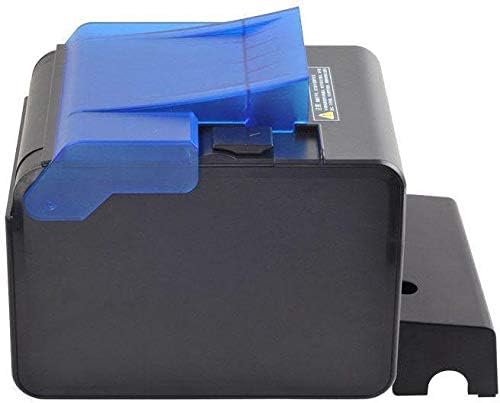
Rajah 4.1: sebelah view of the XP-C300H printer. This image shows the compact design and the blue transparent cover for the paper compartment.
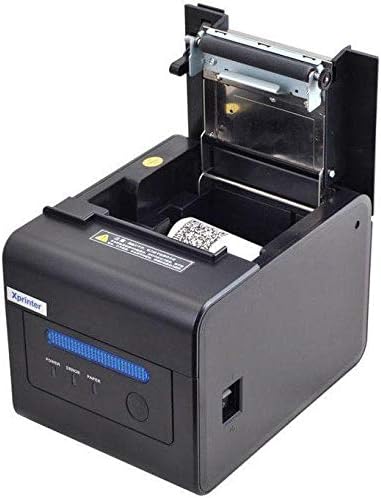
Rajah 4.2: Atas-depan view of the XP-C300H printer with the paper cover open. This reveals the thermal print head mechanism and the area for loading the thermal paper roll. Status indicator lights (Power, Error, Paper) are visible on the front panel.
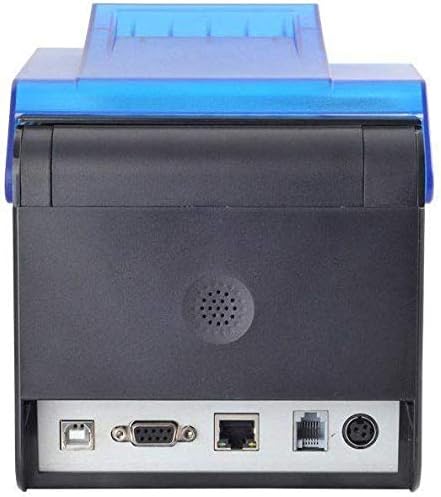
Rajah 4.3: belakang view of the XP-C300H printer. This image highlights the multiple connectivity ports including USB, Serial (DB9), LAN (Ethernet), and the power input port, offering flexible integration options.
5. Persediaan
5.1 Menyambungkan Penyesuai Kuasa
- Pastikan pencetak dimatikan.
- Sambungkan kabel kuasa ke penyesuai kuasa.
- Plug the power adapter into the printer's power input port (refer to Figure 4.3).
- Palamkan hujung kabel kuasa yang lain ke dalam salur keluar elektrik yang dibumikan.
5.2 Memuatkan Kertas Terma
- Open the printer's top cover by pressing the release latch (refer to Figure 4.2).
- Insert a new thermal paper roll into the compartment, ensuring the paper feeds from the bottom and the leading edge is straight.
- Tarik sedikit kertas keluar melepasi pemotong.
- Close the top cover firmly until it latches.
5.3 Menyambung ke Komputer
The XP-C300H supports USB, Serial, and LAN connections.
- Sambungan USB: Connect one end of the USB cable to the printer's USB port and the other end to your computer.
- Sambungan Bersiri: Connect a serial cable (DB9) from the printer's serial port to your computer's serial port.
- Sambungan LAN: Connect an Ethernet cable from the printer's LAN port to your network router or switch.
5.4 Pemasangan Pemandu
After connecting the printer, you may need to install the appropriate drivers for your operating system (Windows, Linux, etc.). Drivers are typically provided on a CD with the printer or can be downloaded from the Xprinter official webtapak. Ikut arahan pada skrin untuk pemasangan pemacu.
6. Arahan Operasi
6.1 Menghidupkan/Mematikan
Press the power switch located on the printer to turn it on or off. The 'Power' indicator light will illuminate when the printer is on.
6.2 Petunjuk Status
The printer features indicator lights on the front panel:
- Kuasa: Menunjukkan pencetak dihidupkan.
- Ralat: Illuminates or flashes to indicate an error condition (e.g., paper out, print head overheat, cover open).
- kertas: Illuminates when paper is present, flashes when paper is low, or off when paper is out.
6.3 Mencetak
Once the printer is connected and drivers are installed, you can print receipts or other documents from your POS software or application. The printer supports EPSON ESC/POS command sets for various printing functions.
6.4 Pemotong Auto
The XP-C300H features an auto-cutter that can perform full or partial cuts of the thermal paper, depending on the software commands sent to the printer.
7. Penyelenggaraan
7.1 Membersihkan Kepala Cetak
Regular cleaning of the print head ensures optimal print quality. Turn off the printer and disconnect the power cable before cleaning. Use a soft cloth dampened with isopropyl alcohol to gently wipe the thermal elements on the print head. Allow it to dry completely before use.
7.2 Membersihkan Bahagian Luar
Wipe the exterior of the printer with a soft, dry cloth. For stubborn dirt, use a cloth lightly dampened with water and mild detergent. Do not use strong solvents or abrasive cleaners.
7.3 Replacing the Paper Roll
When the 'Paper' indicator shows low paper or is off, replace the paper roll following the steps in Section 5.2.
8. Penyelesaian masalah
| Masalah | Kemungkinan Punca | Penyelesaian |
|---|---|---|
| Pencetak tidak dapat dihidupkan | Kabel kuasa tidak disambungkan; Salur keluar kuasa rosak | Periksa sambungan kabel kuasa; Cuba soket yang berbeza |
| Tiada cetakan | Paper out; Printer cover open; Incorrect driver/connection; Error state | Load paper; Close cover; Verify driver installation and cable connection; Check error indicator |
| Kualiti cetakan buruk | Print head dirty; Low quality thermal paper | Clean print head (Section 7.1); Use recommended thermal paper |
| Kesesakan kertas | Improper paper loading; Foreign object | Open cover and clear jammed paper; Reload paper correctly (Section 5.2) |
If the problem persists after trying these solutions, please contact technical support.
9. Spesifikasi
| Ciri | Penerangan |
|---|---|
| Model | XP-C300H |
| Kaedah Mencetak | Terma Terus |
| Kelajuan Cetak | 300 mm/saat |
| Antara muka | USB, Serial (RS232), LAN (Ethernet) |
| Lebar Kertas | Max 198 mm (Note: Standard receipt printers typically use 80mm or 58mm width. Please verify actual supported paper width with product documentation.) |
| Pemotong Auto | Full/Partial Cut |
| Kebolehpercayaan | Water, Oil, and Dust Resistant |
| Set Perintah | Serasi dengan EPSON ESC/POS |
| Sokongan Sistem Pengendalian | Windows, Linux, various others |
| Dimensi (D x W x H) | 198 x 148 x 138 mm |
| Berat badan | 1.78 kg |
| warna | Hitam |
| Komponen yang Disertakan | Printer, Power Cable |
| Media Cetak | Label (Primary media for receipt printers is typically thermal paper rolls) |
| Percetakan Dupleks | ya (Note: This feature is generally not applicable to thermal receipt printers. Please refer to official product documentation for clarification.) |
10. Waranti dan Sokongan
For detailed warranty information, technical support, and service inquiries, please refer to the documentation included with your purchase or visit the official Xprinter website. You may also contact your local dealer or distributor for assistance.
Simpan resit pembelian anda sebagai bukti pembelian untuk tuntutan waranti.


