1. Pengenalan
The D-Link DIR-825M AC1200 MU-MIMO Gigabit Router is a high-performance networking device designed to provide fast and reliable wireless connectivity for your home or small office. Featuring 802.11ac MU-MIMO wireless technology, it delivers enhanced speed, extended range, and improved efficiency for multiple devices simultaneously. This router includes four Gigabit Ethernet LAN ports for high-speed wired connections and a USB 2.0 port for convenient local network sharing. It supports various operating modes, offering flexibility to suit different networking requirements.
2. Kandungan Pakej
Sahkan bahawa pakej anda mengandungi item berikut:
- D-Link DIR-825M AC1200 MU-MIMO Gigabit Router
- Penyesuai Kuasa
- Kabel Ethernet
- Quick Installation Guide (may vary by region)
Jika terdapat sebarang barang yang hilang atau rosak, sila hubungi penjual semula D-Link tempatan anda.
3. Fizikal Overview
Familiarize yourself with the various components and ports of your D-Link DIR-825M router.

Rajah 3.1: Depan view of the D-Link DIR-825M AC1200 MU-MIMO Gigabit Router, showcasing its four external antennas and the D-Link logo on the top panel.
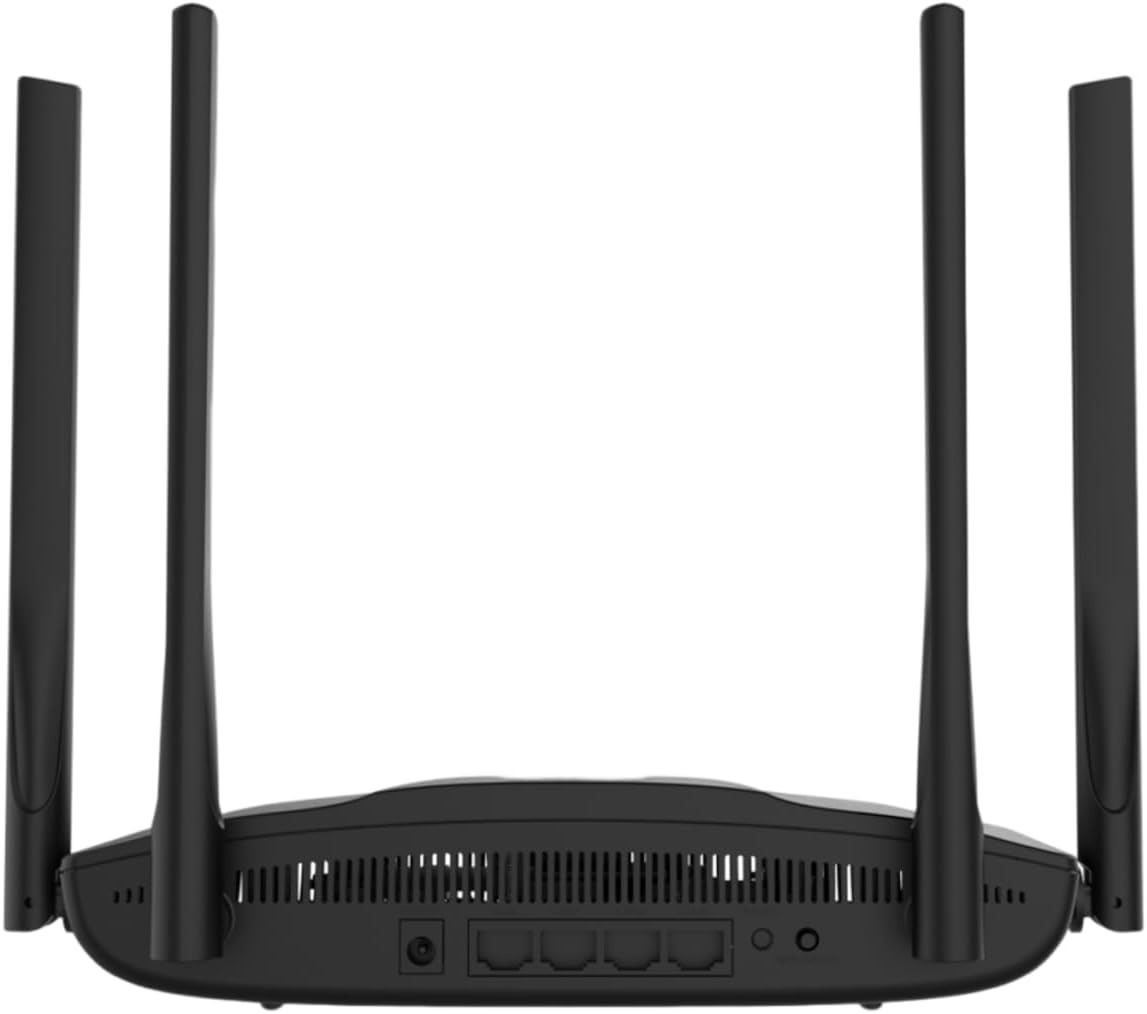
Rajah 3.2: belakang view of the D-Link DIR-825M router, detailing the power input, WAN port, four Gigabit LAN ports, USB 2.0 port, Reset button, and WPS button.
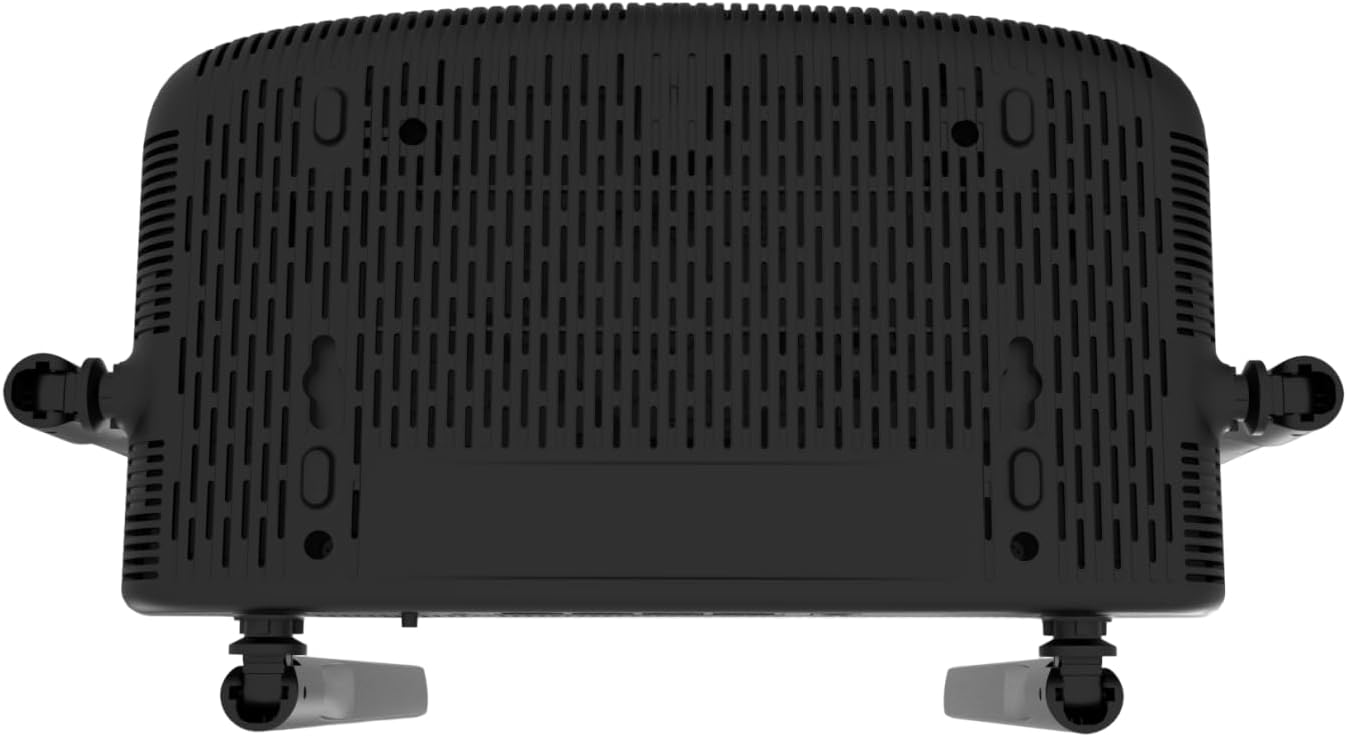
Rajah 3.3: Bawah view of the D-Link DIR-825M router, illustrating the ventilation grilles for heat dissipation and mounting holes for wall installation.
3.1 Penunjuk Panel Hadapan
- LED kuasa: Menunjukkan status kuasa peranti.
- LED Internet: Menunjukkan status sambungan internet.
- Wi-Fi LEDs (2.4GHz/5GHz): Nyatakan aktiviti rangkaian tanpa wayar untuk setiap jalur.
3.2 Port dan Butang Panel Belakang
- Penyambung Kuasa: Menyambung kepada penyesuai kuasa yang disertakan.
- WAN Port (Internet): Menyambung ke modem atau peralatan pembekal perkhidmatan internet anda.
- Port LAN (1-4): Connect wired devices such as computers, gaming consoles, or network storage. These are Gigabit Ethernet ports.
- Port USB 2.0: Untuk menyambungkan peranti storan USB untuk dikongsi files pada rangkaian anda.
- Butang WPS: Untuk menyambungkan peranti wayarles serasi WPS dengan cepat.
- Butang Tetapkan Semula: Used to restore the router to its factory default settings. Press and hold for 10 seconds with a paperclip.
4. Persediaan
Follow these steps for initial setup of your D-Link DIR-825M router.
4.1 Pemasangan Perkakasan
- Letakkan Penghala: Place the router in a central location in your home or office, away from obstructions and sources of interference. Adjust the antennas vertically for optimal signal coverage.
- Sambungkan Kuasa: Connect the provided power adapter to the router's power connector and then plug it into a power outlet. Ensure the Power LED illuminates.
- Sambungkan ke Modem: Connect an Ethernet cable from your modem's LAN port to the WAN (Internet) port on the DIR-825M router.
- Sambungkan Peranti Berwayar (Pilihan): For wired connections, connect an Ethernet cable from your computer or other network devices to any of the LAN ports (1-4) on the router.
4.2 Tatarajah Awal
- Sambung ke Penghala:
- Berwayar: Ensure your computer is connected to a LAN port on the router.
- wayarles: Connect to the default Wi-Fi network (SSID and password are typically printed on a label on the bottom of the router).
- Akses Web Antara muka: Buka a web pelayar (cth., Chrome, Firefox, Edge) dan taip
http://dlinkrouter.localorhttp://192.168.0.1ke dalam bar alamat. Tekan enter. - Log Masuk: Masukkan nama pengguna lalai (biasanya
admin) and password (often blank oradmin, check the router label). - Jalankan Wizard Persediaan: Follow the on-screen instructions of the D-Link Setup Wizard. This wizard will guide you through configuring your internet connection type (e.g., DHCP, PPPoE), setting up your new Wi-Fi network name (SSID) and password, and establishing an administrator password for the router.
- Simpan Tetapan: After completing the wizard, save your settings and restart the router if prompted.
5. Mod Operasi
The D-Link DIR-825M supports multiple operating modes to adapt to various networking needs.
- Mod Penghala (Lalai): In this mode, the device acts as a primary router, connecting to your modem to provide internet access to all connected wired and wireless devices on your local network. It performs Network Address Translation (NAT) and manages IP addresses.
- Mod Titik Akses (AP): This mode allows the DIR-825M to extend an existing wired network with wireless capabilities. It connects to an existing router via an Ethernet cable and broadcasts a Wi-Fi signal, essentially turning a wired network into a wireless one without performing routing functions.
- Mod Pengulang: Also known as Wi-Fi Extender mode, this allows the DIR-825M to wirelessly extend the coverage of an existing Wi-Fi network. It connects to an existing Wi-Fi signal and re-broadcasts it, helping to eliminate Wi-Fi dead zones.
- WISP Repeater Mode: Wireless Internet Service Provider (WISP) Repeater mode enables the router to connect wirelessly to a WISP access point and then share that internet connection with both wired and wireless clients on your local network. This is useful in areas where wired internet access is unavailable.
- Wi-Fi Client Mode: In this mode, the DIR-825M acts as a wireless adapter for a wired device. It connects wirelessly to an existing Wi-Fi network and provides an Ethernet connection for a single wired device that does not have its own Wi-Fi capability.
You can switch between these modes through the router's web-based management interface, typically found under the 'Operation Mode' or 'System Settings' section.
6. Penyelenggaraan
Penyelenggaraan berkala memastikan prestasi optimum dan jangka hayat penghala anda.
6.1 Kemas Kini Perisian Tegar
D-Link periodically releases firmware updates to improve performance, add new features, and address security vulnerabilities. It is recommended to keep your router's firmware up-to-date.
- Lawati sokongan rasmi D-Link webtapak untuk wilayah anda.
- Cari untuk your model (DIR-825M) and download the latest firmware file.
- Log in to your router's web antara muka pengurusan.
- Navigate to the 'Tools' or 'Maintenance' section, then 'Firmware Upgrade'.
- Muat naik perisian tegar yang dimuat turun file dan ikut arahan pada skrin. Jangan matikan penghala semasa proses kemas kini.
6.2 Tetapan Semula Kilang
A factory reset can resolve persistent configuration issues or be performed before transferring ownership of the device. This will erase all custom settings and restore the router to its original factory defaults.
- With the router powered on, locate the Reset button on the rear panel (refer to Figure 3.2).
- Menggunakan klip kertas atau objek runcing yang serupa, tekan dan tahan butang Tetapkan Semula selama lebih kurang 10 saat.
- Release the button when the Power LED starts blinking or changes color.
- The router will restart with factory default settings. You will need to reconfigure it as per Section 4.2.
6.3 Pembersihan
To ensure proper ventilation and prevent overheating, keep the router clean and free from dust. Use a soft, dry cloth to wipe the exterior. Do not use liquid cleaners or aerosols.
7. Penyelesaian masalah
This section provides solutions to common issues you might encounter with your D-Link DIR-825M router.
7.1 Tiada Sambungan Internet
- Semak Kabel: Pastikan semua kabel Ethernet disambungkan dengan selamat ke port yang betul (WAN ke modem, LAN ke peranti).
- Status Modem: Verify that your modem is working correctly and has an active internet connection. Restart your modem if necessary.
- Konfigurasi Penghala: Log masuk ke penghala web interface and check your internet connection settings. Ensure the correct connection type (e.g., DHCP, PPPoE) is selected and credentials are correct if required.
- Mulakan semula Peranti: Power cycle your modem, router, and connected devices in that order.
7.2 Poor Wi-Fi Signal or Coverage
- Peletakan Penghala: Alihkan penghala ke lokasi yang lebih berpusat, jauh dari dinding, objek logam besar dan peranti elektronik lain yang boleh menyebabkan gangguan.
- Pelarasan Antena: Adjust the router's antennas to different angles to optimize signal propagation.
- Gangguan: Other wireless devices (cordless phones, microwaves, Bluetooth devices) can interfere with Wi-Fi. Try changing the Wi-Fi channel in the router settings.
- Halangan: Walls, floors, and ceilings can degrade Wi-Fi signals. Consider using Repeater mode or additional access points for larger areas.
7.3 Tidak Dapat Mengakses Penghala Web Antara muka
- Alamat IP: Pastikan anda menggunakan alamat IP yang betul (
http://dlinkrouter.localorhttp://192.168.0.1). - Sambungan: Verify your device is properly connected to the router, either via Ethernet cable or the router's Wi-Fi network.
- Tetapan IP: Pastikan penyesuai rangkaian komputer anda ditetapkan untuk mendapatkan alamat IP secara automatik (DHCP).
- Cache Pelayar: Kosongkan anda web cache dan kuki pelayar, atau cuba pelayar lain.
- Tembok Api/Antivirus: Lumpuhkan sementara mana-mana perisian firewall atau antivirus pada komputer anda yang mungkin menyekat akses.
- Tetapan semula kilang: If all else fails, perform a factory reset (Section 6.2) and try accessing the interface with default credentials.
8. Spesifikasi
| Jenama | D-Link |
| Model | DIR-825M |
| Standard Tanpa Wayar | 802.11ac (Wi-Fi 5), 802.11n, 802.11g, 802.11b |
| Kelajuan Tanpa Wayar | AC1200 (Up to 300 Mbps on 2.4GHz, 867 Mbps on 5GHz) |
| Jalur Kekerapan | Dwi-Jalur (2.4 GHz dan 5 GHz) |
| Pelabuhan Ethernet | 4 x 10/100/1000 Gigabit LAN Ports, 1 x 10/100/1000 Gigabit WAN Port |
| Port USB | 1 x Port USB 2.0 |
| Antena | 4 Antena Luaran |
| Dimensi (L x W x H) | 19.7 x 14 x 4.4 cm |
| Berat badan | 360 g |
| Mod Pengendalian | Router, Access Point, Repeater, WISP Repeater, Wi-Fi Client |
| Input Kuasa | 230 Volt (AC) |
| Peranti Serasi | Komputer Riba, Komputer Peribadi, Televisyen Pintar, Tablet |
9. Maklumat Keselamatan
Please read and follow these safety guidelines to ensure safe operation of your device:
- Use only the power adapter supplied with the product. Using an unauthorized power adapter may damage the device and void your warranty.
- Do not expose the device to water, rain, moisture, or extreme temperatures.
- Ensure adequate ventilation around the device. Do not block any ventilation openings.
- Jangan buka peranti casing. Tiada bahagian yang boleh diservis pengguna di dalamnya.
- Keep the device away from direct sunlight, heat sources, and flammable materials.
- Peranti ini bertujuan untuk kegunaan dalaman sahaja.
- Jauhkan daripada kanak-kanak.
10. Waranti dan Sokongan
For detailed warranty information, please refer to the warranty card included with your D-Link DIR-825M router or visit the official D-Link website for your region. Warranty terms and conditions may vary by country.
For technical support, product registration, and access to the latest drivers and firmware, please visit the D-Link support portal:
- D-Link Global Support: https://www.dlink.com/support
You may also find contact information for local D-Link customer service on their webtapak.


