Terima kasih kerana membeliasing the Trust Wireless Mouse. This manual provides detailed instructions for setting up, operating, maintaining, and troubleshooting your new wireless mouse. Please read this manual thoroughly before using the product to ensure optimal performance and longevity.
Imej 1.1: Atas view of the Trust Wireless Mouse, showcasing reka bentuk ergonomik dan susun atur butangnya.
2. Maklumat Keselamatan
Sila patuhi garis panduan keselamatan berikut untuk mengelakkan kerosakan pada peranti atau kecederaan pada diri anda:
Jangan dedahkan tetikus kepada air atau kelembapan berlebihan.
Elakkan menjatuhkan atau menundukkan tetikus kepada kesan yang kuat.
Jangan cuba membuka atau membaiki tetikus sendiri. Rujuk kakitangan servis yang berkelayakan.
Buang bateri mengikut peraturan tempatan.
3. Kandungan Pakej
Sahkan bahawa semua item terdapat dalam pakej:
1x Trust Wireless Comfort Mouse
1x Penerima Mikro USB
1x Bateri AA
1x Manual Pengguna (dokumen ini)
Image 3.1: The retail packaging of the Trust Wireless Mouse, showing the mouse and included accessories.
4. Persediaan
4.1. Memasang Bateri
Cari petak bateri di bahagian bawah tetikus.
Luncurkan penutup petak bateri terbuka.
Masukkan bateri AA yang disediakan, pastikan terminal positif (+) dan negatif (-) sejajar dengan tanda di dalam petak.
Tutup penutup petak bateri dengan selamat.
Image 4.1: Underside of the mouse with the battery compartment open, showing the insertion of an AA battery.
Imej 4.2: Bawah view of the Trust Wireless Mouse, illustrating the battery compartment and the storage slot for the USB micro receiver.
4.2. Menyambungkan Penerima Mikro USB
Locate the USB micro receiver, which is typically stored inside the mouse's battery compartment for transport.
Remove the USB micro receiver from its storage slot.
Plug the USB micro receiver into an available USB port on your computer (laptop or PC).
The mouse should automatically connect to your computer. No additional drivers are typically required for Windows 10, 8, 7, or Mac OS X 10.15 (Catalina) or higher.
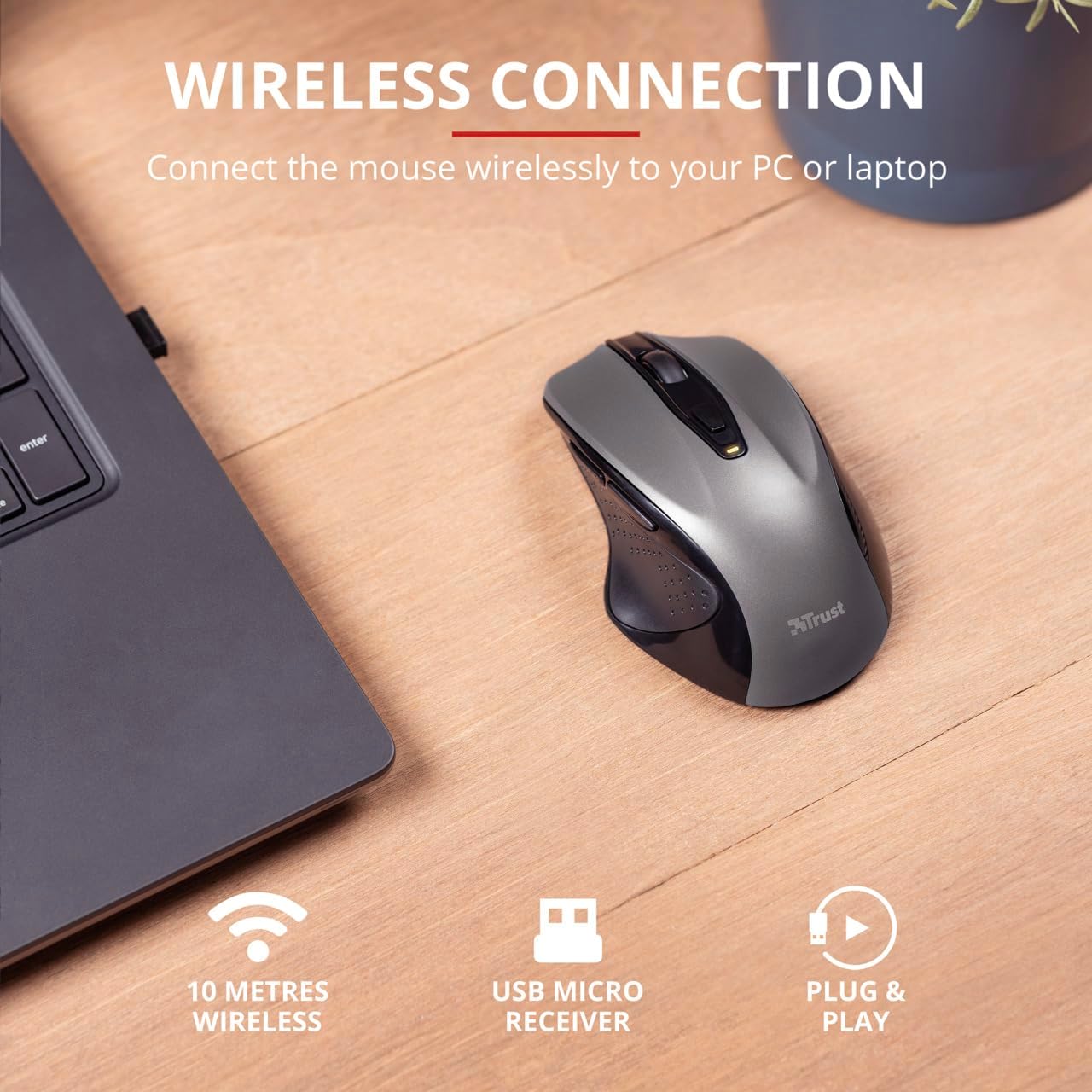
Image 4.3: The Trust Wireless Mouse positioned next to a laptop, demonstrating the wireless connection via the USB micro receiver plugged into the laptop's USB port.
5. Mengendalikan Tetikus
5.1. Fungsi Asas
Klik Kiri: Butang utama untuk memilih item dan berinteraksi dengan perisian.
Klik kanan: Butang sekunder untuk menu konteks dan pilihan tambahan.
Roda Tatal: Gulung ke atas atau ke bawah untuk menatal dokumen dan web pages. Press the scroll wheel for middle-click functionality.
5.2. Pelarasan DPI
The Trust Wireless Mouse features an adjustable DPI (Dots Per Inch) setting, allowing you to control the cursor speed. There are 5 different speeds available: 800, 1200, 1600, 1800, and 2200 DPI.
Locate the DPI button, usually positioned behind the scroll wheel.
Tekan butang DPI untuk melayari tetapan DPI yang tersedia.
An LED indicator on the mouse will briefly show the current DPI setting.
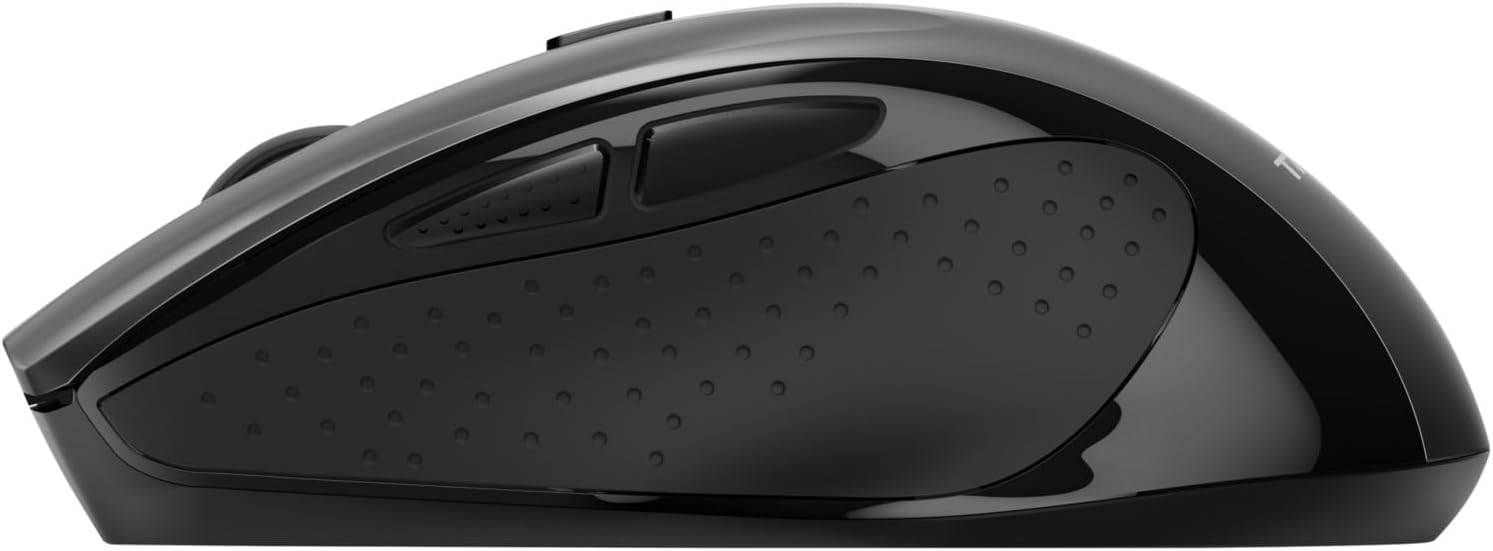
Imej 5.1: Sisi view of the Trust Wireless Mouse highlighting its comfortable shape, thumb rest with extra grip, and the adjustable speed (DPI) feature.
5.3. Thumb Buttons
The mouse is equipped with two conveniently placed thumb buttons (forward and backward) on the left side. These buttons facilitate easy navigation, such as browsing through files atau web muka surat.
Tekan ke ke hadapan button to move to the next page or item.
Tekan ke ke belakang button to return to the previous page or item.
Imej 5.2: Sisi view of the Trust Wireless Mouse, clearly showing the placement of the two thumb buttons for forward and backward navigation.
Note: Functionality of side buttons may vary between operating systems.
5.4. Ciri Penjimatan Kuasa
To conserve battery life, the mouse includes a power-saving mode and an on/off switch.
Suis Hidup/Mati: Located on the underside of the mouse. Turn the mouse off when not in use for extended periods to maximize battery life.
Penunjuk LED Bateri: An LED indicator will light up when the battery level is low, signaling that it's time to replace the AA battery.
6. Penyelenggaraan
6.1. Pembersihan
To maintain optimal performance, clean your mouse regularly:
Gunakan kain lembut dan kering untuk mengelap permukaan tetikus.
Untuk kotoran degil, sedikit dampen kain dengan air atau larutan pembersih lembut. Elakkan bahan kimia yang keras.
Jangan biarkan cecair memasuki komponen dalaman tetikus.
6.2. Penggantian Bateri
When the battery indicator lights up, replace the AA battery promptly to ensure uninterrupted use. Refer to section 4.1 for battery installation instructions.
7. Penyelesaian masalah
Masalah
Kemungkinan Punca
Penyelesaian
Tetikus tidak bertindak balas.
Bateri lemah atau mati.
Gantikan bateri AA.
Tetikus tidak bertindak balas.
Penerima USB tidak disambungkan dengan betul.
Pastikan penerima USB dipasang dengan kukuh ke dalam port USB yang berfungsi. Cuba port USB lain.
Tetikus tidak bertindak balas.
Tetikus dimatikan.
Turn on the mouse using the on/off switch on the underside.
Pergerakan kursor tidak menentu atau perlahan.
Low DPI setting.
Press the DPI button to increase cursor speed.
Pergerakan kursor tidak menentu atau perlahan.
Dirty sensor or unsuitable surface.
Clean the optical sensor on the underside of the mouse. Use the mouse on a clean, non-reflective surface.
Wireless connection issues.
Interference or distance from receiver.
Ensure the mouse is within 10 meters of the receiver. Remove any large metal objects between the mouse and receiver.
8. Spesifikasi
Ciri
Perincian
Nombor Model
24115
Ketersambungan
Wayarles (RF 2.4GHz)
Julat Tanpa Wayar
10 meter
Tetapan DPI
800, 1200, 1600, 1800, 2200 DPI (adjustable)
Bilangan Butang
6 (Left, Right, Mid, Forward, Backward, DPI loop)
Jenis Sensor
Optik
Ergonomik
Ergonomic design with thumb rest and rubber inlay
Sumber Kuasa
1x Bateri AA (termasuk)
Dimensi (L x W x H)
113 mm x 74 mm x 41 mm (4.45 x 2.91 x 0.04 inci)
Berat badan
100 g (2.65 auns)
Sistem Operasi yang Serasi
Windows 10, 8, 7; Mac OS X 10.15 (Catalina) or higher
9. Waranti dan Sokongan
The Trust Wireless Mouse comes with a Waranti 1 tahun dari tarikh pembelian. Waranti ini melindungi kecacatan pada bahan dan mutu kerja di bawah penggunaan biasa.
Waranti tidak meliputi:
Kerosakan yang disebabkan oleh kemalangan, penderaan, penyalahgunaan, banjir, kebakaran, gempa bumi atau sebab luaran yang lain.
Damage caused by operating the product outside the permitted or intended uses described by Trust.
Damage caused by service (including upgrades and expansions) performed by anyone who is not a representative of Trust or a Trust Authorized Service Provider.
For technical support or warranty claims, please visit the official Trust website or contact their customer service department. Refer to the product packaging or Trust's official webtapak untuk maklumat hubungan yang paling terkini.
Percayai Panduan Pengguna Mydo Wireless Silent Click Mouse Panduan pengguna yang komprehensif untuk Trust Mydo Wireless Silent Click Mouse, meliputi persediaan, ciri dan sokongan. Ketahui cara menyambung dan menggunakan tetikus senyap anda untuk pengkomputeran yang cekap.
Percayai Panduan Pengguna Tetikus Wayarles PUCK Panduan pengguna yang komprehensif untuk tetikus wayarles Trust PUCK, perincian persediaan, sambungan melalui penerima USB dan Bluetooth, dan status penunjuk LED.