1. Pengenalan
This manual provides essential information for the safe and efficient operation of your iProda 2 in 1 Laptop, Model M1169YM. Please read this manual thoroughly before using the device and retain it for future reference. This convertible laptop features an 11.6-inch touchscreen, powered by an Intel N4100 processor, and runs on Windows 10 Pro.

Image: The iProda 2 in 1 Laptop can be used in multiple configurations, including traditional laptop, tent, stand, and tablet modes, showcasing serba bolehnya.
2. Maklumat Keselamatan
Patuhi langkah berjaga-jaga keselamatan berikut untuk mengelakkan kerosakan pada peranti anda atau kecederaan pada diri sendiri:
- Jangan dedahkan peranti kepada suhu yang melampau, cahaya matahari langsung atau kelembapan yang tinggi.
- Elakkan daripada menjatuhkan atau menyebabkan peranti ini mengalami hentaman yang teruk.
- Use only the provided or approved power adapter for charging.
- Jauhkan peranti daripada air dan cecair lain.
- Jangan cuba membuka atau membaiki peranti sendiri. Rujuk kepada kakitangan perkhidmatan yang berkelayakan.
3. Kandungan Pakej
Sahkan bahawa semua item terdapat dalam pakej anda:
- iProda 2 in 1 Laptop (Model M1169YM)
- Penyesuai Kuasa
- Manual Pengguna (dokumen ini)
4. Produk Lebihview
The iProda 2 in 1 Laptop is designed for versatility, offering multiple usage modes and essential connectivity options.
4.1. Ciri-ciri Utama
- Skrin Sentuh IPS 11.6-inci: A responsive 10-point precision touchscreen with 1920x1080 resolution for interactive use.
- Reka Bentuk Boleh Tukar: 360-degree hinge allows seamless transition between laptop, tablet, tent, and stand modes.
- Intel N4100 Processor: Provides efficient performance for daily tasks.
- Windows 10 Pro: Pre-installed operating system for productivity and security.
- Storan Boleh Dikembangkan: Supports M.2 2242 SSD for additional storage capacity.

Image: Key features of the iProda laptop, including its touchscreen, operating system, display specifications, and camera resolution.

Image: The laptop's 360-degree hinge allows it to convert into a tablet, enabling direct interaction via its precision touchscreen.
4.2. Port dan Butang
Familiarize yourself with the various ports and buttons on your laptop:
- Pelabuhan Jenis-C: Used for power supply and data transfer.
- HDMI Mikro: Untuk menyambung ke paparan luaran.
- USB mikro: Untuk menyambungkan peranti USB.
- Slot Kad TF: For expanding storage with a TF (MicroSD) card.
- Butang Kuasa: To turn the device on/off or put it to sleep.
- Butang Kelantangan: To adjust audio output.
- Jack fon telinga: Untuk menyambungkan fon kepala atau pembesar suara luaran.

Imej: A terperinci view of the laptop's side panels, indicating the location and function of each port and button for easy identification.
5. Persediaan
5.1. Mengecas Bateri
Before first use, fully charge the laptop's battery. Connect the provided power adapter to the Type-C port on the laptop and plug it into a power outlet. The charging indicator light will illuminate.
5.2. But Pertama dan Persediaan Windows
- Press and hold the Power Button until the screen turns on.
- Ikut arahan pada skrin untuk melengkapkan persediaan awal Windows 10 Pro, termasuk pemilihan bahasa, sambungan rangkaian dan penciptaan akaun pengguna.
6. Mengendalikan Komputer Riba Anda
6.1. Menggunakan Skrin Sentuh
The 10-point precision touchscreen allows for intuitive interaction with Windows 10 Pro. Use gestures such as tapping, swiping, pinching, and stretching to navigate, zoom, and interact with applications.
6.2. Papan Kekunci dan Pad Sentuh
The integrated keyboard and touchpad provide traditional input methods. The touchpad supports multi-touch gestures for scrolling, zooming, and switching applications.

Image: The laptop's full-size American keyboard and responsive touchpad, designed for comfortable typing and navigation.
6.3. Convertible Modes
The 360-degree hinge allows you to switch between various modes:
- Mod Komputer Riba: Standard configuration for typing and productivity.
- Mod Tablet: Fold the screen back completely for a tablet experience, ideal for browsing or drawing.
- Mod Khemah: Position the laptop like a tent for media consumption or presentations.
- Mod Berdiri: Flip the keyboard face down to use the screen as a display, suitable for watching videos.

Image: The laptop configured in tent mode, demonstrating its flexibility for viewing content without the keyboard in the way.
7. Peluasan Storan
The laptop comes with 64GB eMMC storage. You can expand the storage capacity by installing an M.2 2242 SSD (128GB/256GB/512GB, not included).
7.1. Installing an M.2 2242 SSD
To install an M.2 2242 SSD:
- Power off the laptop and disconnect the power adapter.
- Carefully open the back cover of the laptop.
- Locate the M.2 slot.
- Insert the M.2 2242 SSD into the slot and secure it with the appropriate screw (if provided).
- Pasang semula penutup belakang.
- Upon booting, you may need to initialize and format the new SSD through Windows Disk Management.
Note: If you are unsure about this procedure, it is recommended to seek professional assistance.

Image: Visual representation of the M.2 SSD slot, illustrating how additional storage can be integrated into the laptop.
8. Ketersambungan
8.1. Sambungan Wi-Fi
The laptop supports dual-frequency 2.4GHz/5GHz Wi-Fi. To connect to a wireless network:
- Klik ikon Wi-Fi dalam dulang sistem.
- Pilih rangkaian yang anda inginkan daripada senarai.
- Masukkan kata laluan rangkaian jika diminta dan klik 'Sambung'.
8.2. External Display (Micro HDMI)
Connect an external monitor or TV using a Micro HDMI to HDMI cable. Once connected, you can configure display settings (duplicate, extend, second screen only) through Windows display settings.
8.3. Peranti USB
Use the Micro USB port or the Type-C port (with an appropriate adapter) to connect peripherals such as a mouse, keyboard, or external storage devices.
9. Penyelenggaraan
9.1. Pembersihan
To clean the laptop, power it off and disconnect the power adapter. Use a soft, lint-free cloth slightly dampened with water or a screen cleaner for the display. Avoid harsh chemicals or abrasive materials.
9.2. Penjagaan Bateri
Untuk memanjangkan hayat bateri:
- Elakkan menyahcas sepenuhnya bateri dengan kerap.
- Do not expose the laptop to high temperatures.
- Jika menyimpan komputer riba untuk tempoh yang lama, pastikan bateri dicas sekitar 50-70%.
10. Penyelesaian masalah
Berikut ialah penyelesaian kepada isu biasa yang mungkin anda hadapi:
| Masalah | Penyelesaian |
|---|---|
| Komputer riba tidak dihidupkan. | Ensure the battery is charged. Connect the power adapter and try again. If still unresponsive, perform a hard reset by holding the power button for 10-15 seconds. |
| Skrin kosong atau berkelip. | Restart the laptop. Check if an external display is connected and interfering. Update display drivers if possible. |
| Isu sambungan Wi-Fi. | Ensure Wi-Fi is enabled. Restart your router and the laptop. Check network settings in Windows. |
| Skrin sentuh tidak bertindak balas. | Mulakan semula komputer riba. Pastikan skrin bersih. Semak sebarang kemas kini Windows atau kemas kini pemacu yang belum selesai untuk skrin sentuh. |
11. Spesifikasi
Technical specifications for the iProda 2 in 1 Laptop (Model M1169YM):
| Ciri | Perincian |
|---|---|
| Jenama | iProda |
| Nombor Model | M1169YM |
| Sistem Operasi | Windows 10 Pro |
| Saiz Skrin | 11.6 Inci |
| Resolusi Skrin | 1920 x 1080 piksel (1080p) |
| Pemproses | Intel N4100 (up to 2.4 GHz Burst Frequency) |
| RAM | 4 GB DDR4 |
| Pemacu Keras | 64 GB eMMC |
| Kad Grafik | Integrated (UHD 600 Graphics) |
| Jenis Wayarles | 2.4 GHz / 5 GHz Dual-frequency Wi-Fi |
| Purata Hayat Bateri | 8 Hours (3500mAh, 27Wh) |
| Berat Barang | 3.63 paun |
| Dimensi Produk | 11.99 x 11.6 x 0.5 inci |
| Teknologi Ketersambungan | HDMI, USB Type-C, Micro USB |
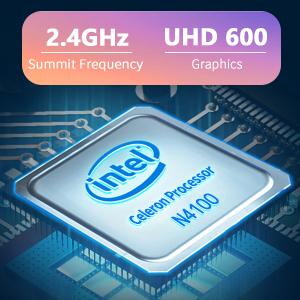
Image: The Intel Celeron N4100 processor, central to the laptop's performance, highlighting its clock speed and integrated graphics capabilities.

Image: The laptop's battery specifications, indicating its power capacity for extended use.
12. Waranti dan Sokongan
For warranty information and technical support, please refer to the documentation included with your purchase or visit the official iProda website. Contact information for customer service can typically be found on the manufacturer's support page.


