1. Pengenalan
Terima kasih kerana membeliasing the Optoma X309ST projector. This manual provides essential information for safely installing, operating, and maintaining your device. Please read this manual thoroughly before using the projector to ensure optimal performance and longevity.
Apa yang ada dalam Kotak
- Optoma X309ST Projector
- Kord Kuasa
- Alat Kawalan Jauh (dengan bateri)
- Kabel VGA
- Manual Pengguna (dokumen ini)
- Kad Waranti
2. Maklumat Keselamatan
AMARAN: Untuk mengelakkan kebakaran atau renjatan elektrik, jangan dedahkan perkakas ini kepada hujan atau kelembapan.
- Jangan sekat bukaan pengudaraan. Pastikan ruang yang mencukupi di sekeliling projektor untuk aliran udara yang betul.
- Jangan lihat terus ke dalam kanta projektor apabila lamp is on. The bright light can damage your eyes.
- Gunakan hanya kord kuasa yang dibekalkan dengan projektor.
- Jangan cuba servis produk ini sendiri. Rujuk semua perkhidmatan kepada pegawai perkhidmatan yang berkelayakan.
- Keep the projector away from water or moisture.
- Elakkan meletakkan projektor pada permukaan yang tidak stabil.
3. Produk Lebihview
Komponen Projektor

Rajah 3.1: Atas view of the Optoma X309ST projector. This image displays the control panel with buttons for power, menu navigation, and source selection, along with the focus and zoom adjustment rings located near the lens.

Rajah 3.2: Depan view of the Optoma X309ST projector. The main projection lens is visible, flanked by ventilation grilles on either side, designed for efficient heat dissipation.
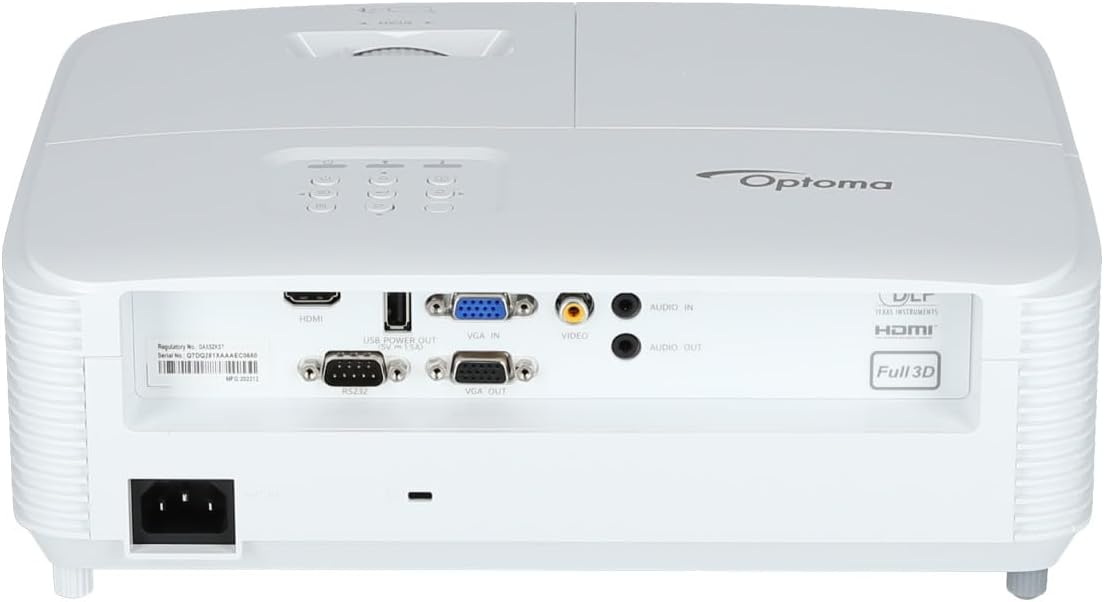
Rajah 3.3: belakang view of the Optoma X309ST projector. This image highlights the various connectivity ports including HDMI, VGA In, VGA Out, USB Power Out, Audio In, Audio Out, Video (RCA Composite), and the RS-232 control port, along with the power input.
Panel Kawalan
The control panel on the top of the projector allows for basic operation without the remote control. It includes buttons for:
- Kuasa: Menghidupkan atau mematikan projektor.
- Menu: Mengakses menu paparan pada skrin (OSD).
- Anak panah Navigasi: Used to navigate through menu options and adjust settings.
- Sumber: Memilih sumber input (HDMI, VGA, dll.).
- Segerakkan semula: Optimizes the image for analog sources.
4. Persediaan
4.1 Penempatan Projektor
The Optoma X309ST is a short-throw projector, designed to project large images from a short distance. Place the projector on a stable, flat surface or mount it securely. Ensure the projection surface (screen or wall) is flat and clear of obstructions.
- For optimal image quality, position the projector perpendicular to the screen.
- Maintain adequate ventilation space around the projector (at least 30 cm / 12 inches).
4.2 Kuasa Penyambung
- Connect the power cord to the AC inlet on the rear of the projector.
- Palamkan hujung kord kuasa yang lain ke dalam salur keluar elektrik yang dibumikan.
- The power LED on the projector will illuminate, indicating standby mode.
4.3 Menyambungkan Sumber Input
The projector supports various input sources. Choose the appropriate cable for your device.
- HDMI: For digital video and audio. Connect an HDMI cable from your source device (e.g., laptop, Blu-ray player) to the HDMI port on the projector.
- VGA: For analog video. Connect a VGA cable from your computer to the VGA IN port on the projector. For audio, connect a 3.5mm audio cable from your computer's audio output to the AUDIO IN port.
- RCA Composite Video: For standard definition analog video. Connect an RCA composite video cable (yellow connector) to the VIDEO port. For audio, connect RCA audio cables (red/white) to the AUDIO IN ports.
- Kuasa USB Keluar: This port provides 5V power for external devices like streaming sticks, but does not transmit data.
5. Mengendalikan Projektor
5.1 Menghidupkan/Mematikan
- Untuk Menghidupkan: Press the Power button on the control panel or remote control. The power LED will change from red (standby) to blue (on).
- Untuk Mematikan: Press the Power button twice. The first press will display a confirmation message; press again to confirm shutdown. The power LED will return to red.
Nota: Allow the projector to cool down for a few minutes after powering off before unplugging it or moving it.
5.2 Memilih Sumber Input
Tekan ke Sumber button on the control panel or remote control repeatedly to cycle through available input sources (HDMI, VGA, Video). Alternatively, use the dedicated input buttons on the remote control.
5.3 Melaraskan Imej
- Fokus: Putarkan gelang fokus pada kanta sehingga imej kelihatan tajam dan jelas.
- Zum: Rotate the zoom ring on the lens to adjust the image size without moving the projector.
- Pembetulan Keystone: If the image appears trapezoidal, use the Keystone Correction function in the OSD menu to square the image. Access via the Menu butang.
5.4 Menu Paparan Pada Skrin (OSD).
Tekan ke Menu button to access the OSD. Use the navigation arrows to browse categories and options. Press Masuk or the right arrow to select an option, and the left arrow or Menu again to go back or exit.
Tetapan OSD biasa termasuk:
- Tetapan Imej: Brightness, Contrast, Color, Aspect Ratio, Picture Mode.
- Tetapan Paparan: Keystone, Overscan, Wall Color.
- Setup Settings: Language, Auto Power Off, High Altitude Mode.
- Lamp tetapan: Lamp Hours, Lamp Mode (Bright, Eco).
6. Penyelenggaraan
Penyelenggaraan berkala memastikan prestasi optimum dan memanjangkan jangka hayat projektor anda.
6.1 Membersihkan Projektor
- Luaran: Gunakan kain yang lembut dan tidak berbulu dampdisalut dengan pembersih yang lembut dan tidak melelas. Jangan sembur pembersih terus ke projektor.
- Kanta: Use a lens cleaning cloth or lens paper with a specialized lens cleaning solution. Avoid touching the lens surface with your fingers.
- Gril Pengudaraan: Use a soft brush or a vacuum cleaner with a brush attachment to remove dust from the ventilation grilles. Ensure the projector is powered off and unplugged before cleaning.
6.2 Lamp Penggantian
WARNING: Projector lamps operate at high temperatures and pressures. Allow the projector to cool completely before attempting lamp replacement. Refer to the full service manual for detailed lamp replacement instructions or contact qualified service personnel.
Lamp life can vary depending on usage and lamp mode. A warning message will appear on screen when the lamp is nearing the end of its life. Only use genuine Optoma replacement lamps.
6.3 Pembersihan/Penggantian Penapis Udara
The Optoma X309ST projector is designed with a sealed optical engine, which typically means it does not have user-serviceable air filters that require regular cleaning or replacement. However, ensure the ventilation grilles remain clear of dust and debris as described in section 6.1.
7. Penyelesaian masalah
Jika anda menghadapi masalah dengan projektor anda, rujuk kepada masalah dan penyelesaian biasa berikut:
| Masalah | Kemungkinan Punca | Penyelesaian |
|---|---|---|
| Tiada imej pada skrin. |
|
|
| Imej kabur. |
|
|
| Imej adalah trapezoid. |
|
|
| Projektor terlalu panas atau mati. |
|
|
If the problem persists after trying these solutions, please contact Optoma customer support.
8. Spesifikasi
| Ciri | Perincian |
|---|---|
| Nombor Model | E9PD7DQ01EZ1 |
| Kecerahan | 3700 ANSI Lumen |
| Resolusi Asli | XGA (1024 x 768) |
| Nisbah Lemparan | 0.617:1 Short Throw |
| Teknologi Ketersambungan | HDMI, USB, VGA |
| Input | HDMI, VGA, RCA Composite Video, Analog Audio (3.5mm) |
| Keluaran | VGA Out (Loop-Through), Analog Audio (3.5mm) |
| Ciri Khas | USB Power Output, Built-In 10-Watt Speaker, RS-232 Controllable, IR Remote Control Included, Full 3D content support |
| Berat Barang | 6.61 paun (lebih kurang 3 kg) |
| Dimensi Produk (L x W x H) | 15.42 x 10.35 x 13.52 inci (lebih kurang 39.17 x 26.29 x 34.34 cm) |
| Penggunaan yang Disyorkan | Business presentations, Education, Multimedia, Full 3D content |
9. Waranti dan Sokongan
9.1 Maklumat Waranti
Your Optoma X309ST projector comes with a standard manufacturer's warranty. Please refer to the warranty card included in your product packaging for specific terms, conditions, and duration. Keep your proof of purchase for warranty claims.
The product includes 1 year technical support as part of the purchase.
9.2 Sokongan Pelanggan
For technical assistance, troubleshooting beyond this manual, or warranty inquiries, please contact Optoma customer support. Visit the official Optoma website for the most up-to-date contact information, FAQs, and driver downloads.
Anda boleh mendapatkan lebih banyak maklumat dan sumber sokongan di Optoma Store on Amazon or the official Optoma webtapak.


