The iOCHOW S500 Document Camera Scanner is a versatile and intelligent scanning device designed for various applications including education, office, banking, and training. This portable scanner captures and displays objects with high image clarity and resolution, making it suitable for presentations and document digitization. It supports scanning of A4-sized documents and objects.
Nota Penting: The software for this device is not compatible with Mac OS. Please ensure you are using a Windows operating system for full functionality.
2. Persediaan
2.1 Membongkar dan Persediaan Fizikal
Carefully remove all components from the packaging. The iOCHOW S500 is designed to be foldable for portability.
Place the scanner on a stable, flat surface.
Gently unfold the scanner arm until it locks into its upright position.
Connect the USB cable from the scanner to an available USB port on your Windows computer.
Figure 2.1: The iOCHOW S500 Document Camera Scanner in its folded, portable state, ready for transport or storage.Figure 2.2: The iOCHOW S500 Document Camera Scanner set up on a desk with a laptop, demonstrating its operational configuration for scanning documents.
2.2 Software Installation (Windows Only)
The iOCHOW S500 requires dedicated software for full functionality. This software is compatible only with Windows operating systems.
Daripada CD: Insert the provided installation CD into your computer's CD-ROM drive and follow the on-screen instructions.
daripada Webtapak: If your computer does not have a CD-ROM drive, or if you prefer the latest version, visit the official iOCHOW website to download the software. Look for the support or download section for the S500 model.
Ikuti arahan wizard pemasangan untuk menyelesaikan persediaan perisian.
Once installed, launch the iOCHOW scanning application.
Nota: If the USB connection is not recognized after installation, ensure the software is correctly installed and try restarting your computer.
3. Arahan Operasi
3.1 Basic Document Scanning
The iOCHOW S500 is designed for ultra-fast scanning of A4 documents and smaller objects.
Place the document or object you wish to scan directly under the camera lens. Ensure it is within the A4 scanning area.
Open the iOCHOW scanning software on your computer.
Adjust the document's position as needed to fit the preview tingkap.
Click the "Scan" button within the software. The scanner can capture a page in less than 2 seconds.
The integrated 6 LED lights provide illumination for clear images, especially in low-light conditions.
Rajah 3.1: Jarak dekat view of the iOCHOW S500 scanner's camera lens and six integrated LED lights, indicating 5 Megapixel resolution for clear imaging.
3.2 Optical Character Recognition (OCR)
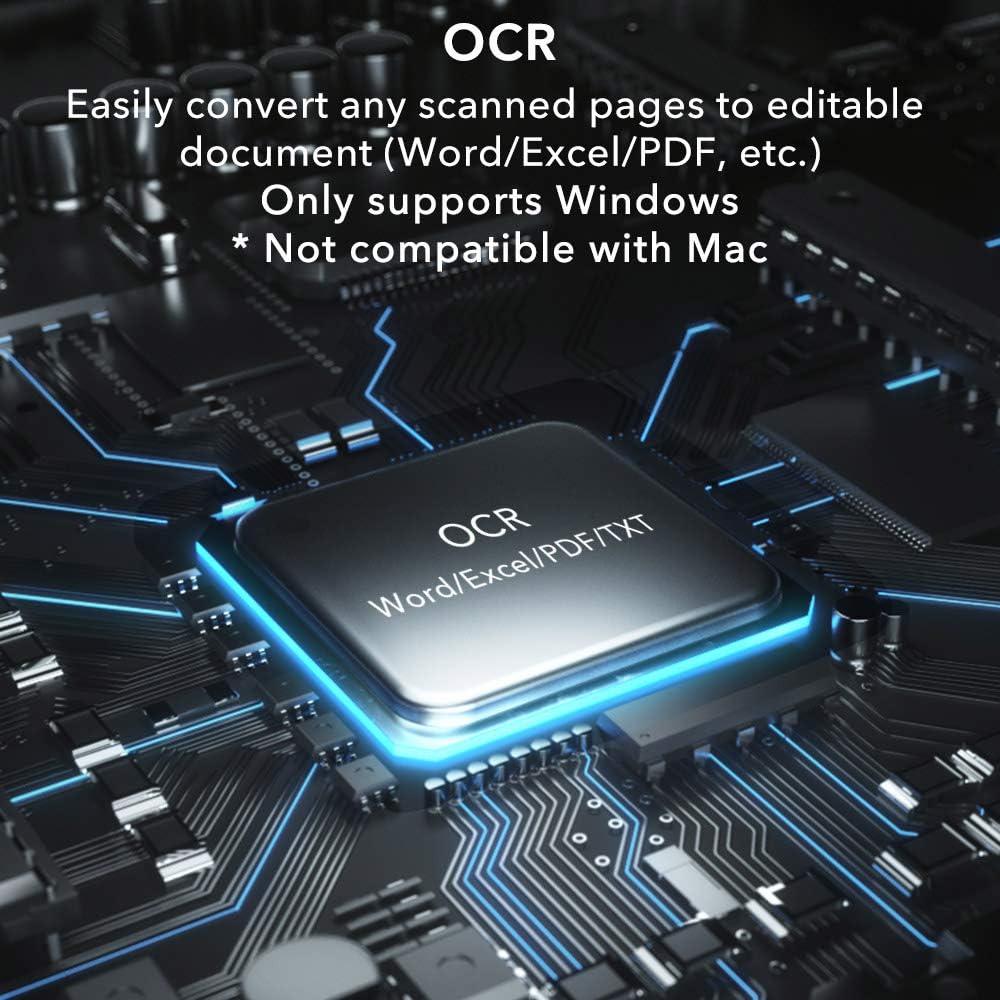
The S500 features powerful OCR technology, allowing you to convert scanned images into editable text formats.
The OCR function supports over 100 languages with high accuracy (up to 95%).
After scanning, select the OCR option in the software.
You can convert scanned documents into various editable formats, including JPG, PDF, searchable PDF, Word, and Excel.
Figure 3.2: Visual representation of the OCR technology, highlighting its capability to convert scanned documents into editable Word, Excel, PDF, and TXT formats. This feature is exclusive to Windows.
3.3 Video Recording and Real-time Projection
The S500 can also function as a document camera for real-time projection and video recording, ideal for presentations or remote learning.
Access the video recording or projection mode within the iOCHOW software.
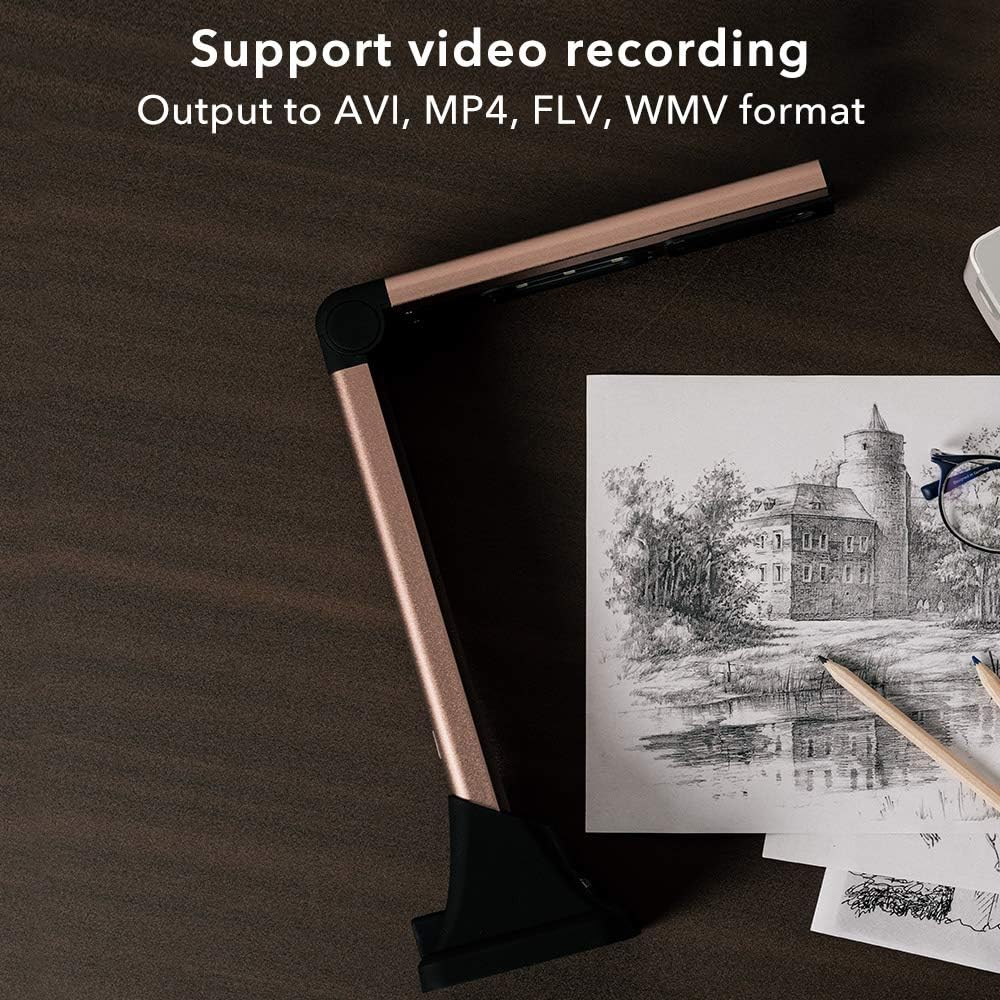
The device supports output to AVI, MP4, FLV, and WMV video formats.
This feature allows for dynamic display of physical documents or objects to an audience.
Figure 3.3: The iOCHOW S500 Document Camera Scanner positioned over a drawing, illustrating its support for video recording and output to AVI, MP4, FLV, and WMV formats.
3.4 Advanced Scanning Features
The software includes several advanced features to enhance your scanning experience:
Background Purification: Automatically cleans up the background of scanned documents for a clearer result.
Automatic Correction: Corrects skewed or improperly aligned documents.
Finger-free Cropping: Automatically removes fingers from the final scan if they were used to hold down documents.
Filling the Edges: Automatically fills in missing edges of scanned files.
Synthesis of Scanned Images: Combines multiple scanned images into a single document.
Figure 3.4: An infographic detailing the advanced scanning capabilities of the iOCHOW S500 software, including multifile scanning, background purification, automatic correction, finger-free cropping, automatic edge filling, and image synthesis.
4. Penyelenggaraan
Proper maintenance ensures the longevity and optimal performance of your iOCHOW S500 scanner.
Pembersihan: Use a soft, dry, lint-free cloth to clean the exterior of the scanner. For the camera lens, use a specialized lens cleaning cloth and solution if necessary, applying gently. Do not use abrasive cleaners or solvents.
Storan: When not in use, fold the scanner and store it in a cool, dry place away from direct sunlight and extreme temperatures.
Penjagaan Kabel: Avoid bending or crimping the USB cable excessively. Always grasp the plug, not the cable, when disconnecting.
5. Penyelesaian masalah
If you encounter issues with your iOCHOW S500, refer to the following common problems and solutions:
Problem: Scanner not recognized by computer.
Pastikan kabel USB disambungkan dengan selamat pada kedua-dua pengimbas dan komputer.
Verify that the iOCHOW software is correctly installed on your Windows PC. If not, reinstall it from the CD or official webtapak.
Try connecting the scanner to a different USB port.
Mulakan semula komputer anda.
Problem: Scanned images have glare or shadows.
Adjust the lighting in your scanning environment. Avoid direct overhead lights that might cause reflections.
Ensure the document is flat and evenly lit.
Utilize the scanner's built-in LED lights if the environment is too dark, but be mindful of potential reflections on glossy surfaces.
Problem: OCR function is not accurate or not working.
Ensure the document is clear, well-lit, and free from creases or smudges before scanning.
Check that the correct language is selected in the OCR settings within the software.
The OCR accuracy can be affected by font style, size, and image quality.
Problem: Software is not compatible with Mac OS.
As stated, the iOCHOW S500 software is designed exclusively for Windows operating systems and does not support Mac OS. There is no workaround for Mac compatibility.
6. Spesifikasi
Ciri
Perincian
Jenama
iOCHOW
Nombor Model
S500
Jenis Pengimbas
Document Camera Scanner
Teknologi Ketersambungan
USB
Saiz Dokumen Maksimum
A4
Resolusi
5 Megapiksel
Kelajuan Imbasan
Less than 2 seconds per page
OCR Support
Over 100 languages, up to 95% accuracy
Output Formats (OCR)
JPG, PDF, PDF Boleh Dicari, Word, Excel
Format Output Video
AVI, MP4, FLV, WMV
Keserasian Sistem Pengendalian
Windows Only (Not compatible with Mac OS)
Pencahayaan
6 lampu LED
7. Waranti & Sokongan
For specific warranty information regarding your iOCHOW S500 Document Camera Scanner, please refer to the documentation included with your purchase or visit the official iOCHOW webtapak. Terma dan syarat waranti mungkin berbeza mengikut wilayah dan peruncit.
For technical support, software updates, or further assistance, please visit the official iOCHOW support page or contact their customer service directly.
rasmi Webtapak:www.iochow.com (Nota: Ini ialah pemegang tempat URL, please verify the actual official website for iOCHOW.)
Perkhidmatan Pelanggan: Rujuk kepada pembungkusan produk anda atau pegawai rasmi weblaman web untuk maklumat hubungan.
Dokumen Berkaitan - S500
Panduan Muat Turun dan Pemasangan Perisian ScanLine Panduan langkah demi langkah untuk memuat turun dan memasang versi terkini perisian ScanLine, termasuk arahan untuk membuka zip files dan menjalankan persediaan.
Panduan Pengguna Mikrofon Lavalier Tanpa Wayar S500 Panduan pengguna untuk Mikrofon Lavalier Tanpa Wayar S500, yang memperincikan spesifikasi, persediaan, penggunaan, pengecasan, fungsi dan petua untuk rakaman audio yang optimum dalam pelbagai aplikasi seperti pengajaran dan penerbitan video.
Manual Arahan Penyahlembapan iOCHOW C6 Manual arahan yang komprehensif untuk iOCHOW Dehumidifier C6, meliputi amaran keselamatan, pemasangan, komponen, pengendalian panel kawalan, saliran, penyelenggaraan, penyelesaian masalah dan spesifikasi. Ketahui cara menggunakan dan mengekalkan dehumidifier iOCHOW anda dengan berkesan untuk prestasi optimum.
Panduan Pemacu Windows CITIZEN - Pemasangan dan Nyahpasang Panduan komprehensif daripada CITIZEN SYSTEMS JAPAN CO., LTD. memperincikan pemasangan dan nyahpasang pemacu Windows untuk pelbagai model pencetak CITIZEN. Meliputi persediaan untuk antara muka USB, Serial, COM dan TCP/IP, OS yang disokong dan penyelesaian masalah.
Belakang 70maiview Manual Pengguna Set Dash Cam S500 Manual pengguna untuk 70mai Belakangview S500 Dash Cam Set, detailing product overview, installation, features like voice control, memory card instructions, precautions, specifications, and regulatory compliance information.