1. Pengenalan
This manual provides essential information for the installation, operation, and maintenance of your Sapphire Nitro+ AMD Radeon RX 6800 XT graphics card. Please read this manual thoroughly before installing and using the product to ensure proper functionality and to prevent damage.

Rajah 1.1: The Sapphire Nitro+ AMD Radeon RX 6800 XT graphics card and its retail packaging. This image displays the overall design of the card with its triple-fan cooling solution and the product box.
2. Maklumat Keselamatan
Observe the following safety precautions to prevent injury or damage to the graphics card and other components:
- Sentiasa putuskan sambungan bekalan kuasa dari komputer anda sebelum memasang atau menanggalkan sebarang komponen.
- Wear an anti-static wrist strap or frequently touch a grounded metal object to discharge static electricity before handling the graphics card.
- Pegang kad grafik di tepinya untuk mengelak daripada menyentuh komponen sensitif.
- Ensure adequate ventilation within your computer case to prevent overheating.
- Jangan dedahkan kad grafik kepada kelembapan atau suhu yang melampau.
3. Persediaan dan Pemasangan
3.1 Keperluan Sistem
Sebelum pemasangan, pastikan sistem anda memenuhi keperluan minimum berikut:
- Papan induk yang didayakan PCI Express dengan satu slot grafik x16.
- Sufficient power supply unit (PSU) with appropriate PCIe power connectors. Consult your PSU manufacturer for compatibility.
- Minimum 16GB system memory (RAM) recommended for optimal performance.
- Compatible operating system (e.g., Windows 10 64-bit or later).
- Sufficient space within the PC case for the graphics card dimensions (approximately 17 x 9.5 x 3.5 inches).
3.2 Pemasangan Fizikal
- Sediakan Sistem Anda: Matikan komputer anda dan putuskan sambungan semua kabel. Buka bekas komputer.
- Cari Slot PCIe: Kenal pasti slot PCI Express x16 yang tersedia pada papan induk anda. Tanggalkan sebarang penutup slot pengembangan yang menghalang pemasangan.

Rajah 3.1: Atas view of the graphics card, showing the triple-fan cooling system. This perspective highlights the length and width of the card, which is important for case compatibility.
- Masukkan Kad Grafik: Carefully align the graphics card with the PCIe slot and press down firmly until it is securely seated. Ensure the retention clip on the motherboard's PCIe slot locks into place.

Rajah 3.2: bersudut view daripada kad grafik, tunjukkancasing its robust cooling design and the PCIe connector. This view helps in understanding the card's physical dimensions and how it would sit in a motherboard slot.
- Selamatkan Kad: Fasten the graphics card to the computer case using the screws from the expansion slot covers.
- Sambungkan Kuasa: Connect the required PCIe power cables from your power supply unit to the graphics card. The Sapphire Nitro+ RX 6800 XT typically requires two 8-pin PCIe power connectors. Ensure all connections are firm.

Rajah 3.3: sebelah view of the graphics card, highlighting the power connectors and the illuminated Sapphire logo. This image is useful for identifying where power cables connect and observing the card's aesthetic features.
- Tutup Kes dan Sambung Semula: Close your computer case and reconnect all external cables (monitor, keyboard, mouse, power).
3.3 Pemasangan Pemandu
- Hidupkan kuasa: Turn on your computer. It may boot into a basic display mode.
- Muat Turun Pemacu: Lawati AMD rasmi webtapak (www.amd.com/en/support) or the Sapphire support page (www.sapphiretech.com/en/consumer/nitro-radeon-rx-6800-xt-16g-gddr6) to download the latest AMD Radeon Software Adrenalin Edition drivers for your RX 6800 XT.
- Pasang Pemacu: Run the downloaded installer and follow the on-screen instructions. It is recommended to perform a clean installation to avoid conflicts with previous drivers.
- Mulakan semula Sistem: Mulakan semula komputer anda selepas pemasangan pemacu selesai.
4. Mengendalikan Kad Grafik
4.1 Paparan Output
Connect your monitor(s) to the display outputs on the graphics card. The Sapphire Nitro+ RX 6800 XT typically features DisplayPort and HDMI outputs. Ensure your monitor is set to the correct input source.
4.2 Perisian AMD Radeon
The AMD Radeon Software Adrenalin Edition provides a comprehensive interface for managing your graphics card. Through this software, you can:
- Adjust display settings and resolutions.
- Optimumkan tetapan permainan untuk prestasi dan kualiti visual.
- Monitor GPU performance, temperature, and fan speeds.
- Access features like Radeon Anti-Lag, Radeon Boost, and FidelityFX.
- Kemas kini pemacu grafik.
4.3 Sapphire TriXX Software
For advanced control and customization, Sapphire offers the TriXX software. This utility allows you to:
- Monitor hardware status in real-time.
- Laraskan lengkung kipas untuk tahap penyejukan dan hingar yang optimum.
- Control and synchronize the external RGB LED lighting on the card.
- Utilize features like Fan Check and Nitro Glow.
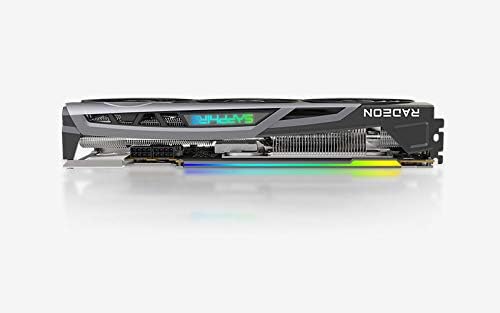
Rajah 4.1: The Sapphire Nitro+ graphics card showcasing its customizable RGB LED lighting. This feature can be controlled via the Sapphire TriXX software for personalized aesthetics.
5. Penyelenggaraan
Penyelenggaraan berkala membantu memastikan jangka hayat dan prestasi optimum kad grafik anda.
- Penyingkiran habuk: Periodically clean dust from the heatsink fins and fan blades using compressed air. Ensure the fans are held stationary during cleaning to prevent damage to the bearings.
- Kemas Kini Perisian: Keep your graphics drivers and Sapphire TriXX software updated to benefit from performance improvements and bug fixes.
- Pemantauan Suhu: Use AMD Radeon Software or Sapphire TriXX to monitor GPU temperatures, especially during heavy loads, to ensure it operates within safe limits.
6. Penyelesaian masalah
If you encounter issues with your graphics card, refer to the following troubleshooting steps:
- Tiada Output Paparan:
- Pastikan kabel monitor disambungkan dengan selamat pada kad grafik dan monitor.
- Pastikan monitor dihidupkan dan ditetapkan kepada sumber input yang betul.
- Check that the graphics card is fully seated in the PCIe slot and all power cables are connected.
- Uji dengan kabel paparan atau monitor yang berbeza jika boleh.
- Ketidakstabilan atau Ranap Sistem:
- Pastikan unit bekalan kuasa (PSU) anda memenuhi wat yang disyorkantage untuk sistem anda, termasuk kad grafik.
- Kemas kini pemacu grafik anda kepada versi terkini.
- Pantau suhu GPU. Kepanasan berlebihan boleh menyebabkan ketidakstabilan.
- Check for conflicts with other installed drivers or software.
- Prestasi Lemah dalam Permainan/Aplikasi:
- Sahkan bahawa pemacu grafik terkini telah dipasang.
- Semak tetapan dalam permainan; kurangkan resolusi atau kualiti grafik jika perlu.
- Pastikan CPU dan RAM anda tidak menyekat GPU.
- Monitor GPU utilization and clock speeds using AMD Radeon Software.
- Bunyi Kipas atau Kerosakan:
- Clean dust from the fan blades and heatsink.
- Use Sapphire TriXX software to adjust fan curves or check fan health.
- Ensure no cables are obstructing fan rotation.
7. Spesifikasi
| Ciri | Perincian |
|---|---|
| Pemproses Grafik | AMD Radeon RX 6800 XT |
| Ingatan | 16GB GDDR6 |
| Kelajuan Memori | 16 GHz |
| Jam Permainan | Sehingga 2110 MHz |
| Tingkatkan Jam | Sehingga 2360 MHz |
| Antara muka | PCIe 4.0 x16 |
| Antara Muka Keluaran Video | DisplayPort, HDMI |
| Resolusi Skrin Maks | 3840x2160 (4K) |
| Dimensi (LxWxH) | 17 x 9.5 x 3.5 inci (lebih kurang) |
| Berat Barang | 4.53 paun |
| Nombor Model | 11304-02-20G |

Rajah 7.1: belakang view of the graphics card, showing the backplate and the overall robust construction. This view emphasizes the structural integrity and cooling design from the back.
8. Waranti dan Sokongan
Sapphire products are manufactured to the highest quality standards. For information regarding the warranty period and terms for your Sapphire Nitro+ AMD Radeon RX 6800 XT graphics card, please refer to the warranty card included with your product or visit the official Sapphire webtapak.
For technical support, driver downloads, and frequently asked questions, please visit the Sapphire support portal: www.sapphiretech.com/en/support.


