pengenalan
Terima kasih kerana membeliasing the FEKER 61 Key RGB Gateron Switch Wireless Bluetooth Mechanical Gaming Keyboard. This manual provides detailed instructions on how to set up, operate, maintain, and troubleshoot your new keyboard. Please read this manual thoroughly before using the product to ensure optimal performance and longevity.
Kandungan Pakej

Image: The FEKER 61 Key RGB Gateron Switch Wireless Bluetooth Mechanical Gaming Keyboard, its retail box, a USB-C cable, a keycap puller, and a switch puller.
- FEKER 61 Key RGB Mechanical Keyboard
- Kabel USB-C ke USB-A
- Penarik Kekunci
- Penarik Suis
- Manual Pengguna (dokumen ini)
Ciri-ciri Utama

Image: A diagram highlighting the key features of the FEKER 01 keyboard, including fully programmable keys, compact layout, Bluetooth 5.0, 1550mAh battery, customizable RGB backlight, and Outemu mechanical switches.
- Lampu Latar RGB Penuh: Each key features independent RGB backlighting, allowing for extensive customization.
- Kekunci PBT: Equipped with durable double-shot PBT keycaps, which are more resistant to shine and wear compared to ABS keycaps.
- Dual FN Keys: Includes FN1 and FN2 keys, providing enhanced possibilities for layer function customization.
- Long Endurance Time: Features a 1900mAh large capacity battery with a built-in protection circuit to prevent battery damage.
- Sambungan Mod Dwi: Supports both Bluetooth 4.0 and Type-C USB-C wired connections for wide compatibility.
- Keserasian Luas: Compatible with multiple operating systems including iOS, Windows, Linux, and Android.
- NKRO Support: Supports N-Key Rollover (NKRO) in wired mode for precise input.

Image: An illustration displaying the four available switch options: Blue Switch, Brown Switch, Red Switch, and Black Switch, indicating the variety of mechanical switches this keyboard can be equipped with.
Spesifikasi
| Atribut | Nilai |
|---|---|
| Jenama | PD |
| Model | 61 Key RGB Mechanical Keyboard |
| Teknologi Ketersambungan | Bluetooth 4.0, USB-C |
| Keserasian Sistem Pengendalian | Android, iOS, Linux, Windows |
| Ciri Khas | Backlit (Full RGB), Programmable Keys, PBT Keycaps |
| Kapasiti Bateri | 1900mAh (Li-ion) |
| Voltage | 5 Volt (DC) |
| Berat Barang | 3 kg |
| warna | Hitam |
Persediaan
1. Mengecas Papan Kekunci
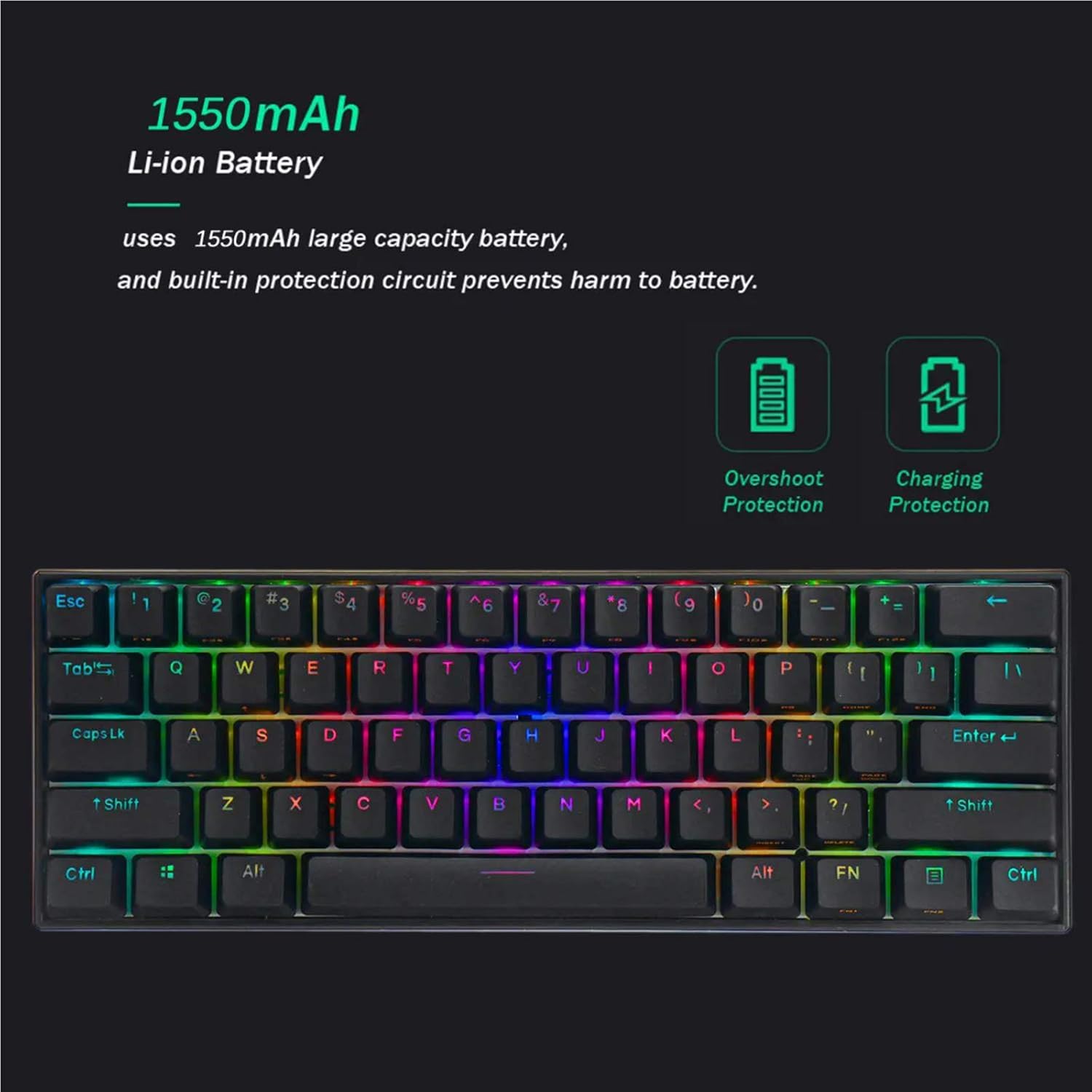
Image: A visual representation of the keyboard's 1550mAh Li-ion battery, highlighting its overshoot protection and charging protection features.
Sebelum penggunaan pertama, adalah disyorkan untuk mengecas sepenuhnya papan kekunci.
- Sambungkan kabel USB-C yang disediakan ke port USB-C papan kekunci.
- Sambungkan hujung kabel yang satu lagi ke sumber kuasa USB (cth, port USB komputer, penyesuai dinding USB).
- The keyboard's indicator light will show charging status (refer to LED indicator section for details). A full charge typically takes a few hours.
2. Mod Sambungan
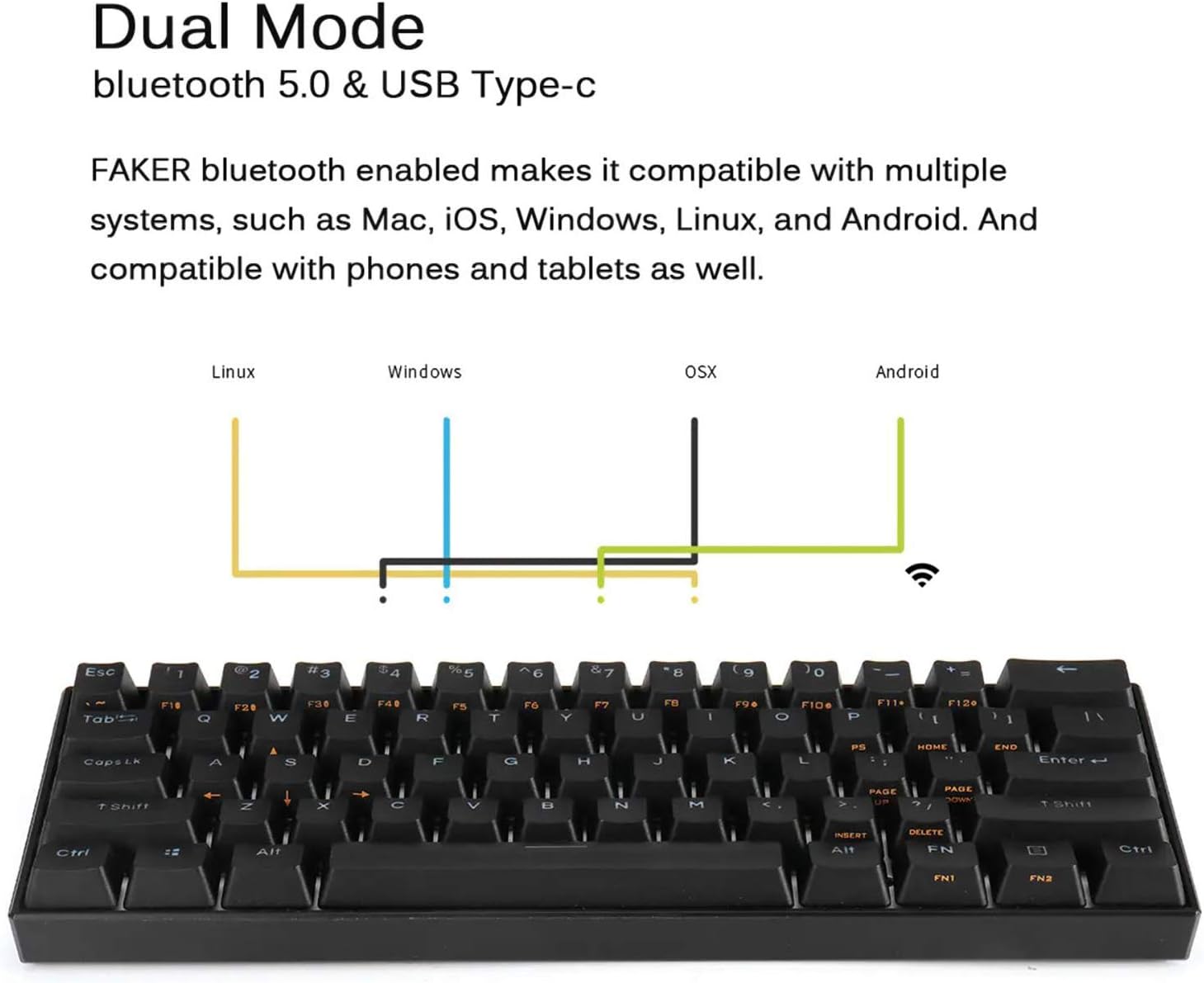
Image: A diagram showing the dual mode connection capabilities (Bluetooth 5.0 & USB Type-C) of the FEKER keyboard, along with its compatibility across Linux, Windows, OSX, and Android operating systems.
Wired Mode (USB-C)
- Sambungkan kabel USB-C ke papan kekunci dan komputer anda.
- The keyboard will automatically switch to wired mode. This mode supports NKRO.
Bluetooth Mode (Wireless)
- Pastikan papan kekunci dicas.
- Turn on the Bluetooth switch located on the bottom of the keyboard.
- Pada peranti anda (komputer, tablet, telefon), dayakan Bluetooth dan cari peranti baharu.
- Select "FEKER Keyboard" (or similar name) from the list of available devices to pair.
- Jika digesa, masukkan kod gandingan yang dipaparkan pada skrin anda menggunakan papan kekunci dan tekan Enter.
- Papan kekunci boleh menyimpan berbilang pro Bluetoothfiles. Refer to the keyboard's specific key combinations (often FN + Q/W/E/R/T) for switching between paired devices.
Operasi
1. Fungsi Papan Kekunci Asas
The FEKER 61 Key keyboard features a compact layout. Many functions are accessed via the FN (Function) keys.
Kombinasi Kekunci FN (Contohnyaamples):
- FN + [Kekunci]: Accesses secondary functions printed on keycaps (e.g., F1-F12, multimedia controls, arrow keys).
- FN1 / FN2: The keyboard features two FN keys (FN1 and FN2) which can be programmed to access different layers of functions, offering greater customization. Consult the software section for programming details.
- FN + Ruang Belakang: Delete (common for 60% keyboards).
- FN + P: Print Screen (example, check keycap legends).
- FN + ; / ': Home / End (example, check keycap legends).
- FN + , / .: Page Up / Page Down (example, check keycap legends).
2. Kawalan Lampu Latar RGB
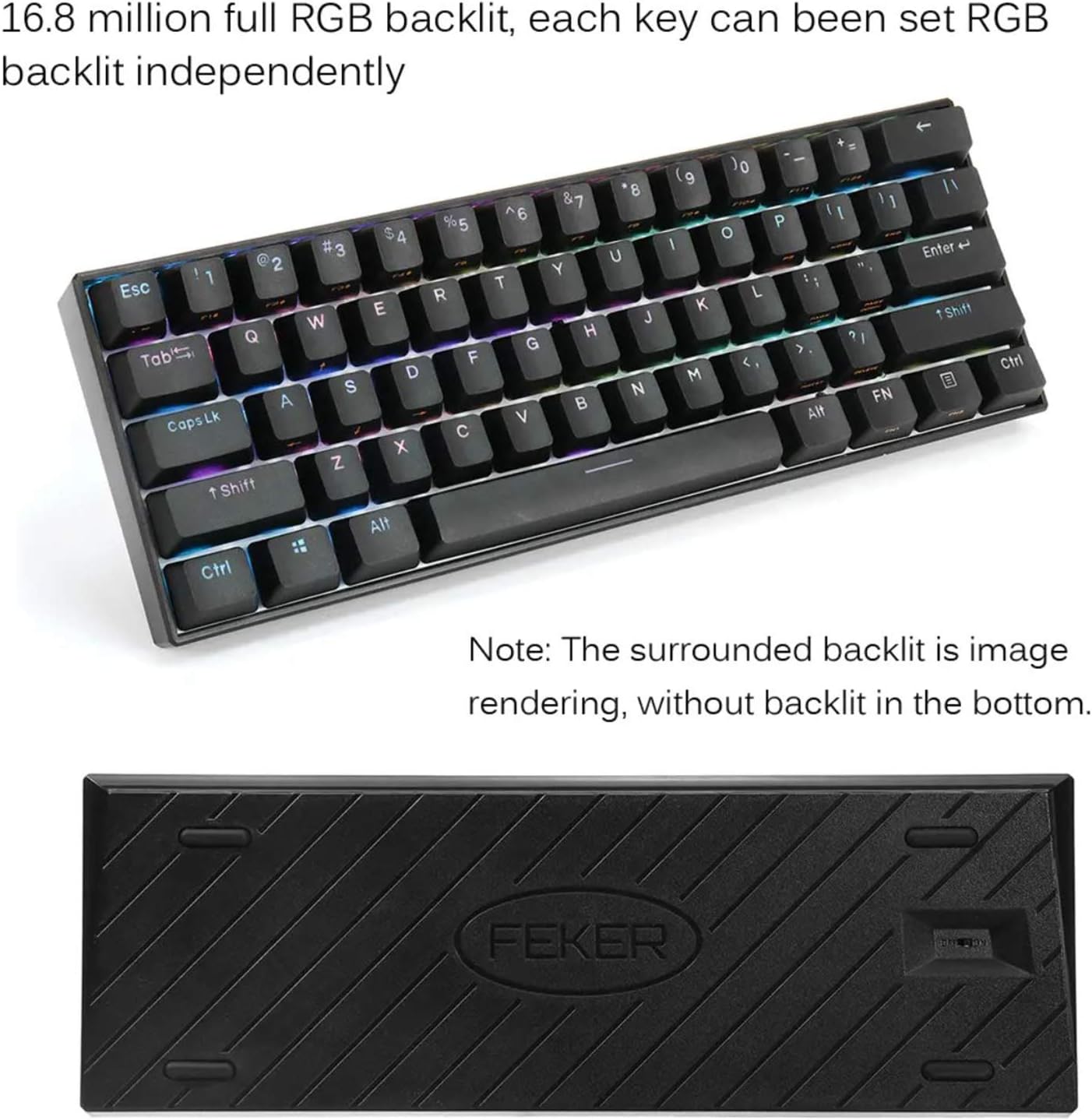
Image: The FEKER 61 Key keyboard displaying its 16.8 million full RGB backlight, with a note clarifying that the surrounding backlight in the image is a rendering and not present on the physical product's bottom.
The keyboard offers extensive RGB backlight customization.
- Menukar Mod Pencahayaan: Use FN + specific keys (often FN + \| or FN + Right Shift) to cycle through various preset lighting effects.
- Melaraskan Kecerahan: Use FN + Up/Down Arrow keys (or similar, check keycap legends) to increase or decrease backlight brightness.
- Melaraskan Kelajuan: Use FN + Left/Right Arrow keys (or similar) to change the speed of dynamic lighting effects.
- Menyesuaikan Warna: For full color customization and per-key lighting, use the dedicated software.
3. Customization Software

Image: A screenshot of the FEKER keyboard's customization software interface, showing options for profile management, customization, lighting, gaming mode, and macros, emphasizing the ability to customize any color for every single key.
The FEKER keyboard comes with dedicated software for advanced customization of key assignments, macros, and RGB lighting.
- Memuat turun Perisian: Visit the official PD or FEKER website to download the latest version of the keyboard customization software.
- Pemasangan: Follow the on-screen instructions to install the software on your Windows or macOS computer.
- Key Reassignment: Remap any key to a different function, macro, or multimedia control.
- Rakaman Makro: Create and assign complex macro sequences to any key.
- Penyesuaian Pencahayaan:

Image: A screenshot of the "CUSTOMIZE" tab within the FEKER keyboard software, illustrating options for remapping keys and setting up profiles.

Image: A screenshot of the "LIGHTING" tab in the FEKER keyboard software, showing controls for color, direction, speed, and brightness of the RGB backlight, including various lighting effects like "Rolling".
- Choose from a wide array of preset effects.
- Create custom per-key lighting profiles.
- Adjust color, speed, and brightness for each effect.
- Profile Pengurusan: Save and load different profiles untuk pelbagai aplikasi atau permainan.
Penyelenggaraan
- Pembersihan:
- Disconnect the keyboard before cleaning.
- Gunakan kain lembut dan tidak berbulu sedikit dampdicairkan dengan air atau larutan pembersih lembut untuk mengelap penutup kekunci dan bingkai.
- Untuk habuk dan serpihan di antara kunci, gunakan udara termampat atau berus kecil.
- The included keycap puller can be used to remove keycaps for deeper cleaning.
- Penjagaan Bateri:
- Elakkan menyahcas sepenuhnya bateri dengan kerap.
- Simpan papan kekunci di tempat yang sejuk dan kering jika tidak digunakan untuk tempoh yang lama.
- Jangan dedahkan papan kekunci kepada suhu yang melampau.
- Storan: When not in use, store the keyboard in a clean, dry environment away from direct sunlight and excessive dust.
Menyelesaikan masalah
- Keyboard Not Responding (Wired Mode):
- Pastikan kabel USB-C disambungkan dengan selamat pada papan kekunci dan komputer.
- Cuba port USB lain pada komputer anda.
- Uji dengan kabel USB-C yang berbeza jika tersedia.
- Mulakan semula komputer anda.
- Keyboard Not Connecting (Bluetooth Mode):
- Ensure the keyboard's Bluetooth switch is ON.
- Pastikan papan kekunci dicas.
- Ensure Bluetooth is enabled on your device and it's discoverable.
- Cuba nyahpasang dan pasang semula papan kekunci daripada tetapan Bluetooth peranti anda.
- Pastikan tiada peranti lain yang mengganggu isyarat Bluetooth.
- If using multiple Bluetooth profiles, ensure you are on the correct profile (e.g., FN + Q/W/E).
- Keys Not Working / Double Typing:
- Check if there's any debris under the keycap. Use the keycap puller to remove and clean.
- If it's a specific switch issue, and the keyboard is hot-swappable, consider replacing the switch using the switch puller.
- Pastikan firmware papan kekunci terkini (semak firmware pengeluar webtapak).
- RGB Backlight Not Working / Flickering:
- Ensure backlight brightness is not set to minimum or off.
- Check lighting settings in the customization software.
- Ensure the keyboard is sufficiently charged, as low battery can affect lighting.
- Try resetting the keyboard (refer to software or manufacturer's webtapak untuk arahan penetapan semula tertentu).
Waranti dan Sokongan
For warranty information, technical support, or further assistance, please refer to the warranty card included with your product or visit the official PD/FEKER webtapak.
Webtapak: www.cthample.com/support (Placeholder - please refer to actual product documentation for correct URL)