1. Pengenalan
This manual provides detailed instructions for the assembly, operation, and maintenance of your Anet ET5 Pro 3D Printer. Please read this manual thoroughly before operating the device to ensure proper function and safety. The Anet ET5 Pro features a large print volume of 300x300x400mm, an ultra-silent motherboard, and a UL certified MeanWell power supply, designed for reliable and efficient 3D printing.
2. Ciri-ciri Utama
The Anet ET5 Pro is equipped with several features designed to enhance your 3D printing experience:
- Large Print Volume: Offers a generous build area of 300x300x400mm for larger models.
- Ultra-Silent Motherboard: Features TMC2208 stepper drivers for quiet operation.
- MeanWell Power Supply: Integrated 350W UL certified power supply for stable and safe power delivery.
- Perhimpunan Pantas: Designed for straightforward and fast setup.
- Auto-Meratakan: Simplifies bed leveling for consistent first layers.
- Pencetakan Semula: Recovers print jobs after power outages or filament run-out.
- Pengesanan Filamen: Alerts the user when filament is low or runs out.
- 3.5-inch Smart Touchscreen: Provides a clear and user-friendly interface for control.
- Dual Z-axis: Enhances stability and precision during printing.

Imej 2.1: Selesaiview of Anet ET5 Pro key features including ultra-silent operation, Meanwell power supply, large build area, auto-leveling, resume printing, quick assembly, filament detection, filament control, touchscreen, and dual Z-axis.

Image 2.2: The Anet ET5 Pro features an ultra-silent design, equipped with TMC2208 stepper drivers, allowing for quiet operation even at night.

Image 2.3: The Anet ET5 Pro integrates a 350W Meanwell power supply, concealed within the machine for convenience and safety.

Image 2.4: The 3.5-inch smart touchscreen on the Anet ET5 Pro offers a clear user interface for easy operation and settings adjustment.
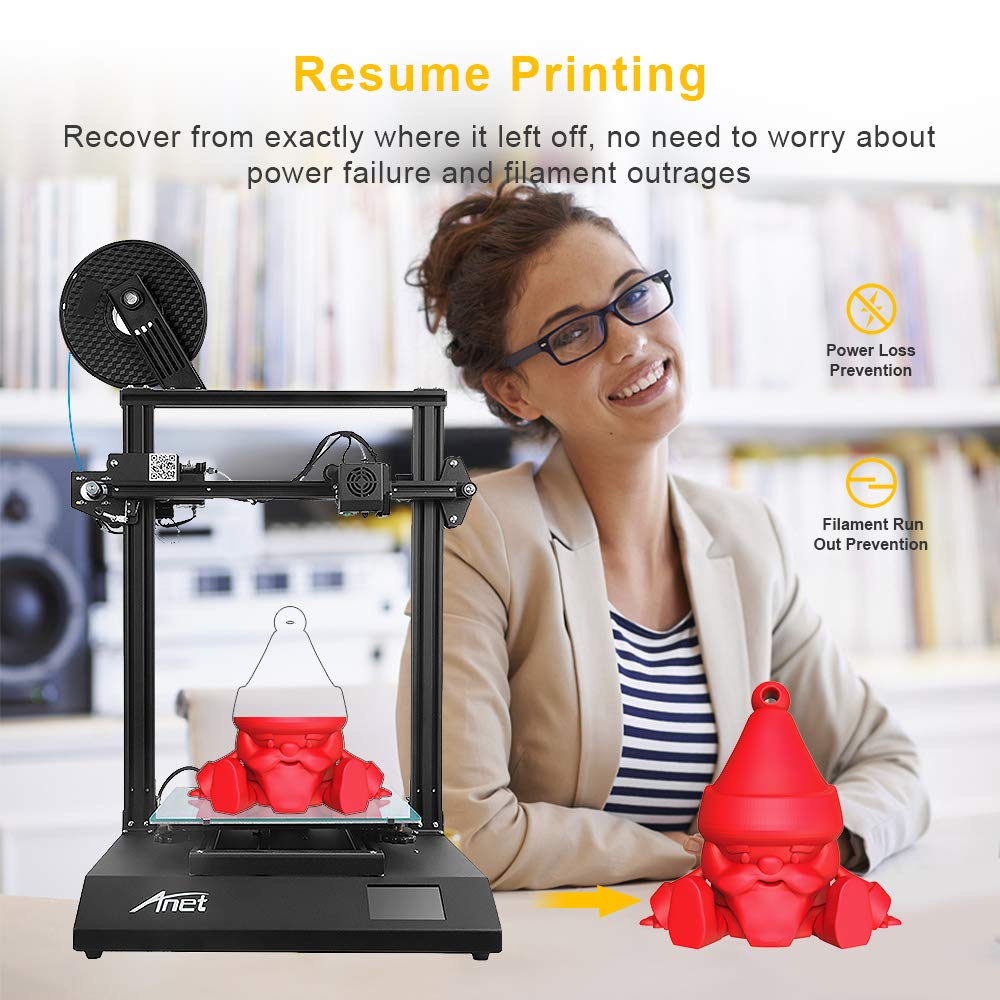
Image 2.5: The resume printing feature allows the Anet ET5 Pro to recover from power loss or filament run-out, ensuring print completion.
3. Persediaan dan Pemasangan
The Anet ET5 Pro is designed for quick and easy assembly. Follow these general steps to set up your printer:
- Membongkar: Keluarkan semua komponen dari pembungkusan dengan berhati-hati. Sahkan bahawa semua bahagian yang disenaraikan dalam senarai pembungkusan ada.
- Perhimpunan asas: Place the operation platform (base) on a stable surface.
- Pemasangan Bingkai: Attach the metal frame to the operation platform using the provided screws. Ensure it is securely fastened.
- Extruder and Hotend Assembly: Mount the extruder and hotend assembly onto the gantry system of the metal frame. Connect all necessary cables.
- Pemegang Filamen: Install the filament holder.
- Sambungan Kabel: Connect all motor, endstop, and heater cables according to the diagrams in the separate assembly guide (if provided).
- Sambungan Kuasa: Sambungkan kabel kuasa ke pencetak dan kemudian ke soket kuasa yang dibumikan.
Note: Refer to the dedicated assembly guide included with your printer for detailed, step-by-step visual instructions.

Image 3.1: The Anet ET5 Pro is designed for quick assembly, involving the extruder, metal frame, and operation platform.
4. Arahan Operasi
4.1 Initial Power On and Bed Leveling
- Power on the printer using the switch located on the side or back.
- On the touchscreen, navigate to the "Prepare" or "Leveling" menu.
- Select "Auto-Leveling" to initiate the automatic bed leveling process. The printer will probe multiple points on the print bed to create a mesh for compensation.
- If manual adjustment is required, follow the on-screen prompts or refer to the detailed leveling guide.
4.2 Filamen Pemuatan
- Letakkan gelendong filamen pada pemegang filamen.
- Preheat the nozzle to the appropriate temperature for your filament type (e.g., 200°C for PLA).
- Cut the end of the filament at a 45-degree angle to ensure a smooth entry.
- Gently feed the filament into the extruder's input hole until it is gripped by the extruder gears.
- On the touchscreen, select "Load Filament" or manually push the filament until it extrudes from the nozzle.
4.3 Memulakan Cetakan
- Prepare your 3D model using a slicing software (e.g., Cura, Simplify3D) and save it as a .gcode file kepada kad SD.
- Insert the SD card into the printer's SD card slot.
- On the touchscreen, navigate to the "Print" menu.
- Select your desired .gcode file daripada senarai.
- Confirm the print. The printer will preheat the bed and nozzle, then begin printing.
4.4 Online and Offline Printing
The Anet ET5 Pro supports both online and offline printing methods:
- Offline Printing: Printing directly from an SD card is the most common and reliable method, as it does not rely on a continuous computer connection.
- Online Printing: The printer can be connected to a computer via USB. Printing can be initiated and monitored through slicing software or dedicated control software. Ensure a stable connection to prevent print failures.
5. Penyelenggaraan
Regular maintenance ensures the longevity and optimal performance of your Anet ET5 Pro 3D Printer.
- Bersihkan Katil Cetakan: After each print, clean the print bed with isopropyl alcohol to remove any residue and ensure good adhesion for future prints.
- Pembersihan muncung: Periodically clean the nozzle to prevent clogs. Use a fine needle or a brass brush when the nozzle is heated.
- Pelincir Bahagian Bergerak: Apply a small amount of lithium grease or similar lubricant to the Z-axis lead screws and smooth rods every few months.
- Tali Pinggang Semak: Ensure the X and Y axis belts are properly tensioned. They should be taut but not overly tight.
- Periksa Kabel: Regularly check all cables for wear or damage.
- Kemas kini Firmware: Check the official Anet webtapak untuk sebarang kemas kini perisian tegar tersedia yang mungkin meningkatkan prestasi atau menambah ciri.
6. Penyelesaian masalah
This section addresses common issues you might encounter with your 3D printer.
6.1 Isu Lekatan Cetakan
- Masalah: First layer not sticking to the print bed.
- Penyelesaian:
- Pastikan katil cetak bersih dan bebas daripada gris.
- Re-level the print bed, ensuring the nozzle is at the correct distance from the bed (paper test).
- Increase print bed temperature slightly.
- Apply an adhesive (e.g., glue stick, hairspray) to the print surface.
6.2 Filament Not Extruding
- Masalah: No filament comes out of the nozzle.
- Penyelesaian:
- Check if the nozzle is clogged. Perform a cold pull or use a cleaning needle.
- Verify that the extruder gear is gripping and feeding the filament.
- Ensure the hotend temperature is set correctly for the filament type.
- Check for kinks or tangles in the filament spool.
6.3 Layer Shifting
- Masalah: Layers of the print are misaligned.
- Penyelesaian:
- Check the tension of the X and Y axis belts. They should be snug.
- Pastikan kelajuan cetak tidak terlalu tinggi.
- Verify that the printer is on a stable surface and not subject to vibrations.
- Check for any obstructions in the path of the print head.
7. Spesifikasi
| Ciri | Spesifikasi |
|---|---|
| Jenama | Anet |
| Nombor Model | ET5 Pro |
| Kelantangan Cetakan | 300 x 300 x 400 mm |
| Product Dimensions (Printer) | 21.26 x 20.47 x 25.2 inci (54 x 52 x 64 cm) |
| bahan | aluminium |
| Peranti Serasi | Komputer Peribadi |
| Sistem Operasi | Linux (serasi) |
| Bekalan Kuasa | MeanWell 350W (UL Certified) |
| Papan induk | Ultra-silent (TMC2208 stepper drivers) |
| Paparan | 3.5-inch Smart Touchscreen |
| Ketersambungan | SD Card, USB |
8. Waranti dan Sokongan
For warranty information and technical support, please refer to the documentation included with your product or visit the official Anet website. It is recommended to register your product upon purchase to facilitate any future support requests.
When contacting support, please have your model number (ET5 Pro) and purchase details readily available.


