pengenalan
This manual provides comprehensive instructions for setting up, operating, and maintaining your Macally Bluetooth Keyboard. Designed for multi-device compatibility, this wireless keyboard features a built-in stand, a rechargeable battery, and 78 keys for efficient typing across various devices including tablets, smartphones, and computers.

Image: The Macally Bluetooth Keyboard in white, with a tablet securely docked in its integrated stand, showcasing its compact design and functionality.
Apa yang ada dalam Kotak
Upon unboxing your Macally Bluetooth Keyboard, please ensure all the following items are present:
- Macally Bluetooth Keyboard
- Kabel Pengecas USB
- Manual Pengguna (dokumen ini)
If any items are missing or damaged, please contact Macally customer support.
Ciri-ciri Produk
The Macally Bluetooth Keyboard is designed for versatility and convenience, offering several key features:
- Kesambungan Berbilang Peranti: Seamlessly switch between up to 3 Bluetooth-enabled devices (e.g., tablet, smartphone, computer).
- Stand Peranti Bersepadu: Features a built-in 10.5-inch slot to securely hold your smartphone or tablet.
- Padat dan Mudah Alih: Small enough to fit into most bags, making it ideal for on-the-go use.
- Bateri boleh dicas semula: Equipped with a 280mAh rechargeable battery for extended use.
- Efficient Layout: Includes 78 quiet scissor-switch keys and 13 convenient shortcut/media keys for enhanced productivity.

Image: The keyboard demonstrating seamless Bluetooth connectivity with a 30ft wireless range, compatible with Apple, Windows, iOS, and Android operating systems.

Image: A visual representation of the keyboard's multi-device capability, showing it paired with a laptop, a desktop computer, and a smartphone simultaneously.

Image: The keyboard positioned on a desk, with both a tablet and a smartphone docked in its integrated 10.5-inch stand, highlighting its "setup anywhere" convenience.
Persediaan
Mengecas Papan Kekunci
Before first use, fully charge your Macally Bluetooth Keyboard. Connect the provided USB charging cable to the keyboard's charging port and the other end to a USB power source (e.g., computer USB port, USB wall adapter). The charging indicator light will show the charging status.

Image: The keyboard with its charging cable connected, illustrating the rechargeable 280mAh battery and the included charging cable.
Berpasangan Bluetooth
Follow these steps to pair your keyboard with a device:
- Ensure the keyboard is charged and powered on. The power switch is located on the top right of the keyboard.
- On your device (tablet, smartphone, computer), enable Bluetooth.
- Tekan dan tahan butang Fn kekunci dan salah satu daripada kekunci saluran Bluetooth (B1, B2, atau B3) simultaneously for a few seconds until the corresponding Bluetooth indicator light starts blinking rapidly. This indicates the keyboard is in pairing mode.
- On your device, search for "Macally Keyboard" or a similar name in the Bluetooth device list and select it to connect.
- Once connected, the indicator light will stop blinking and remain solid for a moment before turning off, indicating successful pairing.
To pair additional devices, repeat steps 3-5 using a different Bluetooth channel key (B1, B2, or B3).
Arahan Operasi
Bertukar Antara Peranti
Untuk bertukar antara peranti berpasangan, hanya tekan butang Fn kekunci bersama dengan kekunci saluran Bluetooth yang sepadan (B1, B2, atau B3) for the desired device. The keyboard will quickly connect to the selected device.
Using Shortcut Keys
The keyboard features 13 dedicated shortcut/media keys for quick access to common functions. These keys are typically located on the top row (F1-F12 and an additional key). Functions may vary slightly depending on the operating system of your connected device.
Common shortcut functions include:
- Media playback controls (play/pause, next/previous track)
- Volume control (mute, volume up/down)
- Pelarasan kecerahan skrin
- Home screen/desktop access
- Fungsi carian
Refer to your device's operating system documentation for specific compatibility and functionality of these keys.

Imej: A terperinci view of the keyboard's layout, emphasizing its 78 quiet scissor-switch keys and the 13 dedicated shortcut/media keys for efficient use.
Penyelenggaraan
To ensure the longevity and optimal performance of your Macally Bluetooth Keyboard, follow these maintenance guidelines:
- Pembersihan: Gunakan kain lembut, kering dan bebas bulu untuk membersihkan permukaan papan kekunci. Untuk kotoran degil, gosok sedikitampen kain dengan air atau pembersih yang lembut dan tidak melelas. Elakkan kelembapan berlebihan.
- Storan: Apabila tidak digunakan untuk tempoh yang lama, simpan papan kekunci di tempat yang sejuk dan kering jauh dari cahaya matahari langsung dan suhu yang melampau.
- Penjagaan Bateri: To preserve battery life, avoid fully discharging the keyboard frequently. Recharge it when the low battery indicator appears. If storing for a long time, charge it to about 50% every few months.
- Elakkan Tumpahan: Keep liquids away from the keyboard to prevent internal damage.
Menyelesaikan masalah
If you encounter issues with your Macally Bluetooth Keyboard, try the following solutions:
| Masalah | Penyelesaian yang Mungkin |
|---|---|
| Papan kekunci tidak dihidupkan. | Ensure the keyboard is charged. Connect it to a power source using the USB cable. |
| Tidak dapat memasangkan papan kekunci. |
|
| Papan kekunci kerap terputus. |
|
| Kunci tidak bertindak balas. |
|
If these solutions do not resolve the issue, please contact Macally customer support for further assistance.
Spesifikasi
| Ciri | Perincian |
|---|---|
| Nombor Model | BTTABKEYBAT |
| Teknologi Ketersambungan | Bluetooth |
| Bilangan Kunci | 78 |
| Jenis Bateri | 1 bateri Lithium Ion (termasuk) |
| Berat Barang | 1.92 paun |
| Dimensi Pakej | 13.98 x 7.91 x 2.48 inci |
| Pengeluar | Mace Group Inc / Periferal Macally |
| Peranti Serasi | PC, Tablet, Apple devices, Windows Desktop/Laptop, Surface, Chromebook, Smartphones, TVs (any device with Bluetooth) |
| Penggunaan yang Disyorkan | Office, School, Everyday Use, Personal, Education, Business |
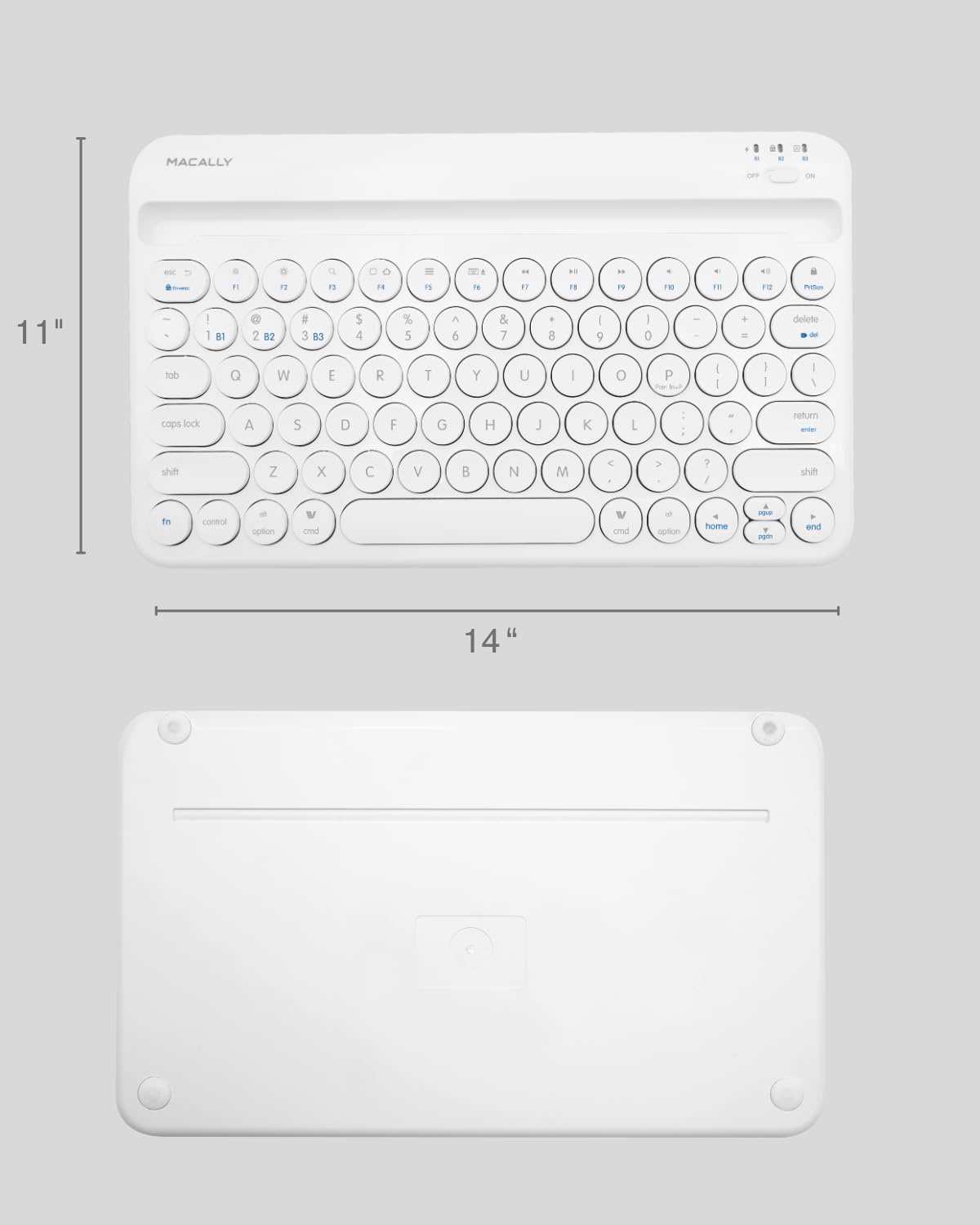
Image: The physical dimensions of the keyboard, measuring approximately 11 inches in width and 14 inches in length.

Image: The keyboard fitting easily into a backpack, demonstrating its compact size and suitability for travel and on-the-go use.
Waranti dan Sokongan
Macally products are designed for quality and reliability. For information regarding product warranty, technical support, or service, please visit the official Macally webtapak atau hubungi bahagian perkhidmatan pelanggan mereka. Simpan resit pembelian anda sebagai bukti pembelian untuk tuntutan waranti.
Anda boleh mendapatkan lebih banyak maklumat dan sokongan di Macally Store on Amazon.


