1. Pengenalan
Welcome to the Surfans Kids Tablet T57 user manual. This guide provides detailed instructions on how to set up, operate, maintain, and troubleshoot your new 7-inch Android tablet. Designed specifically for children, this tablet features a durable kid-proof case, parental control functions, and pre-installed educational and entertainment applications.
2. Apa yang ada di dalam Kotak
Sila semak kandungan pakej anda untuk memastikan semua item ada:
- 1x Surfans Kids Tablet
- 1x Tablet Stand
- 1x Kabel USB
- 1x Kids Tablet User Manual (this document)
3. Produk Lebihview dan Ciri
The Surfans Kids Tablet T57 is built with a robust design and features tailored for young users. Below is an overview of its components and key functionalities.
3.1 Komponen Tablet
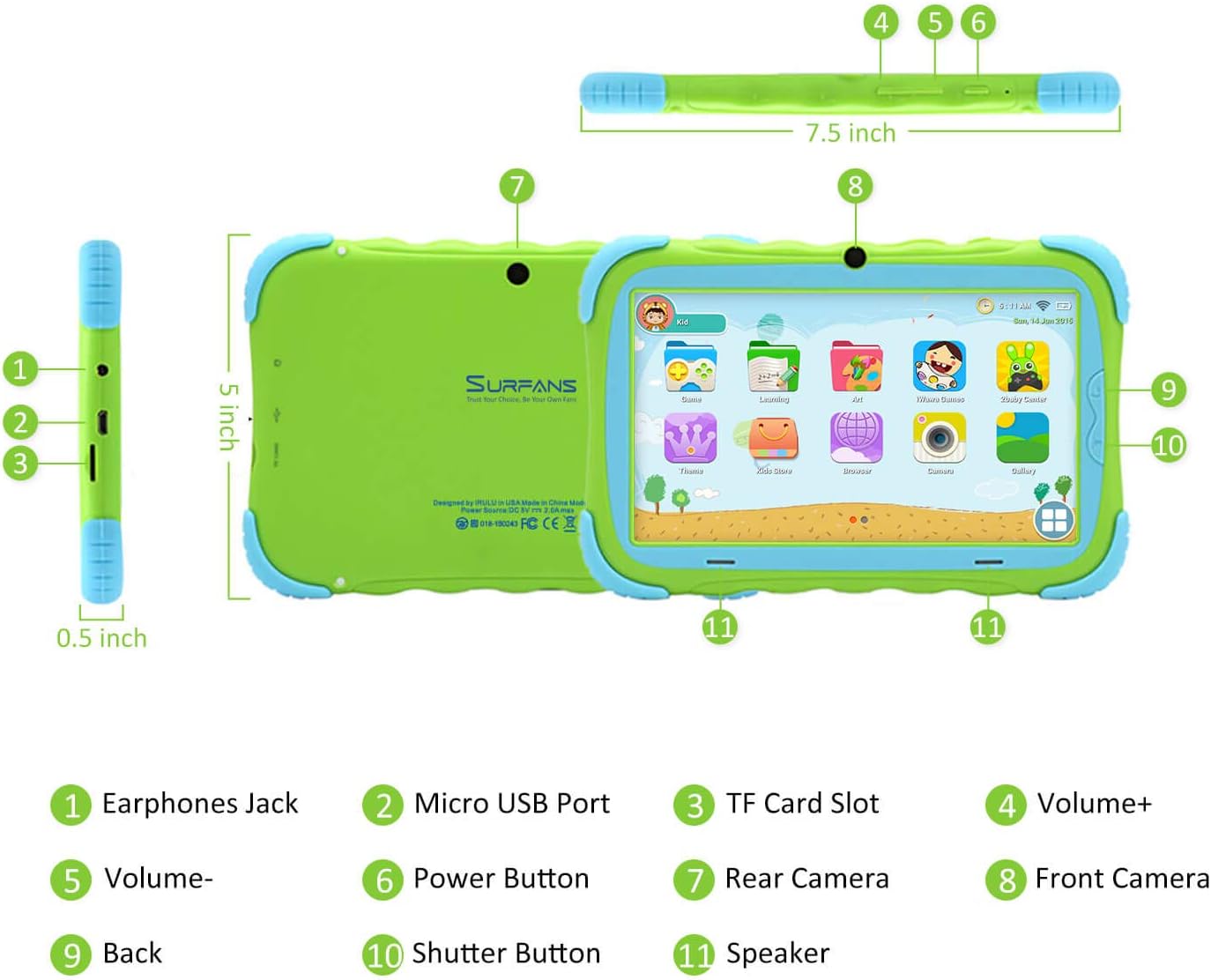
- bicu fon telinga: Untuk menyambungkan fon kepala atau peranti audio luaran.
- Port USB Mikro: Used for charging the tablet and connecting to a computer for data transfer.
- Slot Kad TF: For inserting a Micro SD card to expand storage capacity (up to 32GB).
- Jilid+: Increases the tablet's audio volume.
- Jilid-: Decreases the tablet's audio volume.
- Butang Kuasa: Press and hold to turn the tablet on/off or restart. Press briefly to turn the screen on/off.
- Kamera Belakang: The primary camera located on the back of the tablet.
- Kamera Depan: The camera located on the front, typically used for video calls or selfies.
- Butang Belakang: Navigates back to the previous screen or closes the current application.
- Butang Pengatup: Used to capture photos or start/stop video recording in the camera application.
- Penceramah: Provides audio output from the tablet.
3.2 Ciri-ciri Utama
- Kid-Proof Design: Comes with a durable, lightweight, and skin-friendly case designed to protect against drops and bumps.
- 7-inch IPS HD Eye Protection Display: Provides clear visuals while minimizing eye strain.
- OS Android 9.0: Runs on the latest Google Android 9.0 Pie operating system for smooth performance.
- Pemproses Empat Teras: Ensures responsive performance for apps, games, and videos.
- 1GB RAM & 16GB ROM: Sufficient memory for basic operations and storage, expandable up to 32GB via Micro SD card.
- Mod Kawalan Ibu Bapa: Allows parents to manage content, set time limits, and configure user settings for a safe digital environment.
- Pre-installed Kids Apps: Includes a variety of educational and entertaining apps, with access to the Google Play Store for more content.
- Kesambungan Wi-Fi: Supports 802.11g for fast browsing, streaming, and video calls.
- Hayat Bateri yang Panjang: 3000mAh Li-ion Battery provides 3-5 hours of working time, or up to 8 hours of mixed use on a single charge.


4. Panduan Persediaan
Follow these steps to set up your Surfans Kids Tablet for the first time.
4.1 Caj Permulaan
Before first use, fully charge the tablet. Connect the included USB cable to the Micro USB Port (2) on the tablet and plug the other end into a compatible USB power adapter (not included) or a computer USB port. The charging indicator will show the charging status.
4.2 Hidupkan/Mati Kuasa
- Untuk Menghidupkan: Press and hold the Power Button (6) until the screen lights up.
- Untuk Mematikan: Press and hold the Power Button (6) until a power-off menu appears. Select "Power off" and confirm.
- Untuk Mulakan Semula: Press and hold the Power Button (6) until the power-off menu appears. Select "Restart" and confirm.
- Skrin Hidup/Mati: Briefly press the Power Button (6) to turn the screen on or off without powering down the tablet.
4.3 Sambungan Wi-Fi
To access online content and download apps, connect your tablet to a Wi-Fi network:
- Dari skrin utama, leret ke bawah dari atas untuk membuka panel Tetapan Pantas.
- Tap and hold the Wi-Fi icon to go to Wi-Fi settings.
- Hidupkan Wi-Fi jika ia dimatikan.
- Pilih rangkaian Wi-Fi yang anda inginkan daripada senarai.
- Masukkan kata laluan rangkaian jika digesa, kemudian ketik "Sambung".
4.4 Setting Up Parental Control
The Parental Control mode is a key feature for managing your child's tablet usage. This allows you to filter website content, set time limits, and control app access.

Specific steps for setting up parental controls will be available within the tablet's pre-installed Kids app or settings menu. Look for an icon or section labeled "Parental Control" or "Kids Mode" to configure user profiles, allowed applications, and usage schedules.
5. Mengendalikan Tablet
This section covers basic operations and how to use the tablet's features.
5.1 Navigasi Asas
- Touch and Tap: To open apps, select items, or type.
- Leret: To scroll through screens, menus, or web muka surat.
- Cubit-untuk-Zum: Untuk mengezum masuk atau keluar pada imej atau web muka surat.
- Skrin Utama: Skrin utama di mana anda boleh mengakses apl dan widget.
- Bar Navigasi: Located at the bottom of the screen, typically includes Back, Home, and Recent Apps buttons.
5.2 Using Kids Mode and Apps
The tablet comes with a dedicated Kids Mode interface, providing a safe and engaging environment for children. This mode typically features a simplified layout and access to pre-approved content.

- Accessing Kids Mode: Usually, there's a specific app icon or a setting to switch to Kids Mode.
- Apl prapasang: Explore the various educational games, books, music, and art learning applications.
- Gedung Google Play: For additional apps, exit Kids Mode (if applicable) and access the Google Play Store. Ensure parental supervision for downloads.


5.3 Media Playback and Camera
- Videos and Music: Use pre-installed media players or download others from the Play Store to enjoy videos and music.
- kamera: Open the Camera app to use the Front (8) or Rear (7) cameras. Tap the Shutter Button (10) to take photos or record videos.
5.4 Storan Boleh Diperluas
To expand the tablet's storage, insert a Micro SD card (up to 32GB, not included) into the TF Card Slot (3). This allows for more space for photos, music, movies, and apps.
6. Penyelenggaraan
Penyelenggaraan yang betul memastikan jangka hayat dan prestasi optimum tablet anda.
- Pembersihan: Use a soft, lint-free cloth to clean the screen and tablet body. Avoid abrasive cleaners or solvents.
- Penjagaan Bateri:
- Elakkan menyahcas sepenuhnya bateri dengan kerap.
- Do not expose the tablet to extreme temperatures.
- Gunakan hanya kabel USB yang disediakan untuk mengecas.
- Kemas Kini Perisian: Periodically check for system updates in the tablet's settings to ensure you have the latest features and security patches.
- Pengurusan Storan: Bersihkan secara kerap yang tidak perlu files and uninstall unused apps to free up storage space and maintain performance.
7. Penyelesaian masalah
If you encounter issues with your tablet, refer to the following common problems and solutions.
| Masalah | Penyelesaian yang Mungkin |
|---|---|
| Tablet tidak dihidupkan. | Ensure the battery is charged. Connect the charger and wait a few minutes before attempting to power on again. If unresponsive, press and hold the Power Button for 10-15 seconds to force a restart. |
| Isu sambungan Wi-Fi. | Periksa sama ada Wi-Fi diaktifkan dalam tetapan. Mulakan semula penghala Wi-Fi anda. Lupakan rangkaian dan sambung semula. Pastikan anda berada dalam julat isyarat Wi-Fi. |
| Prestasi perlahan atau aplikasi ranap. | Close unused apps. Clear app caches. Free up storage space by deleting unnecessary files or uninstalling unused apps. Restart the tablet. |
| Skrin tidak bertindak balas. | Restart the tablet by holding the Power Button. Ensure the screen is clean and dry. |
| Cannot download apps from Google Play Store. | Check your Wi-Fi connection. Ensure sufficient storage space. Verify parental control settings are not blocking downloads. Clear cache and data for Google Play Store app. |
| Tablet tidak dicas. | Check the USB cable and charger for damage. Try a different USB port or power adapter. Ensure the Micro USB Port is clean and free of debris. |
If the problem persists after trying these solutions, please contact Surfans customer support for further assistance.
8. Spesifikasi
Detailed technical specifications for the Surfans Kids Tablet T57:
| Ciri | Perincian |
|---|---|
| Nama Model | T57 |
| Sistem Operasi | Android 9 Pie |
| Saiz Skrin | 7 Inci |
| Resolusi Skrin | 1024x600 IPS HD |
| Pemproses | 1.5 GHz Quad-core Cortex-X7 (ARM) |
| RAM | 1GB |
| Storan Dalaman (ROM) | 16GB |
| Storan Boleh Dikembangkan | Menyokong kad SD SD hingga 32GB |
| Jenis Wayarles | Wi-Fi 802.11g |
| Kamera | Front Camera, Rear Camera (2 MP) |
| Bateri | Bateri Li-ion 3000mAh |
| Purata Hayat Bateri | 3-5 hours (working time), 8 hours (mixed use) |
| Dimensi (LxWxH) | 7.5 x 5 x 0.5 inci |
| Berat Barang | 1.22 paun |
| warna | hijau |
9. Waranti dan Sokongan
For warranty information, technical support, or any inquiries regarding your Surfans Kids Tablet T57, please refer to the contact details provided on the product packaging or the official Surfans website. Surfans is committed to providing fast response and technical assistance for any issues encountered during use.


