pengenalan
This manual provides essential information for setting up, operating, and maintaining your Alienware Area 51M R2 Gaming Laptop. Please read this guide thoroughly to ensure optimal performance and longevity of your device.
The Alienware Area 51M R2 is a high-performance gaming laptop designed with desktop-level processing power, upgradable CPU and GPU components, and an advanced cooling system.
Apa yang ada dalam Kotak
Sahkan bahawa semua item terdapat dalam pembungkusan:
- Alienware Area 51M R2 Gaming Laptop
- Penyesuai Kuasa
- Manual Pengguna (dokumen ini)
Persediaan
1. Menyambungkan Penyesuai Kuasa
Connect the power adapter to the laptop's power input port and then plug it into a wall outlet. Ensure the connection is secure. The laptop requires sufficient power for initial setup and operation.
2. Kuasa Awal Hidup
Open the laptop lid and press the power button, typically located on the top right of the keyboard deck. The system will begin its initial boot sequence.
3. Persediaan Sistem Pengendalian
Follow the on-screen instructions to complete the Windows 10 Home operating system setup. This includes selecting language, region, connecting to a network, and creating a user account.
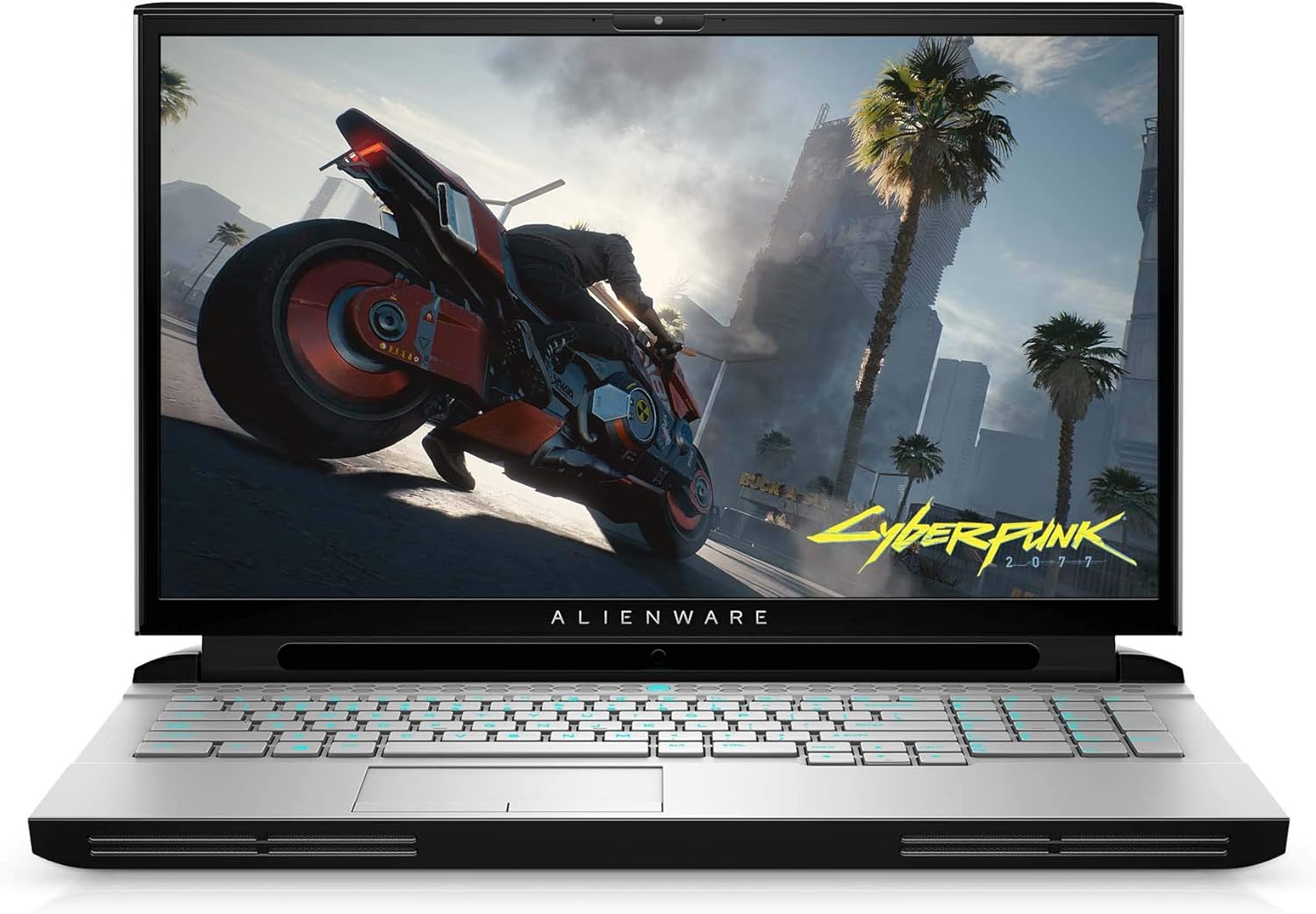
Imej: Depan view of the Alienware Area 51M R2 Gaming Laptop, displaying the screen and keyboard.
Mengendalikan Komputer Riba
Ciri Papan Kekunci
The Alienware TactX keyboard features N-key rollover technology, allowing for over 108-key commands. This ensures accurate input during rapid actions. The 1.7mm key travel provides responsive feedback for each keystroke.
Paparan
The laptop features a 17.3-inch Full HD (1920x1080) display with a 300Hz refresh rate and 3ms response time, optimized for smooth visual performance.
Ketersambungan
The Area 51M R2 includes a 2.5Gbps Ethernet connection for high-speed wired network transfers. Wireless connectivity is provided via 802.11ac. The laptop also features 4 USB 3.0 ports for peripheral connections.
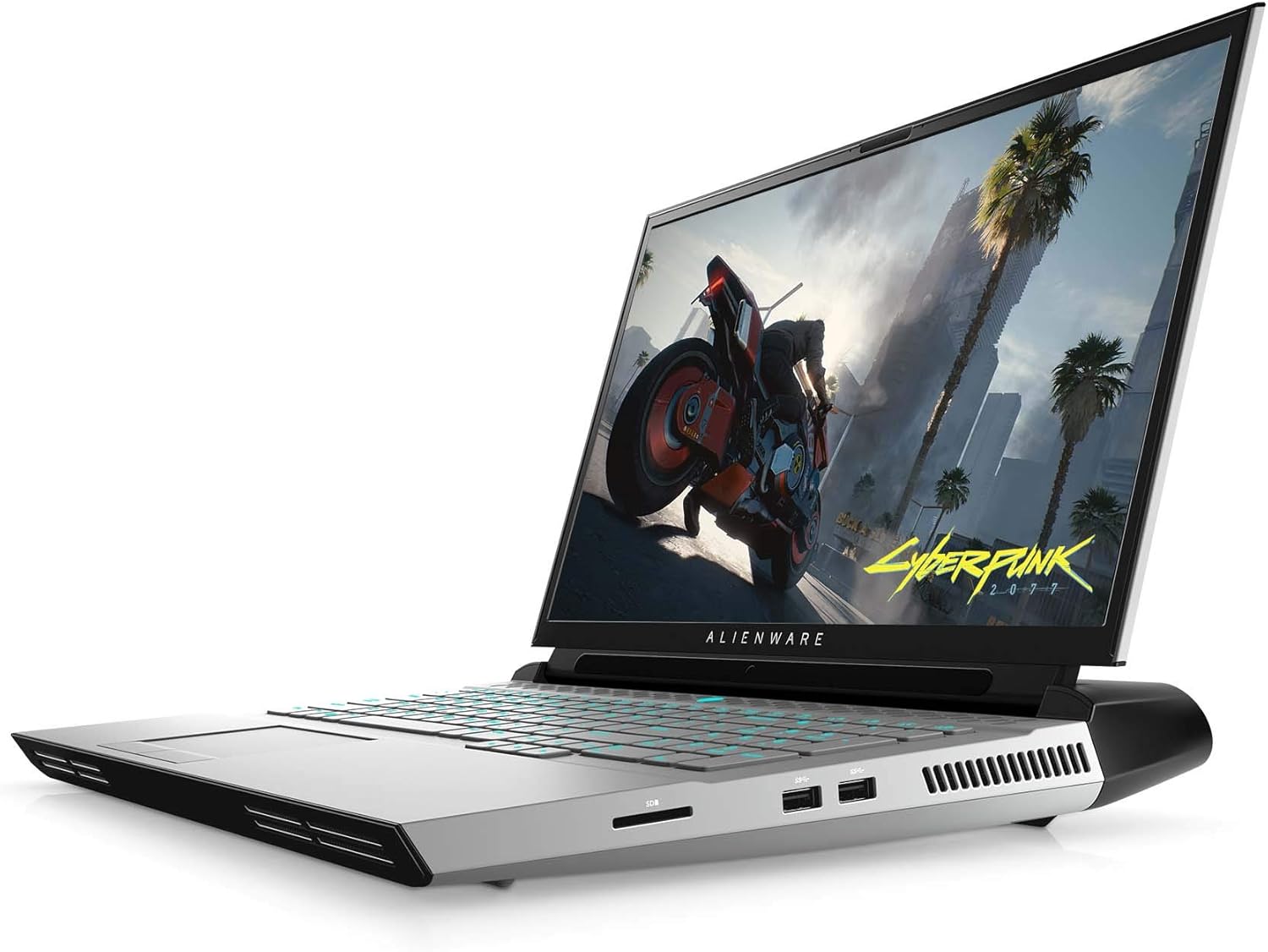
Imej: Sisi view of the Alienware Area 51M R2 Gaming Laptop, showing various input/output ports.
Penyelenggaraan
Sistem Penyejukan
The Alienware Area 51M R2 incorporates an advanced cooling system designed to manage heat generated by high-performance components. To maintain optimal cooling efficiency:
- Ensure the laptop's vents are unobstructed. Avoid placing the laptop on soft surfaces like beds or carpets that can block airflow.
- Bersihkan habuk dari lubang udara secara berkala menggunakan udara termampat.
- Operate the laptop in a well-ventilated environment.

Imej: Dalaman view of the Alienware Area 51M R2, highlighting the cooling system components and airflow paths.
Pembersihan Am
Gunakan kain lembut dan tidak berbulu untuk membersihkan skrin dan permukaan luar. Untuk kesan degil,ampen the cloth with water or a mild, non-abrasive cleaner specifically designed for electronics. Avoid spraying liquids directly onto the laptop.
Menyelesaikan masalah
This section addresses common issues you might encounter with your Alienware Area 51M R2 Gaming Laptop.
Tiada Kuasa / Tidak Dihidupkan
- Pastikan penyesuai kuasa disambungkan dengan selamat pada kedua-dua komputer riba dan salur keluar elektrik yang berfungsi.
- Sahkan alur keluar kuasa berfungsi dengan memasang peranti lain.
- If using a power strip or surge protector, ensure it is switched on and functioning.
Isu Paparan
- If the screen is blank, try adjusting the display brightness using the keyboard function keys.
- Connect an external monitor to determine if the issue is with the laptop's internal display or the graphics card.
- Pastikan pemacu grafik dikemas kini.
Terlalu panas
- Check that all ventilation ports are clear of obstructions.
- Clean dust from the cooling vents.
- Ensure the laptop is used on a hard, flat surface to allow for proper airflow.
Network Connectivity Problems
- For Wi-Fi, ensure the wireless adapter is enabled and you are connected to the correct network.
- For wired Ethernet, verify the cable is securely connected to both the laptop and the router/modem.
- Mulakan semula penghala/modem anda.
For persistent issues, consult the Alienware support webtapak atau hubungi perkhidmatan pelanggan.
Spesifikasi
| Ciri | Perincian |
|---|---|
| Jenama | Perisian asing |
| Nama Model | AWARR2-7323WHT-PUS |
| Saiz Skrin | 17.3 Inci |
| Resolusi Skrin | 1920 x 1080 piksel |
| Resolusi Skrin Maks | 1920x1080 Piksel |
| Pemproses | Intel Core i7-10700K (5.1 GHz) |
| RAM | 16 GB DDR4 (3200 MHz) |
| Pemacu Keras | 1 TB SSD |
| Pemproses bersama Grafik | NVIDIA GeForce RTX 2070 |
| Penerangan Kad Grafik | NVIDIA RTX 2070 Super |
| Saiz RAM Kad Grafik | 8 GB |
| Jenis Wayarles | 802.11ac |
| Bilangan USB 3.0 Port | 4 |
| Sistem Operasi | Windows 10 Home |
| Berat Barang | 10.4 paun |
| Dimensi Produk | 15.85 x 12.57 x 1.7 inci |
| warna | Cahaya Bulan |
| Bateri | 1 bateri Lithium Ion diperlukan (termasuk) |
Waranti dan Sokongan
For warranty information and technical support, please refer to the documentation provided with your purchase or visit the official Alienware support webtapak. Simpan bukti pembelian anda untuk tuntutan waranti.
Sumber dalam talian mungkin termasuk:
- Sokongan Alienware Webtapak
- Driver downloads and software updates
- Troubleshooting guides and FAQs


