1. Pengenalan
This manual provides detailed instructions for the installation, operation, and maintenance of your EDUPLINK 1300Mbps USB 3.0 Dual Band WiFi Adapter, model EP-AC1686. This device is designed to provide high-speed wireless connectivity to your computer, supporting both 5GHz and 2.4GHz bands for optimal performance.
2. Kandungan Pakej
Sila sahkan bahawa semua item terdapat dalam pakej anda:
- 1 x EDUPLINK 1300Mbps WiFi Adapter (EP-AC1686)
- 1 x Manual Pengguna

3. Produk Lebihview
The EDUPLINK EP-AC1686 is a high-performance wireless adapter featuring a USB 3.0 interface and a 5dBi high-gain antenna. It supports the 802.11ac standard, offering fast and stable dual-band connectivity.
Ciri-ciri Utama:
- Antara Muka USB 3.0: Provides up to 10 times faster data transfer speeds compared to USB 2.0, ensuring optimal throughput and a stable internet connection.
- Kesambungan Dwi Jalur: Supports both 5GHz (up to 867Mbps) and 2.4GHz (up to 400Mbps) bands, totaling up to 1300Mbps for versatile and high-speed wireless access.
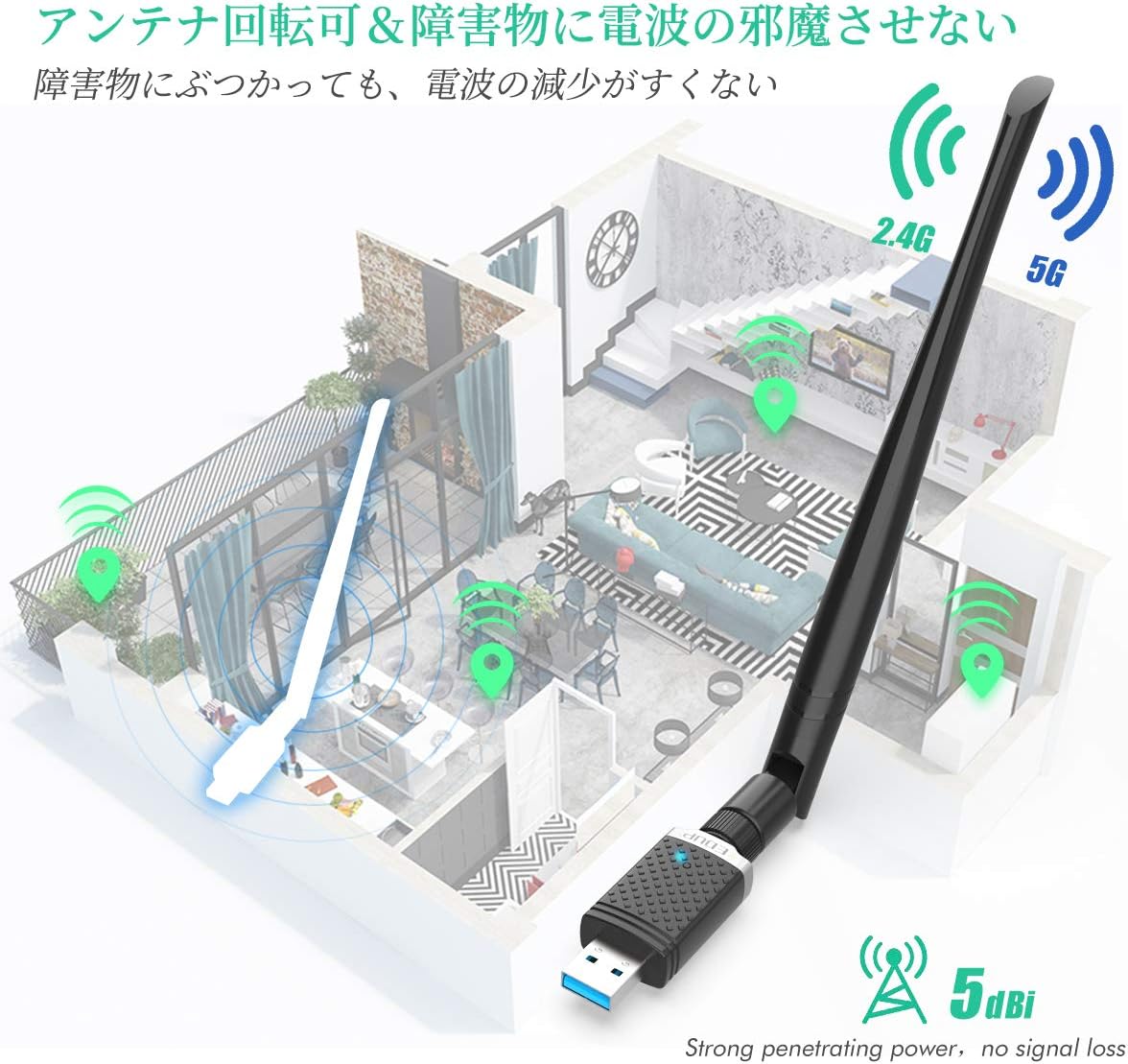
- Antena Gandaan Tinggi 5dBi: A 360-degree rotatable antenna enhances signal reception and transmission range, improving connectivity in areas with weak signals.
- Keserasian Luas: Supports Windows XP/7/8/8.1/10 and Mac OS X 10.9-10.15.
- Mod AP: Allows the adapter to function as a Wi-Fi hotspot, sharing your wired internet connection with other wireless devices.


4. Arahan Persediaan
4.1. Pemasangan Pemandu
Before connecting the adapter, it is recommended to install the necessary drivers. Drivers automatically installed by Windows may be unstable. For optimal performance, please download and install the correct drivers from the official webtapak:
Pautan Muat Turun Pemandu: szedup.com/usb-adapters/EPAC1686.html
- Download the appropriate driver for your operating system (Windows or Mac OS).
- Nyahzip yang dimuat turun file dan jalankan pemasang.
- Ikut arahan pada skrin untuk menyelesaikan pemasangan.
- Mulakan semula komputer anda jika digesa.
4.2. Sambungan Fizikal
- Pastikan komputer anda dihidupkan.
- Insert the EDUPLINK WiFi adapter into an available USB 3.0 port on your computer. USB 3.0 ports are typically blue. If your computer does not recognize the device, try different USB ports, especially those on the back of desktop computer cases.
- Attach the 5dBi antenna to the adapter and adjust its orientation for best signal reception.

5. Arahan Operasi
5.1. Menyambung ke Rangkaian Wi-Fi
- After successful driver installation and physical connection, your computer should detect the new wireless adapter.
- Click on the Wi-Fi icon in your system tray (Windows) or menu bar (Mac OS).
- Select your desired Wi-Fi network (SSID) from the list of available networks.
- Masukkan kunci keselamatan rangkaian (kata laluan) jika digesa.
- Klik 'Sambung'. Penyesuai akan mewujudkan sambungan ke rangkaian Wi-Fi.
5.2. Using AP Mode (Hotspot Function)
The AP mode allows your adapter to create a Wi-Fi hotspot, sharing your computer's wired internet connection with other wireless devices like smartphones, tablets, or other laptops.
- Ensure your computer has a stable wired internet connection.
- Open the wireless utility software installed with the driver (or use your OS's built-in hotspot feature if available and compatible).
- Locate and enable the 'AP Mode' or 'Hotspot' function.
- Konfigurasikan nama rangkaian (SSID) dan kata laluan untuk hotspot baharu anda.
- Other wireless devices can now connect to this hotspot using the configured SSID and password. Note that devices accessing the wireless LAN need to be registered on the network for proper functionality.
6. Penyelenggaraan
- Pastikan penyesuai bersih dan bebas daripada habuk. Gunakan kain lembut dan kering untuk pembersihan.
- Elakkan mendedahkan penyesuai kepada suhu, kelembapan atau cahaya matahari langsung yang melampau.
- Do not attempt to disassemble or repair the device yourself. This may void your warranty.
- Pastikan antena dipasang dengan kukuh tetapi jangan terlalu ketat.
7. Penyelesaian masalah
7.1. No Wi-Fi Connection / Device Not Recognized
- Check Driver Installation: Ensure the correct drivers from szedup.com/usb-adapters/EPAC1686.html are installed. Uninstall any automatically installed Windows drivers first if experiencing issues.
- Cuba Port USB Berbeza: If the computer does not recognize the device, try plugging it into a different USB port, especially a USB 3.0 port on the back of a desktop computer.
- Mulakan semula Komputer: Mula semula yang mudah selalunya boleh menyelesaikan masalah pengesanan.
- Semak Pengurus Peranti (Windows): Verify that the adapter is listed correctly without any error symbols.
7.2. Slow Speed / Unstable Connection
- Kedudukan Antena: Adjust the 5dBi antenna's orientation to find the optimal signal reception.
- Router Distance/Obstacles: Move closer to your Wi-Fi router or minimize physical obstacles (walls, large furniture) between the adapter and the router. Signal strength directly impacts speed.
- Jalur Penghala: Ensure you are connected to the 5GHz band for higher speeds if your router supports it and you are within close range. The 2.4GHz band offers better range but lower speeds.
- Gangguan: Other electronic devices (microwaves, cordless phones) can cause interference. Try to minimize these near your adapter and router.
- Router Speed: The actual speed is also related to your router's capabilities and internet service provider's speed.
7.3. AP Mode Not Working
- Sambungan Berwayar: Ensure your computer has an active and stable wired internet connection.
- Pemacu/Perisian: Verify that the wireless utility software is correctly installed and configured for AP mode.
- Pendaftaran Rangkaian: Ensure that devices attempting to connect to the hotspot are properly registered on the network if required by your system settings.
8. Spesifikasi
| Ciri | Penerangan |
|---|---|
| Nombor Model | EP-AC1686 |
| Jenama | EDUPLINK |
| Antara Muka Perkakasan | USB 3.0, Wireless Frequency |
| Protokol Pautan Data | IEEE 802.11ac |
| Kadar Pemindahan Data | Sehingga 1300 Mbps (867 Mbps pada 5GHz, 400 Mbps pada 2.4GHz) |
| Antena | 5dBi 360° Rotating High-Gain Antenna |
| OS yang serasi | Windows XP/7/8/8.1/10, Mac OS X 10.9-10.15 |
| Peranti Serasi | Smartphones, Tablets, Desktop PCs, Notebook PCs |
| Dimensi Produk | 5.33 x 2.03 x 17.02 cm (lebih kurang 5.3 x 2 x 17 cm) |
| Berat badan | 60 g |
| UPC | 793420184213 |
9. Waranti dan Sokongan
9.1. Maklumat Waranti
This EDUPLINK WiFi adapter comes with an Waranti 18 bulan dari tarikh pembelian. Waranti ini meliputi kecacatan pembuatan dan kerosakan dalam penggunaan biasa. Sila simpan bukti pembelian anda untuk tuntutan waranti.
9.2. Sokongan Pelanggan
If you encounter any issues, have questions, or require technical assistance with your EP-AC1686 adapter, please refer to the troubleshooting section first. If the problem persists, please contact EDUPLINK customer support. Contact details are typically available on the official EDUPLINK webtapak atau melalui peruncit anda.


