1. Produk Lebihview
The TP-Link Archer TX50E is a high-performance AX3000 Wi-Fi 6 Bluetooth 5.3 PCIe Adapter designed for desktop PCs. It leverages the latest Wi-Fi 6 standard to deliver extreme speeds, ultra-low latency, and uninterrupted connectivity, making it suitable for demanding applications like immersive gaming and VR. The adapter features a customized heat sink and gold-plated contactors for enhanced stability and longevity.
Ciri-ciri Utama:
- Wi-Fi 6 Performance: Delivers speeds up to 2.4 Gbps (2402 Mbps on 5 GHz + 574 Mbps on 2.4 GHz) with 1024-QAM and 160 MHz bandwidth.
- Latensi Sangat Rendah: Revolutionary OFDMA and MU-MIMO technologies reduce lag for responsive gaming and VR experiences.
- Bluetooth 5.3: Achieves 2× faster speeds and 4× broader coverage than Bluetooth 4.2, enabling seamless connection with various peripherals.
- Liputan Luas: Equipped with two high-gain antennas to extend Wi-Fi range.
- Binaan Premium: Features a customized heat sink for efficient thermal dissipation and gold-plated contactors for improved stability and oxidation resistance.
- Keselamatan Lanjutan: Menyokong WPA3, piawaian keselamatan rangkaian terkini, untuk perlindungan rangkaian yang dipertingkatkan.
2. Kandungan Pakej
Sahkan bahawa semua item terdapat dalam pakej anda:

Image: TP-Link Archer TX50E retail box showing the adapter and included accessories.
- TP-Link Archer TX50E Wi-Fi 6 Bluetooth 5.3 PCIe Adapter
- Dua Antena Gain Tinggi
- Kabel USB Bluetooth
- CD sumber
- Panduan Pemasangan Pantas
- Rendah-Profile kurungan
3. Pemasangan Perkakasan
Sebelum Anda Bermula:
- Pastikan komputer anda dimatikan dan dicabut daripada sumber kuasa.
- Ground yourself to discharge any static electricity before handling components.
- Refer to your computer's manual for specific instructions on opening the case.
Pemasangan Langkah demi Langkah:
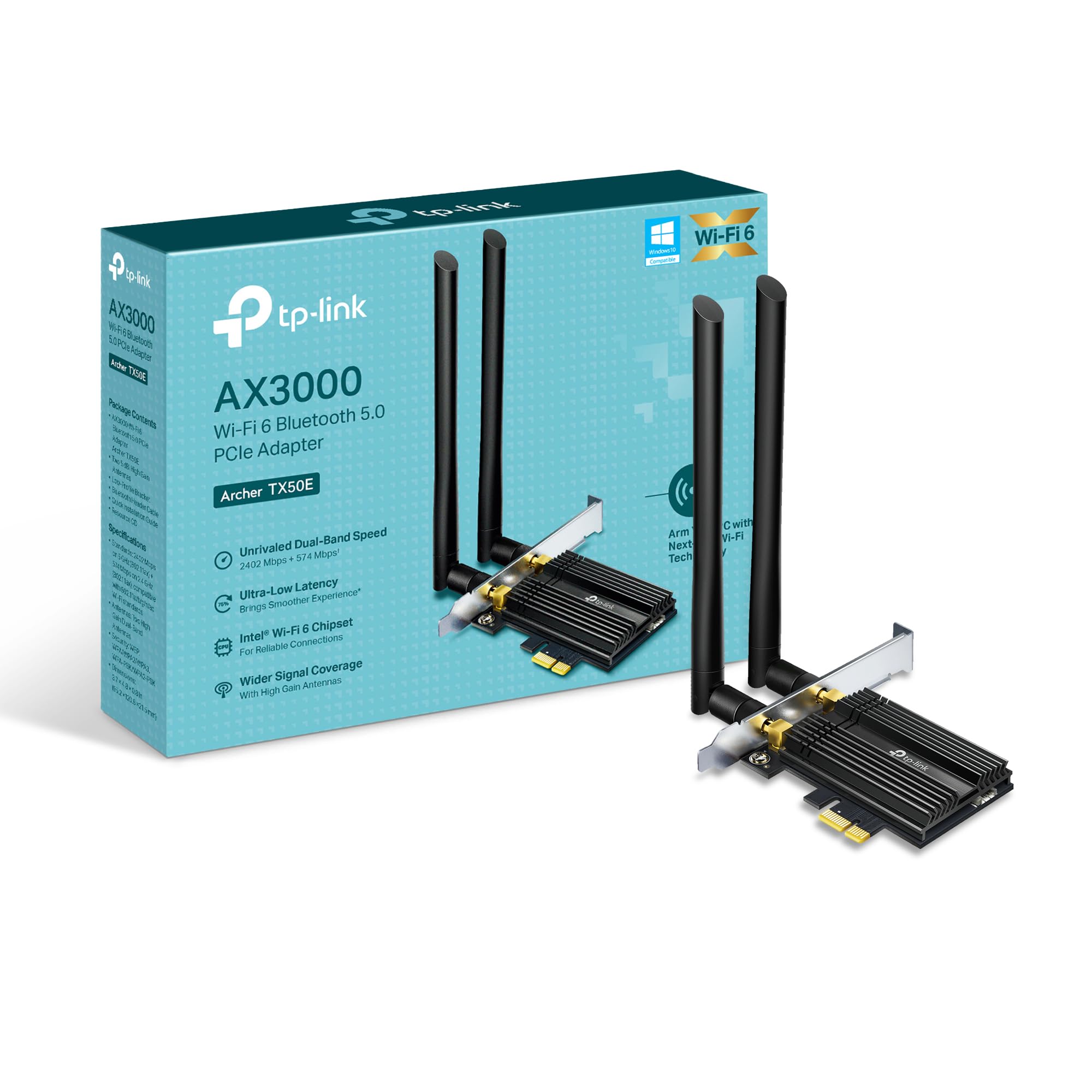
Imej: Depan view of the TP-Link Archer TX50E adapter with antennas.
- Matikan dan Cabut plag: Matikan komputer anda dan cabut kabel kuasa dari soket dinding.
- Buka Kes PC: Keluarkan panel sisi sarung komputer anda untuk mengakses papan induk.
- Sambungkan Kabel USB Bluetooth: Connect the provided Bluetooth USB cable to the adapter's Bluetooth header.
- Cari Slot: Identify an available PCI Express X1 slot on your motherboard and an F_USB connector (usually labeled USB910 or similar).
- Sisipkan Penyesuai: Carefully insert the Archer TX50E adapter into the chosen PCIe X1 slot. Ensure it is seated firmly.
- Sambungkan Kabel USB: Connect the other end of the Bluetooth USB cable to the F_USB connector on your motherboard. This connection is essential for Bluetooth functionality.
- Secure Adapter and Antennas: Secure the adapter with a screw to the computer case. Then, connect the two high-gain antennas to the adapter's connectors. Adjust their position for optimal signal reception.
- Tutup Kes PC: Gantikan panel sisi casing komputer anda.
- Hidupkan kuasa: Pasangkan semula kabel kuasa ke soket dinding dan hidupkan komputer anda.
Panduan Pemasangan Visual:
Video: A step-by-step guide demonstrating the physical installation of the TP-Link Archer TX50E PCIe adapter into a desktop computer.
4. Pemasangan Pemandu
After hardware installation, you need to install the Wi-Fi and Bluetooth drivers for the adapter to function correctly. Nota: JANGAN jalankan pemasang pemacu Bluetooth dan Wi-Fi pada masa yang sama.
Step-by-Step Driver Installation:
- Insert CD or Download Drivers: Insert the provided resource CD into your computer's CD/DVD drive. If your computer does not have a CD/DVD drive, download the latest drivers from the official TP-Link website (search for Archer TX50E).
- Run Autorun: Once the CD is inserted, an Autorun window should appear. Click to run `Autorun.exe`. If it doesn't appear, navigate to 'This PC' or 'My Computer', open your CD/DVD drive, and manually run `Autorun.exe`.
- Pasang Pemacu Wi-Fi: In the TP-Link driver installation utility, select the option to install the Wi-Fi drivers. Follow the on-screen instructions to complete the installation. You may need to restart your computer after this step.
- Pasang Pemacu Bluetooth: After the Wi-Fi drivers are installed and your computer has restarted (if prompted), run the `Autorun.exe` again or manually launch the Bluetooth driver installer. Follow the on-screen instructions to complete the Bluetooth driver installation. Another restart may be required.
For a visual guide on driver installation, please refer to the setup video provided in the Hardware Installation section.
5. Arahan Operasi
Menyambung ke Wi-Fi:
- After successful driver installation, click the Wi-Fi icon in your system tray (usually in the bottom-right corner of your screen).
- A list of available wireless networks will appear. Select your desired network.
- Klik 'Sambung' dan masukkan kunci keselamatan rangkaian (kata laluan) jika digesa.
- Komputer anda kini sepatutnya disambungkan ke rangkaian Wi-Fi.
Berpasangan Peranti Bluetooth:
- Pastikan peranti Bluetooth anda berada dalam mod berpasangan (rujuk manual peranti anda).
- On your computer, go to 'Settings' > 'Devices' > 'Bluetooth & other devices'.
- Hidupkan Bluetooth jika ia belum didayakan.
- Klik 'Tambah Bluetooth atau peranti lain' dan pilih 'Bluetooth'.
- Pilih peranti anda daripada senarai dan ikut mana-mana gesaan pada skrin untuk melengkapkan proses berpasangan.
6. Penyelesaian masalah
If you encounter issues with your Archer TX50E adapter, try the following common troubleshooting steps:
- Tiada Sambungan Wi-Fi:
- Pastikan penyesuai dipasang dengan betul dalam slot PCIe.
- Verify that the antennas are securely connected.
- Check Device Manager to ensure Wi-Fi drivers are installed and the device is recognized without errors.
- Try updating or reinstalling the Wi-Fi drivers.
- Mulakan semula komputer dan penghala wayarles anda.
- Bluetooth Tidak Berfungsi:
- Confirm the Bluetooth USB cable is properly connected to both the adapter and the motherboard's F_USB header.
- Check Device Manager to ensure Bluetooth drivers are installed and the device is recognized without errors.
- Verify that Bluetooth is enabled in your computer's settings.
- Try updating or reinstalling the Bluetooth drivers.
- Slow Speeds or Intermittent Connection:
- Ensure your router supports Wi-Fi 6 (802.11ax) for optimal performance.
- Adjust the position of the antennas for better signal reception.
- Move your computer closer to the router or reduce obstacles between them.
- Semak gangguan daripada peranti elektronik lain.
- Kemas kini firmware penghala anda.
If these steps do not resolve your issue, please contact TP-Link Technical Support.
7. Spesifikasi Teknikal
| Ciri | Spesifikasi |
|---|---|
| Model | Pemanah TX50E |
| Standard Tanpa Wayar | Wi-Fi 6 (802.11ax/ac/b/g/n) |
| Versi Bluetooth | Bluetooth 5.3 |
| Antara muka | PCI Express |
| Kadar Pemindahan Data | Sehingga 2402 Mbps (5 GHz), 574 Mbps (2.4 GHz) |
| Sokongan Sistem Pengendalian | Windows 11, 10 (64-bit) |
| Keselamatan | WPA3 |
| Dimensi (L x W x H) | 9.53 x 12.09 x 2.16 cm |
| Berat Barang | 90.72 g (0.2 Paun) |
| Antara Muka Perkakasan | Bluetooth |
| Peranti Serasi | Desktop, Komputer riba |
8. Waranti dan Sokongan Teknikal
TP-Link menawarkan Waranti 2 tahun for this product. Additionally, free Sokongan teknikal 24/7 is available to assist you with any questions or issues you may encounter.
Untuk bantuan lanjut, sila lawati sokongan rasmi TP-Link webtapak atau hubungi perkhidmatan pelanggan mereka secara langsung.


