pengenalan
This manual provides detailed instructions for the setup, operation, and maintenance of your AUSDOM AW335 1080P Full HD Webcam. Please read this manual thoroughly before using the product to ensure proper functionality and to maximize your user experience.
Kandungan Pakej
- AUSDOM AW335 1080P Full HD Webcam
- Manual Pengguna
Note: Please check all items upon unboxing. If any components are missing or damaged, contact customer support.
Produk Selesaiview
The AUSDOM AW335 webcam is designed for high-definition video communication and recording. It features a 1080P Full HD lens, an integrated microphone with noise cancellation, and a versatile mounting clip.

Rajah 1: Depan view of the AUSDOM AW335 Webcam, showing the lens and integrated microphone.

Rajah 2: The AUSDOM AW335 Webcam demonstrating its 360-degree rotation and 180-degree adjustable base for flexible positioning. It also highlights the 1.5m USB cable.
Arahan Persediaan
- Memasang Webcam:
The AW335 webcam features an adjustable clip/stand. You can mount it on top of your computer monitor, laptop screen, or place it on a flat surface. The base also supports tripod mounting.

Rajah 3: The AUSDOM AW335 Webcam securely mounted on top of a laptop screen, ready for use.
- Menyambung ke Komputer Anda:
Sambungkan kabel USB daripada webcam to an available USB port on your computer (PC, Mac, Desktop, or Smart TV Box). The webcam is plug-and-play, meaning no additional drivers are typically required for basic functionality.
- Initial Setup (Windows/macOS):
Sebaik sahaja disambungkan, sistem pengendalian anda akan mengesan secara automatik webcam. You may need to select the "AUSDOM AW335" as your preferred camera and microphone in your video conferencing software (e.g., Skype, Zoom, Google Meet) or recording applications.
- Windows: Pergi ke Settings > Devices > Cameras or Sound > Input to verify the webcam is recognized.
- macOS: Pergi ke Keutamaan Sistem > Bunyi > Input or use applications like Photo Booth or FaceTime to select the camera.
Arahan Operasi
Pelarasan Fokus Manual
The AW335 features a manual focus lens. To adjust the focus, gently rotate the lens ring until the image appears clear and sharp on your screen.
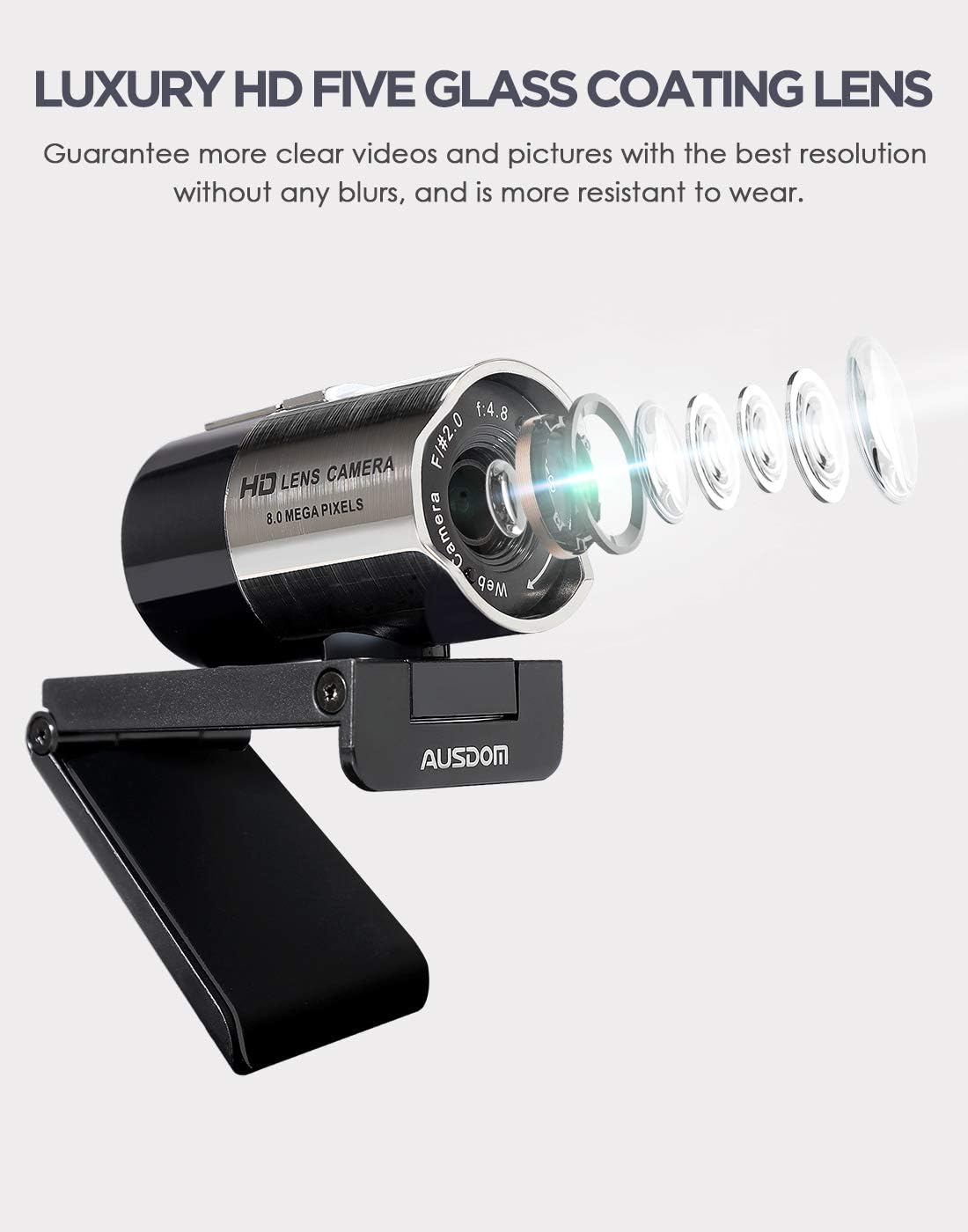
Rajah 4: jarak dekat view of the AUSDOM AW335 Webcam lens, indicating the manual focus ring for sharpness adjustment.
Ciri dan Penggunaan Utama
- Video HD Penuh 1080P: The webcam delivers high-definition video at 1920 x 1080 pixels, suitable for video calls, streaming, and recording.
- Integrated Noise-Cancelling Microphone: The built-in omni-directional microphone captures clear audio and filters out background noise. Ensure the webMikrofon kamera dipilih sebagai peranti input dalam tetapan aplikasi anda.
- Automatic Low-Light Correction: The webcam automatically adjusts to dim or overexposed lighting conditions to maintain clear video quality.
- Keserasian Luas: Compatible with Windows (7/8/10/XP), macOS, Chrome OS, Android, and Linux. It supports various platforms like Skype, Zoom, OBS, YouTube, Twitch, and more.
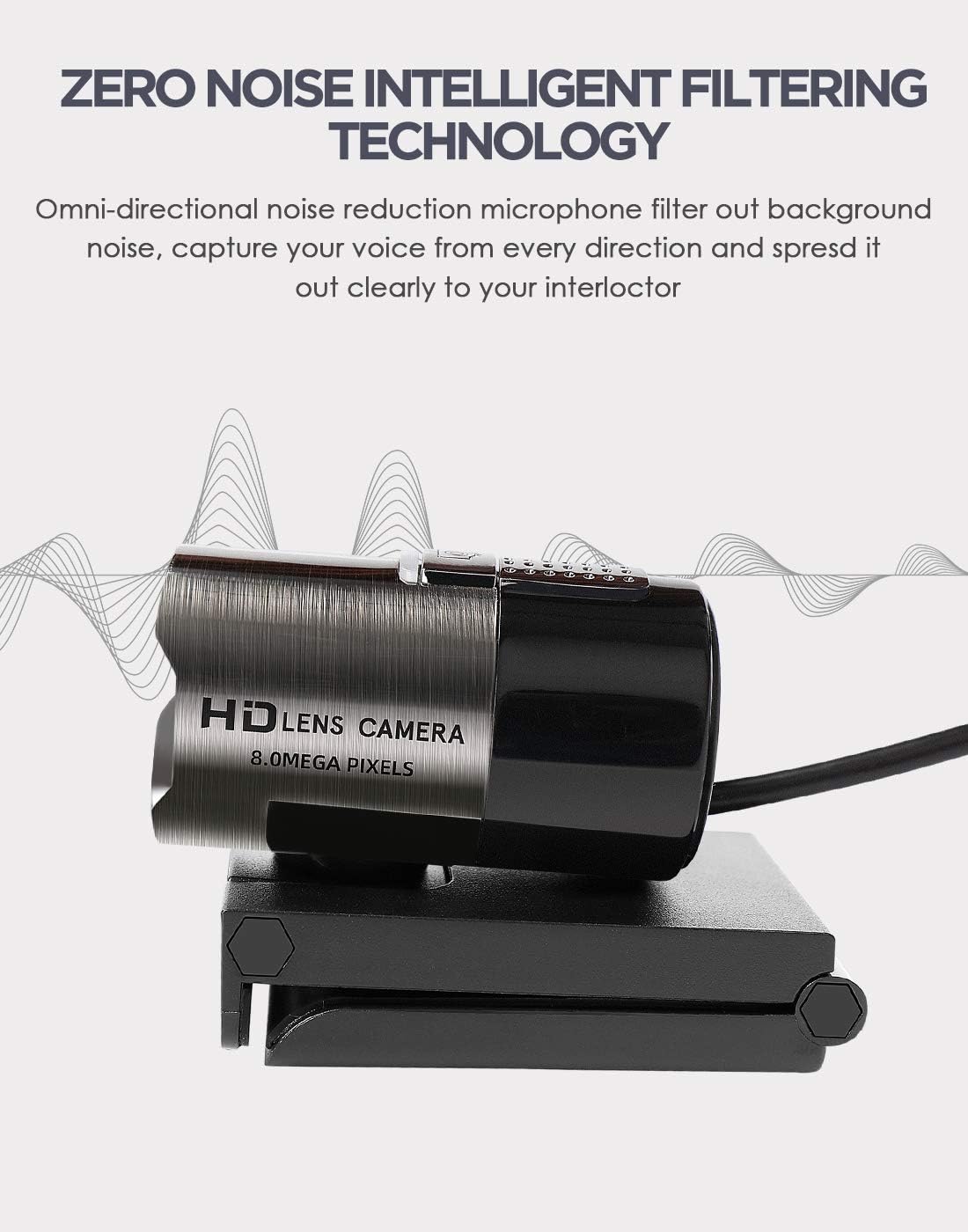
Rajah 5: Illustration highlighting the omni-directional noise-cancelling microphone feature of the AUSDOM AW335 Webcam, designed to capture clear audio.

Rajah 6: The AUSDOM AW335 Webcam in use for smooth live streaming and video conferencing, demonstrating its 1080P resolution capability.

Rajah 7: Visual representation of the AUSDOM AW335 Webcam's automatic low-light correction feature, showing improved image quality in dim conditions.

Rajah 8: Collage illustrating diverse applications of the AUSDOM AW335 Webcam, including video conferencing, widescreen video calls, and game streaming.

Rajah 9: Rajah menunjukkanasing the broad compatibility of the AUSDOM AW335 Webcam with operating systems such as Windows, Mac OS, Chrome OS, Android, Linux, and Ubuntu.
Penyelenggaraan
- Membersihkan Lensa: Gunakan kain lembut dan bebas bulu yang direka khas untuk kanta optik untuk mengelapnya dengan lembut webkanta kamera. Elakkan bahan yang kasar atau bahan kimia yang keras.
- Pembersihan Am: Lap badan itu webkamera dengan kain lembut dan kering. Jangan gunakan pembersih cecair terus pada peranti.
- Storan: Apabila tidak digunakan, simpan websimpan di tempat yang bersih dan kering, jauh daripada suhu ekstrem dan cahaya matahari langsung.
Menyelesaikan masalah
| Masalah | Kemungkinan Punca | Penyelesaian |
|---|---|---|
| Tiada imej/video |
|
|
| Imej kabur atau samar-samar |
|
|
| Tiada audio atau kualiti audio yang lemah |
|
|
| Webcam not recognized by OS |
|
|
Spesifikasi
| Ciri | Perincian |
|---|---|
| Model | AW335 |
| Resolusi Tangkapan Video | 1080p HD Penuh (1920 x 1080 piksel) |
| Jenis Kanta | Luxury HD 5-glass coating lens |
| Jenis Fokus | Fokus Manual |
| Mikrofon | Built-in Omni-directional, Noise-Cancelling |
| Ketersambungan | USB |
| Ciri Khas | High Dynamic Range Tech (HDR), Automatic Low-Light Correction |
| Keserasian | Windows (7/8/10/XP), macOS, Chrome OS, Android, Linux |
| Dimensi Produk | 11.5 x 12 x 5 cm |
| Berat badan | 181 g |
Waranti dan Sokongan
For warranty information and technical support, please refer to the official AUSDOM webtapak atau hubungi perkhidmatan pelanggan mereka secara langsung. Simpan resit pembelian anda sebagai bukti pembelian untuk tuntutan waranti.
Nota: Syarat jaminan tertentu mungkin berbeza mengikut wilayah.


