1. Pengenalan
The ROFAVEZCO HDMI Matrix 4x2 MX42HS is a versatile device designed to distribute four HDMI input sources to two HDMI displays simultaneously. It supports advanced video and audio technologies, including 4K@60Hz with 4:4:4 chroma, HDR10, Dolby Vision, and Dolby Atmos. This matrix switch also features EDID management and a down-scaler function, allowing for flexible integration into various home theater or professional setups. Control options include front panel buttons, an IR remote, and RS232 for advanced system integration.
2. Ciri-ciri
- Supports HDMI 2.0b, HDCP 2.2/1.4.
- Video resolution up to 4K@60Hz (YUV 4:4:4).
- Supports HDR10, Hybrid Log-Gamma (HLG), and Dolby Vision.
- Audio support for Dolby Atmos Digital 7.1CH and DTS:X.
- Integrated down-scaler for converting 4K/HDR 10 to 1080p@60Hz on individual outputs.
- Advanced EDID management with 17 modes, including Copy EDID.
- Multiple control methods: Front panel buttons, IR remote control, and RS232.
- Firmware upgradeable via Micro-USB port.
- Solid metallic casing for durability and heat dissipation.
3. Kandungan Pakej
Sahkan bahawa semua item terdapat dalam pakej anda:
- ROFAVEZCO HDMI Matrix 4x2 Unit (MX42HS)
- Penyesuai Kuasa 5V DC
- Kawalan Jauh IR
- Kabel Pemanjang IR
- Manual Pengguna
- Mounting Ears (2 pcs)
- Cable Ties (2 pcs)

The image displays all items included in the product package: the HDMI Matrix unit, user manual, IR remote, power adapter, IR extender cable, mounting ears, and cable ties.
4. Produk Lebihview
The HDMI Matrix 4x2 features a robust design with clearly labeled ports and controls for ease of use.
4.1 Panel Depan
- Penerima IR: For receiving signals from the IR remote control.
- HDMI Output 1/2 Selection Buttons: Buttons 1-4 to select the input source for each respective HDMI output.
- EDID DIP Switches: Configures the Extended Display Identification Data (EDID) for connected displays.
- Scaler DIP Switches: Enables or disables 4K to 1080p down-scaling for each output.
- UPDATE Port (Micro-USB): Used for firmware upgrades.
4.2 Panel Belakang
- HDMI DALAM 1-4: Connect your HDMI source devices (e.g., Blu-ray player, game console, PC).
- HDMI OUT 1-2: Connect to your HDMI displays (e.g., TV, projector, monitor).
- Pelabuhan RS232: For advanced control via RS232 commands.
- IR Ext. Port: Connect the included IR extender cable for remote control when the unit is out of direct line of sight.
- DC 5V: Port input kuasa.

The ROFAVEZCO HDMI Matrix 4x2, model MX42HS, shown with its included remote control. The image displays both the top and bottom views of the device, highlighting its compact design and various ports.

Sebuah meletup view highlighting key features such as the firmware update port, DIP switches for EDID and HDCP settings, the IR extender port, and the RS232 control interface. Icons for 18Gbps bandwidth, YUV 4:4:4, Dolby Vision, Dolby Atmos, and 4K HDR are also visible.
5. Arahan Persediaan
Follow these steps to set up your HDMI Matrix 4x2:
- Matikan Peranti: Ensure all HDMI source devices and displays are powered off before making any connections.
- Sambungkan Sumber HDMI: Connect your HDMI source devices (e.g., PS5, Apple TV, PC) to the HDMI IN 1-4 ports on the rear panel of the matrix using high-quality HDMI 2.0 cables.
- Sambungkan Paparan HDMI: Connect your HDMI displays (e.g., TV, monitor) to the HDMI OUT 1-2 ports on the rear panel of the matrix using high-quality HDMI 2.0 cables.
- Sambungkan Pemanjang IR (Pilihan): If the matrix unit will be out of direct line of sight for the IR remote, connect the IR extender cable to the IR Ext. port and position the IR eye in a visible location.
- Sambungkan Kuasa: Connect the included 5V DC power adapter to the DC 5V port on the matrix and then plug it into a power outlet. The threaded connector ensures a stable power connection.
- Hidupkan Peranti: Power on your HDMI displays first, then your HDMI source devices.

This diagram illustrates the two primary operation modes: Mirror Mode, where a single source is displayed on both outputs, and Switch Mode, allowing different sources to be displayed on each output. It also shows typical input devices like a PC, PS5, Apple TV, and HD Camera connected to the matrix.
6. Operasi
6.1 Input/Output Selection
You can select the desired input source for each HDMI output using either the front panel buttons or the IR remote control.
- Butang Panel Depan: Press the corresponding button (1, 2, 3, or 4) under 'HDMI OUTPUT1' or 'HDMI OUTPUT2' to switch the input source for that specific output.
- Kawalan Jauh IR: Use the dedicated buttons on the IR remote to select inputs for HDMI Output 1 and HDMI Output 2. Ensure the remote's battery shield is removed and it is pointed towards the IR receiver on the matrix unit or the IR extender eye.

A close-up of the IR remote control, detailing buttons for power, input selection for HDMI Output 1 and HDMI Output 2, and navigation. A note advises removing the battery shield before use and pointing the remote at the infrared window.
6.2 Pengurusan EDID
The EDID (Extended Display Identification Data) settings can be configured using the DIP switches on the front panel to ensure optimal compatibility and performance with your connected displays and sources.
- LULUS: Passes the EDID from the connected display directly to the source.
- EDID 1080P: Forces the EDID to 1080p resolution.
- 4K: Forces the EDID to 4K resolution, supporting Dolby Vision and Atmos.
- 2K: Forces the EDID to 2K resolution.
- SALINAN: Copies the EDID from HDMI OUT 1. This is useful when connecting a 4K TV to OUT 1 and a 1080p TV to OUT 2, allowing the 4K TV to dictate the EDID while OUT 2 can be down-scaled.
Refer to the detailed EDID options table for specific configurations:

Imej ini memberikan yang terperinci view of the EDID and Scaler DIP switches. It shows options for 'PASS', 'EDID 1080P', '4K', '2K', 'COPY', and '4K-1080P' for outputs 1 and 2, indicating how users can configure resolution and EDID behavior.

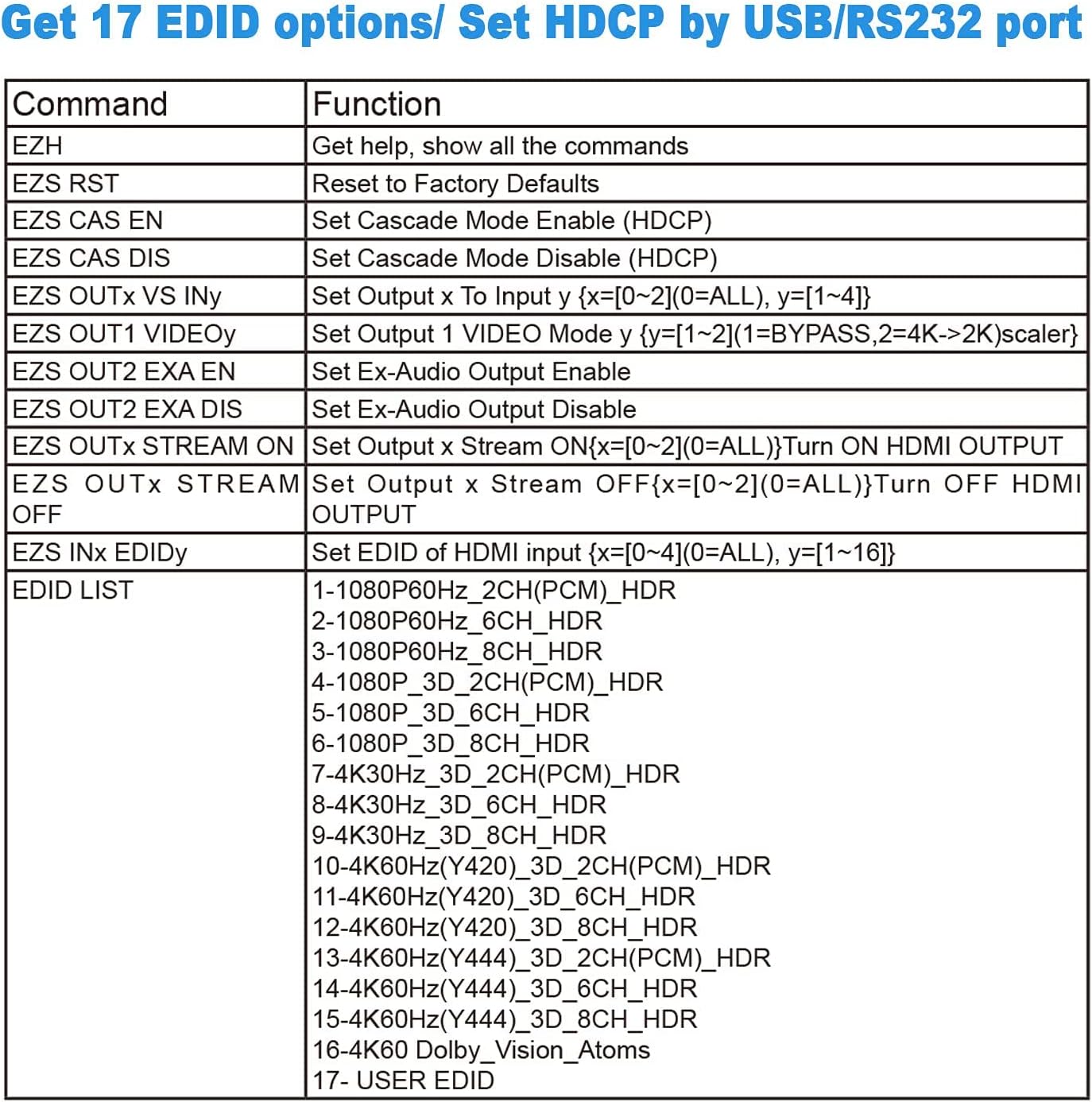
A table presenting various EDID options, including different resolutions, refresh rates, audio channels, and HDR/Dolby Vision support. It also lists RS232 commands for advanced control and configuration.
6.3 Down-Scaler Function
The matrix supports down-scaling 4K/HDR 10 content to 1080p@60Hz for individual outputs. This is useful when one display supports 4K and another only supports 1080p.
- To enable down-scaling, set the corresponding Scaler DIP switch for OUT 1 or OUT 2 to '4K-1080P'.
- Penting: The down-scaler does TIDAK down-scale 4K HDR Vision (4K60Hz 4:2:2) or VRR. Attempting to do so may result in screen washout or display issues. Ensure the scaler is turned OFF when playing 4K HDR Dolby Vision content.
6.4 Kawalan RS232
For professional installations and central control systems, the matrix can be controlled via RS232 commands. Connect a compatible RS232 cable to the RS232 port on the rear panel. Refer to the EDID options table (Figure 6.3) for a list of available commands.
6.5 Kemas kini Firmware
The device's firmware can be updated via the Micro-USB port on the front panel or the RS232 port on the rear panel. This allows for future enhancements and bug fixes. Consult the manufacturer's webtapak untuk perisian tegar terkini dan arahan kemas kini.
A terperinci view of the RS232 port and the Micro USB 'UPDATE' port, indicating the methods available for firmware upgrades and advanced control.
7. Penyelenggaraan
To ensure the longevity and optimal performance of your HDMI Matrix 4x2, follow these maintenance guidelines:
- Pembersihan: Use a soft, dry cloth to clean the unit. Avoid using liquid or aerosol cleaners, as they may damage the casing atau komponen dalaman.
- Pengudaraan: Pastikan unit diletakkan di kawasan yang mempunyai pengudaraan yang baik untuk mengelakkan terlalu panas. Jangan halang sebarang bukaan pengudaraan.
- Pengurusan Kabel: Keep cables organized and free from kinks or excessive tension to prevent damage to the ports or cables themselves.
- Storan: Apabila tidak digunakan untuk tempoh yang lama, simpan unit di tempat yang sejuk dan kering jauh dari cahaya matahari langsung dan suhu yang melampau.
8. Penyelesaian masalah
If you encounter issues with your HDMI Matrix 4x2, refer to the following common troubleshooting steps:
- Tiada Isyarat pada Paparan:
- Verify all HDMI cables are securely connected to both the source devices, the matrix, and the displays.
- Ensure the matrix is powered on and the power adapter is properly connected.
- Check the selected input for each output on the matrix (using front panel buttons or IR remote).
- Adjust the EDID settings using the DIP switches. Try 'PASS' or '1080P' if experiencing compatibility issues with older displays.
- Test with different HDMI cables, especially if using long cables or cables not rated for HDMI 2.0.
- Audio Issues (No Sound or Incorrect Format):
- Ensure your audio receiver or soundbar is properly connected and configured to receive audio from the display.
- Check the EDID settings on the matrix. Some EDID modes prioritize video over specific audio formats.
- Note that the matrix is not an audio down-mixer; it cannot convert multi-channel audio to stereo or vice-versa.
- Screen Flickering or Washout:
- This can occur if the down-scaler is enabled for 4K HDR Dolby Vision (4K60Hz 4:2:2) or VRR content. Turn OFF the scaler for such content.
- Ensure your HDMI cables are capable of handling the bandwidth required for 4K@60Hz HDR signals.
- Alat Kawalan Jauh IR Tidak Memberi Respons:
- Remove the plastic battery shield from the remote before first use.
- Ensure the remote is pointed directly at the IR receiver on the matrix or the IR extender eye.
- Replace the remote battery if necessary.
- Device Not Recognized by PC for Firmware Update:
- Ensure the correct drivers are installed for the Micro-USB port.
- Try a different Micro-USB cable.
- Rujuk kepada pengilang website for specific firmware update procedures and tools.
9. Spesifikasi
| Atribut | Nilai |
|---|---|
| Dimensi Produk | 6.8 x 3.2 x 0.6 inci |
| Berat Barang | 7 auns |
| ASIN | B083K39RHF |
| Nombor Model Item | EZ-MX42HS |
| Tarikh Mula-mula Tersedia | 20 Januari 2020 |
| Pengeluar | EZCOOTECH |
| warna | Hitam |
| Jenis Penyambung | HDMI |
| Peranti Serasi | PS5 1080P 120Hz, PS4 Pro, Xbox series, Wii, Xbox 360, Nintendo Switch, MK2 Game Capture, TV, Monitor, Projector, Apple TV, Amazon Fire TV, Comcast, MAC 1080p |
| Jenis Kabel | USB |
10. Waranti dan Sokongan
The ROFAVEZCO HDMI Matrix 4x2 MX42HS comes with a manufacturer's warranty. For specific warranty details, technical support, or service inquiries, please refer to the contact information provided in the product packaging or visit the official ROFAVEZCO webtapak. Simpan resit pembelian anda untuk tuntutan waranti.


