pengenalan
This manual provides essential information for setting up, operating, maintaining, and troubleshooting your Acer Aspire XC-886 desktop personal computer. Please read this manual thoroughly before using your new system to ensure proper operation and to maximize its lifespan.
Kandungan Pakej
Sahkan bahawa semua item yang disenaraikan di bawah disertakan dalam pakej anda. Jika terdapat sebarang item yang hilang atau rosak, hubungi peruncit anda.
- Acer Aspire XC-886 Desktop PC
- Papan Kekunci Tanpa Wayar
- Tetikus Tanpa Wayar
- Kord Kuasa
- Dokumentasi (Panduan Permulaan Pantas, Kad Waranti)
- McAfee Internet Security (3-year physical card)
Persediaan
Follow these steps to set up your Acer Aspire XC-886 desktop PC.
1. Sambung Peranti
- Sambung Monitor: Use an HDMI or D-Sub cable to connect your monitor to the corresponding port on the rear of the desktop. The system has two HDMI ports and one D-Sub port.
- Sambungkan Papan Kekunci dan Tetikus: Insert the wireless receiver for your keyboard and mouse into an available USB port. Both USB 2.0 and USB 3.1 Gen 1 ports are available on the front and rear of the system.
- Sambungkan Kuasa: Plug the power cord into the power connector on the rear of the desktop, then plug the other end into a power outlet.
- Sambungan Pilihan:
- Rangkaian: For a wired connection, connect an Ethernet cable to the LAN port on the rear. For wireless, the system supports 802.11ac Wi-Fi and Bluetooth.
- Audio: Connect speakers or headphones to the audio jacks on the front or rear.
- Peranti USB: Connect other USB devices (e.g., external hard drives, printers) to the available USB ports. The front panel includes one USB 3.1 Gen 1 port and one USB Type-C port. The rear panel has two USB 3.1 Gen 1 ports and four USB 2.0 ports.

Rajah 1: Depan view of the Acer Aspire XC-886 desktop PC, showing the optical drive, card reader, USB ports (including Type-C), and audio jacks.
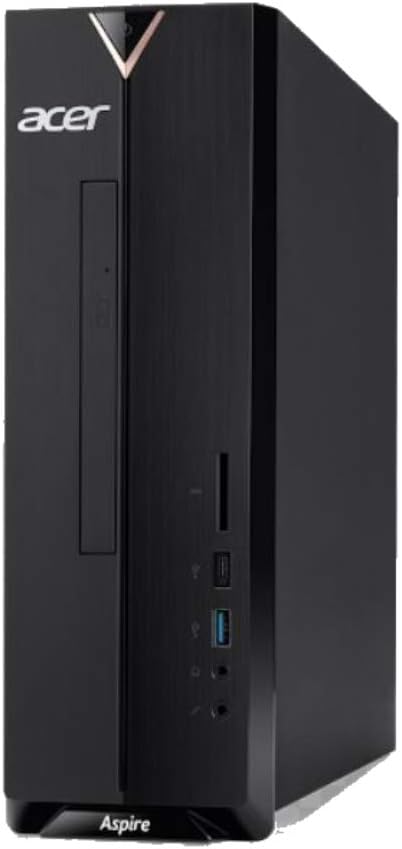
Rajah 2: Sebelah kanan view of the Acer Aspire XC-886 desktop PC, illustrating the compact tower form factor and side panel design.
2. Hidupkan kuasa
Press the power button located on the top front of the desktop to turn on the system. The power indicator light will illuminate.
3. Initial Operating System Setup
Sebaik sahaja but pertama kali, anda akan dibimbing melalui proses persediaan Windows 10 Home. Ikuti arahan pada skrin untuk mengkonfigurasi bahasa, rantau, tetapan rangkaian dan akaun pengguna anda.
Arahan Operasi
This section covers basic operation of your desktop PC.
Hidupkan/Mati dan Mulakan Semula
- Untuk Menghidupkan: Tekan butang kuasa pada panel hadapan.
- Untuk Mematikan: Klik butang Mula dalam Windows, kemudian pilih Kuasa > Matikan.
- Untuk Mulakan Semula: Klik butang Mula dalam Windows, kemudian pilih Kuasa > Mulakan semula.
- Untuk Tidur: Klik butang Mula dalam Windows, kemudian pilih Kuasa > Tidur.
Using the DVD Writer
The integrated DVD writer allows you to read and write CDs and DVDs. Press the eject button on the drive to open the tray, place your disc, and gently push the tray back in.
Menyambung ke Internet
- Sambungan Berwayar: Connect an Ethernet cable from your router or modem to the LAN port on the rear of the desktop.
- Sambungan Wayarles: Windows 10 will automatically detect available Wi-Fi networks. Click the network icon in the taskbar, select your desired network, and enter the password if prompted.
Using USB Ports and Card Reader
Connect USB devices such as flash drives, external hard drives, or printers to any available USB port. The integrated card reader on the front panel supports various memory card formats for easy data transfer.
Penyelenggaraan
Proper maintenance helps ensure the longevity and optimal performance of your desktop PC.
- Pastikan ia bersih: Regularly clean the exterior of the desktop with a soft, dry cloth. Ensure ventilation openings are free from dust and obstructions to prevent overheating.
- Kemas Kini Perisian: Keep your Windows operating system and drivers updated. Windows Update can be accessed via Settings > Update & Security.
- Perlindungan Antivirus: Utilize the included McAfee Internet Security to protect your system from malware and viruses. Ensure its definitions are regularly updated.
- Sandaran Data: Kerap membuat sandaran data penting ke pemacu luaran atau storan awan untuk mengelakkan kehilangan data.
- Keadaan Persekitaran: Operate the desktop in a well-ventilated area, away from direct sunlight, heat sources, and excessive moisture.
Menyelesaikan masalah
If you encounter issues with your desktop, try these basic troubleshooting steps.
- Tiada Kuasa:
- Ensure the power cord is securely connected to both the desktop and the power outlet.
- Sahkan alur keluar kuasa berfungsi dengan memasang peranti lain.
- Tiada Paparan:
- Check that the monitor is powered on and its video cable is securely connected to the desktop.
- Pastikan sumber input yang betul dipilih pada monitor anda.
- Papan Kekunci/Tetikus Tidak Membalas:
- For wireless devices, check battery levels and ensure the wireless receiver is properly inserted into a USB port.
- Cuba sambungkan penerima ke port USB lain.
- Tiada sambungan internet:
- Untuk sambungan berwayar, periksa status kabel Ethernet dan penghala/modem.
- For wireless connections, ensure Wi-Fi is enabled in Windows and you are connected to the correct network with the correct password.
- Mulakan semula penghala/modem dan desktop anda.
- Kelembapan Sistem:
- Tutup aplikasi yang tidak perlu.
- Run a full system scan with your antivirus software.
- Semak dan pasang sebarang kemas kini Windows yang belum selesai.
If these steps do not resolve your issue, please refer to the Acer support webtapak atau hubungi perkhidmatan pelanggan.
Spesifikasi
Detailed technical specifications for the Acer Aspire XC-886 desktop PC.
| Ciri | Perincian |
|---|---|
| Nombor Model | i594MR81TS73 |
| Pemproses | 9th Gen Intel Core i5-9400 (up to 4.1GHz, 9MB cache) |
| Sistem Operasi | Windows 10 Home (64-bit) |
| RAM | 8GB DDR4 RAM |
| Penyimpanan | SSD PCIe NVMe 1TB |
| Grafik | NVIDIA GeForce GT 730, 2GB GDDR3 RAM |
| Pemacu Optik | Penulis DVD |
| Kesambungan Wayarles | Integrated AC Wireless LAN (802.11ac), Bluetooth |
| Front/Side I/O Ports |
|
| Port I/O Belakang |
|
| Faktor Bentuk | Menara |
| Dimensi (Pakej) | 49.8 x 40.8 x 17.4 cm |
| Berat (Pakej) | 5.9 kg |
| Voltage | 220 Volt |
Waranti dan Sokongan
Your Acer Aspire XC-886 desktop PC comes with a 1-year On-site Local Singapore Warranty. This warranty covers manufacturing defects and hardware failures under normal use conditions.
Untuk sokongan teknikal, tuntutan jaminan atau pertanyaan perkhidmatan, sila lawati sokongan rasmi Acer. website or contact Acer customer service in Singapore. Keep your proof of purchase for warranty validation.
Sokongan Acer Webtapak: https://www.acer.com/sg-en/support