pengenalan
The Lenovo Legion Y27q-20 gaming monitor is designed to provide an immersive visual experience for both gaming and professional use. Featuring a 27-inch QHD (2560x1440) IPS display, it offers a high refresh rate of 165Hz and a rapid 1ms response time, ensuring smooth and fluid visuals. This monitor is NVIDIA G-SYNC Compatible, which helps eliminate screen tearing and stuttering for a seamless gaming experience. Its ergonomic stand allows for lift, tilt, pivot, and swivel adjustments, providing optimal viewing comfort. The monitor also incorporates TÜV Rheinland Eye Comfort certification with flicker-free technology and blue light reduction to minimize eye strain during extended use.
Apa yang ada dalam Kotak
Upon unpacking your Lenovo Legion Y27q-20 monitor, please ensure all the following components are present:
- Lenovo Legion Y27q-20 Monitor Display Panel
- Stand Monitor (Asas dan Leher)
- Kabel Kuasa
- Kabel HDMI
- DisplayPort Cable
- Kabel USB-B ke USB-A (untuk fungsi hab USB)
- Panduan Persediaan Pantas / Manual Pengguna
- Maklumat Waranti
Persediaan
Persediaan Fizikal
Carefully remove the monitor and its components from the packaging. Place the monitor face down on a soft, clean surface to prevent scratches. Attach the stand neck to the display panel, then secure the base to the neck. Ensure all connections are firm. The monitor stand offers ergonomic adjustments including lift, tilt, pivot, and swivel for optimal viewsudut-sudut.

Image: Lenovo Legion Y27q-20 Monitor with indicated dimensions.
Menyambung ke Komputer Anda
Connect the monitor to your computer using one of the provided cables. The monitor supports multiple input options:
- HDMI2.0: For standard high-definition video and audio.
- DisplayPort 1.4: Recommended for achieving the maximum refresh rate (165Hz) and utilizing NVIDIA G-SYNC Compatible technology.
- Port USB 3.1: The monitor includes USB 3.1 ports for connecting peripherals. Connect the USB-B to USB-A cable from the monitor to your computer to enable these ports.
- Bicu Kombo Audio: Untuk menyambungkan fon kepala atau pembesar suara luaran.
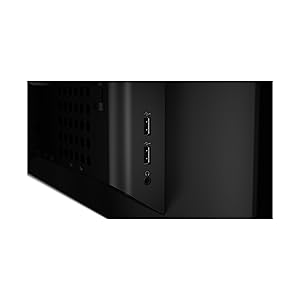
Imej: Sisi view of the monitor showing USB 3.1 ports and audio jack.
Mengendalikan Monitor
Hidupkan/Mati Kuasa
Press the power button, typically located on the bottom right or side of the monitor, to turn it on or off. The power indicator light will illuminate when the monitor is active.
Kawalan Paparan Pada Skrin (OSD).
The monitor features intuitive OSD controls, usually located on the side or bottom bezel. These buttons allow you to navigate through the monitor's settings menu to adjust various display parameters. The Lenovo Artery 2.0 software also provides enhanced customization options to manage and configure the monitor directly from your computer.
Ciri dan Tetapan Utama
- Kadar Segar Semula Tinggi (165Hz): For exceptionally smooth motion in fast-paced games. Ensure your graphics card and connection (DisplayPort recommended) support this refresh rate.
- Rapid Response Time (1ms): Minimizes motion blur and ghosting, crucial for competitive gaming.
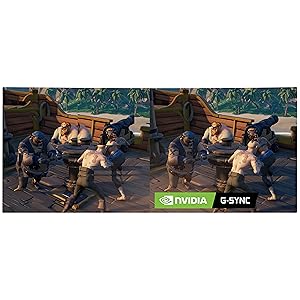
- NVIDIA G-SYNC Serasi: Synchronizes the monitor's refresh rate with your GPU's frame rate to eliminate screen tearing and stuttering. Activate this feature in your graphics card control panel.
- IPS Panel with QHD Resolution: Delivers vibrant colors, wide 178° viewing angles, and sharp details. The DCI-P3 98% color gamut ensures accurate color reproduction.
- Diperakui Keselesaan Mata TÜV Rheinland: Features flicker-free technology and a blue light reduction function to reduce eye strain during prolonged use. Adjust blue light settings via the OSD menu.
- Pendirian Ergonomik: Adjust the monitor's height, tilt, swivel, and pivot to find your most comfortable viewkedudukan.

Image: Visual comparison of gameplay with and without G-SYNC.
Imej: Depan view of the monitor on its ergonomic stand.
Penyelenggaraan
To ensure the longevity and optimal performance of your Lenovo Legion Y27q-20 monitor, follow these maintenance guidelines:
- Membersihkan Skrin: Gunakan kain lembut yang tidak berbulu dampened with water or a specialized screen cleaner. Never spray liquid directly onto the screen.
- Membersihkan Casing: Lap monitor casindengan kain lembut dan kering. Elakkan menggunakan pembersih atau pelarut yang kasar.
- Pengudaraan: Pastikan bukaan pengudaraan monitor bersih dan tidak terhalang untuk mengelakkan terlalu panas.
- Matikan Apabila Tidak Digunakan: Matikan monitor apabila tidak digunakan untuk tempoh yang lama untuk menjimatkan tenaga dan memanjangkan jangka hayatnya.
Menyelesaikan masalah
Jika anda menghadapi masalah dengan monitor anda, rujuk langkah penyelesaian masalah biasa berikut:
- Tiada Imej pada Skrin:
- Periksa sama ada kabel kuasa disambungkan dengan selamat ke kedua-dua monitor dan alur keluar kuasa.
- Sahkan bahawa kabel video (HDMI atau DisplayPort) disambungkan dengan kukuh pada monitor dan kad grafik komputer anda.
- Pastikan monitor dihidupkan.
- Pilih sumber input yang betul menggunakan menu OSD.
- Imej Berkelip atau Herot:
- Periksa kabel video untuk kerosakan atau sambungan yang longgar. Cuba kabel lain jika tersedia.
- Kemas kini pemacu kad grafik anda.
- Laraskan kadar muat semula dalam tetapan paparan komputer anda.
- Piksel Mati:
- While rare, a small number of dead or stuck pixels may occur. Refer to Lenovo's pixel policy for warranty coverage.
- Port USB Tidak Berfungsi:
- Ensure the USB-B to USB-A cable is connected from the monitor to your computer.
- Check your computer's device manager for any USB driver issues.
Spesifikasi
| Ciri | Spesifikasi |
|---|---|
| Nombor Model | 65EEGAC1US |
| Saiz Skrin | 27 Inci |
| Jenis Panel | IPS |
| Resolusi | QHD Wide 1440p (2560 x 1440) |
| Kadar Segar Semula | 165Hz |
| Masa Tindak Balas | 1ms (MPRT) / 0.1ms (GtG) |
| Kecerahan | 350 nits |
| Warna Gamut | DCI-P3 98% |
| Viewsudut | 178° (H/V) |
| Teknologi Penyegerakan Adaptif | NVIDIA G-SYNC Serasi, AMD FreeSync |
| Ketersambungan | 1x HDMI 2.0, 1x DisplayPort 1.4, 4x USB 3.1, 1x Audio Out (3.5mm) |
| Ergonomik | Lift, Tilt, Pivot, Swivel, VESA Mount Compatible |
| Penjagaan Mata | TÜV Rheinland Eye Comfort Certified, Flicker-Free, Blue Light Reduction |
| Dimensi (LxWxH) | 11.2 x 24.17 x 23.58 inci |
| Berat badan | 14.93 paun |
| warna | Raven Black |
Waranti dan Sokongan
Your Lenovo Legion Y27q-20 monitor comes with a standard manufacturer's warranty. For specific warranty terms, duration, and conditions, please refer to the warranty card included in your product packaging or visit the official Lenovo support website. In case of technical issues, product inquiries, or warranty claims, please contact Lenovo customer support through their official channels. Keep your purchase receipt and product serial number (found on the back of the monitor) handy for faster service.
For additional support and resources, including driver downloads and FAQs, please visit the Sokongan Lenovo Webtapak.