pengenalan
This manual provides comprehensive instructions for the setup, operation, and maintenance of your JMGO N7L projector. Please read this manual thoroughly before using the device to ensure proper functionality and to maximize your viewing experience. The JMGO N7L is a compact home cinema projector featuring Native 1080P Full HD resolution, 4K compatibility, Android OS, auto-focus, and keystone correction.
Produk Selesaiview
Ciri-ciri Utama
- Native 1080P Full HD Display: Offers 1920x1080 resolution, compatible with 4K video input.
- 700 ANSI Lumens Brightness: Provides clear images in various lighting conditions.
- Auto Focus & Keystone Correction: Automatic image adjustment for clarity and rectangular projection from different angles.
- OS Android: Integrated operating system for direct access to streaming applications and content.
- Antara Muka Kaya: Multiple ports for connecting external devices.
- Wi-Fi dwijalur: Supports 2.4G and 5G networks for stable online streaming.
- Pembesar Suara Bluetooth Bersepadu: Functions as a standalone Bluetooth speaker.
- 3D Video Support: Capable of displaying 3D content.
Komponen Projektor
The JMGO N7L features a compact, round design. Below are images illustrating its appearance and available connection ports.

Rajah 1: Atas ke bawah view of the JMGO N7L projector, showcasing its sleek, circular design with a metallic finish.
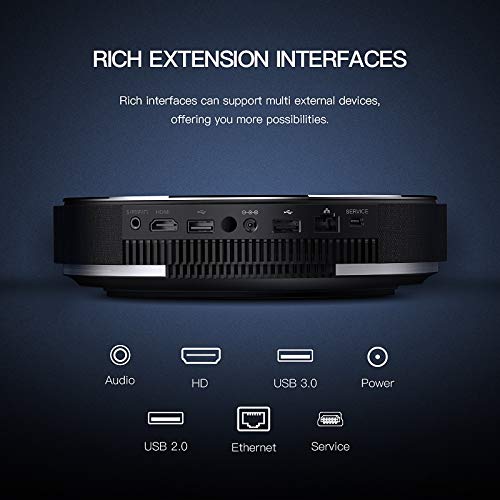
Rajah 2: belakang view of the JMGO N7L projector, highlighting the various input and output ports including Audio, HDMI, USB 3.0, Power, USB 2.0, Ethernet, and Service ports.

Rajah 3: Diagram illustrating the versatility of the JMGO N7L projector, showing its ability to connect to various devices such as set-top boxes, game controllers, laptops, and external speakers, functioning as a central entertainment hub.
Persediaan
1. penempatan
Position the projector on a stable, flat surface. Ensure there is adequate ventilation around the device. For optimal viewing, place the projector directly in front of the projection surface (wall or screen). The throw ratio of 1.2:1 allows for a 2-meter wide image from a 2.5-meter distance.
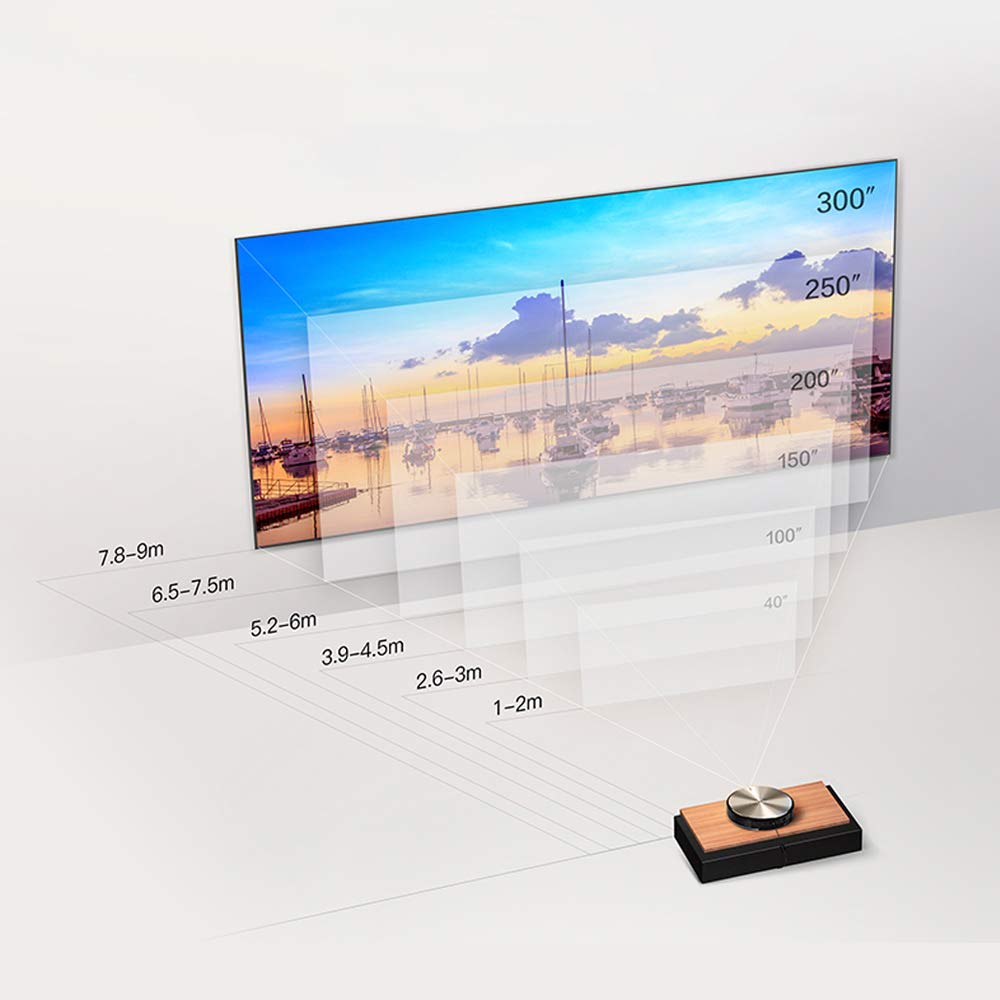
Rajah 4: Projection distance chart for the JMGO N7L, showing recommended distances for various screen sizes from 40 inches to 300 inches.

Rajah 5: The JMGO N7L projector positioned on a bedside table, demonstrating its compact size and suitability for various room settings.
2. Sambungan Kuasa
- Sambungkan penyesuai kuasa ke port input kuasa projektor.
- Palamkan penyesuai kuasa ke salur keluar elektrik yang sesuai.
3. Hidupkan Awal dan Pelarasan Imej
- Tekan butang kuasa pada projektor atau alat kawalan jauh untuk menghidupkan peranti.
- Projektor akan berfungsi secara automatik Auto Fokus to ensure a clear image.
- Pembetulan Batu Kunci will also automatically adjust the image to be rectangular, even if the projector is not perfectly aligned with the screen. Manual adjustments can typically be made via the settings menu if needed.

Rajah 6: Illustration of the JMGO N7L's auto-focus feature, which automatically adjusts the image for clarity upon startup.
4. Menyambung Peranti Luaran
Utilize the various ports on the rear of the projector to connect your desired devices:
- HDMI: For connecting Blu-ray players, gaming consoles, laptops, or other HDMI-enabled devices.
- USB 2.0/3.0: For connecting USB drives, external hard drives, or other USB peripherals.
- Ethernet: Untuk sambungan internet berwayar.
- Audio Output (3.5mm S/PDIF and 2-in-1 headphones): Untuk menyambungkan sistem audio luaran atau fon kepala.
Arahan Operasi
1. Hidupkan/Mati Kuasa
- Untuk Menghidupkan: Tekan butang kuasa pada projektor atau alat kawalan jauh.
- Untuk Mematikan: Press the power button again. A shutdown menu may appear, allowing you to confirm power off or enter standby mode.
2. Navigating the Android OS
The JMGO N7L runs on a customized Android operating system, providing access to various applications and settings. Use the remote control to navigate the interface.
- Skrin Utama: Displays installed applications, recommended content, and system shortcuts.
- tetapan: Access network settings, display options, sound settings, and system information.
- App Store: Download and install additional applications for streaming, gaming, and productivity.

Rajah 7: Screenshot of the JMGO OS interface, showing various applications and settings icons, indicating its Android-based smart functionality.
3. Kesambungan Wi-Fi
- Pergi ke tetapan pada skrin utama.
- Pilih Rangkaian & Internet or similar option.
- Enable Wi-Fi and select your desired 2.4G or 5G network from the list.
- Masukkan kata laluan jika digesa dan sambungkan.
4. Using as a Bluetooth Speaker
The JMGO N7L can function as an independent Bluetooth speaker even in standby mode.
- Ensure the projector is powered on or in standby mode.
- Pada peranti mudah alih anda, dayakan Bluetooth dan cari peranti yang tersedia.
- Select "JMGO N7L" (or similar name) from the list to pair.
- Once connected, audio from your mobile device will play through the projector's speakers.
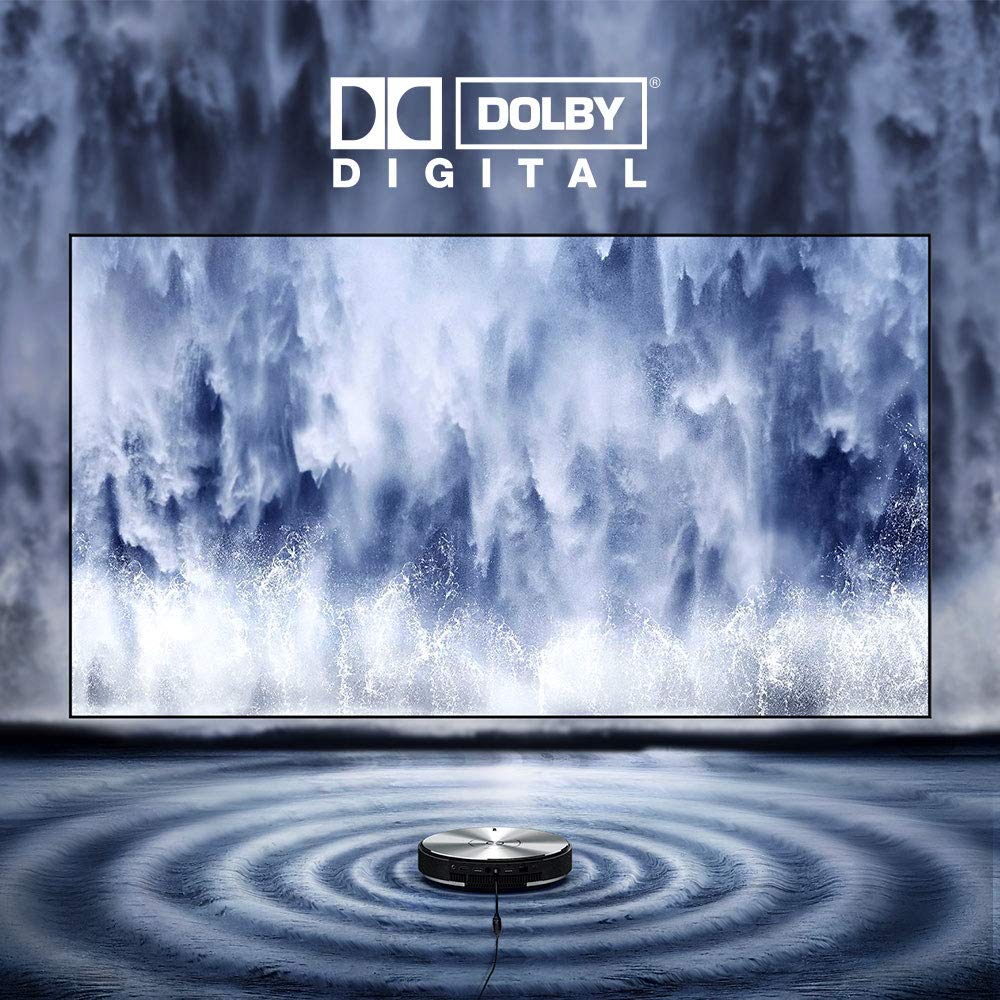
Rajah 8: Visual representation of the JMGO N7L's audio capabilities, featuring Dolby Digital sound, with sound waves emanating from the projector.
5. 3D Video Playback
The JMGO N7L supports 3D video playback. To experience 3D content, you will need compatible 3D glasses (sold separately) and 3D-formatted video content.
- Play a 3D video file or stream 3D content.
- The projector should automatically detect the 3D format. If not, check display settings for 3D options.
- Wear your 3D glasses to view the content in three dimensions.
Penyelenggaraan
- Membersihkan Lensa: Gunakan kain lembut dan bebas lin yang direka khusus untuk kanta optik. Jangan gunakan pembersih yang melelas atau kain yang boleh mencalarkan kanta.
- Membersihkan Bahagian Luar: Lap bahagian luar projektor dengan kain lembut dan kering. Untuk tanda degil, sedikit damp kain boleh digunakan, tetapi pastikan tiada kelembapan memasuki peranti.
- Pengudaraan: Ensure the ventilation openings are clear of dust and obstructions to prevent overheating. Do not block the air vents during operation.
- Storan: Apabila tidak digunakan untuk tempoh yang lama, simpan projektor di tempat yang sejuk dan kering, jauh daripada cahaya matahari langsung dan suhu yang melampau.
Menyelesaikan masalah
Tiada Imej atau Imej Kabur
- Pastikan projektor dihidupkan dan disambungkan dengan betul.
- Check the input source. Verify that the correct HDMI or other input is selected.
- Allow the auto-focus feature to complete. If the image remains blurry, try restarting the projector or manually adjusting focus via settings if available.
- Verify the projection distance is within the recommended range (refer to Figure 4).
Tiada Bunyi
- Periksa tahap kelantangan pada kedua-dua projektor dan peranti sumber yang disambungkan.
- Ensure that external speakers are properly connected if used, and that the audio output setting on the projector is correct.
- If using HDMI, ensure the audio is not muted on the source device.
Isu Ketersambungan Wi-Fi
- Pastikan penghala Wi-Fi anda berfungsi dengan betul dan dalam julat.
- Sahkan kata laluan Wi-Fi yang dimasukkan adalah betul.
- Cuba mulakan semula projektor dan penghala Wi-Fi anda.
- Consider using a wired Ethernet connection if persistent issues occur.
Alat Kawalan Jauh Tidak Bertindak Balas
- Periksa dan gantikan bateri pada alat kawalan jauh.
- Pastikan tiada halangan antara alat kawalan jauh dan penerima IR projektor.
Spesifikasi
| Ciri | Perincian |
|---|---|
| Jenama | JmGO |
| Model | N7L |
| Kecerahan | 700 ANSI Lumen |
| Resolusi Asli | 1920 x 1080 (HD Penuh) |
| Compatible Max Resolution | 4K |
| Teknologi Paparan | DLP |
| Lamp taip | LED |
| Chip Utama | 4-core CPU, 8-core GPU |
| RAM / Memori Flash | 2 GB DDR3 / 16 GB eMMC |
| Antara Muka Perkakasan | Bluetooth, WiFi |
| Teknologi Ketersambungan | Wi-Fi (2.4G & 5G Dual-band) |
| Ciri Khas | Auto Focus, Keystone Correction, Portable, Wireless, Built-in Speaker |
| Output Audio | 3.5mm S/PDIF and 2-in-1 headphones |
| Berat Barang | 2.48 kg |
| Dimensi Pakej | 29.2 x 28.4 x 12.2 cm |
Waranti dan Sokongan
For information regarding warranty coverage, technical support, or service inquiries, please refer to the warranty card included with your product or visit the official JmGO webtapak. Simpan resit pembelian anda sebagai bukti pembelian untuk tuntutan waranti.


