pengenalan
This manual provides detailed instructions for the installation, operation, and maintenance of your D-Link AC3000 High-Power Wi-Fi Tri-Band Router, model DIR-3040. Please read this guide thoroughly to ensure proper setup and optimal performance of your device. The DIR-3040 is designed to deliver high-speed Wi-Fi connectivity across three distinct bands, offering advanced features such as Wi-Fi Mesh technology, voice control compatibility with Amazon Alexa and Google Assistant, and enhanced parental controls.
Kandungan Pakej
Sahkan bahawa pakej anda mengandungi item berikut:
- DIR-3040 Router
- Penyesuai Kuasa
- Kabel Ethernet
- Panduan Pemasangan Pantas
If any items are missing or damaged, please contact your retailer or D-Link customer support.
Perkakasan Selesaiview
Familiarize yourself with the physical components and ports of your DIR-3040 router.

Rajah 1: Depan view of the D-Link DIR-3040 AC3000 Router, showcasing its six external antennas and sleek design.

Rajah 2: Rear panel of the D-Link DIR-3040 AC3000 Router, illustrating the various ports and buttons. From left to right: USB 2.0 Port, four Gigabit Ethernet Ports (LAN), one Internet (WAN) Port, USB 3.0 Port, Reset button, DC IN Power connector, and On/Off Button.
Komponen Panel Belakang:
- Port USB 2.0: For connecting USB storage devices or other compatible peripherals.
- Gigabit Ethernet Ports (LAN 1-4): Four ports for connecting wired devices such as computers, gaming consoles, or network-attached storage (NAS).
- Pelabuhan Internet (WAN): Menyambung ke modem anda untuk akses internet.
- Port USB 3.0: Offers faster data transfer speeds for compatible USB devices.
- Butang Tetapkan Semula: Digunakan untuk memulihkan penghala kepada tetapan lalai kilang. Tekan dan tahan selama 10 saat semasa penghala dihidupkan.
- Penyambung Kuasa DC IN: Menyambung kepada penyesuai kuasa yang disediakan.
- Butang Hidup/Mati: Menghidupkan atau mematikan penghala.
Persediaan
Initial Hardware Connection:
- Matikan: Pastikan modem dan komputer anda dimatikan.
- Sambungkan Modem: Connect one end of the provided Ethernet cable to the Internet (WAN) port on your DIR-3040 router and the other end to your modem's Ethernet port.
- Sambungkan Kuasa: Connect the power adapter to the DC IN Power Connector on the router and plug it into a power outlet.
- Hidupkan kuasa: Press the On/Off button on the router. Wait for the power LED to stabilize.
- Sambungkan Komputer (Pilihan): For initial setup, you can connect your computer directly to one of the Gigabit Ethernet (LAN) ports on the router using another Ethernet cable. Alternatively, you can connect wirelessly using the default Wi-Fi name (SSID) and password found on the label at the bottom of your router.
- Modem Hidupkan Kuasa: Power on your modem and wait for its internet indicator lights to stabilize.
Konfigurasi melalui Web Antara muka:
- Buka a web browser on your connected computer or device.
- taip http://dlinkrouter.local./ or 192.168.0.1 ke dalam bar alamat dan tekan Enter.
- Follow the on-screen setup wizard to configure your internet connection, Wi-Fi network name (SSID), and password.
- Nama pengguna lalai ialah Admin. The password field is typically left blank for the first login. Refer to the label on the bottom of your router for default login details.
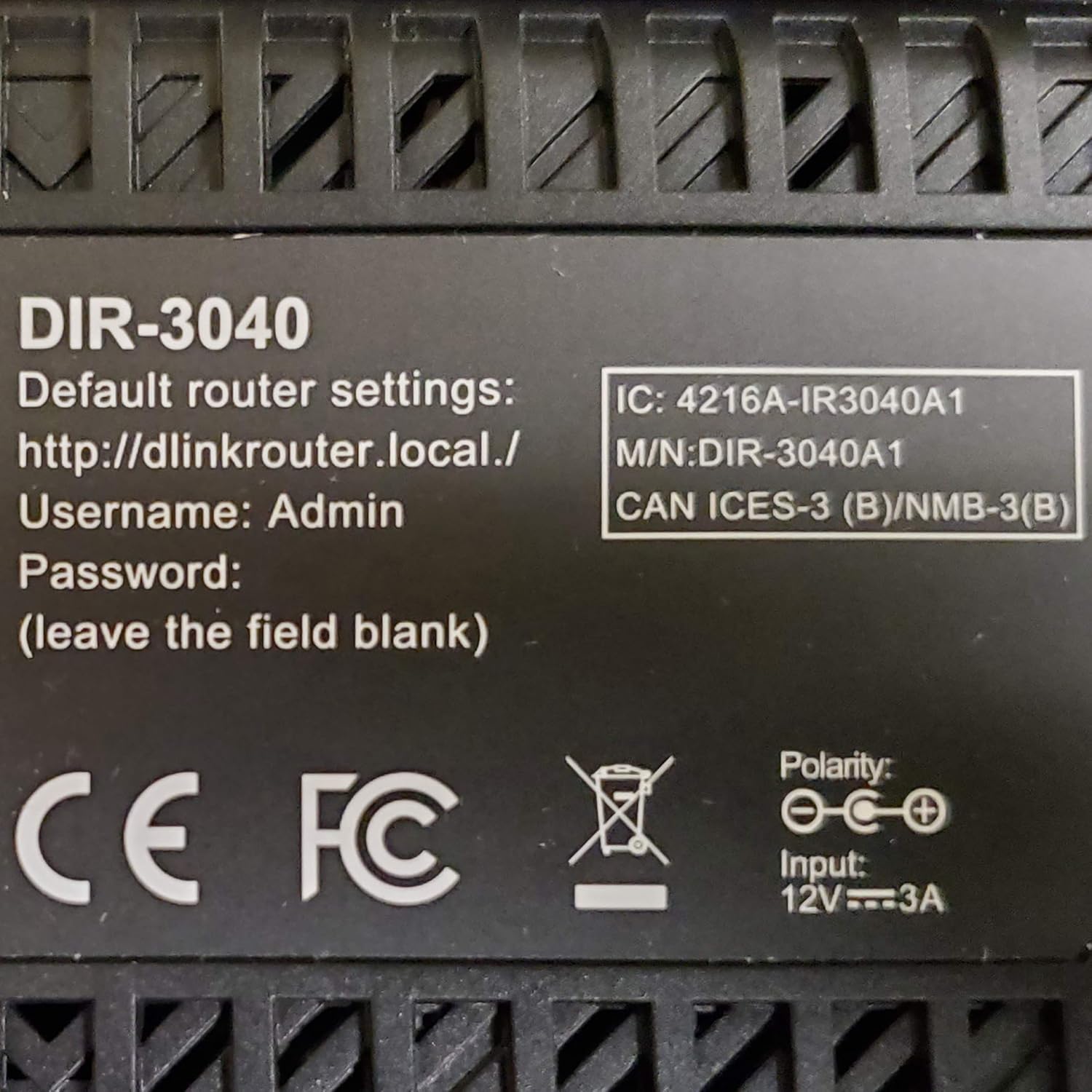
Rajah 3: Bottom label of the D-Link DIR-3040 Router, displaying default router settings including the web address, username, and password information.
Ciri Operasi
Wi-Fi Tri-Band:
The DIR-3040 operates on three distinct Wi-Fi bands: one 2.4 GHz band and two 5 GHz bands. This tri-band architecture allows for efficient distribution of network traffic, reducing congestion and providing dedicated bandwidth for various devices and applications. This results in combined Wi-Fi speeds up to 400 Mbps (2.4 GHz) + 866 Mbps (5 GHz) + 1733 Mbps (5 GHz).
Wi-Fi Mesh Technology:
The router supports D-Link's Wi-Fi Mesh technology, enabling you to create a seamless mesh network throughout your home. By combining compatible D-Link Mesh-enabled routers and extenders, you can eliminate Wi-Fi dead zones and ensure consistent, strong signal coverage across all areas.
Teknologi MU-MIMO:
Multi-User, Multiple-Input, Multiple-Output (MU-MIMO) technology allows the router to communicate with multiple devices simultaneously, rather than sequentially. This significantly improves network efficiency and throughput, especially in environments with many connected devices, ensuring smoother streaming, gaming, and browsing experiences for everyone.
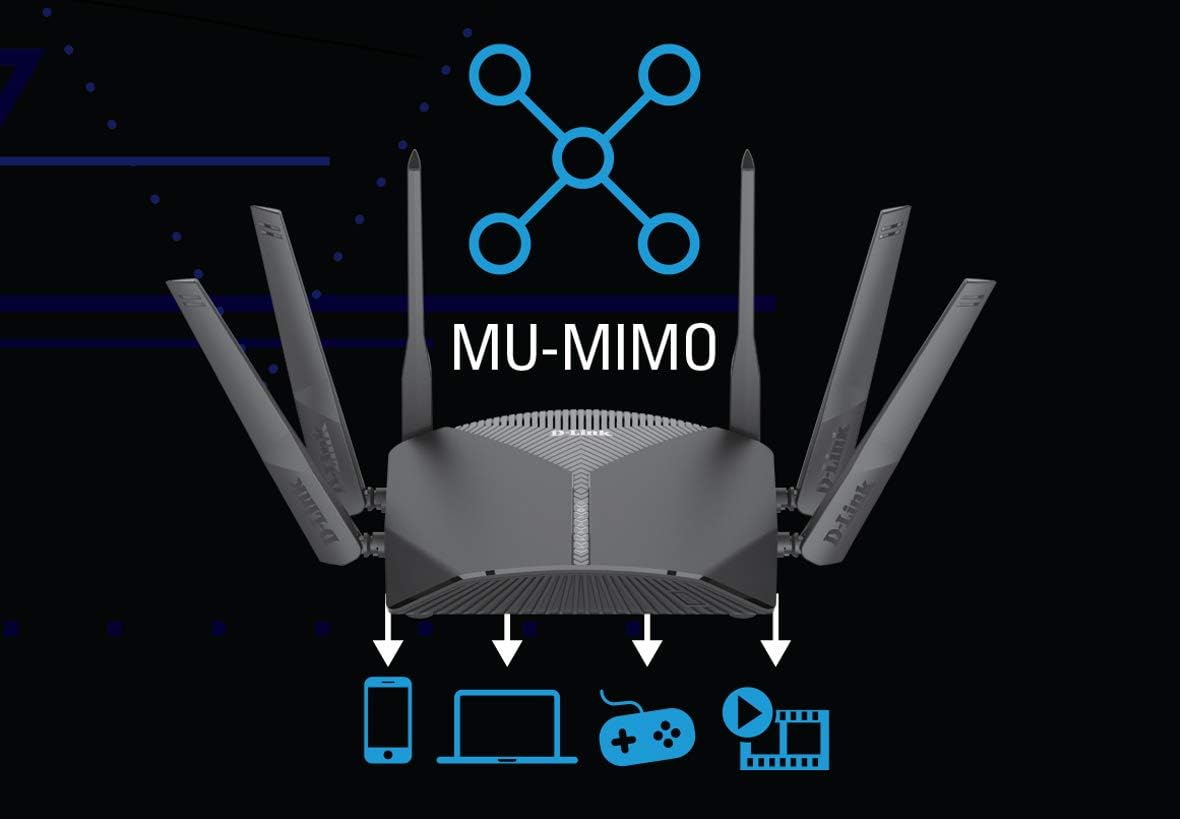
Rajah 4: Visual representation of MU-MIMO technology, showing the D-Link router simultaneously transmitting data to multiple devices such as a smartphone, laptop, gaming console, and media player.
Penyepaduan Kawalan Suara:
The DIR-3040 is compatible with Amazon Alexa and Google Assistant, allowing you to manage your network using voice commands. This feature provides convenient control over various router functions, such as enabling guest Wi-Fi or rebooting the router, without needing to access the web antara muka atau aplikasi mudah alih.

Rajah 5: An individual interacting with an Amazon Alexa device to issue a voice command, "Alexa, tell D-Link Wi-Fi to turn on guest Wi-Fi," demonstrating the router's voice control capabilities.
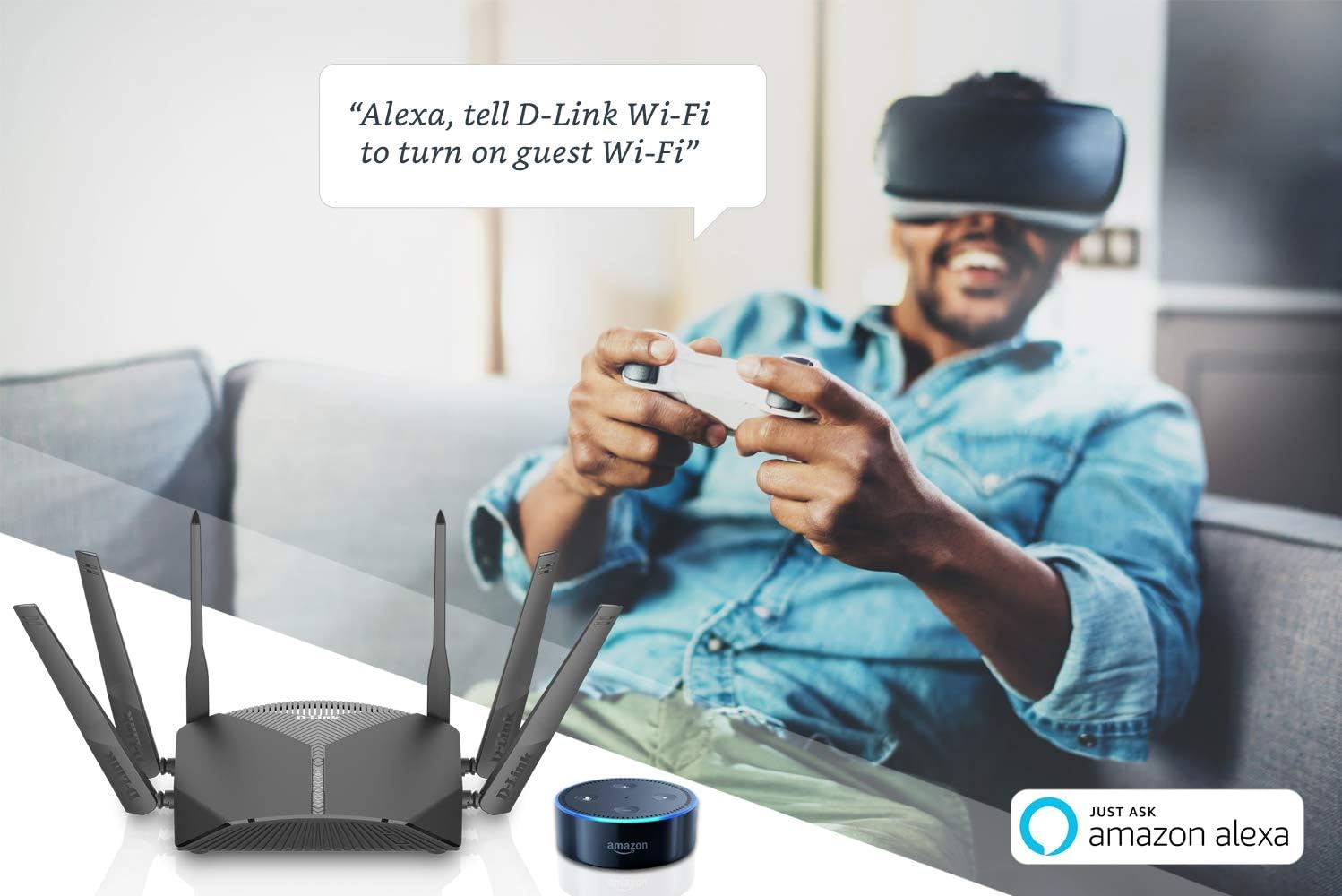
Rajah 6: A group of people in a living room setting, with one person using a Google Assistant device to say, "Ok Google, ask D-Link Wi-Fi to reboot my router," illustrating the integration of Google Assistant for router management.
Kawalan Ibu Bapa yang Dipertingkatkan:
The router offers profile-based parental controls, allowing you to create individual profiles for each user and their associated devices. Within these profiles, you can set internet access schedules, limit online time, and restrict access to specific websites or content, providing a safer online environment for children.
Penyelenggaraan
Kemas kini Firmware:
Regularly checking for and installing firmware updates is crucial for maintaining the security, stability, and performance of your router. Firmware updates often include bug fixes, security patches, and new features. You can typically check for updates through the router's web interface under the System or Maintenance section. It is recommended to perform updates during off-peak hours and ensure a stable power supply during the process.
Menetapkan semula Penghala:
If you encounter persistent issues or wish to clear all custom settings, you can perform a factory reset. To do this, locate the Reset button on the rear panel (refer to Figure 2). With the router powered on, use a paperclip or a similar pointed object to press and hold the Reset button for approximately 10 seconds. The router will reboot with its factory default settings. You will then need to reconfigure your internet and Wi-Fi settings.
Menyelesaikan masalah
Tiada sambungan internet:
- Verify that the Ethernet cable from your modem is securely connected to the Internet (WAN) port on the router.
- Check the status lights on both your modem and router. Ensure the Internet LED on the router is lit.
- Power cycle both your modem and router: Turn off both devices, wait 30 seconds, then turn on the modem first. Once the modem is fully online, turn on the router.
- Confirm your internet service provider (ISP) settings are correctly configured in the router's web antara muka.
Wi-Fi Signal Issues:
- Ensure the router is placed in a central location, away from obstructions and interference sources (e.g., cordless phones, microwaves).
- Check if your devices are connected to the appropriate Wi-Fi band (2.4 GHz for wider coverage, 5 GHz for faster speeds over shorter distances).
- Consider using D-Link Mesh extenders if you have large areas with weak signal.
Tidak Dapat Mengakses Penghala Web Antara muka:
- Pastikan peranti anda disambungkan ke rangkaian penghala (sama ada berwayar atau tanpa wayar).
- Sahkan bahawa anda menaip alamat yang betul: http://dlinkrouter.local./ or 192.168.0.1.
- Try clearing your browser's cache and cookies, or use a different web pelayar.
- If you have forgotten your login credentials, you may need to perform a factory reset (see Maintenance section).
Spesifikasi
| Nama Model | DIR 3040 |
| Jenama | D-Link |
| Standard Tanpa Wayar | 802.11ac (Wi-Fi 5) |
| Kelas Band Kekerapan | Tri-Jalur (2.4 GHz, 5 GHz, 5 GHz) |
| Combined Wi-Fi Speeds | Up to 400 Mbps (2.4GHz) + 866 Mbps (5GHz) + 1733 Mbps (5GHz) |
| Pelabuhan Ethernet | 4 x LAN Gigabit, 1 x WAN Gigabit |
| Port USB | 1 x USB 2.0, 1 x USB 3.0 |
| Jenis Antena | Dalaman |
| Ciri Khas | Access Point Mode, Alexa Compatible, Beamforming, Internet Security, Parental Control, Wi-Fi Mesh |
| Dimensi Produk | 9.44 x 15.78 x 7.75 inci |
| Berat Barang | 2.97 paun |
Waranti dan Sokongan
For detailed warranty information, technical support, and additional resources, please visit the official D-Link website. You can find contact information for customer service and access the latest drivers and firmware updates there. Please retain your proof of purchase for warranty claims.
Rasmi D-Link Webtapak: www.dlink.com


