pengenalan
This manual provides essential instructions for setting up, operating, maintaining, and troubleshooting your Microsoft Surface Pro 2017. The Surface Pro 2017 is a versatile 2-in-1 device designed to function as both a powerful laptop and a portable tablet, offering a seamless computing experience.
Please read this manual thoroughly to ensure proper use and to maximize the lifespan of your device. Keep this manual for future reference.
Apa yang ada dalam Kotak
Upon unboxing your Microsoft Surface Pro 2017, verify that all components are present:
- Microsoft Surface Pro 2017 device
- Penyesuai Kuasa AC
Note: Additional accessories such as the Surface Pen, Type Cover, or Surface Dial are sold separately and may not be included with your device.
Persediaan
1. Hidupkan dan Pengecasan Awal
- Sambungkan Penyesuai Kuasa: Plug the AC power adapter into a wall outlet and then connect the magnetic charging connector to the charging port on your Surface Pro. The LED indicator on the connector will illuminate when charging.
- Hidupkan kuasa: Press and hold the power button located on the top edge of the device for a few seconds until the Microsoft logo appears on the screen.
2. Windows Setup
Follow the on-screen prompts to complete the initial Windows setup. This process typically includes:
- Memilih wilayah dan bahasa anda.
- Menyambung ke rangkaian Wi-Fi.
- Menerima perjanjian lesen.
- Creating or signing in with a Microsoft account.
- Setting up security features like Windows Hello (facial recognition) or a PIN.
3. Menyambung ke Wi-Fi
- During Windows setup, you will be prompted to connect to a network. Select your desired Wi-Fi network from the list and enter the password if required.
- If you need to connect later, go to Mulakan > tetapan > Rangkaian & Internet > Wi-Fi. Turn Wi-Fi on, select your network, and click Sambung.
Arahan Operasi
Basic Device Orientation and Controls
The Surface Pro 2017 features a 12.3-inch PixelSense display with multi-touch support. Key physical controls include:
- Butang Kuasa: Located on the top edge, used to turn the device on/off, sleep, or wake.
- Butang Kelantangan: Terletak di sisi, digunakan untuk melaraskan kelantangan audio.
- Kickstand: Integrated on the back, allows for multiple viewsudut-sudut.
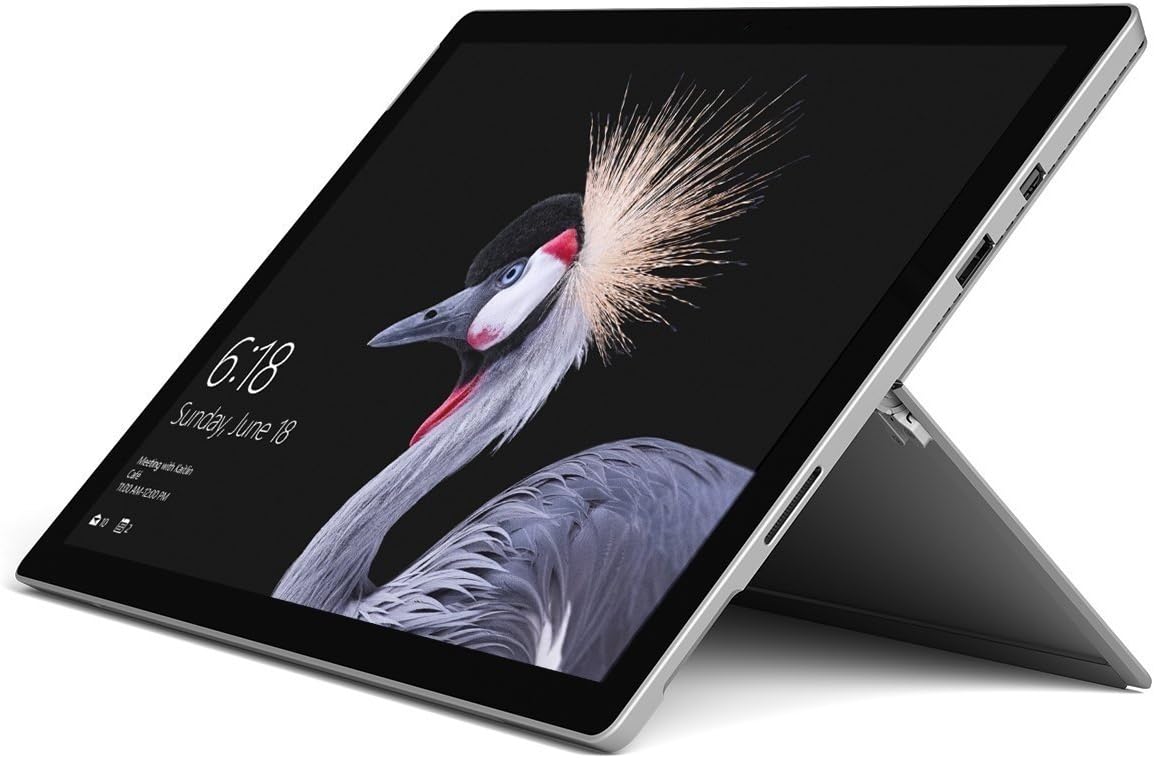
Image: Microsoft Surface Pro 2017 in laptop mode with its kickstand extended, showcasing the device's display.
Menggunakan Kickstand
The integrated kickstand allows you to position your Surface Pro at various angles for comfortable viewing, typing, or drawing. Gently pull the kickstand out from the back of the device until it reaches your desired angle.
Pengurusan Kuasa
- Mod tidur: Briefly press the power button to put the Surface Pro into sleep mode. Press it again to wake the device.
- Tutup: Pergi ke Mulakan > kuasa > tutup.
- Mulakan semula: Pergi ke Mulakan > kuasa > Mulakan semula.
Menyambung Peranti
The Surface Pro 2017 includes various ports for connecting external devices:
- Port USB 3.0: For connecting USB drives, keyboards, mice, and other compatible accessories.
- Mini DisplayPort: Untuk menyambung kepada monitor atau projektor luaran.
- Pembaca Kad microSD: Untuk mengembangkan storan atau pemindahan files daripada kad memori.
- Port Sambung Permukaan: For power and connecting to Surface Dock accessories.
- Bicu Fon Kepala 3.5mm: Untuk output audio.
Bluetooth: To connect Bluetooth devices (e.g., headphones, mice), go to Mulakan > tetapan > Peranti > Bluetooth & peranti lain. Ensure Bluetooth is turned on, then select "Add Bluetooth or other device" and follow the pairing instructions.

Imej: Side profile of the Microsoft Surface Pro 2017, highlighting the various ports available for connectivity.
Penyelenggaraan
Cleaning Your Surface Pro
- Skrin: Gunakan kain lembut dan tidak berbulu sedikit dampened with water or an approved screen cleaner. Avoid harsh chemicals or abrasive materials.
- Badan: Wipe the exterior with a soft, dry cloth. Do not allow liquids to enter openings.
- Pelabuhan: Keep ports free of dust and debris. Use compressed air carefully if needed, holding the can upright.
Penjagaan Bateri
- Elakkan suhu yang melampau, kerana ia boleh merendahkan hayat bateri.
- Untuk kesihatan bateri yang optimum, elakkan daripada menyahcas bateri sepenuhnya secara konsisten atau mengekalkannya pada cas 100% untuk tempoh yang lama.
- Use only the official Microsoft AC power adapter or a compatible charger.
Kemas Kini Perisian
Regularly update your Windows operating system and device drivers to ensure optimal performance, security, and compatibility. Go to Mulakan > tetapan > Kemas kini & Keselamatan > Kemas Kini Windows untuk menyemak dan memasang kemas kini.
Menyelesaikan masalah
This section addresses common issues you might encounter with your Surface Pro 2017.
Device Will Not Turn On
- Pastikan peranti telah dicas. Sambungkan penyesuai kuasa dan tunggu beberapa minit sebelum cuba menghidupkannya.
- Lakukan penutupan dua butang: Tekan dan tahan butang naikkan kelantangan dan butang kuasa secara serentak selama sekurang-kurangnya 15 saat, kemudian lepaskan kedua-duanya. Tunggu 10 saat, kemudian tekan butang kuasa sekali lagi untuk menghidupkan Surface.
Screen Not Responding to Touch
- Mulakan semula peranti.
- Pastikan skrin bersih dan bebas daripada serpihan.
- Check for available Windows updates, as driver updates can resolve touch issues.
Isu Ketersambungan Wi-Fi
- Pastikan Wi-Fi didayakan tetapan > Rangkaian & Internet > Wi-Fi.
- Restart your Surface Pro and your Wi-Fi router.
- Lupakan rangkaian dan sambung semula: Pergi ke tetapan > Rangkaian & Internet > Wi-Fi, click on your network, then lupa. Reconnect and enter the password.
Spesifikasi
| Ciri | Spesifikasi |
|---|---|
| Nama Model | Surface Pro 2017 |
| Nombor Model Item | 7Y30 |
| Saiz Skrin | 12.3 Inci |
| Resolusi Skrin | 2736 x 1824 piksel |
| Pemproses | Intel Core m3-7Y30 (1 GHz Intel_Mobile_CPU) |
| RAM | 4 GB DDR4 SDRAM |
| Penyimpanan | 128 GB SSD |
| Kad Grafik | Integrated (Intel) |
| Sistem Operasi | Windows |
| Jenis Wayarles | 802.11abg |
| Berat Barang | 1.89 paun |
| Dimensi Produk | 11.5 x 7.9 x 0.3 inci |
| warna | Perak |
Waranti dan Sokongan
For detailed warranty information, please refer to the warranty card included with your purchase or visit the official Microsoft support webtapak. Terma dan syarat jaminan mungkin berbeza-beza mengikut rantau dan peruncit.
Untuk sokongan teknikal, muat turun pemacu dan sumber tambahan, sila lawati Sokongan Microsoft rasmi webtapak: support.microsoft.com/surface


