1. Pengenalan
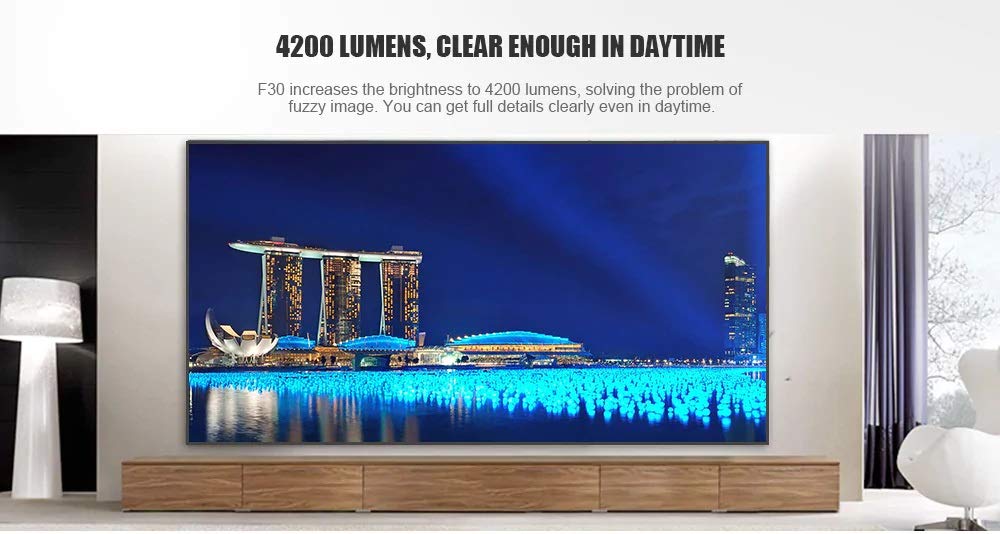
This manual provides essential instructions for the safe and efficient use of your Vivibright F30 Projector. Please read this manual thoroughly before operating the device and retain it for future reference. The Vivibright F30 is a Full HD 1080p LED projector designed for home theater, education, and business presentations, offering 4200 lumens brightness and multiple connectivity options.
2. Maklumat Keselamatan
- Bekalan Kuasa: Gunakan hanya penyesuai kuasa yang ditentukan. Pastikan voltage matches the projector's requirements.
- Pengudaraan: Do not block ventilation openings. Ensure adequate space around the projector for proper airflow to prevent overheating.
- haba: Projektor lamp generates heat. Avoid touching the lens or vents immediately after use.
- Perlindungan Mata: Jangan lihat terus ke dalam kanta projektor apabila lamp is on. The bright light can cause eye strain or damage.
- penempatan: Letakkan projektor di atas permukaan yang stabil dan rata. Elakkan meletakkannya di bawah cahaya matahari langsung, berhampiran sumber haba atau dalam persekitaran yang mempunyai kelembapan atau habuk yang tinggi.
- Pembersihan: Putuskan sambungan kuasa sebelum membersihkan. Gunakan kain lembut dan kering. Jangan gunakan cecair atau pembersih aerosol.
- Servis: Do not attempt to service the projector yourself. Refer all servicing to qualified personnel.
3. Kandungan Pakej
Sahkan bahawa semua item terdapat dalam pakej:
- Vivibright F30 Projector
- Kabel Kuasa
- Alat Kawalan Jauh
- Manual Pengguna (dokumen ini)
- Kabel HDMI (mungkin berbeza mengikut rantau/pakej)
4. Produk Lebihview
Biasakan diri anda dengan komponen dan antara muka projektor.
Rajah 4.1: Depan view of the Vivibright F30 Projector, showing the lens and ventilation.

Rajah 4.2: sebelah view of the Vivibright F30 Projector, highlighting the various input ports.
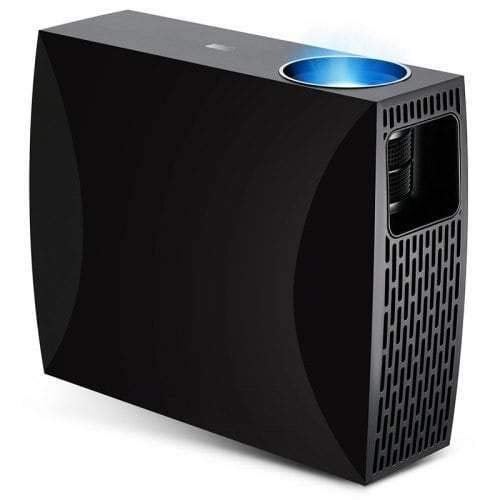
Rajah 4.3: Top or rear view of the Vivibright F30 Projector, showing control buttons or additional vents.
4.1. Antara muka
- Port HDMI: For connecting devices like laptops, gaming consoles, Blu-ray players, and media players.
- Port VGA: For connecting older computers or other VGA-compatible devices.
- Port USB: For connecting USB storage devices to play media directly.
- Keluar Audio: Untuk menyambungkan pembesar suara luaran atau fon kepala.
- Input Kuasa: Untuk menyambungkan kabel kuasa.
5. Persediaan
5.1. penempatan
Position the projector on a stable surface or mount it appropriately. Ensure the projector is perpendicular to the projection screen for optimal image geometry. The projection distance can range from 1.2 to 6.8 meters, depending on the desired screen size.
5.2. Sambungan Kuasa
- Sambungkan kabel kuasa ke port input kuasa projektor.
- Palamkan hujung kabel kuasa yang lain ke dalam salur keluar elektrik yang dibumikan.
5.3. Menyambungkan Peranti Input
Connect your desired source device (e.g., laptop, media player) to the projector using an appropriate cable (HDMI, VGA, USB). Ensure the cable is securely connected to both the projector and the source device.
5.4. Pelarasan Fokus dan Keystone
- Fokus: Putarkan gelang fokus pada kanta projektor sehingga imej kelihatan tajam dan jelas pada skrin.
- Batu Kunci: If the projected image is trapezoidal (wider at the top or bottom), use the keystone correction feature (manual or digital, depending on model) to adjust the image to a rectangular shape.
6. Arahan Operasi
6.1. Menghidupkan/Mematikan
- Hidupkan kuasa: Tekan butang kuasa pada projektor atau alat kawalan jauh. Lampu penunjuk akan bertukar, danamp akan menerangi.
- Matikan: Press the power button again. Confirm shutdown if prompted. Allow the projector to cool down before unplugging it.
6.2. Pemilihan Sumber Input
Press the "Source" button on the remote control or the projector's control panel to cycle through available input sources (HDMI1, HDMI2, VGA, USB). Select the input corresponding to your connected device.
6.3. Navigasi Menu
Use the arrow buttons on the remote control or projector to navigate through the on-screen display (OSD) menu. Press "OK" or "Enter" to select an option and "Exit" or "Menu" to go back or close the menu.
6.4. Tetapan Gambar dan Audio
Adjust picture settings such as brightness, contrast, color, and aspect ratio via the OSD menu to optimize image quality. Adjust volume levels for the built-in speaker or connected external audio devices.
7. Penyelenggaraan
7.1. Membersihkan Lensa
Gently wipe the projector lens with a soft, lint-free cloth specifically designed for optical surfaces. Do not use abrasive materials or harsh chemicals.
7.2. Membersihkan Badan Projektor
Gunakan kain lembut dan kering untuk membersihkan bahagian luar projektor. Untuk kesan degil, gunakan sedikit kainamp cloth can be used, followed by a dry cloth. Ensure no liquid enters the ventilation openings.
7.3. Lamp kehidupan
The Vivibright F30 Projector utilizes an LED lamp with an estimated lifespan of up to 50,000 hours, requiring no regular replacement under normal usage conditions.
8. Penyelesaian masalah
| Masalah | Kemungkinan Punca | Penyelesaian |
|---|---|---|
| Tiada imej dipaparkan |
|
|
| Imej kabur |
|
|
| Image is trapezoidal (keystone effect) |
|
|
| Tiada bunyi |
|
|
| Projektor menjadi terlalu panas atau dimatikan |
|
|
9. Spesifikasi
| Ciri | Perincian |
|---|---|
| Jenama | Vivibright |
| Model | F30 |
| Resolusi Asli | 1920 x 1080 (HD Penuh) |
| Resolusi Disokong | Sehingga 4K |
| Kecerahan | 4200 Lumens (LED Luminous) |
| Nisbah Kontras | 2200:1 |
| Teknologi Paparan | LCD |
| Lamp taip | LED |
| Lamp kehidupan | Sehingga 50,000 jam |
| Jarak Unjuran | 1.2 hingga 6.8 meter |
| Tahap Kebisingan | 29 Desibel |
| Ketersambungan | HDMI, VGA, USB |
| Ciri Khas | Portable, Built-in Speaker |
| Berat Barang | 3 kg |
| Jenis Pemasangan | Pemasangan Atas Meja |
10. Waranti dan Sokongan
10.1. Maklumat Waranti
The Vivibright F30 Projector comes with a Waranti 1 Tahun dari tarikh pembelian. Waranti ini meliputi kecacatan pembuatan dan kerosakan dalam penggunaan biasa. Sila simpan bukti pembelian anda untuk tuntutan waranti.
Waranti tidak meliputi kerosakan yang disebabkan oleh salah guna, kemalangan, pembaikan tanpa kebenaran atau haus dan lusuh biasa.
10.2. Sokongan Pelanggan
For technical assistance, warranty claims, or further inquiries, please contact Vivibright customer support through their official website or the contact information provided with your purchase documentation. When contacting support, please have your product model (F30) and purchase details ready.


