pengenalan
The Oculus Quest is an all-in-one virtual reality gaming system designed for immersive experiences without the need for a PC or external sensors. This manual provides essential information for setting up, operating, maintaining, and troubleshooting your Oculus Quest headset and controllers.
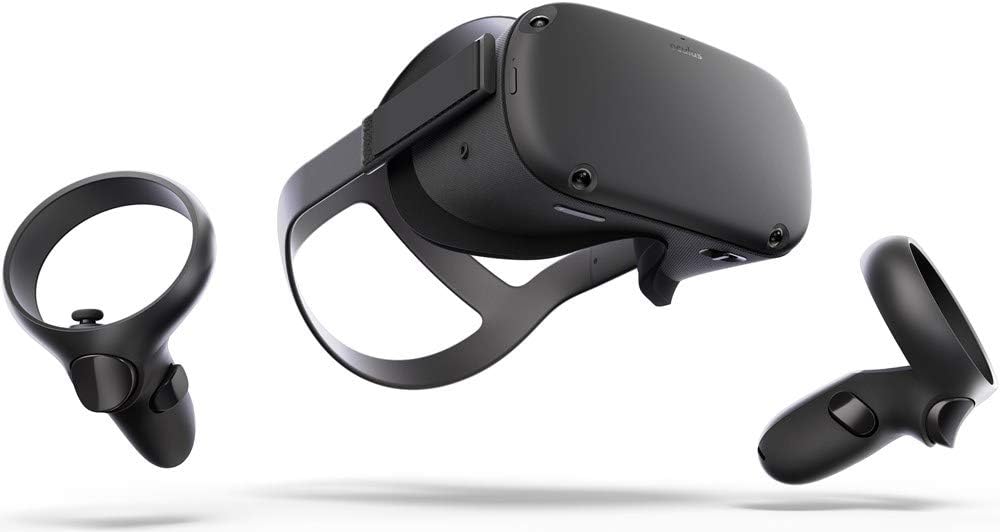
Image: The Oculus Quest headset and its two accompanying Touch controllers, showcasing reka bentuk anggun mereka.
Apa yang ada dalam Kotak
Your Oculus Quest package includes the following components:
- Oculus Quest Headset (128GB)
- Oculus Touch Controllers (2)
- Kabel Pengecas USB-C
- Penyesuai Kuasa
- AA Batteries (2, for controllers)
- Pengatur Cermin Mata
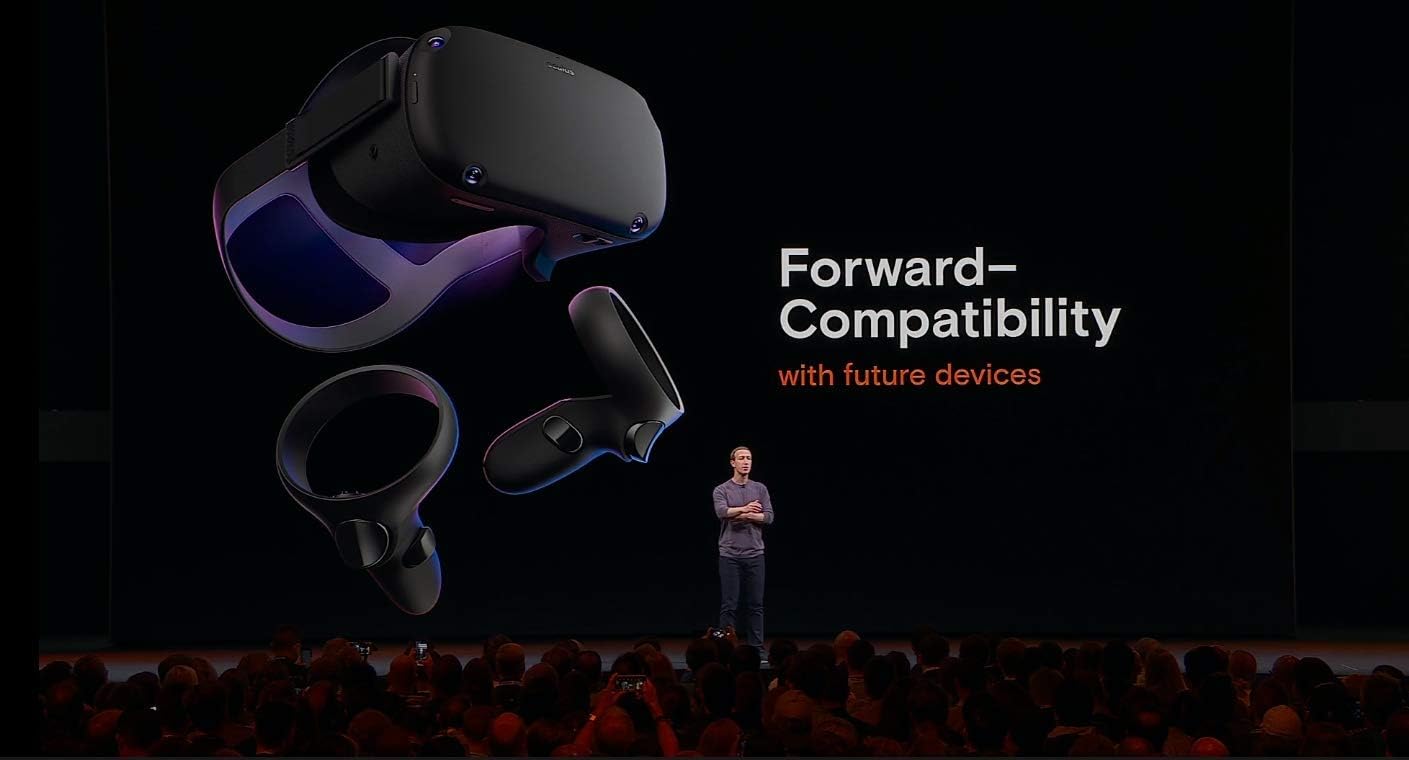
Image: All included components of the Oculus Quest system, neatly arranged for inspection.
Persediaan
- Caskan Alat dengar: Connect the USB-C charging cable to the headset and the power adapter, then plug it into a wall outlet. The LED indicator on the headset will show charging status.
- Masukkan Bateri ke dalam Pengawal: Open the battery compartment on each Oculus Touch controller and insert the provided AA batteries, ensuring correct polarity.
- Persediaan Awal melalui Aplikasi Mudah Alih: Download the Oculus mobile app on your smartphone. Follow the on-screen instructions to pair your headset, connect to Wi-Fi, and create or log in with your Facebook account.
- Laraskan Padanan Alat Dengar: Place the headset on your head. Adjust the top strap and side straps for a snug yet comfortable fit. Ensure the display is clear and centered. If you wear glasses, insert the included glasses spacer before wearing the headset.
- Sediakan Sistem Penjaga: The Guardian system helps you define your play space and avoid obstacles. Follow the prompts in VR to draw your boundary. You can choose between Stationary (sitting/standing in one spot) or Roomscale (moving around a larger area).
Arahan Operasi
Menggunakan Alat dengar
- Hidupkan/Mati Kuasa: Press and hold the power button on the side of the headset for a few seconds to turn it on or off.
- Navigating the Home Environment: Once powered on, you will enter the Oculus Home environment. Use your Touch controllers to interact with menus, launch applications, and browse content.
- Adjusting IPD: The Interpupillary Distance (IPD) slider at the bottom of the headset allows you to adjust the lens spacing to match your eye distance for optimal clarity.
Using the Touch Controllers
The Oculus Touch controllers provide intuitive interaction within VR. Each controller features:
- Kayu Analog: Untuk pergerakan dan navigasi.
- Face Buttons (A/B/X/Y): For in-game actions and menu selections.
- Butang Pencetus: Typically used for grabbing or firing.
- Grip Button: For gripping objects.
- Butang Oculus: Press to open the universal menu or recenter your view.
- Butang Menu: Used for in-app menus.

Image: A user demonstrating the proper way to wear the Oculus Quest headset and hold the Touch controllers during gameplay.
Imej: Bekasample of in-game interaction, showing virtual hands with glowing effects above a cauldron, demonstrating the immersive experience.
Penyelenggaraan
- Membersihkan Kanta: Use a dry microfiber cloth specifically designed for lenses. Wipe gently from the center outwards in a circular motion. Do not use liquid cleaners, alcohol, or abrasive cloths.
- Cleaning the Headset and Controllers: Gunakan yang kering atau sedikit damp non-abrasive cloth. Avoid getting moisture into any openings.
- Storan: Store your Oculus Quest in a cool, dry place away from direct sunlight. Prolonged exposure to sunlight can damage the lenses and display.
- Penjagaan Bateri: Untuk jangka hayat bateri yang optimum, elakkan daripada kerap mengecas alat dengar sepenuhnya. Caskannya secara berkala.
Menyelesaikan masalah
| Masalah | Penyelesaian yang Mungkin |
|---|---|
| Alat dengar tidak dihidupkan | Ensure the headset is fully charged. Press and hold the power button for at least 10 seconds for a hard reset. |
| Controllers not pairing/tracking | Check controller batteries. Re-pair controllers via the Oculus mobile app. Ensure your play space has adequate lighting. |
| Blurry vision/display | Adjust the headset's fit and IPD slider. Clean the lenses with a microfiber cloth. |
| Guardian system issues | Redraw your Guardian boundary. Ensure your play space is well-lit and free of reflective surfaces. |
| Masalah audio | Check volume settings in VR. Ensure headphones (if used) are properly connected. |
Spesifikasi
- Nama Model: 301-00171-01
- Storan: 128GB
- Dimensi: 14.7 x 9.1 x 5 inci
- Berat Barang: 1.1 paun
- Ketersambungan: Bluetooth, WiFi
- Sistem pengendalian: berasaskan Android
- Komponen yang Disertakan: Headset, 2 Touch Controllers, USB-C Cable, Power Adapter, 2 AA Batteries, Glasses Spacer
- Pengeluar: Oculus (Brand: Meta)
- Pertama Tersedia: 10 Januari 2019
Waranti dan Sokongan
For detailed warranty information and customer support, please refer to the official Meta (Oculus) webtapak atau hubungi perkhidmatan pelanggan mereka secara langsung. Simpan bukti pembelian anda untuk tuntutan waranti.
Online resources and FAQs are available to assist with common queries and advanced usage tips.