1. Persediaan dan Penggunaan Pertama
This section guides you through the initial setup of your NEC VersaPro VK26TX-G laptop.
1.1 Membuka kotak dan Pemeriksaan
Carefully remove the laptop and all accessories from the packaging. Verify that all components are present and undamaged. The standard package includes the laptop, AC adapter, and power cord.
1.2 Kuasa Penyambung
- Connect the AC adapter to the power input port on the side of the laptop.
- Palamkan kord kuasa ke dalam penyesuai AC, kemudian ke dalam soket dinding.
- Benarkan bateri mengecas sekurang-kurangnya 30 minit sebelum penggunaan awal, atau sehingga penunjuk bateri menunjukkan pengecasan yang mencukupi.

Image 1.1: The NEC VersaPro VK26TX-G laptop in an open position, displaying the Windows 10 desktop environment. This view shows the screen, keyboard, and touchpad, ready for initial setup.
1.3 But Permulaan dan Persediaan Windows
Press the power button located above the keyboard to turn on the laptop. Follow the on-screen instructions to complete the Windows 10 Pro setup process. This typically involves selecting your region, language, creating a user account, and connecting to a Wi-Fi network.
1.4 Menyambung Peranti
Komputer riba anda mempunyai pelbagai port untuk menyambungkan peranti luaran:
- Port USB: For mice, keyboards, external storage, and other USB devices.
- Port VGA: Untuk menyambung kepada monitor atau projektor luaran.
- Port LAN: Untuk sambungan rangkaian berwayar.
- Bicu Audio: Untuk fon kepala atau pembesar suara luaran.

Imej 1.2: A view of the left side of the laptop, highlighting various connectivity ports such as USB, VGA, and the LAN port, essential for connecting external devices and networks.

Imej 1.3: A view of the right side of the laptop, showing additional USB ports and the integrated DVD-ROM drive, useful for optical media.
2. Mengendalikan Komputer Riba Anda
This section covers the basic operation of your NEC VersaPro VK26TX-G.
2.1 Mod Hidup/Mati dan Tidur
- Hidupkan kuasa: Tekan butang kuasa.
- Tutup: Klik butang Mula, kemudian Kuasa > Tutup.
- Mulakan semula: Klik butang Mula, kemudian Kuasa > Mulakan semula.
- tidur: Click the Start button, then Power > Sleep, or close the laptop lid.
2.2 Papan Kekunci dan Pad Sentuh
The laptop features a full-sized keyboard and a multi-touch touchpad for navigation.
- papan kekunci: Standard QWERTY layout with function keys (F1-F12) for various shortcuts (e.g., volume, brightness).
- Pad sentuh: Supports gestures like scrolling (two fingers), zooming (pinch), and right-click (two-finger tap or press bottom-right).
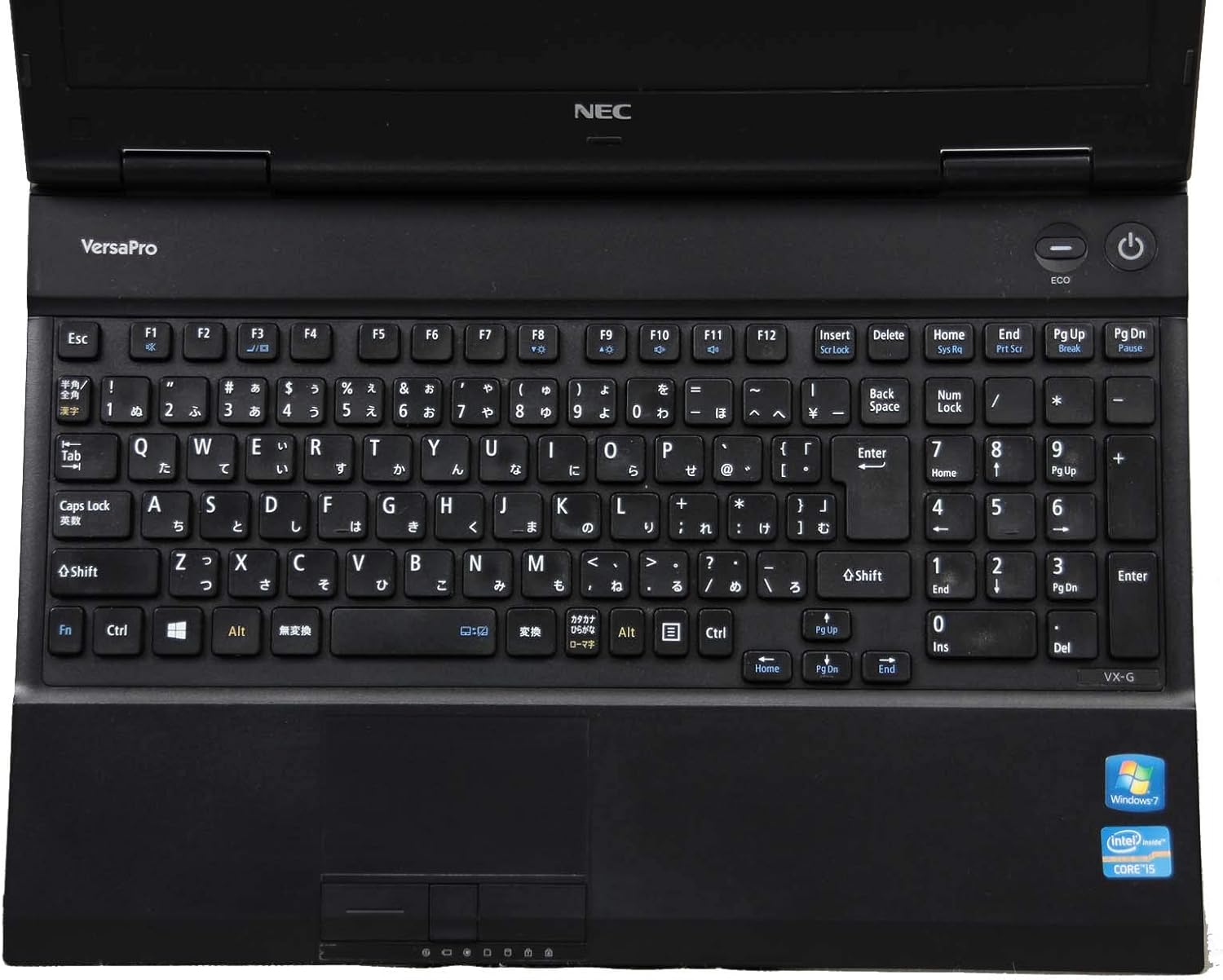
Imej 2.1: Atas ke bawah view of the laptop's keyboard and touchpad, illustrating the layout and input areas for user interaction.
2.3 Menyambung ke Wi-Fi
- Klik ikon Wi-Fi dalam dulang sistem (sudut kanan bawah skrin).
- Pilih rangkaian yang anda inginkan daripada senarai.
- Masukkan kunci keselamatan rangkaian (kata laluan) jika digesa, kemudian klik 'Sambung'.
2.4 Using the DVD-ROM Drive
The integrated DVD-ROM drive allows you to read optical discs. To open the tray, press the eject button located on the drive itself. Insert a disc, then gently push the tray back in. Windows will typically detect the disc automatically.
2.5 Windows 10 Pro and WPS Office
Your laptop comes pre-installed with Windows 10 Pro, offering advanced features for productivity and security. It also includes Pejabat WPS, a suite of applications compatible with Microsoft Office formats, for document creation, spreadsheets, and presentations.
3. Penyelenggaraan dan Penjagaan
Penyelenggaraan yang betul memastikan jangka hayat dan prestasi optimum komputer riba anda.
3.1 Arahan Pembersihan
- Skrin: Gunakan kain lembut dan bebas lin yang direka khusus untuk elektronik. Dampen it slightly with water or a screen cleaner. Do not spray liquid directly onto the screen.
- Papan Kekunci dan Casis: Gunakan kain lembut, sedikitampened with water or a mild cleaning solution. For dust in crevices, use compressed air.
- Sentiasa matikan dan cabut plag komputer riba sebelum membersihkan.
3.2 Penjagaan Bateri
- Elakkan suhu yang melampau.
- For optimal battery life, avoid constantly keeping the laptop plugged in at 100% charge. Occasionally allow the battery to discharge to around 20-30% before recharging.
- Jika menyimpan komputer riba untuk tempoh yang lama, pastikan bateri dicas kepada kira-kira 50-60%.
3.3 Kemas Kini Perisian
Regularly update your Windows operating system and device drivers to ensure security, stability, and performance. Windows Update can be accessed via Settings > Update & Security > Windows Update.
3.4 Sandaran Data
Amat disyorkan untuk membuat sandaran data penting anda secara berkala ke pemacu luaran atau storan awan untuk mengelakkan kehilangan data.
4. Menyelesaikan masalah Isu Biasa
Bahagian ini menyediakan penyelesaian untuk masalah biasa yang mungkin anda hadapi.
4.1 Komputer Riba Tidak Dihidupkan
- Pastikan penyesuai AC disambungkan dengan selamat pada kedua-dua komputer riba dan salur keluar kuasa yang berfungsi.
- Sahkan alur keluar kuasa berfungsi dengan memasang peranti lain.
- Jika bateri telah habis sepenuhnya, biarkan ia mengecas selama beberapa minit sebelum cuba menghidupkannya.
4.2 Tiada Paparan pada Skrin
- Periksa sama ada komputer riba telah dihidupkan.
- Adjust the screen brightness using the function keys (e.g., Fn + F2/F3).
- If an external monitor is connected, try disconnecting it or switching display modes (e.g., Fn + F7).
4.3 Masalah Sambungan Wi-Fi
- Pastikan Wi-Fi diaktifkan (semak ikon Wi-Fi dalam dulang sistem).
- Mulakan semula penghala dan modem anda.
- Forget the network and reconnect, re-entering the password.
- Run the Windows Network Troubleshooter (Settings > Network & Internet > Status > Network troubleshooter).
4.4 Prestasi Perlahan
- Tutup aplikasi yang tidak perlu berjalan di latar belakang.
- Semak dan pasang sebarang kemas kini Windows yang belum selesai.
- Run a disk cleanup and defragmentation (for HDD models).
- Imbas untuk perisian hasad atau virus.
5. Spesifikasi
Detailed technical specifications for the NEC VersaPro VK26TX-G laptop.
| Ciri | Spesifikasi |
|---|---|
| Jenama | NEC |
| Nama Model | VersaPro VK26TX G |
| Faktor Bentuk | Komputer riba |
| Saiz Skrin | 15.6 inci |
| Resolusi | 1366 x 768 piksel (WXGA Penuh) |
| Jenama CPU | Intel |
| Jenis CPU | Teras i5 |
| Kelajuan CPU | 2.6 GHz |
| Kapasiti RAM | 4 GB |
| Kapasiti HDD | 250 GB |
| Jenis Cakera Keras | HDD |
| Komunikasi | Wi-Fi |
| Sistem Operasi | Windows 10 Pro |
| Pemacu Optik | DVD-ROM |
6. Waranti dan Sokongan
Information regarding your product's warranty and available support services.
6.1 Waranti Produk
Produk ini biasanya termasuk a Waranti 90 hari from the date of purchase. This warranty covers manufacturing defects and hardware malfunctions under normal use. Please refer to your purchase documentation for specific terms and conditions. Note that battery remaining capacity is generally not covered under warranty.

Image 6.1: An informational graphic highlighting the 90-day warranty period and the inclusion of a legitimate Windows OS license.
6.2 Sokongan Pelanggan
A dedicated support system is in place to assist you with any issues or inquiries. If you encounter a problem with the product, professional staff are available to help diagnose the situation, investigate the cause, and propose appropriate solutions, including exchanges or repairs if necessary.
For inquiries regarding the usage of software or applications, or for specific malfunctions, please contact the manufacturer's official support channels directly.

Image 6.2: An informational graphic outlining the comprehensive customer support system, including professional staff assistance for product issues.


