pengenalan
The iStorage diskAshur PRO2 HDD is a secure, portable hard drive designed to protect your digital assets with advanced hardware encryption. This manual provides essential information for setting up, operating, maintaining, and troubleshooting your device, ensuring your data remains secure and accessible.
- Secure Authentication: Simply enter a 7-15 digit PIN to authenticate and use the drive. All data is encrypted using AES-XTS 256-bit hardware encryption (Software Free) when disconnected.
- Government Certified: Certified to FIPS 140-2 Level 3, helping ensure compliance with data regulations such as GDPR, CCPA, and HIPAA.
- Reka bentuk tahan lasak: Portable, rugged, dust & water resistant (IP56). Data is protected from unauthorized access even if the device is lost or stolen.
- Keserasian Luas: Works on any device with a USB port, no software required. Compatible with MS Windows, macOS, Linux, Chrome, Android, Thin Clients, Zero Clients, Embedded Systems, Citrix, and VMware.
- Pemindahan Data Pantas: Features lightning-fast backwards compatible USB 3.2 data transfer speeds, with up to 160MB/s Read and 143MB/s Write speeds.
Persediaan
Follow these steps to connect and unlock your diskAshur PRO2 HDD for the first time.
- Sambungkan Drive: Connect the integrated USB cable from your diskAshur PRO2 to an available USB port on your computer or laptop. The drive will power on, and the red LED light will appear.
- Masukkan PIN: Once the red LED light is visible, enter your 7-15 digit PIN on the keypad.
- Buka kunci: Tekan ke BUKA KUNCI button (key icon with an open padlock). The green and blue LEDs will blink, and then the middle green LED will turn solid, indicating the drive is unlocked and ready for use.
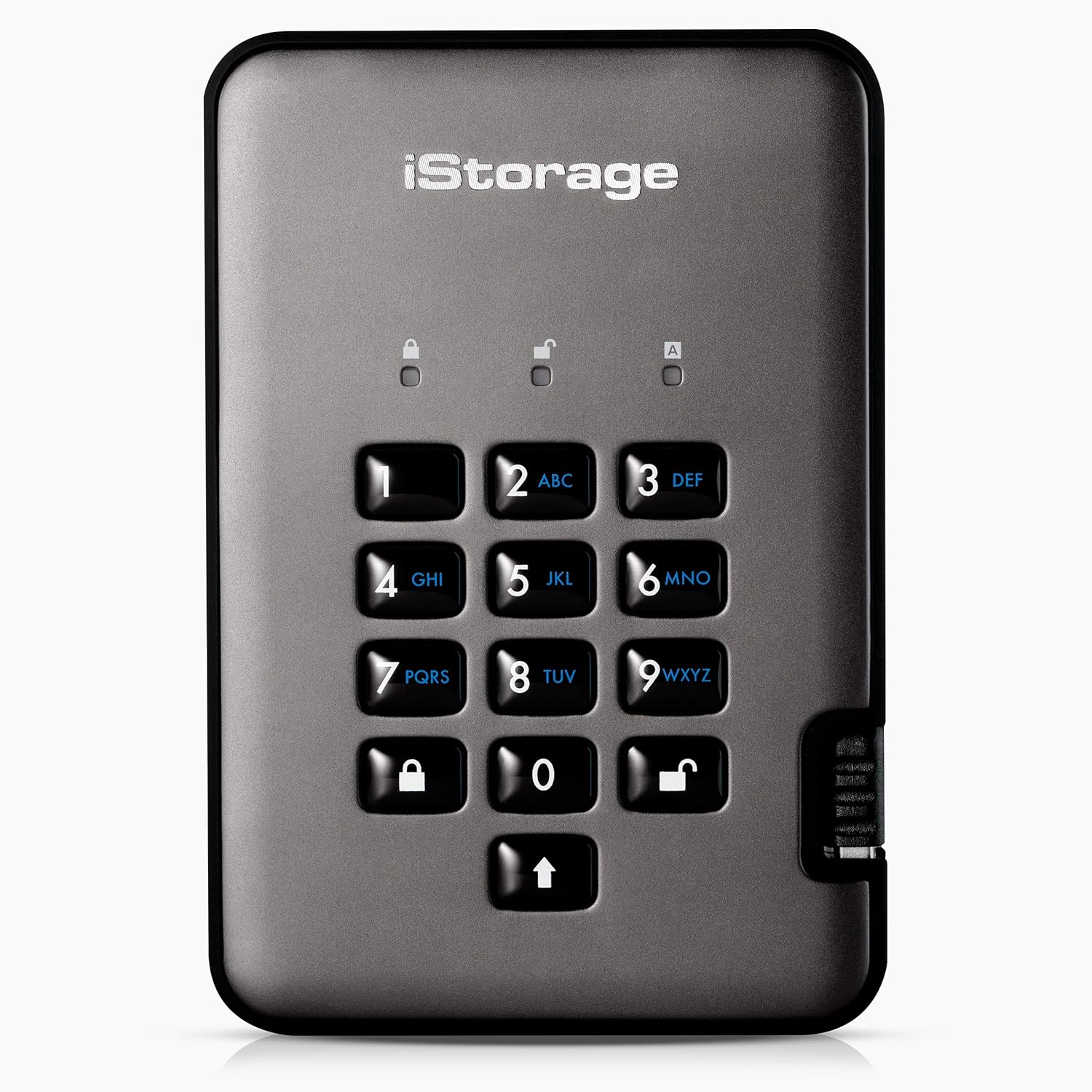
Rajah 1: Depan view of the diskAshur PRO2 secure hard drive, highlighting its integrated alphanumeric keypad for PIN entry.

Figure 2: The diskAshur PRO2 connected to a laptop, with icons representing its broad compatibility across operating systems including MS Windows, macOS, Linux, Chrome, Android, Thin Clients, Zero Clients, Embedded Systems, Citrix, and VMware.
Video Guide: How to Unlock and Encrypt Your Files
This video demonstrates the process of unlocking your iStorage diskAshur PRO2 and securely encrypting your files by transferring them to the drive.
Beroperasi
Once unlocked, your diskAshur PRO2 functions like a standard external drive, but with the added security of real-time hardware encryption.
- Mengakses Pemacu: After unlocking, the drive will appear as a removable storage device on your computer. Open the drive folder to access its contents.
- Storing Encrypted Files: To encrypt your files, simply copy and paste or drag and drop the desired files into the diskAshur PRO2 drive folder. All data transferred to the drive is encrypted in real-time.
- Safely Ejecting the Drive: When you are finished using the drive, safely eject it from your operating system. Upon ejection, the drive will automatically lock, securing your data. You can then safely disconnect the drive from your computer.

Figure 3: Data transfer speeds for diskAshur PRO2 HDD (up to 160MB/s Read, 143MB/s Write) and SSD models (up to 361MB/s Read, 358MB/s Write).
Penyelenggaraan
Proper care ensures the longevity and reliability of your diskAshur PRO2 HDD.
- Perlindungan Fizikal: The diskAshur PRO2 is designed to be rugged and is IP56 certified for dust and water resistance. While it can withstand splashes and dust, avoid submerging it in water or exposing it to extreme conditions.
- Pembersihan: Gunakan kain lembut dan kering untuk membersihkan peranti. Jangan gunakan bahan kimia yang keras atau bahan yang melelas.
- Storan: Store the drive in a cool, dry place away from direct sunlight and extreme temperatures.
- Kemas kini Firmware: Periodically check the iStorage weblaman web untuk sebarang kemas kini perisian tegar yang tersedia bagi memastikan prestasi dan keselamatan yang optimum.

Figure 4: The diskAshur PRO2 drive shown amidst water splashes, demonstrating its IP56 certification for dust and water resistance.
Menyelesaikan masalah
If you encounter issues with your diskAshur PRO2, refer to the following common solutions.
- Pemanduan Tidak Dikenali:
- Ensure the USB cable is securely connected to both the drive and your computer.
- Cuba sambungkan ke port USB lain.
- Verify that the drive is unlocked (solid green LED).
- Mulakan semula komputer anda.
- Incorrect PIN Entry / Lockout:
- Ensure you are entering the correct 7-15 digit PIN.
- If multiple incorrect PIN attempts are made, the drive may enter a lockout state. Refer to the full iStorage diskAshur PRO2 manual for specific lockout recovery procedures.
- Penting: Repeated incorrect PIN entries can lead to data wipe for security purposes. Always consult the official manual for advanced recovery or reset procedures.
- Kelajuan Pemindahan Lambat:
- Ensure you are connected to a USB 3.0 or higher port for optimal performance.
- Tutup aplikasi lain yang mungkin menggunakan sumber sistem yang ketara.
- Check the drive's health using disk utility tools on your operating system.
For more detailed troubleshooting or advanced features, please refer to the complete iStorage diskAshur PRO2 user manual available on the official iStorage website or contact iStorage customer support.
Spesifikasi
| Jenama | Penyimpanan i |
| Siri | diskAshur PRO2 |
| Nombor Model | IS-DAP2-256-1000-C-X |
| Kapasiti Storan Digital | 1 TB |
| Antara Muka Pemacu Keras | USB 3.0 |
| Kelajuan Putaran Cakera Keras | 7200 RPM |
| Platform Perkakasan | Linux, Mac, PC |
| Berat Barang | 7.9 auns |
| Dimensi Produk (LxWxH) | 4.88 x 3.31 x 0.75 inci |
| warna | grafit |
| Ciri Khas | Dust Resistant, Hardware Encryption, Portable, Shock Resistant, Water Resistant |

Figure 5: The diskAshur PRO2 drive displayed alongside logos indicating its FIPS 140-2 Level 3 and other security certifications.

Rajah 6: Satu dalaman view of the diskAshur PRO2's secure microprocessor, emphasizing its hardware-certified EAL5+ security features.
Waranti dan Sokongan
For information regarding product warranty, technical support, or to access the full user manual, please visit the official iStorage webtapak atau hubungi bahagian perkhidmatan pelanggan mereka. Simpan resit pembelian anda untuk tuntutan waranti.
Penyimpanan i Webtapak: www.istorage-uk.com


