1. Pengenalan
The WAVLINK-AC1200 WN575A3 is a versatile networking device designed to enhance your wireless network coverage and performance. It functions as a WiFi Range Extender (Repeater), Wireless Access Point (AP), and Wireless Router, offering flexible solutions for various networking needs. With dual-band technology (2.4GHz and 5GHz) and a combined speed of up to 1200Mbps, it provides a stable and high-speed internet connection for your devices.
2. Produk Lebihview
2.1 Ciri-ciri Utama
- Dual-Band AC1200: Simultaneous 2.4GHz (300Mbps) and 5GHz (867Mbps) for a total of 1200Mbps Wi-Fi speed.
- Fungsi 3-dalam-1: Supports Repeater, Access Point, and Router modes to meet diverse networking requirements.
- High Power Design: Equipped with four external antennas for extended Wi-Fi coverage and improved signal penetration.
- Persediaan Mudah: Simple configuration via web browser or WPS button.
- Port Ethernet: Includes two 10/100Mbps Ethernet ports for wired connections.
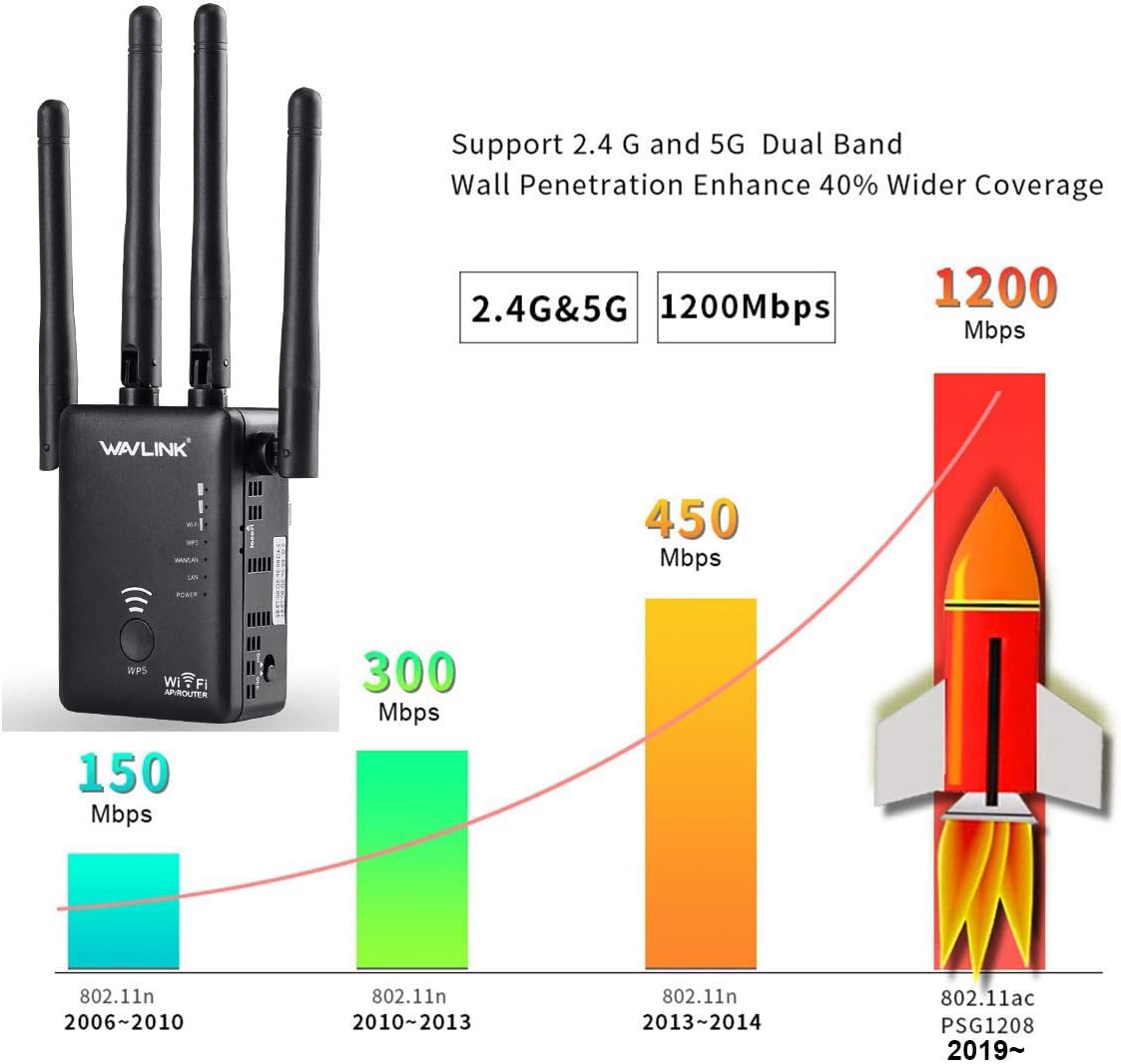
Image: The WAVLINK-AC1200 WN575A3 device highlighting its dual-band capabilities (2.4G and 5G) and speed performance up to 1200Mbps, demonstrating its ability to enhance network speed and coverage.
2.2 Kandungan Pakej
- 1 x WAVLINK-AC1200 WN575A3 WiFi Range Extender
- 1 x Kabel Rangkaian RJ45
- 1 x Panduan Pemasangan Pantas
2.3 Susun atur Peranti

Imej: Depan view of the WAVLINK-AC1200 WN575A3 WiFi Range Extender, showing the WPS button and various LED indicators for power, Wi-Fi, LAN, and WAN status.
The device features several LED indicators and ports:
- LED kuasa: Menunjukkan status kuasa.
- Butang WPS: For quick and secure connection to a router.
- LED Wi-Fi: Indicate 2.4GHz and 5GHz Wi-Fi activity.
- Port LAN/WAN: Two Ethernet ports for wired connections, functioning as LAN or WAN depending on the operating mode.
- Butang Tetapkan Semula: Used to restore factory default settings (usually a small pinhole button).
3. Persediaan
Before starting, ensure your main router is powered on and functioning correctly. The WAVLINK-AC1200 WN575A3 can be set up via a web browser or using the WPS function.
3.1 Menghidupkan dan Sambungan Permulaan
- Plug the WAVLINK-AC1200 WN575A3 into a power outlet.
- Tunggu sehingga LED Kuasa bertukar menjadi pekat.
- Connect your computer or mobile device to the extender's default Wi-Fi network (e.g., "WAVLINK_EXT" or similar, check the device label). No password is required for the initial connection.
3.2 Repeater Mode Setup (Extending Existing Wi-Fi)
Repeater mode extends the coverage of your existing wireless network.
- After initial connection, open a web pelayar dan masukkan alamat IP lalai (cth, http://192.168.10.1) atau nama domain (cth., http://ap.setup) found on the device label.
- Log in with the default username and password (usually 'admin' for both).
- Select "Repeater Mode" from the setup wizard.
- The device will scan for available Wi-Fi networks. Select your main router's Wi-Fi network (SSID) from the list.
- Enter the password for your main router's Wi-Fi network.
- You can choose to keep the same SSID for the extended network or create a new one.
- Confirm settings and wait for the device to restart.
- Relocate the extender to an optimal position between your router and the desired coverage area. Ensure the signal strength from your main router is at least 70% (3 bars) at the extender's location for best performance.

Image: A diagram illustrating the recommended placement for the WiFi repeater. It shows that the repeater should be positioned between the main router and the weak signal area, ideally where it can receive at least three bars of Wi-Fi signal from the router.
3.3 Access Point (AP) Mode Setup (Creating a New Wi-Fi Network)
AP mode converts a wired internet connection into a wireless network.
- Connect the WAVLINK-AC1200 WN575A3 to your modem or router using an Ethernet cable plugged into the LAN/WAN port.
- Follow steps 1-2 from Repeater Mode Setup to access the web antara muka.
- Select "AP Mode" from the setup wizard.
- Configure the new Wi-Fi network's SSID (name) and password.
- Confirm settings and wait for the device to restart.
3.4 Router Mode Setup (Primary Router Functionality)
Router mode allows the device to act as a primary router, connecting directly to your modem.
- Connect the WAVLINK-AC1200 WN575A3 to your modem using an Ethernet cable plugged into the LAN/WAN port.
- Follow steps 1-2 from Repeater Mode Setup to access the web antara muka.
- Select "Router Mode" from the setup wizard.
- Choose your internet connection type (e.g., PPPoE, Dynamic IP, Static IP) and enter the required details provided by your ISP.
- Configure the new Wi-Fi network's SSID (name) and password.
- Confirm settings and wait for the device to restart.
4. Mod Operasi
4.1 Mod Pengulang
In Repeater mode, the device wirelessly connects to your existing router and re-broadcasts its signal, effectively extending the Wi-Fi coverage to areas with weak or no signal. This mode is ideal for eliminating Wi-Fi dead zones in your home or office.
4.2 Mod Titik Akses (AP).
AP mode transforms a wired network connection into a wireless one. If you have an Ethernet port in a room but no Wi-Fi, you can connect the WN575A3 to the Ethernet port, and it will create a new Wi-Fi hotspot, allowing wireless devices to connect.
4.3 Mod Penghala
In Router mode, the WN575A3 acts as a standalone wireless router. It connects directly to your modem via an Ethernet cable and creates a new private network, providing internet access to all connected devices, both wired and wireless. This is suitable for small offices or homes without an existing router.
5. Penyelenggaraan
- Peletakan Optimum: Place the extender in an open area, away from obstructions like thick walls, metal objects, and large electrical appliances that can interfere with Wi-Fi signals.
- Kemas kini Firmware: Semak laman rasmi WAVLINK secara berkala weblaman web untuk kemas kini perisian tegar. Mengemas kini perisian tegar boleh meningkatkan prestasi, menambah ciri baharu dan membetulkan pepijat.
- Pembersihan: Pastikan peranti bersih dan bebas daripada habuk. Gunakan kain lembut dan kering untuk pembersihan. Jangan gunakan pembersih cecair.
- Pengudaraan: Pastikan peranti mempunyai pengudaraan yang mencukupi untuk mengelakkan terlalu panas. Jangan tutup lubang pengudaraan.
- Keselamatan: Use strong, unique passwords for your Wi-Fi network and the extender's administration page.
6. Penyelesaian masalah
6.1 Tiada Akses Internet Selepas Persediaan
- Semak Penghala Utama: Pastikan penghala utama anda mempunyai sambungan internet yang aktif.
- Konfigurasikan semula: Re-run the setup wizard, ensuring you select the correct Wi-Fi network and enter the correct password for your main router.
- Kekuatan Isyarat: In Repeater mode, ensure the extender is placed within a good signal range of your main router (at least 3 bars).
- Konflik Alamat IP: If using Router mode, ensure there is no IP address conflict with your modem.
6.2 Weak or Unstable Signal
- Pindahkan Extender: Move the extender closer to your main router, ensuring it's still halfway between the router and the desired coverage area.
- Elakkan Gangguan: Jauhkan pemanjang daripada peranti yang mengeluarkan gangguan elektromagnet yang kuat (cth., ketuhar gelombang mikro, telefon tanpa wayar).
- Laraskan Antena: Try adjusting the position of the external antennas for better signal reception.
6.3 Tidak Boleh Akses Web Halaman Pengurusan
- Sahkan Sambungan: Pastikan peranti anda disambungkan ke rangkaian Wi-Fi pemanjang atau melalui kabel Ethernet.
- IP/Domain yang betul: Double-check the IP address or domain name (e.g., http://192.168.10.1 or http://ap.setup).
- Kosongkan Cache Pelayar: Kosongkan anda web cache dan kuki pelayar, atau cuba pelayar lain.
- Tetapkan Semula Peranti: If all else fails, perform a factory reset by pressing and holding the Reset button for 5-10 seconds while the device is powered on. This will revert all settings to default, and you will need to reconfigure the device.
7. Spesifikasi
| Ciri | Penerangan |
|---|---|
| Nombor Model | WN-575A3 |
| Standard Tanpa Wayar | 802.11a/b/g/n/ac |
| Jalur Kekerapan | Dwi-Jalur (2.4GHz & 5GHz) |
| Kadar Pemindahan Data | Up to 1200 Mbps (300Mbps 2.4GHz + 867Mbps 5GHz) |
| Antena | 4 x Antena Luaran |
| Pelabuhan Ethernet | 2 x 10/100Mbps LAN/WAN Ports |
| Dimensi Produk | 4.75 x 3.75 x 5 inci |
| Berat Barang | 8 auns |
8. Waranti dan Sokongan
WAVLINK products typically come with a manufacturer's warranty. Please refer to the warranty card included in your package or visit the official WAVLINK website for detailed warranty terms and conditions. For technical support, troubleshooting assistance, or further inquiries, please contact WAVLINK customer support through their official webtapak atau maklumat hubungan yang diberikan dalam dokumentasi produk anda.
Official WAVLINK Webtapak: www.wavlink.com


