1. Pengenalan
This manual provides instructions for the installation, configuration, and operation of your TP-Link TL-WR850N N300 Wi-Fi Router. This device offers 300 Mbps wireless speed, 2.4GHz single band connectivity, and supports features like IPv6, Parental Controls, and Guest Network. Please read this manual thoroughly before use.
2. Kandungan Pakej
Sahkan bahawa pakej anda mengandungi item berikut:
- Wireless N Router TL-WR850N
- Unit bekalan kuasa
- Kabel Ethernet
- Panduan Pemasangan Pantas

Rajah 2.1: Depan view of the TP-Link TL-WR850N N300 Wi-Fi Router, showing its two external antennas and status indicators.
3. Perkakasan Terlaluview
3.1 Front Panel (LED Indicators)
The front panel features LED indicators that display the router's status. Refer to the Quick Installation Guide for detailed LED behavior.

Rajah 3.1: Bersudut view of the TP-Link TL-WR850N N300 Wi-Fi Router, highlighting the status LEDs on the top panel.
3.2 Rear Panel (Ports and Buttons)
Panel belakang mengandungi semua port yang diperlukan untuk menyambungkan penghala ke rangkaian dan sumber kuasa anda.
- Pelabuhan Kuasa: Menyambung kepada penyesuai kuasa yang disediakan.
- Pelabuhan WAN (Biru): Connects to your modem or internet service provider's (ISP) network.
- Port LAN (Kuning): Connects to your wired devices such as computers, smart TVs, or gaming consoles.
- Butang WPS/Set Semula: Used for Wi-Fi Protected Setup (WPS) or to reset the router to factory defaults.

Rajah 3.2: Belakang view of the TP-Link TL-WR850N N300 Wi-Fi Router, showing the power port, WAN port, LAN ports, and WPS/Reset button.
4. Persediaan
4.1 Sambungan Perkakasan
- Matikan: Disconnect power from your modem and router (if applicable).
- Sambungkan Modem: Connect your modem to the router's blue WAN port using an Ethernet cable.
- Sambungkan Peranti (Pilihan): Connect your computer or other wired devices to the router's yellow LAN ports using Ethernet cables.
- Hidupkan kuasa: Connect the power adapter to the router's power port and plug it into an electrical outlet. Power on your modem, then the router. Wait for the router's indicators to stabilize.
4.2 Tatarajah Awal
The router can be configured using a web browser. The Quick Installation Guide provides initial access details.
- Sambung ke Penghala: Connect your computer to the router either via an Ethernet cable or wirelessly using the default Wi-Fi name (SSID) and password printed on the label at the bottom of the router.
- Akses Web Antara muka: Buka a web pelayar dan masukkan alamat akses lalai (cth.,
http://tplinkwifi.netor192.168.0.1). - log masuk: Masukkan nama pengguna dan kata laluan lalai (biasanya
adminuntuk kedua-duanya). - Jalankan Persediaan Pantas: Follow the on-screen instructions of the Quick Setup wizard to configure your internet connection and wireless settings.
Figure 4.1: Illustration of the easy setup process, emphasizing the user-friendly interface for quick online access.
5. Mengendalikan Penghala
5.1 Tetapan Wayarles
The TL-WR850N provides 300 Mbps wireless N speed, suitable for various network tasks.
- Nama Rangkaian (SSID): You can change the default wireless network name (SSID) in the router's web antara muka.
- Kata Laluan Wayarles: It is recommended to set a strong WPA2-PSK password for your wireless network.
- CCA Technology: Clear Channel Assessment (CCA) automatically avoids channel conflicts, enhancing wireless performance.
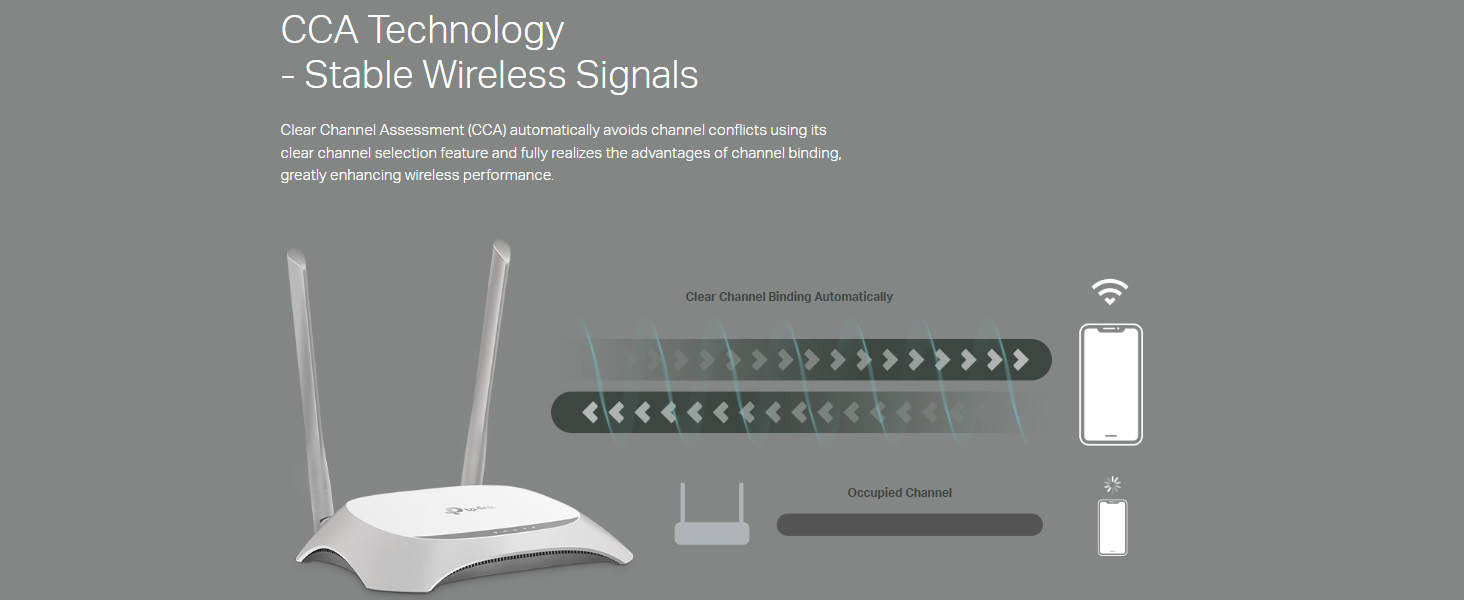
Figure 5.1: Diagram illustrating CCA Technology, which helps in selecting clear channels to improve wireless signal stability and performance.
5.2 Rangkaian Tetamu
Enable the Guest Network feature to provide separate Wi-Fi access for guests, keeping your main network secure and private.
- Access the Guest Network settings in the web antara muka.
- Enable the Guest Network and configure its SSID and password.
- You can also set bandwidth limits or access restrictions for guest users.
5.3 Kawalan Ibu Bapa
Manage when and how connected devices can access the internet using Parental Controls.
- Navigate to the Parental Control section in the router's web antara muka.
- Specify devices to control and set time limits or website restrictions.
5.4 Sokongan IPv6
The router is compatible with IPv6 (Internet Protocol version 6), supporting the latest internet standards.
5.5 IP QoS (Quality of Service)
IP-based bandwidth control allows administrators to determine how much bandwidth is allocated to each connected device or user, optimizing performance for critical applications.
Figure 5.2: Visual representation of IP QoS, indicating its role in managing and allocating network bandwidth.
5.6 Aginet Config Support
The router supports Aginet Config, which enables Internet Service Providers (ISPs) to customize default configurations. This feature helps resolve issues that may arise when end-users reset the device, ensuring consistent service delivery.
Figure 5.3: Graphic indicating support for Aginet Config, a feature for ISP customization of router settings.
6. Penyelenggaraan
6.1 Kemas kini Firmware
Semak dan pasang kemas kini perisian tegar secara berkala untuk memastikan prestasi, keselamatan dan akses kepada ciri baharu yang optimum.
- Lawati sokongan rasmi TP-Link website for your model (TL-WR850N).
- Muat turun perisian tegar terkini file.
- Akses penghala web interface and navigate to the Firmware Upgrade section (usually under System Tools).
- Ikut arahan pada skrin untuk memuat naik dan memasang firmware baharu. Jangan matikan penghala semasa proses kemas kini.
6.2 Tetapan Semula Kilang
If the router is not functioning correctly or you forget the login password, you can reset it to factory default settings.
- Method 1 (Hardware Button): With the router powered on, press and hold the WPS/Reset button on the rear panel for approximately 5-10 seconds until the system LED blinks rapidly. Release the button and wait for the router to restart.
- Kaedah 2 (Web Interface): Akses penghala web interface, navigate to System Tools > Factory Defaults, and click the Restore button. Confirm the action when prompted.
Note: A factory reset will erase all your custom configurations, and you will need to set up the router again.
7. Penyelesaian masalah
7.1 Cannot Access the Internet
- Check all cable connections between the modem, router, and your computer. Ensure they are secure.
- Sahkan bahawa LED WAN pada penghala menyala, menunjukkan sambungan ke modem anda.
- Restart your modem and router. Power off both devices, wait 30 seconds, then power on the modem first, wait for it to fully boot, then power on the router.
- Confirm your internet settings in the router's web interface match those provided by your ISP.
7.2 Cannot Access the Router's Web Halaman Pengurusan
- Pastikan peranti anda disambungkan dengan betul ke penghala (berwayar atau tanpa wayar).
- Verify that the router's IP address (e.g.,
http://tplinkwifi.netor192.168.0.1) is entered correctly in the browser. - Kosongkan cache dan kuki penyemak imbas anda atau cuba penyemak imbas lain.
- If you have changed the router's login credentials and forgotten them, perform a factory reset (refer to Section 6.2).
7.3 Isu Isyarat Wi-Fi
- Peletakan Penghala: Letakkan penghala di lokasi pusat, jauh daripada halangan dan sumber gangguan (cth., ketuhar gelombang mikro, telefon tanpa wayar).
- Orientasi Antena: Laraskan antena untuk penerimaan isyarat yang optimum.
- Gangguan Saluran: In the wireless settings, try changing the Wi-Fi channel to a less congested one.
- Perisian tegar: Pastikan perisian tegar penghala anda dikemas kini.
8. Spesifikasi
| Ciri | Perincian |
|---|---|
| Jenama | TP-Link |
| Nama Model | TL-WR850N |
| Standard Tanpa Wayar | 802.11b/g/n |
| Jalur Kekerapan | Jalur Tunggal (2.4GHz) |
| Kelajuan Tanpa Wayar | Sehingga 300 Mbps |
| Jenis Kesambungan | Wi-Fi, Ethernet |
| Pelabuhan | 1 WAN, 4 LAN |
| Ciri Khas | CCA Technology, Easy Setup, Guest Mode, Parental Control, QoS, IPv6 Support, Aginet Config |
| Sokongan Sistem Pengendalian | Linux, Mac OS, Windows |
| Input Kuasa | 9 Volt (DC) |
| Dimensi (LxWxH) | 20 x 15 x 15 Sentimeter |
| Berat Barang | 650 g |
9. Waranti dan Sokongan
9.1 Maklumat Waranti
For warranty details, please refer to the warranty card included with your product or visit the official TP-Link website for your region. Keep your purchase receipt for warranty claims.
9.2 Sokongan Teknikal
If you encounter any issues that cannot be resolved using this manual, please contact TP-Link technical support.
- Hubungan Bebas Tol: 1800 2094 168 (India)
- Sokongan E-mel: support.in@tp-link.com
- Sumber Dalam Talian: Lawati TP-Link rasmi weblaman web untuk Soalan Lazim, muat turun perisian tegar dan dokumentasi sokongan tambahan.
Pengeluar: TP-Link
Pengimport: TP-link India Private ltd. Office no 201, 2nd floor A-wing Time Square Building, Marol naka, Andheri Kurla Road, Andheri East, Mumbai.


