1. Pengenalan
The D-Link DWR-930M 4G/LTE Mobile Router is a portable wireless device designed to provide high-speed internet access on the go. It functions as a 4G LTE Cat4 mobile hotspot, enabling you to share a broadband wireless WAN (WWAN) connection via Wi-Fi. This device supports internet speeds up to 150Mbps for downloads and 50Mbps for uploads, allowing up to 8 Wi-Fi devices to connect simultaneously.
Its compact size and rechargeable 3000 mAh Li-ion battery make it suitable for travel and situations requiring an impromptu network. The DWR-930M incorporates a built-in firewall and supports WPA/WPA2 security protocols to protect your data. Charging is facilitated via a Micro-USB port, and device management can be performed using a mobile application.
2. Kandungan Pakej
Sila sahkan bahawa pakej anda mengandungi item berikut:
- D-Link DWR-930M 4G/LTE Mobile Router
- Bateri Litium-Ion Boleh Dicas semula
- Kabel Pengecas Mikro-USB
- Panduan Pemasangan Pantas (jika disertakan)
Jika terdapat sebarang barang yang hilang atau rosak, sila hubungi peruncit anda.
3. Produk Lebihview
Familiarize yourself with the physical components and indicator lights of your DWR-930M Mobile Router.
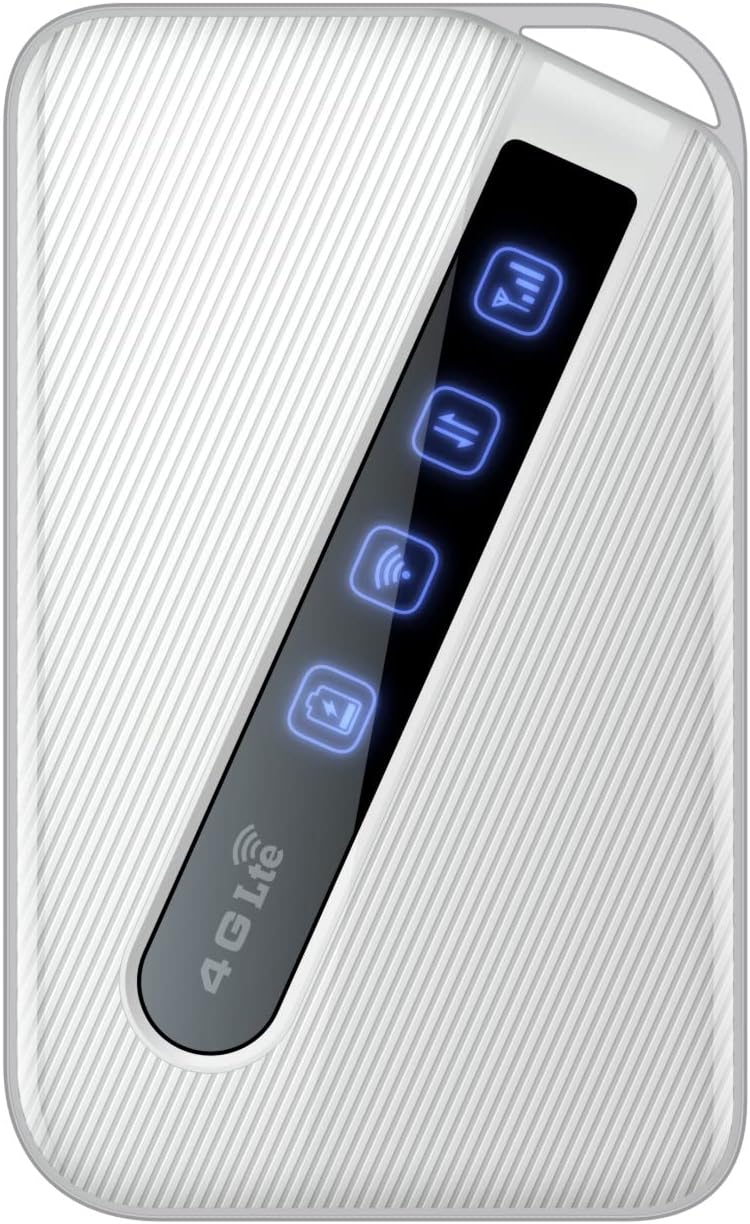
An image of the D-Link DWR-930M 4G/LTE Mobile Router, showing its compact white design and the illuminated indicator panel for signal, network, Wi-Fi, and battery status.
Lampu Penunjuk:
- Penunjuk Kekuatan Isyarat: Displays the strength of the 4G/LTE network signal.
- Network Type Indicator: Shows the current network connection status (e.g., 4G LTE).
- Penunjuk Status Wi-Fi: Indicates if the Wi-Fi hotspot is active.
- Penunjuk Status Bateri: Menunjukkan tahap cas bateri semasa.
Port dan Slot:
- Slot Kad SIM: For inserting your data-enabled SIM card.
- Port USB Mikro: Digunakan untuk mengecas peranti.
- Butang Kuasa: Untuk menghidupkan atau mematikan peranti.
4. Persediaan
4.1. Memasukkan Kad SIM
- Ensure the DWR-930M is powered off.
- Locate the SIM card slot, typically found under the battery cover or on the side of the device.
- Carefully insert your data-enabled SIM card into the slot with the gold contacts facing down and the notched corner aligned correctly.
- Close the SIM card slot cover or replace the battery cover.
4.2. Mengecas Peranti
- Connect the Micro-USB charging cable to the Micro-USB port on the DWR-930M.
- Connect the other end of the cable to a USB power adapter (not always included) or a computer's USB port.
- The battery indicator light will show charging status. Allow the device to fully charge before first use.
4.3. Menghidupkan/Mematikan
- Untuk Menghidupkan: Tekan dan tahan butang Kuasa sehingga lampu penunjuk menyala.
- Untuk Mematikan: Tekan dan tahan butang Kuasa sehingga lampu penunjuk padam.
5. Operasi
5.1. Menyambungkan Peranti ke Wi-Fi
- Ensure the DWR-930M is powered on and the Wi-Fi indicator is active.
- Pada peranti anda yang didayakan Wi-Fi (telefon pintar, tablet, komputer riba), buka tetapan Wi-Fi.
- Imbas rangkaian Wi-Fi yang tersedia.
- Select the network name (SSID) of your DWR-930M (usually printed on a label inside the battery compartment or on the device itself).
- Enter the Wi-Fi password (WPA/WPA2 key), also found on the device label.
- Your device should now be connected to the internet via the DWR-930M.
5.2. Mengakses ke Web Antara Muka Pengurusan
For advanced settings and configuration, you can access the router's webantara muka pengurusan berasaskan.
- Connect your device to the DWR-930M's Wi-Fi network.
- Buka a web penyemak imbas (cth, Chrome, Firefox, Edge).
- Dalam bar alamat, taip alamat IP lalai penghala (biasanya
192.168.0.1or192.168.1.1) and press Enter. Refer to your device's label or quick start guide for the exact IP address. - Masukkan nama pengguna dan kata laluan lalai (selalunya
adminfor both, or specified on the device label). - You can now configure settings such as Wi-Fi name, password, security, and network preferences.
6. Penyelenggaraan
6.1. Penjagaan Bateri
- Elakkan daripada mendedahkan peranti kepada suhu yang melampau.
- Jangan biarkan bateri dinyahcas sepenuhnya untuk tempoh yang lama.
- Untuk jangka hayat bateri yang optimum, cas peranti secara berkala.
6.2. Kemas Kini Perisian Tegar
Periksa sokongan D-Link secara berkala website for firmware updates for your DWR-930M. Firmware updates can improve performance, add new features, and enhance security. Follow the instructions provided with the firmware update carefully.
6.3. Pembersihan
Use a soft, dry cloth to clean the exterior of the device. Do not use liquid cleaners or aerosols, as they may damage the device.
7. Penyelesaian masalah
This section addresses common issues you might encounter with your DWR-930M Mobile Router.
| Masalah | Penyelesaian yang Mungkin |
|---|---|
| Tiada sambungan Internet |
|
| Tidak dapat menyambung ke Wi-Fi |
|
| Kelajuan internet perlahan |
|
| Bateri tidak dicas |
|
8. Spesifikasi
Key technical specifications for the D-Link DWR-930M 4G/LTE Mobile Router:
| Ciri | Perincian |
|---|---|
| Nama Model | DWR-930M |
| Teknologi Ketersambungan | USB, Wi-Fi |
| Standard Komunikasi Tanpa Wayar | 802.11b, 802.11g, 802.11n |
| Kelas Band Kekerapan | Dwi-Jalur |
| Data Speeds | Up to 150Mbps Downlink, 50Mbps Uplink (4G LTE Cat4) |
| Bateri | 1 bateri Lithium Ion diperlukan (termasuk), 3000 mAh |
| Dimensi Produk | 10.3 x 1.3 x 6.3 cm |
| Berat badan | 360 g |
| Peranti Serasi | Komputer Riba, Komputer Peribadi, Telefon Pintar, Tablet |
| Penggunaan yang Disyorkan | Perjalanan, Luar |
9. Waranti dan Sokongan
D-Link products are backed by a limited warranty. For specific warranty terms and conditions applicable to your region, please refer to the warranty card included with your product or visit the official D-Link webtapak.
For technical support, product registration, or to download the latest drivers and firmware, please visit the D-Link support portal:
When contacting support, please have your product model number (DWR-930M) and serial number ready.


