1. Pengenalan
Thank you for choosing the Macally USB Type C Wired Mouse. This manual provides detailed instructions for setting up, operating, and maintaining your new mouse. Designed for simplicity and reliability, this plug-and-play mouse offers comfortable use with adjustable DPI settings for various computing needs.
2. Kandungan Pakej
- Macally USB Type C Wired Mouse
- Manual Arahan
3. Persediaan
The Macally USB Type C Wired Mouse is designed for easy plug-and-play functionality, requiring no additional drivers for most operating systems.
- Sambungkan Tetikus: Locate an available USB-C port on your computer (MacBook Pro, iMac, PC, Laptop, Tablet, etc.). Insert the USB-C connector of the mouse cable firmly into the USB-C port.
- Pengecaman Automatik: Your operating system should automatically detect and configure the mouse. No software installation is typically required.
- Mulakan Penggunaan: Setelah dikenali, tetikus sedia untuk digunakan segera.

Image: The Macally USB-C mouse connected to a laptop via its USB-C cable, demonstrating the plug-and-play setup.
Video: A demonstration of connecting the wired USB-C mouse to a laptop, highlighting its plug-and-play functionality for Type-C computers.
4. Arahan Operasi
4.1 Penggunaan Asas
The mouse features a standard 3-button layout for intuitive control:
- Butang Klik Kiri: Digunakan untuk memilih barang, membuka files, dan melaksanakan arahan.
- Butang Klik Kanan: Used for accessing contextual menus and additional options.
- Roda Tatal: Digunakan untuk menatal dokumen dan web pages. The scroll wheel can also be pressed as a middle click button for specific functions in some applications.

Imej: Atas ke bawah view of the Macally USB-C mouse, clearly showing the left-click, right-click, and scroll wheel buttons.
4.2 Pelarasan DPI
The mouse features a dedicated DPI (Dots Per Inch) switch to adjust cursor sensitivity. This allows you to change the speed and responsiveness of the cursor to suit your preference or task.
- Tekan ke butang DPI (located below the scroll wheel) to cycle through the available sensitivity settings: 800, 1200, 1600, and 2400 DPI.
- Select the DPI setting that provides the most comfortable and efficient cursor movement for your current activity.
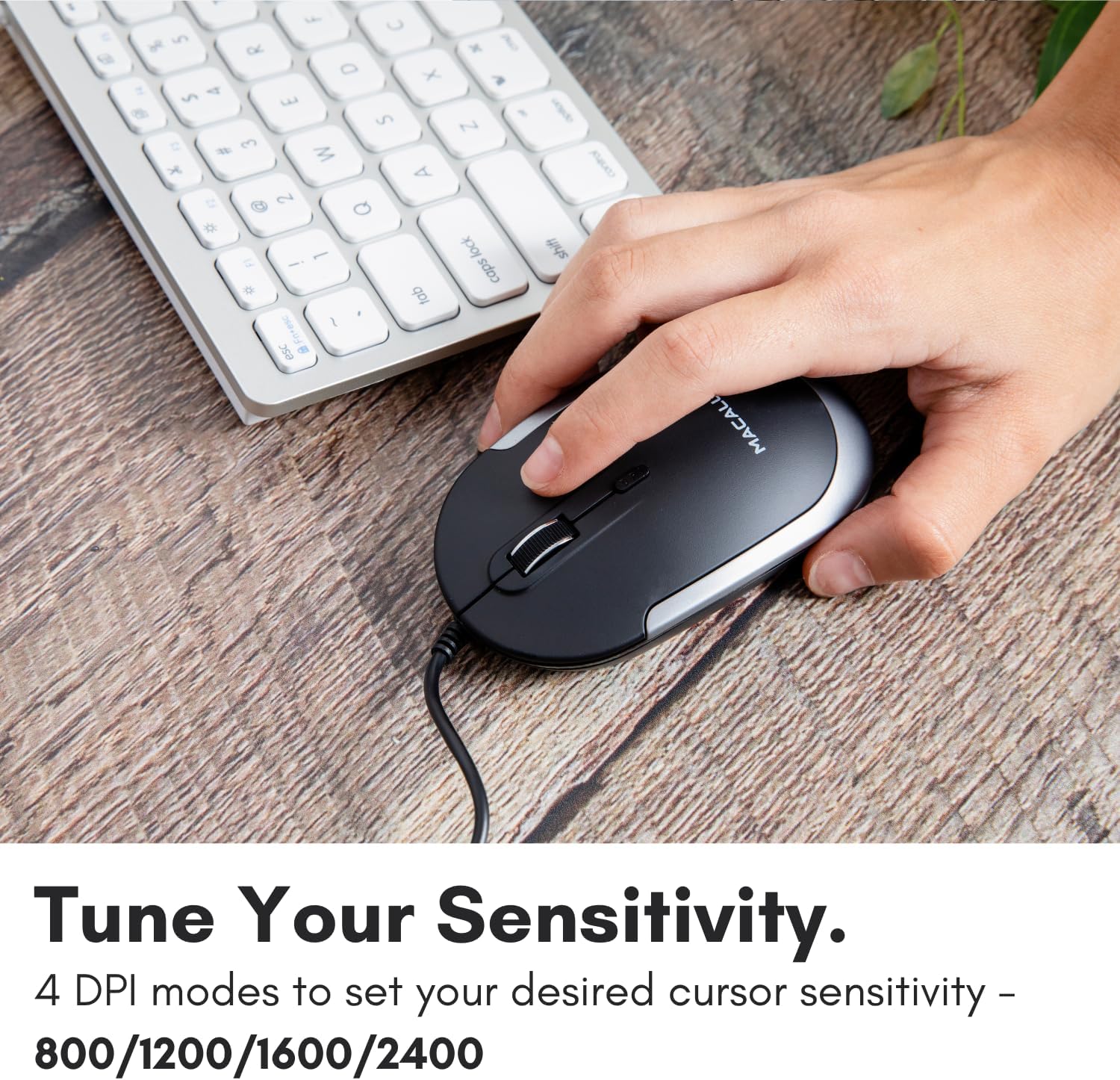
Image: A hand demonstrating how to press the DPI button on the Macally USB-C mouse to adjust sensitivity.
4.3 Keserasian
The Macally USB Type C Wired Mouse is universally compatible with a wide range of devices and operating systems:
- Mac (macOS)
- PC (Windows)
- iPadOS
- Android devices with USB-C ports

Image: The Macally USB-C mouse displayed with compatibility logos for Mac, PC, iPadOS, and Android operating systems.
5. Ciri-ciri Utama
- Kesambungan USB-C: Specifically designed for modern laptops and computers with USB-C ports, ensuring a reliable wired connection.
- Reka Bentuk Langsing & Padat: With a height of only 1 inch, the mouse is slim, comfortable, and portable, fitting snugly in your hand.
- Quiet Click Buttons: Reduces clicking noise by 90% compared to traditional mice, providing a quieter work environment.
- DPI boleh laras: Easily switch between 800, 1200, 1600, and 2400 DPI settings for precise cursor control.
- 5-Foot Cable: Menyediakan ample length for flexible setup and comfortable use, even with desktop computers.
- Reka Bentuk Ambidextrous: Sesuai untuk kedua-dua pengguna tangan kanan dan kidal.

Image: The Macally USB-C mouse highlighting its elegant and slim design with dimensions.
Video: A detailed look at the Macally USB-C Optical Mouse, emphasizing its quiet click buttons and compatibility with Mac and PC.
6. Penyelenggaraan
To ensure the longevity and optimal performance of your Macally USB Type C Wired Mouse, follow these simple maintenance guidelines:
- Pembersihan: Gunakan kain lembut, kering dan tidak berbulu untuk mengelap permukaan tetikus. Untuk kotoran degil, lap sedikitampLap kain dengan air atau larutan pembersih yang lembut. Elakkan menggunakan bahan kimia yang keras atau bahan yang melelas.
- Sensor Optik: Pastikan sensor optik di bahagian bawah tetikus bersih dan bebas daripada habuk atau serpihan. Gunakan swab kapas atau udara termampat jika perlu.
- Penjagaan Kabel: Avoid sharp bends or excessive pulling on the USB-C cable to prevent damage. Store the cable neatly when not in use.
- Storan: Apabila tidak digunakan, simpan tetikus dalam persekitaran yang bersih dan kering dari suhu yang melampau.
7. Penyelesaian masalah
If you encounter any issues with your Macally USB Type C Wired Mouse, please refer to the following common solutions:
| Masalah | Penyelesaian |
|---|---|
| Tikus tidak memberi respons. |
|
| Pergerakan kursor tidak menentu atau gelisah. |
|
| Buttons or scroll wheel are not working. |
|
8. Spesifikasi
| Jenama | Secara Macal |
| Nombor Model | UCDYNAMOUSESG |
| Teknologi Ketersambungan | Berwayar USB-C |
| Teknologi Pengesanan Pergerakan | Optik |
| Tetapan DPI | 800, 1200, 1600, 2400 |
| Panjang Kabel | 5 kaki (lebih kurang 1.5 meter) |
| Butang | 3 (Left, Right, Scroll Wheel/Middle Click) + DPI Switch |
| Berat Barang | 2.56 auns (lebih kurang 72.5 gram) |
| Dimensi Produk (LxWxH) | 2.8 x 4.21 x 1 inci (lebih kurang 7.1 x 10.7 x 2.5 cm) |
| Keserasian | Mac (macOS), PC (Windows), iPadOS, Android (with USB-C) |
9. Waranti dan Sokongan
Macally provides a Waranti 1 tahun for this product. For technical support, troubleshooting assistance, or warranty claims, please contact Macally customer service. You can find contact information and additional resources on the official Macally webtapak:
Webtapak: www.macally.com
Macally also offers easy returns and lifetime support with your purchase.


