1. Pengenalan
The Logitech Wireless Mini Mouse M187 is designed for portability and ease of use, making it an ideal companion for your laptop or PC. Its extra-small design allows you to take it anywhere, providing more precision and control than a traditional touchpad. The simple plug-and-play setup ensures you can start working quickly and efficiently.

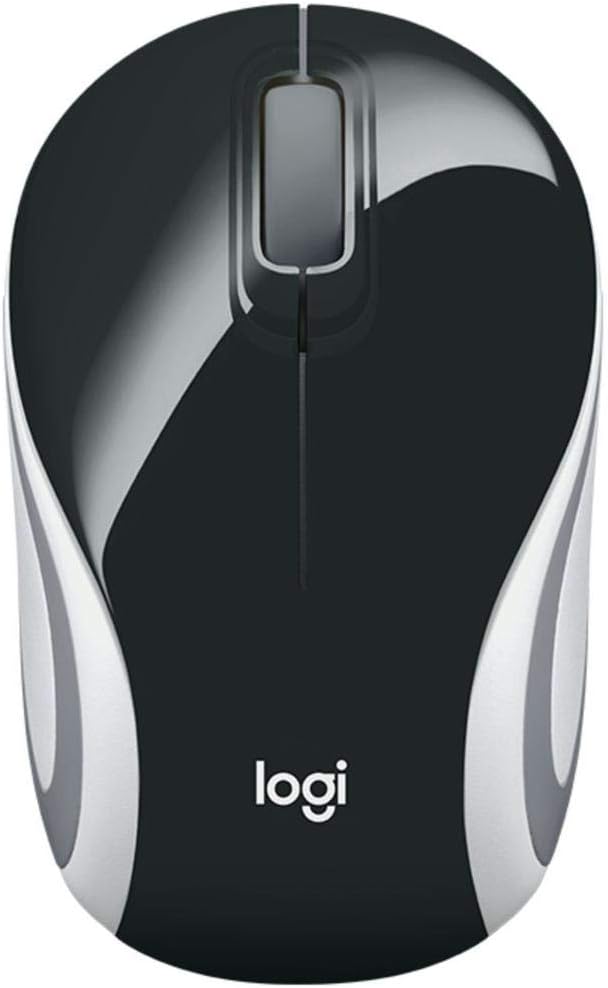
Image: Logitech Wireless Mini Mouse M187 in Palace Blue, top view.
Ciri-ciri Utama:
- Reka Bentuk Ultra Mudah Alih: Pocket-ready and extra-small for easy transport.
- Persediaan Mudah: Plug-and-play functionality with a nano receiver.
- Sambungan Tanpa Wayar yang Boleh Dipercayai: Enjoy wireless freedom with the reliability of a wired mouse.
- Convenient Receiver Storage: The nano receiver stores inside the mouse to prevent loss.
- Penjejakan Optik: 1000 DPI optical tracking for precise and smooth cursor control.
Video: Produk rasmi tamatview demonstrating the Logitech M170 Wireless Mouse features and setup.
2. Kandungan Pakej
Pastikan semua item ada dalam pakej anda:
- Tetikus M187
- Penerima USB
- 1 Bateri AAA (Prapasang)
- Dokumentasi Pengguna
3. Arahan Persediaan
Setting up your Logitech Wireless Mini Mouse M187 is quick and easy:
- Masukkan Bateri: The mouse comes with one AAA battery pre-installed. If you need to replace it, gently slide off the top cover of the mouse to access the battery compartment. Ensure the battery is inserted with the correct polarity.
- Cari Penerima USB: The nano USB receiver is stored inside the mouse, usually near the battery compartment. Carefully remove it.
- Sambungkan Penerima: Plug the nano USB receiver into an available USB port on your computer (PC, Mac, or Laptop).
- Hidupkan Tetikus: Locate the On/Off switch on the bottom of the mouse and slide it to the 'On' position. A small indicator light may illuminate briefly.
- Sambungan Automatik: Your computer should automatically detect and connect to the mouse within a few seconds. No additional software installation is typically required.

Imej: Bawah view of the Logitech Wireless Mini Mouse M187, illustrating the USB receiver storage slot.
Imej: Bawah view of the Logitech Wireless Mini Mouse M187 with the battery compartment open, showing the AAA battery slot.
4. Arahan Operasi
Once connected, your Logitech Wireless Mini Mouse M187 is ready for use:
- Pergerakan: Move the mouse across a flat surface to control the cursor on your screen. The 1000 DPI optical tracking provides smooth and precise navigation.
- Klik Kiri: Press the left button to select items, open applications, or activate functions.
- Klik kanan: Tekan butang kanan untuk membuka menu konteks atau mengakses pilihan tambahan.
- Roda Tatal: Gulung roda skrol ke atas atau ke bawah untuk menavigasi dokumen dan web pages. The scroll wheel can also be pressed for a middle-click function, depending on your operating system settings.
- Pengurusan tenaga: To conserve battery life, slide the On/Off switch on the bottom of the mouse to the 'Off' position when not in use or when transporting the mouse.
5. Penyelenggaraan
Penggantian Bateri:
The Logitech M187 mouse uses one AAA battery with an average life of 6 months. To replace the battery:
- Turn the mouse off using the switch on the bottom.
- Gently slide the top cover of the mouse backward and lift it off.
- Remove the old AAA battery.
- Insert a new AAA battery, ensuring correct polarity (+/-).
- Replace the top cover by aligning it and sliding it forward until it clicks into place.
- Hidupkan semula tetikus.
Pembersihan:
To maintain optimal performance, periodically clean your mouse:
- Gunakan kain lembut dan tidak berbulu sedikit dampdisapu dengan air atau larutan pembersih lembut.
- Elakkan bahan kimia yang keras atau bahan yang melelas.
- Do not immerse the mouse in water.
- Clean the optical sensor on the bottom of the mouse with a dry cotton swab to ensure accurate tracking.
6. Penyelesaian masalah
Tetikus Tidak Menjawab:
- Periksa Bateri: Ensure the AAA battery is correctly inserted and has sufficient charge. Replace if necessary.
- Suis kuasa: Verify the On/Off switch on the bottom of the mouse is in the 'On' position.
- Penerima USB: Ensure the nano USB receiver is securely plugged into a working USB port on your computer. Try a different USB port.
- Mulakan semula Komputer: Sometimes restarting your computer can resolve connectivity issues.
Pergerakan Kursor Tidak Menentu:
- Penderia Bersih: Clean the optical sensor on the bottom of the mouse with a dry cotton swab.
- permukaan: Pastikan anda menggunakan tetikus pada permukaan yang bersih, tidak memantulkan cahaya dan seragam. Elakkan kaca atau permukaan yang sangat memantulkan cahaya.
- Gangguan: Move the mouse closer to the USB receiver or away from other wireless devices that might cause interference.
7. Spesifikasi Teknikal
| Ciri | Spesifikasi |
|---|---|
| Nombor Model | 910-005360 |
| Jenis Wayarles | Frekuensi Radio 2.4 GHz |
| Teknologi Pengesanan Pergerakan | Optik |
| DPI | 1000 DPI |
| Bilangan Butang | 3 (Kiri, Kanan, Roda Tatal) |
| Sumber Kuasa | Dikuasakan Bateri |
| Jenis Bateri | 1 bateri AAA (termasuk) |
| Purata Hayat Bateri | 6 bulan |
| Berat Barang | 1.83 auns |
| Dimensi Produk (LxWxH) | 1.25 x 1.94 x 3.22 inci |
| Platform Perkakasan | Komputer riba, PC |
| Keserasian Sistem Pengendalian | Windows 10 or later, Windows 8, Windows 7, Mac OS X 10.10 or later, Chrome OS, Linux Kernel 2.6+ |
| warna | Biru Istana |
8. Waranti dan Sokongan
Untuk maklumat jaminan dan sokongan teknikal, sila rujuk Logitech rasmi website or the user documentation included in your product package. Logitech provides comprehensive support resources to ensure your satisfaction with their products.
You can visit the Logitech support page for your product model for FAQs, troubleshooting guides, and contact information.


