1. Pengenalan
The SECULINK 16-Channel 4K/8MP Network Video Recorder (NVR) provides a comprehensive surveillance solution. This NVR supports full 4K (3840x2160P) video viewing and recording across all 16 channels, compatible with 8MP/5MP/4MP/3MP/1080p ONVIF-compliant IP cameras. It features advanced H.265+ compression technology for efficient storage and bandwidth usage, motion detection recording, and Cloud P2P functionality for remote access via smartphone, tablet, or PC.
This manual provides detailed instructions for setting up, operating, and maintaining your NVR system.

Rajah 1: Depan view of the SECULINK 16-Channel 4K/8MP NVR.
2. Kandungan Pakej
Pastikan semua item yang disenaraikan di bawah terdapat dalam pakej anda:
- 1x Seculink 16-Ch Network Video Recorder
- 1x Penyesuai Kuasa
- 1x USB Tetikus
3. Fizikal Overview
3.1. Panel belakang
The rear panel of the NVR provides various ports for connectivity:
- Output VGA: 1x VGA port for connecting to a monitor.
- Output HDMI: 1x HDMI port for connecting to a high-definition display.
- Port LAN: 1x RJ45 10M/100M Ethernet port for network connection.
- Port USB: 2x USB2.0 ports for mouse, USB flash disk, or USB DVR writer.
- Output Audio: 1x RCA port for audio output.
- Input Kuasa DC 12V: Untuk menyambungkan penyesuai kuasa.

Figure 2: Rear panel connections of the NVR.
4. Persediaan
4.1. Pemasangan Cakera Keras
The NVR does not include a pre-installed hard drive. A 3.5" SATA HDD (up to 6TB recommended) is required for recording. Follow these steps to install the hard drive:
- Buka skru dan tanggalkan penutup atas NVR.
- Connect the SATA power and data cables from the NVR to the hard drive.
- Align the hard drive with the screw holes on the NVR's base and secure it with screws.
- Replace the NVR's top cover and secure it with screws.
Video 1: Guide on how to install a hard drive in an NVR. (Note: This video is a general guide for an 8-channel DVR and may not perfectly match the NVR1616PF-4K model, but the installation principles are similar.)
4.2. Menyambungkan Kamera
The NVR supports 4K/8MP ONVIF-compliant IP cameras. Ensure your cameras are compatible.
4.2.1. Direct Connection to NVR PoE Ports
If your NVR has built-in PoE ports, connect your IP cameras directly to these ports using Ethernet cables. The NVR will automatically provide power and data connection.
4.2.2. Connection via PoE Switch or Router
If your cameras are not directly connected to the NVR's PoE ports (e.g., using an external PoE switch or router), ensure both the NVR and the cameras are connected to the same local area network (LAN).
Video 2: Guide on how to connect cameras to an NVR, including direct PoE and network connections.
4.2.3. Connecting WiFi Cameras (General Guide)
For WiFi cameras, ensure they are connected to the same network as your NVR. You may need to configure the camera's WiFi settings via its manufacturer's app or web interface first. Once on the same LAN, the NVR should be able to discover and add them.
Video 3: General guide on connecting WiFi cameras to a PoE NVR. (Note: This video is provided by ReolinkDirect and serves as a general example for connecting WiFi cameras to an NVR system.)
4.3. Wizard Persediaan Awal
After connecting the NVR to a monitor (via VGA or HDMI) and powering it on, an initial setup wizard will guide you through basic configurations:
- Language and Time Zone: Select your preferred language and set the correct time zone.
- Persediaan Kata Laluan: Create a strong password for the 'admin' user.
- Tetapan Rangkaian: Confirm network settings (DHCP is usually enabled by default).
- Camera Discovery: The NVR will automatically search for and add connected IP cameras. If cameras are not discovered, ensure their IP addresses are compatible with the NVR's network segment.
5. Mengendalikan NVR
5.1. Hidup View
Sebaik sahaja kamera ditambah, anda boleh view hidup footage on your connected monitor. The NVR supports full 4K video viewing on all 16 channels.
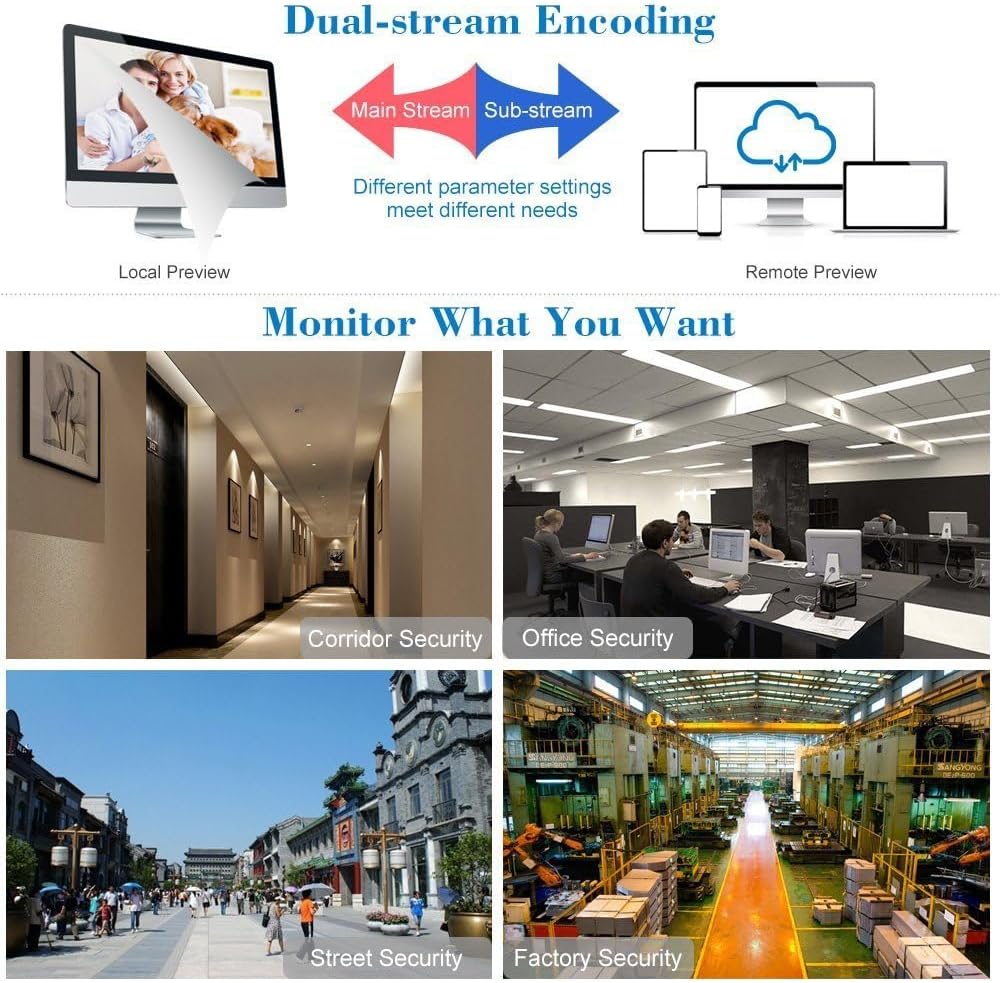
Figure 3: Multi-channel live view displaying various surveillance scenarios.
5.2. Main balik
Akses foo yang dirakamtage through the NVR's menu. You can search by time, date, event, or channel. The H.265+ compression allows for longer recording times and simultaneous network transmission and playback.
5.3. Remote Access (Cloud P2P)
The NVR features Cloud P2P functionality for remote viewing and playback. Install the XMeye app on your smartphone or tablet, or use client software on your PC, to monitor your premises from anywhere.

Figure 4: Multi-platform remote access for live view dan main balik.
5.4. Motion Detection Recording
Configure the NVR to record only when motion is detected, saving storage space. You can set specific areas for motion detection and adjust sensitivity levels.
Figure 5: Motion detection recording in action.
5.5. H.265+ Compression Technology
The NVR utilizes H.265+ video compression, which significantly increases bandwidth and storage efficiency compared to older standards like H.264. This results in smaller file sizes, higher definition, and longer recording times without compromising video quality.
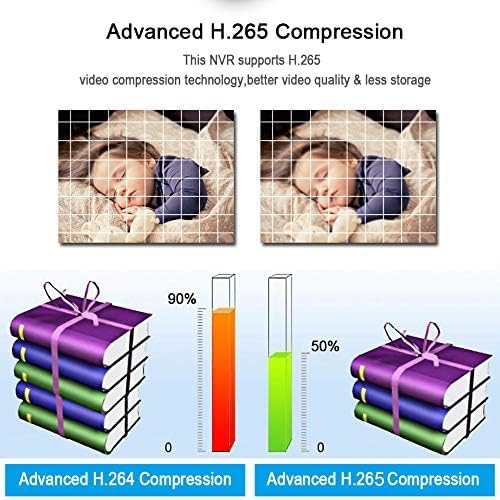
Figure 6: Comparison of H.264 and H.265+ compression efficiency.
6. Penyelenggaraan
6.1. Tetapan Semula Kata Laluan
If you forget your NVR's login password, you can reset it using the security questions you set during initial setup or by scanning a CAPTCHA QR code with the mobile app.
Video 4: Guide on how to reset an NVR password.
7. Penyelesaian masalah
7.1. Cameras Not Connecting/Offline
If cameras appear offline or cannot be added:
- IP Address Mismatch: Ensure the camera's IP address is in the same network segment as the NVR's IP address (e.g., 172.16.0.x). If not, you may need to use the camera manufacturer's firmware or tools to change the camera's IP address.
- Incorrect Login Credentials: If the NVR indicates "wrong user name and password," enter the correct username (default is often 'admin') and password (default is often 'ipc123456' for new Hikvision/Dahua cameras, or check your camera's manual).
- Kesambungan Rangkaian: Verify all Ethernet cables are securely connected and that the network (router/switch) is functioning correctly.
7.2. No Video Output on Monitor
If you see no video on your monitor:
- Sambungan Kabel: Ensure the HDMI or VGA cable is securely connected between the NVR and the monitor.
- Input Monitor: Check that your monitor is set to the correct input source (HDMI/VGA).
- Resolusi: The NVR's output resolution might be incompatible with your monitor. Access the NVR's settings (if possible, or try connecting to a different monitor) and adjust the VGA/HDMI resolution to a supported setting (e.g., 1920*1080/60Hz).
8. Spesifikasi
- Nombor Model: NVR1616PF-4K
- Resolusi Video: 16*4K 8MP (3840x2160P)
- Output Video: 1x VGA, 1x HDMI
- Output Audio: 1x RCA
- Port Rangkaian: 1x RJ45 10M/100M
- Port USB: 2x USB2.0
- Streaming Specification: ONVIF
- Mod Rakaman: Manual > Alarm > Motion Detection > Timing
- Video Search: Time, Date, Event, Channel Search
- Kuasa: DC 12V
- Saiz Kes: 260*43*190MM (10.24 x 7.48 x 1.69 inches)
- Antara muka HDD: SATA (Max 6TB)
- APP: XMeye
- Berat Barang: 2.23 paun
- Teknologi Ketersambungan: Ethernet, HDMI, USB, VGA
9. Waranti dan Sokongan
For warranty information, technical support, or service inquiries, please contact SECULINK customer support directly. Refer to the product packaging or the official SECULINK weblaman web untuk maklumat hubungan.


