1. Pengenalan
This manual provides comprehensive instructions for the Everycom EC-801 80mm Direct Thermal Receipt Printer. It covers installation, operation, maintenance, and troubleshooting to ensure optimal performance and longevity of your device. The EC-801 is a high-speed monochrome desktop thermal printer featuring an auto-cutter and multiple connectivity options.
Ciri-ciri Utama:
- 300mm/s Ultra High-Speed Printing
- Rich Interface: Ethernet + USB
- Auto Cutter (Full / Half Cutting)
- Compatible with ESC / POS Print Instruction Mode
- Menyokong sistem pengendalian Windows dan Linux
2. Kandungan Pakej
Sila sahkan bahawa semua item yang disenaraikan di bawah disertakan dalam pakej anda:
- 1 x Everycom EC-801 80mm Thermal Receipt Printer
- 1 x Paper Guard Plate
- 1 x Paper Bering (Spindle)
- 1 x CD (for drivers and utilities)
- 1 x Penyesuai Kuasa
- 1 x Kabel USB
- 1 x 80mm Thermal Sample Roll

Image: Everycom EC-801 package contents.
3. Produk Lebihview
3.1 Panel Depan

Imej: Depan view of the EC-801 printer.
- Penunjuk KUASA: Illuminates when the printer is powered on.
- Penunjuk RALAT: Illuminates or flashes to indicate a printer error (e.g., paper out, print head overheat).
- PAPER Indicator: Illuminates when paper is loaded, flashes when paper is low, and turns off when paper is out.
- Butang FEED: Press to advance paper manually.
3.2 Panel Belakang

Imej: Belakang view of the EC-801 printer with ports.
- Suis kuasa: Menghidupkan atau mematikan pencetak.
- Pelabuhan Kuasa: Menyambung kepada penyesuai kuasa yang disediakan.
- Port USB: Connects to a computer via USB cable.
- Ethernet (Net) Port: Connects to a network for LAN printing.
- Pelabuhan Laci Tunai: Menyambung ke laci tunai untuk pembukaan automatik.
3.3 Komponen Dalaman
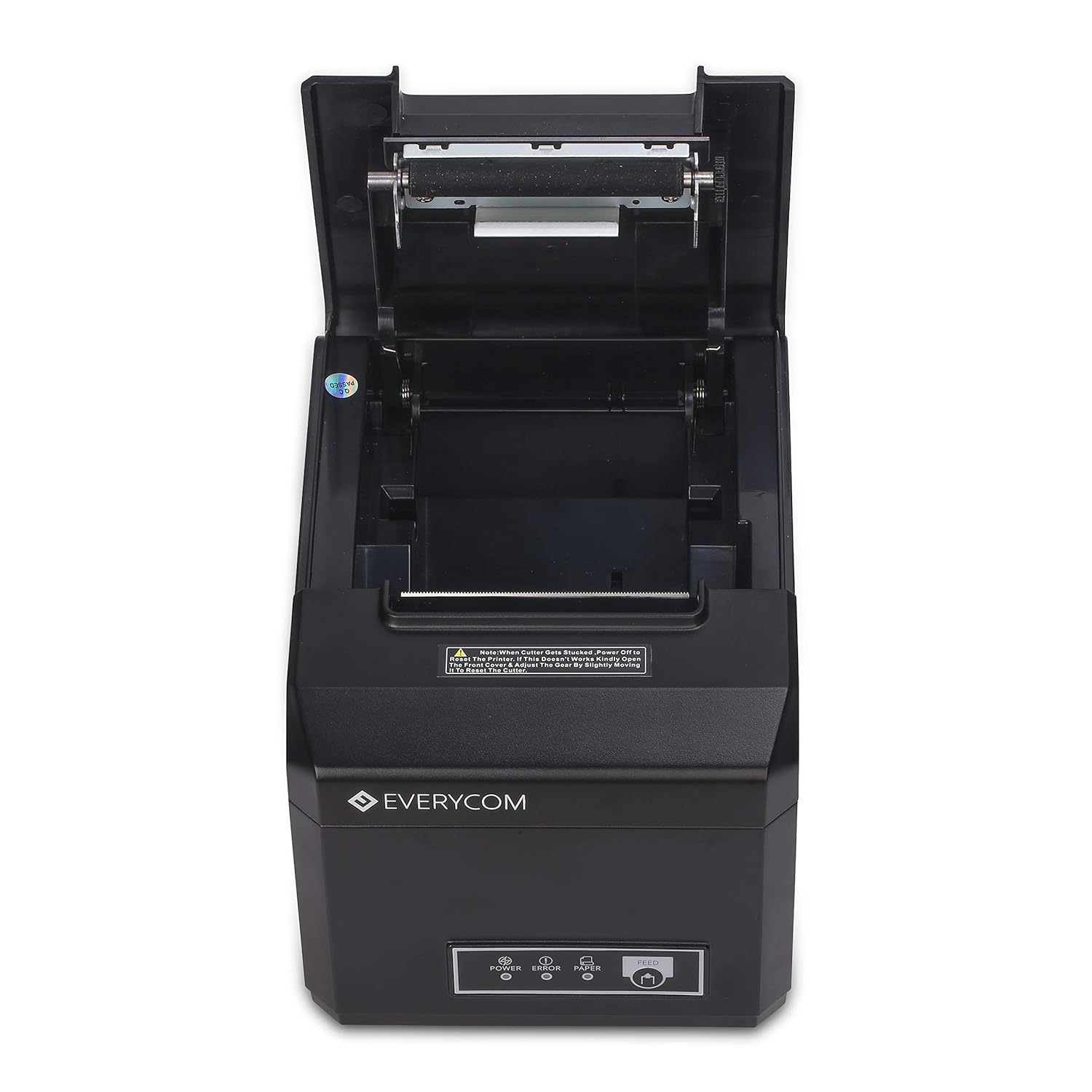
Image: EC-801 printer with paper compartment open.
- Paper Roll Compartment: Area for loading the thermal paper roll.
- Kepala Cetak: The thermal element responsible for printing.
- Pemotong Auto: Mechanism for automatically cutting receipts.
4. Persediaan
4.1 Membongkar dan Meletakkan
- Tanggalkan pencetak dan semua aksesori daripada pembungkusan dengan berhati-hati.
- Place the printer on a stable, flat surface. Ensure adequate ventilation around the device.
4.2 Menyambung Kabel
- Sambungkan penyesuai kuasa ke port kuasa pencetak dan kemudian pasangkannya ke soket kuasa.
- Untuk Sambungan USB: Connect one end of the USB cable to the printer's USB port and the other end to your computer.
- Untuk Sambungan Ethernet: Connect an Ethernet cable to the printer's Ethernet port and the other end to your network router or switch.
- Pilihan: Connect a cash drawer cable to the cash drawer port if using an external cash drawer.
4.3 Memuatkan Kertas Terma
- Open the printer's top cover by pressing the release latch (if present) or lifting the cover firmly.
- Insert the thermal paper roll into the compartment, ensuring the paper feeds from the bottom and the leading edge is straight.
- Pull a small amount of paper past the cutter blade.
- Close the top cover firmly until it clicks into place. Ensure the paper is taut and not jammed.
4.4 Pemasangan Pemandu
- Insert the provided CD into your computer's CD-ROM drive. Follow the on-screen instructions to install the printer drivers.
- If your computer does not have a CD-ROM drive, please visit the Everycom official website to download the latest drivers for your operating system (Windows or Linux).
- After installation, configure the printer settings as required by your application.
5. Arahan Operasi
5.1 Menghidupkan/Mematikan
- To power on the printer, flip the power switch on the rear panel to the 'ON' position. The POWER indicator on the front panel will illuminate.
- To power off the printer, flip the power switch to the 'OFF' position.
5.2 Percetakan Asas
- Ensure the printer is powered on and connected to your computer or network.
- Open the application from which you wish to print (e.g., POS software, text editor).
- Select the Everycom EC-801 as your printer and initiate the print command.
- The printer will automatically print the receipt and cut the paper using its auto-cutter function.

Image: EC-801 printer performing a self-test print.
5.3 Using the FEED Button
Pressing the FEED button will advance the paper by a small amount. This is useful for checking paper alignment or manually advancing paper after a print job.
5.4 Lampu Penunjuk
- POWER (Solid Green): Printer is on and ready.
- ERROR (Solid Red): General error. Refer to troubleshooting.
- ERROR (Flashing Red): Specific error, such as print head overheating. Allow printer to cool.
- PAPER (Solid Green): Paper is loaded and sufficient.
- PAPER (Flashing Green): Paper is low. Prepare to replace the roll.
- PAPER (Off): Paper is out.
6. Penyelenggaraan
6.1 Membersihkan Kepala Cetak
Regular cleaning of the print head ensures clear print quality and extends the life of your printer.
- Matikan pencetak dan cabut kabel kuasa.
- Buka penutup atas untuk mengakses kepala cetak.
- Using a soft, lint-free cloth lightly dampened with isopropyl alcohol, gently wipe the print head surface. Avoid touching the print head with bare hands.
- Benarkan kepala cetakan kering sepenuhnya sebelum menutup penutup dan menyambung semula kuasa.
6.2 Replacing the Paper Roll
When the PAPER indicator flashes or turns off, it's time to replace the paper roll. Follow the steps in Section 4.3 for loading thermal paper.
6.3 Pembersihan Am
Wipe the exterior of the printer with a soft, dry cloth to remove dust and debris. Do not use harsh chemicals or abrasive cleaners.
7. Penyelesaian masalah
If you encounter issues with your Everycom EC-801 printer, refer to the following common problems and solutions:
- Pencetak tidak dapat dihidupkan:
Ensure the power cable is securely connected to both the printer and a working power outlet. Check the power switch position. - No print or faint print:
Verify that thermal paper is loaded correctly and that it is thermal paper (not plain paper). Clean the print head as described in Section 6.1. Ensure the paper roll is not exhausted. - Jem kertas:
Turn off the printer, open the top cover, and carefully remove any jammed paper. Ensure the paper path is clear before reloading the paper and closing the cover. Handle the paper compartment lid with care to prevent damage to hinges. - Error indicator illuminated:
This indicates a general error. Check for paper out, paper jam, or print head overheating. If the issue persists after addressing these, power cycle the printer. - Connectivity issues (USB/Ethernet):
Check that the USB or Ethernet cable is securely connected. For Ethernet, verify network settings and ensure the printer's IP address is correctly configured. Reinstall or update printer drivers if necessary. - Blurry or crooked print:
Ensure the paper roll is loaded straight and the print head is clean. Try printing a self-test page to diagnose.
8. Spesifikasi
| Kaedah Mencetak | Terma Terus |
| Lebar Cetakan | 80mm |
| Kelajuan Cetak | 300mm/s |
| Resolusi | 203 DPI |
| Antara muka | USB-Ethernet |
| Pemotong Auto | Yes (Full / Half Cutting) |
| Keserasian OS | Windows, Linux |
| Set Perintah | ESC/POS Compatible |
| Dimensi Produk (D x W x H) | 18.6 x 14.5 x 13.3 Sentimeter |
| Berat Barang | 1.8 Kilogram |
| Output Pencetak | Monokrom |
9. Maklumat Waranti
Everycom products are covered by a manufacturer's warranty. Please refer to the warranty card included in your package or contact Everycom customer support for detailed information regarding warranty terms and conditions, including coverage period and service procedures.
10. Sokongan Pelanggan
For any technical assistance, product inquiries, or support, please contact Everycom customer service:
- Nombor Bebas Tol: 1800 121 4480
- Waktu bekerja: Isnin - Sabtu, 10:00 PG - 6:30 PTG (Kecuali pada Cuti Umum)

Image: Everycom Customer Service Contact.


