1. Pengenalan
The Norwii N99 Wireless Presenter is a versatile tool designed for effective presentations. It combines the functionality of a traditional presentation clicker with an advanced air mouse, allowing for seamless control of your slides, on-screen annotations, and media playback. This device is compatible with various operating systems and presentation software, offering a flexible solution for your professional needs.

Figure 1: Norwii N99 Wireless Presenter with key functions highlighted.
2. Persediaan
2.1 Membongkar dan Caj Permulaan
Carefully remove the Norwii N99 Wireless Presenter from its packaging. The device features a built-in 300mAh rechargeable battery. For optimal performance, it is recommended to fully charge the presenter before its first use. A full charge typically takes 2-3 hours and provides several weeks of standby performance.

Figure 2: Charging the Norwii N99 Wireless Presenter.
2.2 Connecting the USB Receiver (Plug & Play)
The Norwii N99 is a plug-and-play device, requiring no software installation for basic functionality. The USB receiver is conveniently stored within the presenter itself.
- Gently slide out the USB receiver from the bottom of the presenter.
- Insert the USB receiver into an available USB port on your computer (Windows, Mac, Android, or Linux).
- Turn on the power switch located on the side of the presenter. The device should automatically connect to your computer.

Figure 3: Inserting the USB receiver into a computer.
For a visual guide on setup and basic usage, please refer to the video below:
Video 1: Norwii N99 How to Use. This video demonstrates the initial setup, basic functions, and air mouse operation of the Norwii N99 presenter.
3. Arahan Operasi
3.1 Presentation Control
The Norwii N99 offers intuitive controls for navigating your presentations:
- Halaman Atas/Bawah: Use the arrow keys (<) and (>) to move between slides.
- Full Screen/Black Screen: Long press the Page Up key to enter full screen mode. Long press the Page Down key to black out the screen. Press any page turning key to exit black screen.
- Penunjuk Laser: Press the dedicated laser button to activate the red laser pointer.
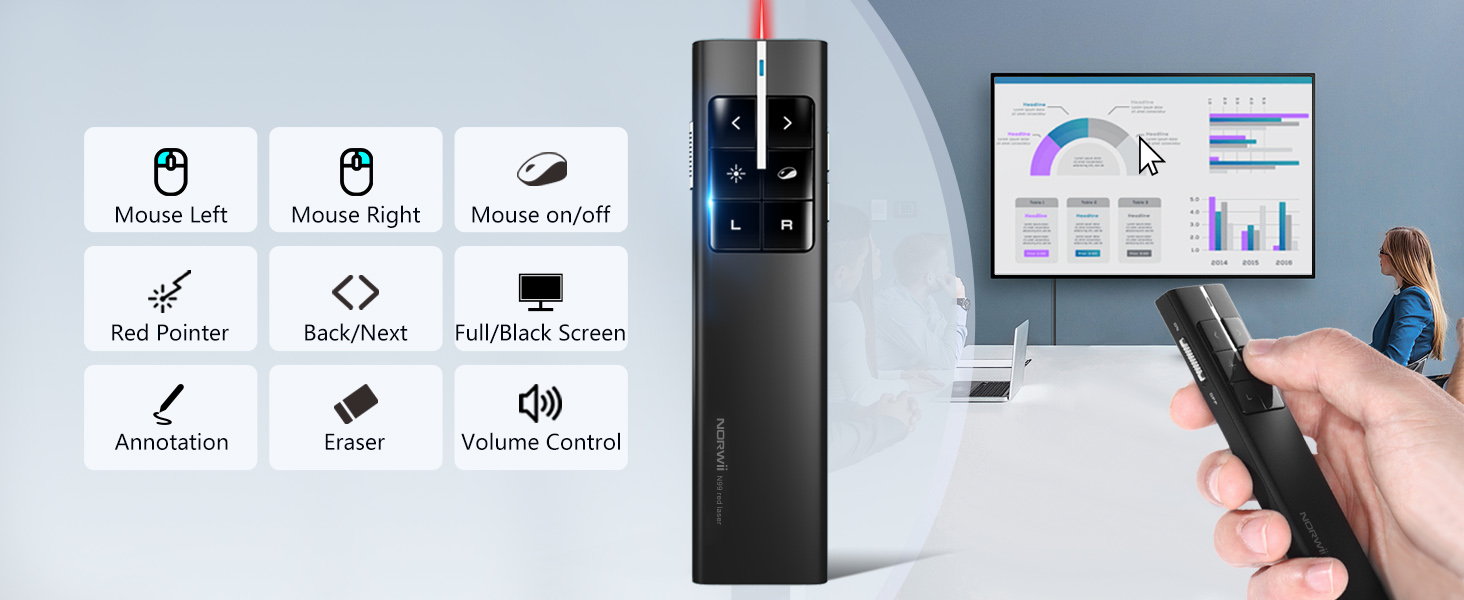
Gambar 4: Lebihview of Norwii N99 functions.
3.2 Fungsi Tetikus Udara
The integrated air mouse allows you to control your computer's cursor by moving the presenter in the air. This function is particularly useful for interacting with hyperlinks, playing videos, or opening files during a presentation.
- Activate/Deactivate Air Mouse: Press the 'Mouse Switch' button (often depicted as an eye icon) to toggle the air mouse function on or off.
- Klik Kiri: Press the 'L' button for a left mouse click.
- Klik kanan: Press the 'R' button for a right mouse click.
- Double Click & Drag: The 'L' and 'R' buttons can also perform double-click and drag-and-drop actions, similar to a standard mouse.

Figure 5: Air Mouse functionality in action.
3.3 Annotation and Volume Control
Enhance your presentations with on-screen annotations and easily manage audio levels:
- Mark/Erase: While in full screen mode (e.g., PowerPoint), long press the annotation key (often a pen icon) and move your hand to draw on the screen. Press the clear key (often an eraser icon) to erase annotations.
- Kawalan Kelantangan: Long press the volume key (often a speaker icon) and move your hand up or down to adjust the system volume.
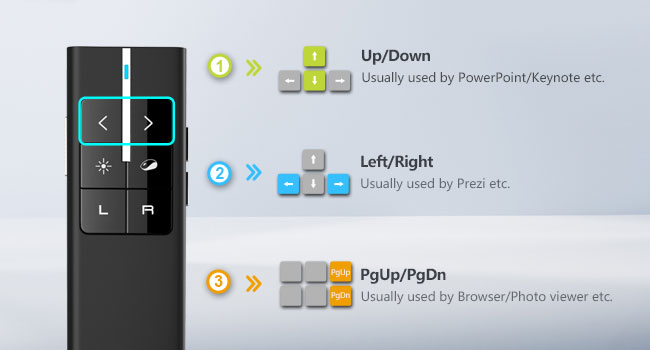
Figure 6: Using the digital ink and eraser functions.
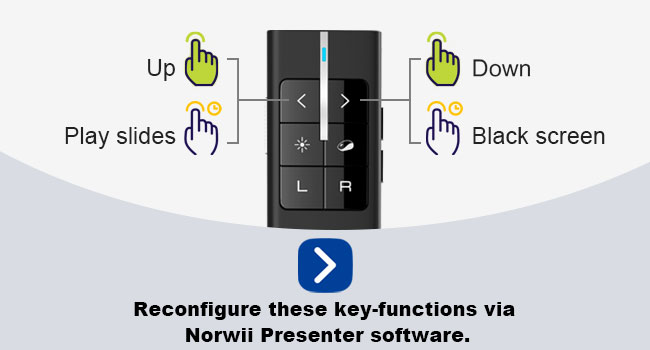
Figure 7: Adjusting volume with the presenter.
3.4 Customizable Key Functions
The Norwii N99 allows you to reconfigure some key functions using the Norwii Presenter software (available for free download). This enables you to tailor the presenter to your specific workflow and software preferences.
- The arrow keys can be switched between three modes:
- Mode 1: Up/Down keys (for PowerPoint, Keynote)
- Mode 2: Left/Right keys (for Prezi)
- Mode 3: PgUp/PgDn keys (for Browser, Photo viewer)
- To switch modes, long press the two arrow keys for 1-3 seconds.

Figure 8: Customizable key functions on the Norwii N99.
Untuk selesai jeneralview of the air mouse features and customization, please watch this video:
Video 2: KNORVAY N99C Wireless Presenter with Air Mouse. This video highlights the air mouse capabilities and other features of the presenter.
4. Penentukuran
Calibration of the wireless presenter's mouse function may be required in specific situations to ensure accurate cursor movement. This is typically needed if:
- The cursor moves in a certain direction and reaches the edge of the screen even when the presenter is not moving.
- When moving the presenter horizontally or vertically, the cursor moves diagonally instead of along the intended axis.
4.1 Cara Menentukur
- Turn off the wireless presenter using the side switch.
- Place the presenter on a flat, horizontal surface (e.g., a desktop).
- While holding down the Page Down key, turn on the wireless presenter.
- Release the Page Down key. The indicator light on the presenter will start to flash.
- The calibration process is complete when the indicator light stops flashing.
After successful calibration, the cursor should no longer drift, and movement should be accurate.
Video 3: Norwii N99 Pointer Calibration. This video provides a step-by-step guide on how to calibrate the pointer for accurate air mouse control.
5. Penyelenggaraan
5.1 Garis Panduan Pengecasan
- Always use the original charging cable provided by Norwii to charge the device.
- Avoid using fast charging adapters, as they may damage the internal battery over time.
- Charge the device when the battery indicator shows low power to ensure uninterrupted use.
5.2 Pembersihan dan Penyimpanan
- Wipe the presenter with a soft, dry cloth. Do not use liquid cleaners or abrasive materials.
- When not in use, store the USB receiver inside the presenter to prevent loss.
- Simpan peranti di tempat yang sejuk dan kering jauh dari cahaya matahari langsung dan suhu yang melampau.
6. Penyelesaian masalah
- Presenter not responding:
- Ensure the USB receiver is securely plugged into your computer.
- Check if the presenter's power switch is in the 'ON' position.
- Verify the battery level and charge the device if necessary.
- Try plugging the USB receiver into a different USB port. - Cursor drifting or erratic movement:
- Perform the calibration procedure as described in Section 4. - Penunjuk laser tidak berfungsi:
- Ensure the presenter is powered on.
- Press the laser button firmly. - Customized functions not working:
- Ensure the Norwii Presenter software is installed and configured correctly.
- Check if the presenter is in the correct mode (e.g., Mode 1 for PowerPoint). - Isu ketersambungan:
- Move closer to the USB receiver. The wireless control range is up to 50 meters (164 feet).
7. Spesifikasi
| Ciri | Perincian |
|---|---|
| Nombor Model | N99 |
| Dimensi Produk | 4.7 x 1.2 x 0.5 inci |
| Berat Barang | 2.39 auns |
| Bateri | 1 Nonstandard Battery (rechargeable 300mAh) |
| Teknologi Tanpa Wayar | RF 2.4GHz |
| Julat Kawalan Tanpa Wayar | Sehingga 50 meter (164 kaki) |
| Laser Pointer Range | Sehingga 200 meter (656 kaki) |
| Peranti Serasi | Windows, Mac, Android, Linux |
| Perisian yang Serasi | PowerPoint, Keynote, Prezi, Google Slides, etc. |
| Ciri Khas | Air Mouse (Left & Right Click), Silent P+R Button, Customizable Functions |
| warna | Hitam |
| Pengeluar | Shanghai Norwii Technology Co., Ltd. |
| Tarikh Mula-mula Tersedia | 5 Julai 2018 |
8. Waranti dan Sokongan
For warranty information, technical support, or any product-related inquiries, please refer to the official Norwii webtapak atau hubungi perkhidmatan pelanggan mereka secara langsung. Simpan resit pembelian anda untuk tuntutan waranti.


