1. Pengenalan
The WeMo F7C059 Dimmer Wi-Fi Light Switch allows you to control and dim your lights from anywhere using the WeMo app, voice commands, or directly from the wall switch. This device integrates with your existing Wi-Fi network, eliminating the need for a separate hub. It is compatible with Amazon Alexa, Google Assistant, and Apple HomeKit, offering flexible control options for your smart home lighting.

Imej: Depan view of the WeMo F7C059 Dimmer Wi-Fi Light Switch, showing its sleek white design with a vertical dimming strip and a circular power button.
2. Maklumat Keselamatan Penting
Please read and understand all safety instructions before installation and use. Failure to follow these instructions may result in electric shock, fire, or property damage.
- Risiko Renjatan Elektrik: Sentiasa matikan kuasa pada pemutus litar sebelum memasang atau menservis suis.
- Wayar Neutral Diperlukan: This device requires a neutral wire for operation. If your existing switch box does not have a neutral wire (typically white), this dimmer is not compatible.
- Single-Pole Installation Only: This dimmer is designed for single-pole light switches only. It is not compatible with 3-way (multi-location control) switches.
- Avoid Metal Faceplates: Not recommended for use with metal faceplates, as this may interfere with Wi-Fi signal.
- Penggunaan Dalaman Sahaja: Peranti ini bertujuan untuk kegunaan dalaman di lokasi kering.
- Wat Maksimumtage: Patuhi wat maksimum yang ditetapkantage: 400W Incandescent (single-gang), 250W Incandescent (multi-gang), 150W CFL/LED (single or multi-gang).
3. Kandungan Pakej
Sahkan bahawa semua item terdapat dalam pakej anda:
- WeMo Wi-Fi Smart Dimmer (F7C059)
- Panduan Mula Pantas (tidak termasuk dalam manual digital ini)
- Wire Nuts (typically included for installation)
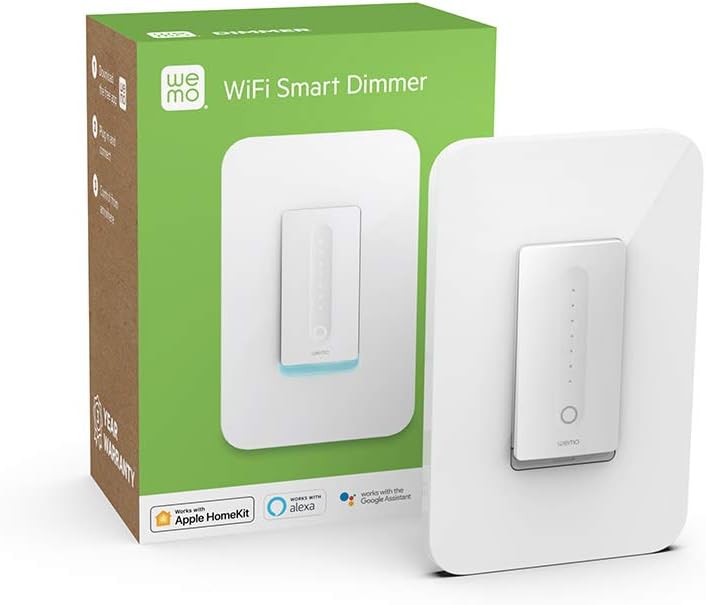
Image: The WeMo Wi-Fi Smart Dimmer shown alongside its retail packaging, highlighting the product and its box.
4. Pemasangan (Persediaan)
This section guides you through the physical installation of your WeMo Dimmer. If you are unsure about any steps, consult a qualified electrician.
4.1 Pemeriksaan Pra-Pemasangan
- Sahkan Keserasian: Ensure your existing switch is a single-pole switch (controls lights from one location) and that a neutral wire is present in the electrical box.
- Alat yang Diperlukan: You will need a screwdriver, wire strippers, and electrical tape.
4.2 Arahan Pendawaian
- Matikan Kuasa: Locate your circuit breaker panel and turn off the power to the light switch you are replacing. Verify the power is off by attempting to turn on the light.
- Keluarkan Suis Lama: Carefully remove the existing wall plate and unscrew the old switch from the electrical box. Disconnect the wires, noting their connections.
- Kenal pasti wayar:
- Wayar Talian (Panas): Biasanya hitam, membawa kuasa dari pemutus litar.
- Muatkan Wayar: Typically black, sends power to the light fixture.
- Kawat Neutral: Typically white, required for the WeMo Dimmer.
- Wayar bawah tanah: Typically green or bare copper.
- Connect WeMo Dimmer:
- Connect the WeMo Dimmer's wayar hitam to the electrical box's Line (Hot) wire.
- Connect the WeMo Dimmer's wayar merah to the electrical box's Muatkan wayar.
- Connect the WeMo Dimmer's wayar putih to the electrical box's Kawat neutral.
- Connect the WeMo Dimmer's dawai hijau to the electrical box's Wayar bawah tanah.
- Pasang Dimmer: Carefully push the wired dimmer into the electrical box. Screw the dimmer into place.
- Pasang Plat Dinding: Attach your existing or a new standard rocker-style wall plate.
- Pulihkan Kuasa: Return to your circuit breaker panel and turn the power back on.
Imej: Dari dekat view of the WeMo Dimmer with its wires (black, red, white, green) extending, ready for electrical connection. This illustrates the wiring process.
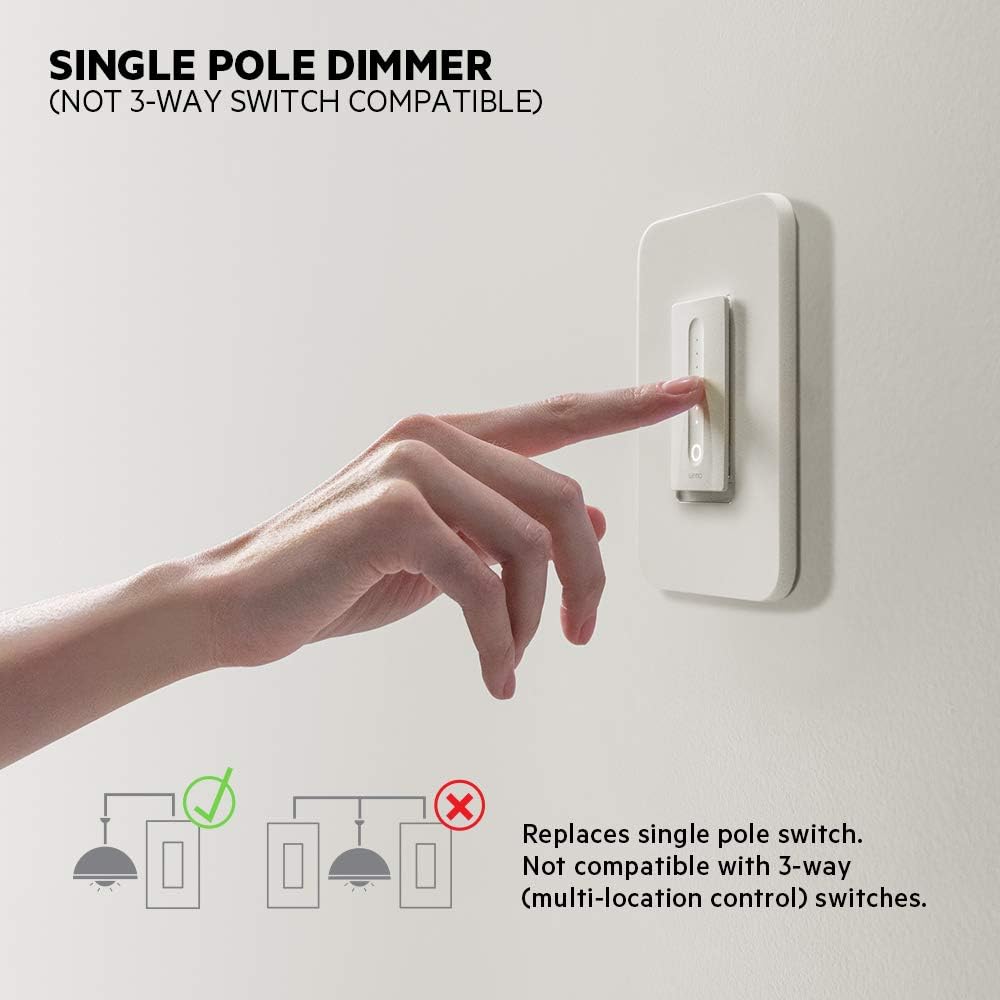
Image: Diagram illustrating that the WeMo Dimmer is compatible with single-pole switches (one switch controlling one light) and not with 3-way switches (multiple switches controlling one light).
5. WeMo App Setup
After physical installation, set up your WeMo Dimmer using the WeMo app to enable smart features.
- Download the WeMo App: Download the free WeMo app from the Apple App Store (for iOS) or Google Play Store (for Android).
- Launch App and Add Device: Open the WeMo app and follow the on-screen instructions to add a new device.
- Connect to WeMo Wi-Fi: Your phone will temporarily connect to the WeMo Dimmer's Wi-Fi network during setup.
- Sambung ke Wi-Fi Rumah: Select your home 2.4GHz Wi-Fi network and enter the password when prompted.
- Name Your Dimmer: Give your dimmer a descriptive name (e.g., "Living Room Lights").
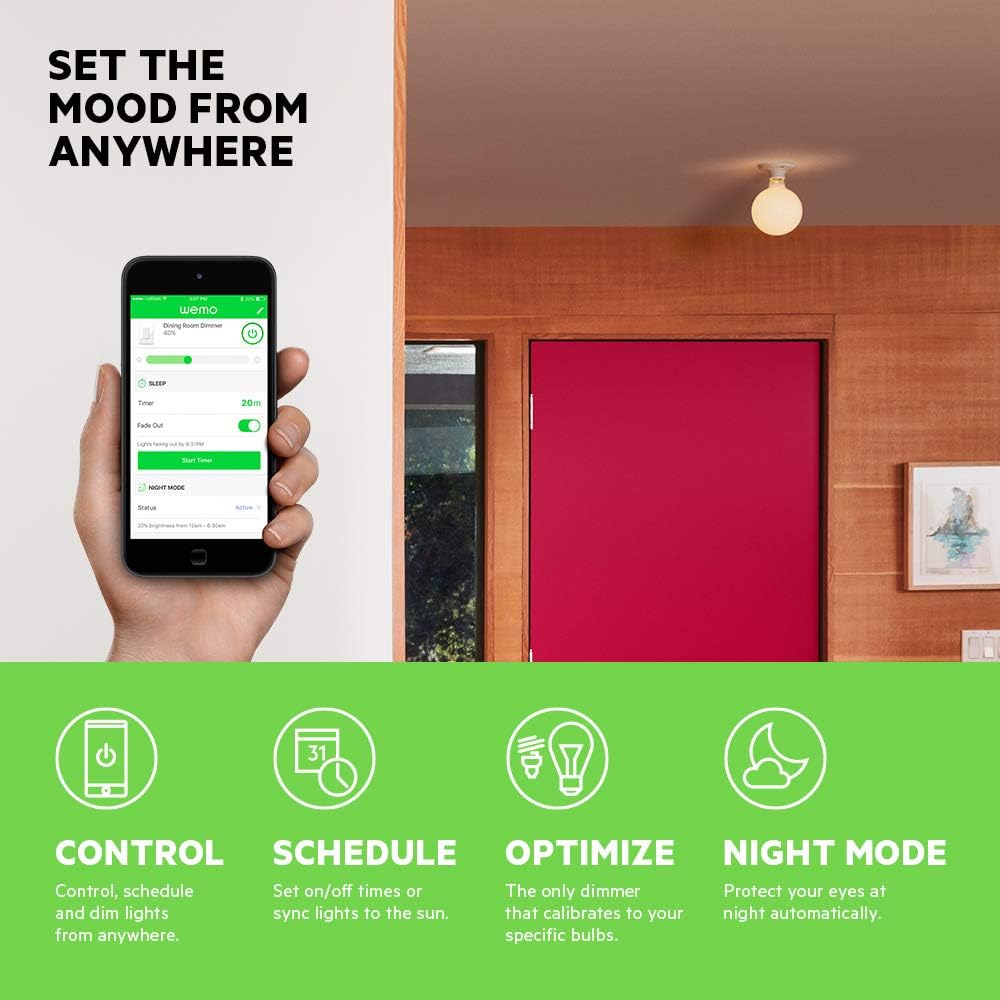
- Calibrate Dimmer: The app will guide you through a calibration process to optimize dimming for your specific bulbs (incandescent, CFL, or LED) and prevent flickering.

Image: A smartphone displaying the WeMo app interface, showing controls for dimming, scheduling, and night mode settings for a connected light switch.
6. Operasi
Control your lights using the physical switch, the WeMo app, or voice commands.
6.1 Kawalan Manual
- Hidup/Mati: Press the main circular button to turn the lights on or off.
- Peredupan: Slide your finger along the vertical touch-sensitive strip to adjust brightness levels.
6.2 Kawalan Apl
The WeMo app provides advanced control features:
- Kawalan Jauh: Turn lights on/off and adjust brightness from anywhere with an internet connection.
- Jadual dan Pemasa: Set custom schedules for lights to turn on/off or dim at specific times, or sync with sunrise/sunset.
- Mod Malam: Configure a low-light setting for specific hours to protect your eyes from bright lights during the night.

Image: A couple relaxing on a couch, watching television, with the text "Set the mood from anywhere" suggesting remote control of lighting.
7. Penyepaduan Kawalan Suara
Integrate your WeMo Dimmer with popular voice assistants for hands-free control.
- Amazon Alexa: Enable the WeMo skill in the Alexa app and discover devices. You can then say commands like, "Alexa, dim the living room lights to 50%."
- Pembantu Google: Link your WeMo account in the Google Home app. Use commands such as, "Hey Google, turn off the bedroom light."
- Apple HomeKit: While advertised as compatible, some users may experience issues with HomeKit setup. Ensure your WeMo Dimmer firmware is up to date. If a HomeKit code is not present on the device or packaging, direct integration may not be immediately available.
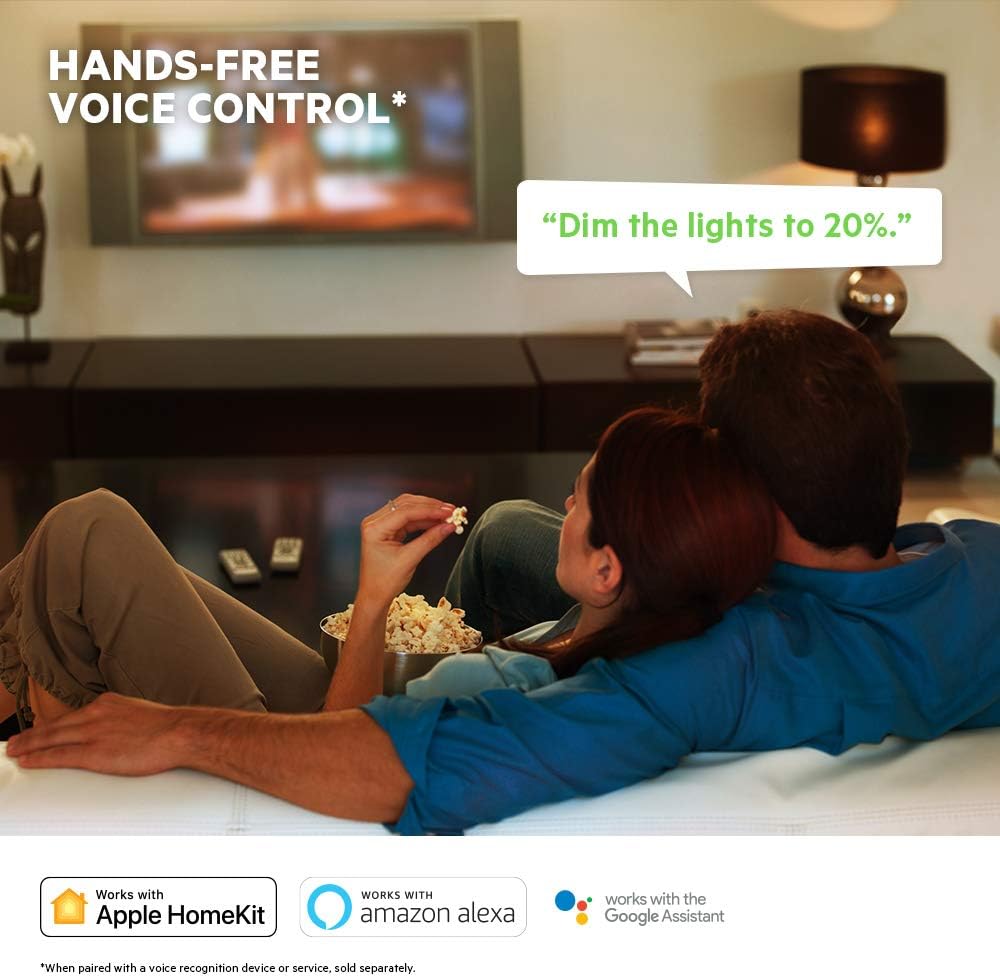
Image: A visual representation of voice control, showing a speech bubble with "Dim the lights to 20%." and logos for Apple HomeKit, Amazon Alexa, and Google Assistant.
8. Penyelenggaraan
To ensure optimal performance and longevity of your WeMo Dimmer:
- Pembersihan: Wipe the dimmer and wall plate with a soft, dry cloth. Do not use abrasive cleaners or solvents.
- Kemas kini Firmware: Regularly check the WeMo app for available firmware updates. These updates can improve performance, add features, and enhance security.
- Berbasikal Kuasa: If the dimmer becomes unresponsive, try turning off the power at the circuit breaker for 10 seconds, then turning it back on.
9. Penyelesaian masalah
If you encounter issues with your WeMo Dimmer, refer to the following common problems and solutions:
| Masalah | Kemungkinan Punca / Penyelesaian |
|---|---|
| Dimmer does not turn on/off or dim. |
|
| Cannot connect to WeMo app or Wi-Fi. |
|
| Lights flicker or dimming range is poor. |
|
| Kawalan suara tidak berfungsi. |
|
10. Spesifikasi
| Ciri | Perincian |
|---|---|
| Nombor Model | F7C059 |
| Jenama | WeMo |
| Vol Operasitage | 120 VAC |
| Max Wattage (Incandescent) | 400W (single-gang), 250W (multi-gang) |
| Max Wattage (CFL/LED) | 150W (single or multi-gang) |
| Protokol Ketersambungan | Wi-Fi (2.4GHz 802.11b/g/n) |
| Kaedah Kawalan | App, Voice, Manual |
| Jenis Pengawal | Amazon Alexa, Google Assistant, HomeKit, WeMo App |
| Jenis Litar | 1 hala (Tiang Tunggal) |
| Kawat Neutral | Diperlukan |
| Dimensi Produk | 3.3 x 1.7 x 5 inci |
| Berat Barang | 8 auns |
| warna | putih |
11. Waranti dan Sokongan
Untuk maklumat jaminan, sokongan teknikal atau bantuan lanjut, sila lawati sokongan rasmi WeMo. website or contact their customer service. Details are typically available on the product packaging or the WeMo webtapak.
Sokongan dalam talian: www.wemo.com/support (Cthamppautan le, pautan sebenar mungkin berbeza-beza)


