1. Pengenalan
The EVGA GeForce GTX 1080 Ti Founders Edition is a high-performance graphics card designed for demanding gaming and professional applications. Based on the NVIDIA Pascal architecture, it features 11GB of GDDR5X memory and advanced technologies for an immersive visual experience.

Figure 1: EVGA GeForce GTX 1080 Ti Founders Edition Graphics Card.
2. Apa yang ada di dalam Kotak
Sahkan bahawa semua item berikut disertakan dalam pakej produk anda:
- EVGA GTX 1080 Ti FOUNDERS EDITION GAMING Graphics Card
- CD Pemandu
- Panduan Pemasangan
- 6Pin(2) to 8 Pin Adapter
- EVGA Gaming Poster
- Powered by EVGA Case Badge
- EVGA Enthusiast Built Sticker

Figure 2: Packaging contents for the EVGA GeForce GTX 1080 Ti.
3. Persediaan dan Pemasangan
Before beginning installation, ensure your computer is powered off and unplugged from the wall outlet. It is recommended to wear an anti-static wrist strap to prevent electrostatic discharge (ESD) damage.
3.1 Keperluan Sistem
- PCI Express graphics slot required
- Microsoft Windows 10/11 64-bit or Linux 64-bit operating system required
- One 8-pin power connector required
- 450W system power supply required
3.2 Pemasangan Perkakasan
- Sediakan sistem anda: Power down your computer and unplug all cables. Open your computer case to access the motherboard.
- Cari slot PCIe: Find an available PCI Express x16 slot on your motherboard. This is typically the longest slot.
- Remove expansion slot covers: Remove the necessary expansion slot covers from the back of your computer case to accommodate the graphics card's output ports.
- Insert the graphics card: Carefully align the graphics card with the PCIe slot and press down firmly until it is securely seated. Ensure the retention clip on the PCIe slot locks into place.
- Selamatkan kad: Use screws to fasten the graphics card to the computer case's expansion slot bracket.
- Sambungkan kabel kuasa: Connect the required 8-pin PCIe power connector from your power supply to the graphics card. If your power supply only has 6-pin connectors, use the provided 6-pin to 8-pin adapter.
- Tutup kes: Setelah kad dipasang dan dikuasakan dengan selamat, tutup bekas komputer anda.

Figure 3: Graphics card with power connectors visible.
4. Arahan Operasi
4.1 Pemasangan Pemandu
- Power on your computer: Connect your monitor to one of the graphics card's output ports (DisplayPort or HDMI).
- Pasang pemacu: Insert the provided Driver CD into your optical drive and follow the on-screen instructions. Alternatively, download the latest drivers from the official EVGA or NVIDIA webtapak untuk prestasi dan keserasian optimum.
- Restart your system: After driver installation is complete, restart your computer.
4.2 Sambungan Paparan
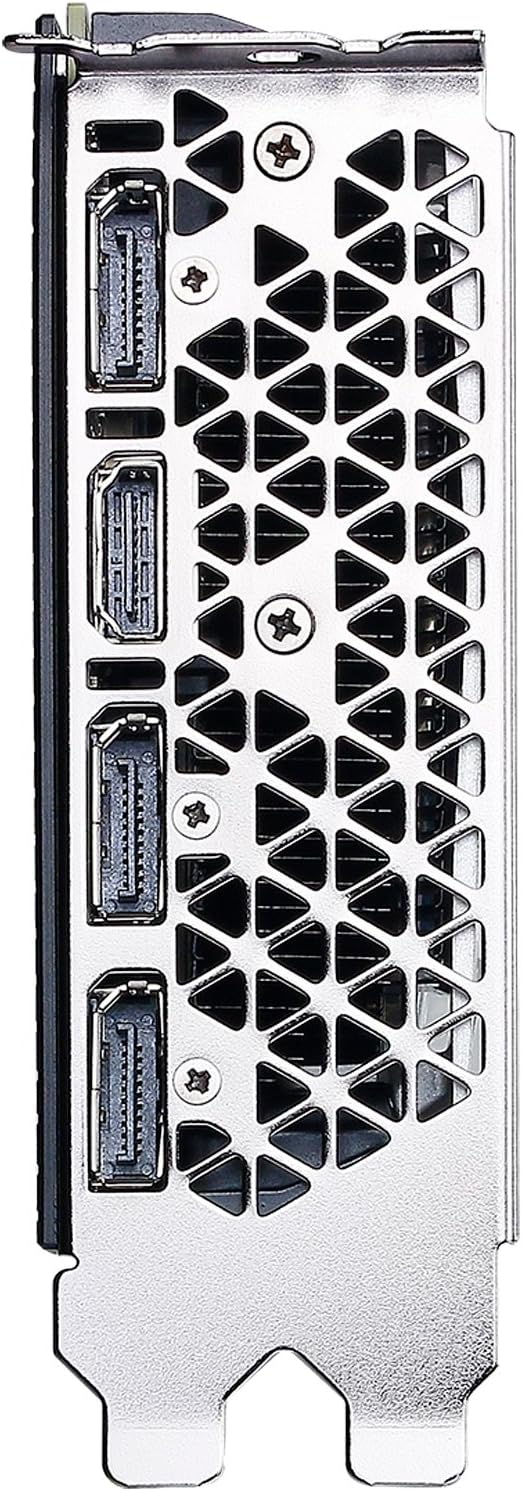
The EVGA GeForce GTX 1080 Ti Founders Edition supports multiple display outputs for a versatile setup. Connect your monitor(s) using the available ports:
- DisplayPort 1.4: For high-resolution and high-refresh-rate displays.
- HDMI 2.0b: For connecting to TVs and monitors with HDMI input.

Figure 4: Available display output ports on the graphics card.
4.3 EVGA Precision XOC Software
Utilize the EVGA Precision XOC software for advanced control over your graphics card. This software allows for:
- Overclocking: Fine-tune clock speeds and memory for enhanced performance.
- Kawalan Kipas: Customize fan curves for optimal cooling and noise levels.
- OSD Support: Monitor critical system information directly on your screen during gameplay.
- Kawalan LED: Adjust the integrated LED lighting effects.
5. Penyelenggaraan
Penyelenggaraan yang betul memastikan jangka hayat dan prestasi optimum kad grafik anda.
- Pastikan ia bersih: Regularly clean dust from the fans and heatsink using compressed air. Ensure the computer is powered off and unplugged before cleaning.
- Kemas kini pemandu: Keep your graphics drivers updated to the latest version from the official NVIDIA or EVGA website. Driver updates often include performance improvements, bug fixes, and compatibility enhancements.
- Monitor temperatures: Use monitoring software (like EVGA Precision XOC) to keep an eye on your GPU temperatures, especially during heavy loads. Ensure temperatures remain within safe operating limits.
- Pastikan aliran udara yang betul: Make sure your computer case has adequate airflow to prevent heat buildup. Clear any obstructions around the graphics card.
6. Penyelesaian masalah
If you encounter issues with your graphics card, try the following troubleshooting steps:
- No display/Black screen:
- Pastikan kabel monitor disambungkan dengan selamat ke kad grafik dan monitor.
- Sahkan kad grafik dipasang sepenuhnya dalam slot PCIe.
- Check that all necessary power cables are connected to the graphics card.
- Try connecting to a different display output port or using a different cable.
- Driver issues:
- Perform a clean installation of the latest graphics drivers. Uninstall existing drivers using DDU (Display Driver Uninstaller) in Safe Mode, then install the new drivers.
- Terlalu panas:
- Clean dust from the heatsink and fans.
- Pastikan aliran udara yang betul di dalam casing komputer anda.
- Adjust fan curves using EVGA Precision XOC to increase cooling.
- Isu prestasi:
- Ensure your system meets the minimum requirements for the games/applications you are running.
- Kemas kini pemacu grafik anda.
- Periksa aplikasi latar belakang yang menggunakan sumber sistem.
7. Spesifikasi
| Ciri | Perincian |
|---|---|
| Jenama | EVGA |
| Nombor Model | 11G-P4-6390-KR |
| Pemproses bersama Grafik | NVIDIA GP102 |
| Penerangan Kad | GeForce GTX 1080 Ti |
| Saiz RAM Kad Grafik | 11 GB GDDR5X |
| Real Base Clock | 1480 MHz |
| Real Boost Clock | 1582 MHz |
| Kelajuan Memori | 11000 MHz |
| Resolusi Skrin Maks | 7680x4320 |
| Antara Muka Keluaran Video | DisplayPort 1.4 and HDMI 2.0b |
| Berat Barang | 3 paun |
| Dimensi Produk (LxWxH) | 10.5 x 1.5 x 4.38 inci |
Rajah 5: Atas view of the EVGA GeForce GTX 1080 Ti.
8. Waranti dan Sokongan
EVGA products typically come with a manufacturer's warranty. Please refer to the official EVGA weblaman web atau pendaftaran produk anda untuk terma dan syarat jaminan tertentu.
For technical support, driver downloads, and product registration, visit the official EVGA support page: www.evga.com.
Legal Disclaimer: A 20% restock fee may apply for returns.


