1. Pengenalan dan Lebihview
This manual provides detailed instructions for the setup, operation, and maintenance of your Xprinter XP-Q200 80mm Thermal Printer. The XP-Q200 is a high-speed thermal receipt printer designed for various operating systems including Windows, Android, and iOS. It offers versatile connectivity options such as USB, Bluetooth, and Ethernet, making it suitable for a wide range of business environments.

Rajah 1.1: Depan view of the Xprinter XP-Q200 Thermal Printer.
2. Maklumat Keselamatan
Please read the following safety precautions carefully before using the printer to ensure safe and proper operation:
- Do not touch the thermal print head immediately after printing, as it may be hot.
- Use only the power adapter supplied with the printer. Using an incorrect adapter may damage the printer or cause fire.
- Do not disassemble or modify the printer. Refer all servicing to qualified personnel.
- Jauhkan pencetak daripada air, kelembapan dan cahaya matahari langsung.
- Pastikan pencetak diletakkan di atas permukaan yang stabil dan rata.
3. Kandungan Pakej
Verify that all items listed below are included in your printer package:
- Xprinter XP-Q200 Thermal Printer Unit
- Penyesuai Kuasa
- Kabel USB
- Thermal Paper Roll (initial)
- Manual Pengguna
4. Ciri-ciri Produk
The Xprinter XP-Q200 offers a range of features designed for efficient and reliable thermal printing:
- Pencetakan Berkelajuan Tinggi: Achieves print speeds of up to 260mm/sec with an integrated auto cutter.
- Pelbagai Antara Muka: Equipped with USB, Bluetooth, and Ethernet connectivity for flexible integration.
- Keserasian Luas: Supports Windows, Linux, and Android operating systems.
- Logo and Barcode Support: Allows for downloading and printing of store logos (BMP file format) and various barcode types on thermal paper.
- Pengendalian Kertas: Designed to handle thermal paper rolls up to 80x80mm.
- International Language Support: Supports a variety of international languages and scripts.
- Penggera Ralat: Features print job tips and error alarm functions for operational awareness.
- Black Mark Detection: Includes a black mark detection function for specific printing applications.
- Missing Orders Function: Incorporates a feature to help avoid "missing orders."
- Monitoring Capabilities: Supports Ethernet and Serial port monitoring functions.
- Storan Logo NV: Provides 256K Bytes of NV Logo download storage.
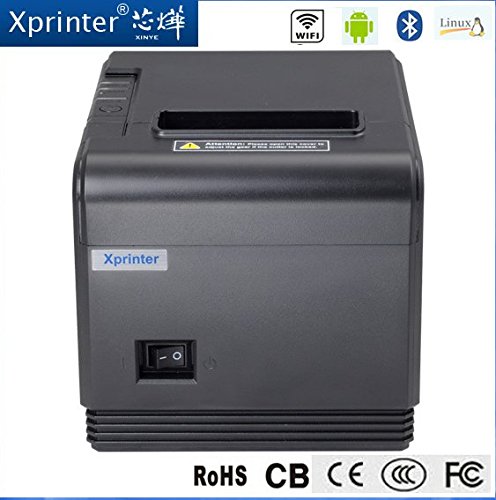
Rajah 4.1: Depan view highlighting connectivity options.
5. Persediaan
5.1 Persediaan Fizikal
- Unpack the printer and remove all protective packaging materials.
- Place the printer on a stable, flat surface near a power outlet and your host device.
- Connect the power adapter to the printer's power port and then plug it into a wall outlet.
5.2 Memuatkan Kertas Terma
- Press the cover open button (usually located on the side or front) to open the printer's top cover.
- Insert the thermal paper roll into the paper compartment with the printing side facing the thermal print head. Ensure the roll unwinds from the bottom.
- Tarik sedikit kertas keluar melepasi pemotong.
- Close the top cover firmly until it clicks into place. The printer will automatically feed the paper to the correct position.
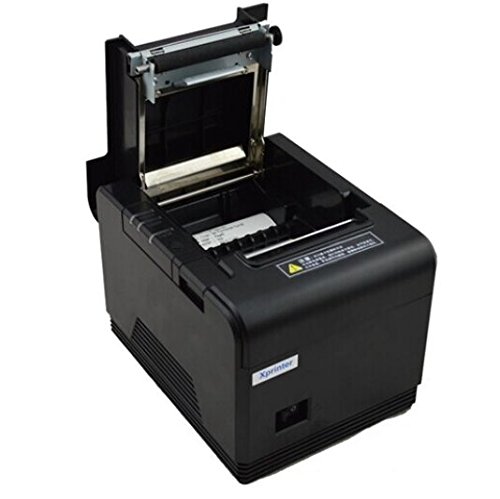
Figure 5.1: Loading thermal paper into the printer.
5.3 Menyambung ke Peranti
The XP-Q200 supports USB, Bluetooth, and Ethernet connections.

Rajah 5.2: Belakang view of the printer with connectivity ports.
5.3.1 Sambungan USB
- Connect one end of the USB cable to the printer's USB port and the other end to your computer's USB port.
- The computer should detect the printer automatically.
5.3.2 Bluetooth Connection (for Android/iOS)
- Pastikan pencetak dihidupkan.
- On your Android or iOS device, go to Bluetooth settings and enable Bluetooth.
- Cari untuk available devices. The printer should appear as "XP-Q200" or similar.
- Select the printer to pair. The default PIN is usually "0000" or "1234".
- Once paired, you can select the printer from your application's print settings.
5.3.3 Sambungan Ethernet
- Sambungkan kabel Ethernet daripada port Ethernet pencetak ke penghala atau suis rangkaian anda.
- The printer will obtain an IP address automatically via DHCP. For static IP configuration, refer to the advanced settings utility provided with the printer drivers.
5.4 Pemasangan Pemandu
For Windows and Linux systems, you will need to install the appropriate printer drivers. Drivers are typically available on the Xprinter official website or on a CD included with the printer. Follow the on-screen instructions during installation.
6. Arahan Operasi
6.1 Percetakan Asas
Once the printer is connected and drivers are installed (if applicable), you can send print jobs from your application. Ensure the printer is powered on and has paper loaded.
- From your application (e.g., POS software, web browser), select the print option.
- Choose "Xprinter XP-Q200" from the list of available printers.
- Adjust any print settings as needed (e.g., paper size, copies).
- Klik "Cetak" untuk menghantar kerja ke pencetak.
6.2 Logo and Barcode Printing
The XP-Q200 supports custom logo and barcode printing. Refer to the printer's utility software (usually provided with drivers) for instructions on how to upload logos (BMP format) to the printer's NV memory and configure barcode printing settings.
7. Penyelenggaraan
7.1 Membersihkan Pencetak
Pembersihan berkala membantu mengekalkan kualiti cetakan dan memanjangkan jangka hayat pencetak.
- Kepala Cetak: Gunakan kapas dengan ringan dampened with isopropyl alcohol to gently wipe the thermal print head. Allow it to dry completely before closing the cover. Clean the print head regularly, especially if print quality degrades.
- Penggelek Platen: Clean the rubber platen roller with a soft cloth dampditambah dengan isopropil alkohol.
- Luaran: Lap bahagian luar pencetak dengan kain lembut dan kering. Jangan gunakan pembersih atau pelarut yang melelas.
7.2 Mengatasi Kesesakan Kertas
Jika kertas tersekat:
- Matikan pencetak.
- Buka penutup atas.
- Carefully remove any jammed paper. Ensure no small pieces of paper remain inside.
- Tutup penutup atas dengan kuat.
- Turn the printer back on.
8. Penyelesaian masalah
This section addresses common issues you might encounter with your XP-Q200 printer.
| Masalah | Kemungkinan Punca | Penyelesaian |
|---|---|---|
| Pencetak tidak dapat dihidupkan | Power cable loose; Power outlet faulty; Power adapter faulty | Check power connections; Try a different outlet; Contact support if adapter is faulty. |
| Tiada keluaran cetakan | No paper; Paper loaded incorrectly; Printer offline; Driver issue | Load paper correctly; Check printer status; Reinstall drivers. |
| Kualiti cetakan buruk | Print head dirty; Low quality paper; Print head worn out | Clean print head; Use recommended thermal paper; Contact support for service. |
| Kesesakan kertas | Paper loaded incorrectly; Foreign object inside | Refer to Section 7.2 for clearing jams. |
| Bluetooth/Ethernet connection fails | Incorrect pairing; Network issue; IP address conflict | Re-pair device; Check network cables/settings; Verify IP address. |
9. Spesifikasi
| Ciri | Spesifikasi |
|---|---|
| Nama Model | XP-Q200 |
| Teknologi Percetakan | terma |
| Kelajuan Cetak | 260 mm/saat |
| Output Pencetak | Monokrom |
| Teknologi Ketersambungan | Bluetooth, USB, Ethernet |
| Saiz Helaian | Thermal (80mm) |
| Pencetakan dua muka | ya |
| warna | Hitam |
| Jenis Pengawal | iOS, Android |
| Komponen yang Disertakan | kertas |
| Ciri Khas | USB |
| Jenis Pengimbas | Mudah alih |


