1. Pengenalan dan Lebihview
The Nexxt Solutions Acrux 750-AC is a dual-band media gigabit wireless AC router designed for homes and small businesses requiring high-speed network connectivity. It supports transmission speeds up to 750Mbps, utilizing both the 5.0GHz band (433Mbps) and the 2.4GHz band (300Mbps) simultaneously. This router is equipped with a USB port for file sharing, making it suitable for media-connected environments. Key features include Wi-Fi Multimedia (WMM) technology for prioritizing bandwidth-intensive applications like HD streaming, and two detachable 5dBi omnidirectional antennas for extended coverage and reduced dead spots. The device also supports Wi-Fi Protected Setup (WPS) for easy and secure wireless connections.
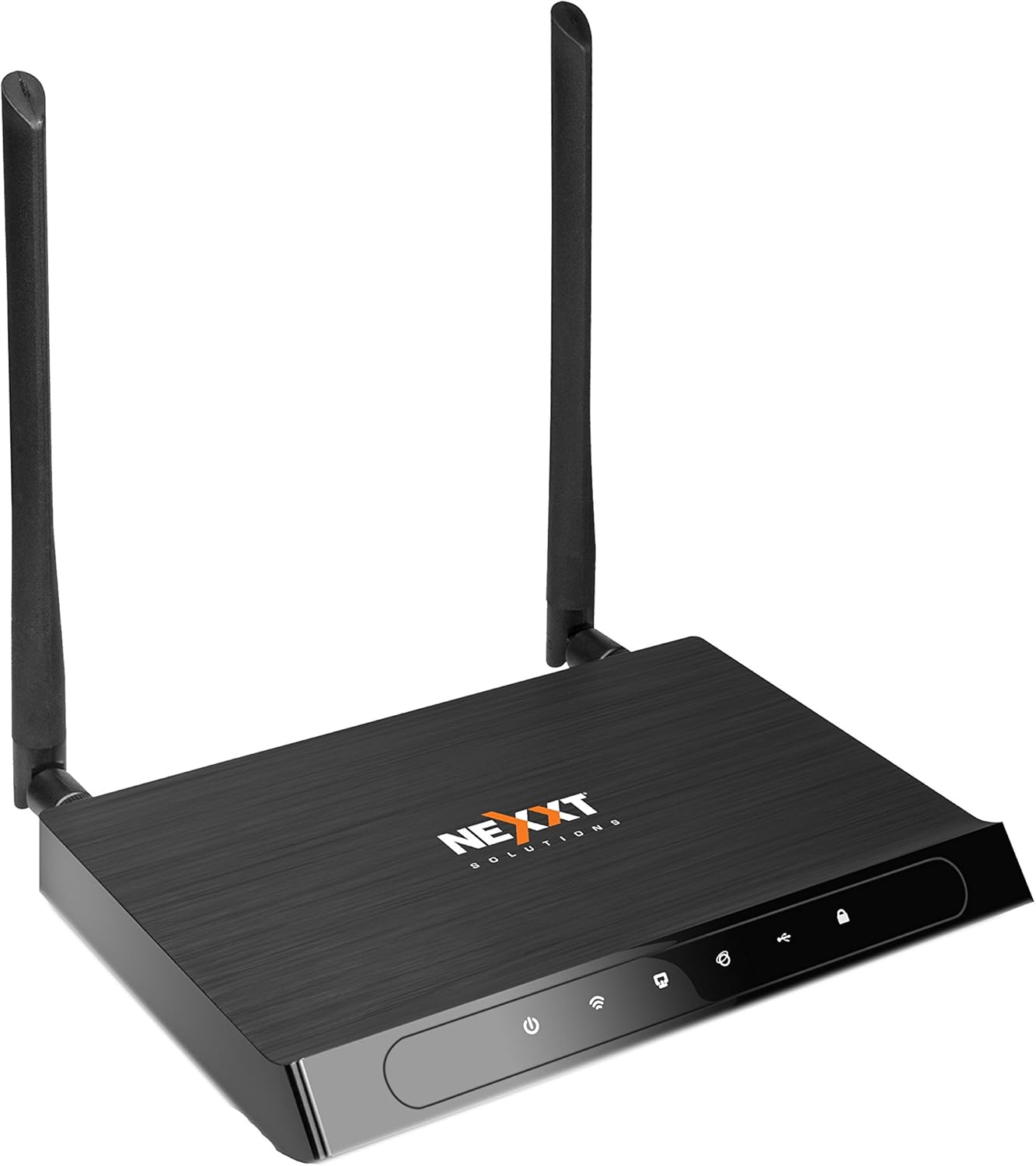
Rajah 1: Depan view of the Acrux 750-AC router, showcasing its sleek design and two external antennas.
2. Ciri-ciri Produk
- Wireless AC Router: Supports the latest 802.11ac standard for faster wireless speeds.
- Simultaneous Dual-Band: Operates on both 2.4GHz (300Mbps) and 5.0GHz (433Mbps) bands concurrently for a combined throughput of 750Mbps.
- Port Ethernet Gigabit: Features four 10/100/1000Mbps LAN ports for high-speed wired connections.
- Port USB: Includes a USB 2.0 port for file and print sharing across the network.
- Liputan Lanjutan: Equipped with two detachable 5dBi omnidirectional antennas for improved signal reach and coverage.
- Teknologi Beamforming: Creates a direct link for data transmission, enhancing wireless efficiency and range.
- WMM Technology: Wi-Fi Multimedia prioritizes traffic for bandwidth-intensive applications such as HD video streaming and online gaming.
- WPS (Persediaan Dilindungi Wi-Fi): Allows for easy and secure connection of WPS-supported wireless adapters with the push of a button.
- Keselamatan Tanpa Wayar Lanjutan: Supports 64/128-bit WEP and WPA/WPA2-PSK encryption protocols.
- WDS Capability: Wireless Distribution System allows for network expansion by linking multiple devices.

Figure 2: Illustration of the router's dual-band wireless coverage, showing both 2.4GHz (max range) and 5.0GHz (performance) signals within a typical home setup.
3. Perkakasan Terlaluview
Familiarize yourself with the ports and buttons on your Acrux 750-AC router.

Figure 3: Rear panel of the Acrux 750-AC router, detailing the various ports and controls.
- 1. WPS/Reset Button: Press briefly to activate WPS for easy wireless connection. Press and hold for 10 seconds to reset the router to factory default settings.
- 2. Wi-Fi On/Off Button: Menghidupkan atau mematikan isyarat wayarles.
- 3. WAN Port (Blue): Connects to your DSL/Cable modem or Ethernet line for internet access.
- 4. LAN Ports (Yellow, LAN1-LAN4): Empat port Ethernet Gigabit untuk menyambungkan peranti berwayar seperti komputer, konsol permainan atau TV pintar.
- 5. Pelabuhan USB 2.0: Untuk menyambungkan peranti storan USB bagi file sharing or USB printers for network printing.
- 6. Butang Hidup/Mati: Menghidupkan atau mematikan penghala.
- 7. Input Daya A / C: Menyambung kepada penyesuai kuasa yang disertakan.
4. Panduan Persediaan
4.1 Sambungan Perkakasan Awal
- Kedudukan: Place the router in a central location to maximize wireless coverage, away from obstructions and interference sources.
- Sambungkan Antena: Screw the two detachable antennas firmly onto the connectors at the rear of the router.
- Sambungkan ke Modem: Connect one end of an Ethernet cable to the WAN port (blue) on the router and the other end to the Ethernet port on your DSL/Cable modem.
- Sambungkan Kuasa: Plug the power adapter into the A/C Power Input port on the router and then into a power outlet. Press the On/Off button to power on the router.
- Petunjuk Sahkan: Wait for the power, WAN, and Wi-Fi indicators on the router's front panel to stabilize, indicating a successful connection.
4.2 Mengakses ke Web Antara Muka Pengurusan
- Sambungkan Peranti: Connect a computer to one of the LAN ports (yellow) on the router using an Ethernet cable, or connect wirelessly using the default Wi-Fi name (SSID) and password found on the router's label.
- Buka Web pelayar: Pelancaran a web penyemak imbas (cth, Chrome, Firefox, Edge).
- Masukkan Alamat IP: Dalam bar alamat, taip alamat IP lalai penghala (biasanya
192.168.0.1or192.168.1.1, refer to the label on your router for the exact address) and press Enter. - log masuk: Masukkan nama pengguna dan kata laluan lalai (biasanya
adminuntuk kedua-duanya, atau seperti yang dinyatakan pada label penghala). - Jalankan Wizard Persediaan: Follow the on-screen setup wizard to configure your internet connection, wireless network names (SSIDs) for both 2.4GHz and 5GHz bands, and set strong passwords.
5. Arahan Operasi
5.1 Menyambung Peranti
- Peranti Berwayar: Connect devices like desktop computers, smart TVs, or gaming consoles to the yellow Gigabit LAN ports using Ethernet cables.
- Peranti Wayarles: On your wireless device (smartphone, tablet, laptop), search for available Wi-Fi networks. Select your router's 2.4GHz or 5GHz SSID and enter the Wi-Fi password you configured during setup.
- Menggunakan WPS: For WPS-compatible devices, press the WPS button on the router, then activate WPS on your device within two minutes to establish a secure connection without entering a password.
5.2 USB File Berkongsi
The USB 2.0 port allows you to share files from a connected USB storage device (e.g., USB flash drive, external hard drive) across your network.
- Sambungkan Peranti USB: Insert your USB storage device into the USB 2.0 port on the router.
- Configure Sharing: Akses penghala web management interface. Navigate to the USB Sharing or Storage section to enable and configure file sharing settings, including user access permissions.
- Akses Files: On network-connected devices, you can typically access the shared USB drive through network locations (e.g., "Network" in Windows File Explorer, "Connect to Server" in macOS Finder).
5.3 Ciri Lanjutan
- WMM (Multimedia Wi-Fi): This feature is enabled by default and automatically prioritizes network traffic for applications requiring high bandwidth, such as video streaming and online gaming, to ensure a smoother experience.
- Pembentukan pancaran: This technology focuses the Wi-Fi signal directly towards connected devices, improving signal strength and range for those devices. It operates automatically with compatible devices.
- WDS (Sistem Pengedaran Tanpa Wayar): Allows the router to connect wirelessly to other access points or routers to extend the wireless network coverage. Configuration for WDS is available in the router's web interface under wireless settings.
6. Penyelenggaraan
- Kemas kini Firmware: Periodically check the Nexxt Solutions official weblaman web untuk kemas kini perisian tegar. Mengemas kini perisian tegar boleh meningkatkan prestasi, menambah ciri baharu dan membetulkan kelemahan keselamatan. Ikut arahan yang diberikan bersama kemas kini perisian tegar dengan teliti.
- But semula biasa: Rebooting your router every few weeks can help clear its memory and resolve minor performance issues. Simply unplug the power adapter for 10-15 seconds, then plug it back in.
- Pembersihan Fizikal: Pastikan penghala bersih dan bebas daripada habuk. Gunakan kain lembut dan kering untuk mengelap bahagian luar. Pastikan lubang pengudaraan tidak tersumbat untuk mengelakkan terlalu panas.
- Kata Laluan Selamat: Regularly change your Wi-Fi and router login passwords to strong, unique combinations to maintain network security.
7. Penyelesaian masalah
Isu dan Penyelesaian Biasa:
- Tiada Akses Internet:
- Check if the WAN indicator on the router is lit. If not, ensure the Ethernet cable from your modem is securely connected to the router's blue WAN port.
- Reboot your modem first, then the router. Wait for both devices to fully power on and establish connections.
- Sahkan tetapan sambungan internet anda dalam penghala web interface. Ensure they match the settings provided by your Internet Service Provider (ISP).
- Slow Wireless Speed or Frequent Disconnections:
- Ensure the router is placed centrally and away from potential interference sources (e.g., cordless phones, microwaves, thick walls).
- Try changing the wireless channel in the router's settings to a less congested one. Use a Wi-Fi analyzer app to find optimal channels.
- Confirm your devices are connecting to the appropriate band (5GHz for closer, faster connections; 2.4GHz for longer range).
- Update the wireless drivers on your connected devices.
- Tidak Boleh Mengakses Penghala Web Antara muka:
- Ensure your device is connected to the router (either via Ethernet or Wi-Fi).
- Verify you are typing the correct IP address (e.g.,
192.168.0.1) ke dalam bar alamat pelayar. - Kosongkan cache dan kuki penyemak imbas anda atau cuba penyemak imbas lain.
- Lumpuhkan sementara sebarang perisian firewall atau antivirus pada komputer anda.
- Lupa Kata Laluan Log Masuk Penghala:
- If you cannot recall your router's login password, you will need to perform a factory reset. Locate the WPS/Reset button on the back of the router. With the router powered on, press and hold this button for approximately 10 seconds until the lights flash. The router will then revert to its factory default settings, including the default login credentials (usually
admin/admin). Nota: A factory reset will erase all your custom settings, requiring you to reconfigure the router.
- If you cannot recall your router's login password, you will need to perform a factory reset. Locate the WPS/Reset button on the back of the router. With the router powered on, press and hold this button for approximately 10 seconds until the lights flash. The router will then revert to its factory default settings, including the default login credentials (usually
8. Spesifikasi
| Ciri | Perincian |
|---|---|
| Nombor Model | ARL02754U1 |
| Standard Tanpa Wayar | IEEE 802.11ac/n/b/g |
| Frekuensi Tanpa Wayar | 2.4 GHz and 5 GHz (Simultaneous Dual-Band) |
| Kelajuan Tanpa Wayar Maksimum | Sehingga 750 Mbps (300 Mbps pada 2.4GHz, 433 Mbps pada 5.0GHz) |
| Pelabuhan Ethernet | 4 x 10/100/1000 Mbps Gigabit LAN Ports, 1 x 10/100/1000 Mbps WAN Port |
| Port USB | 1 x Port USB 2.0 |
| Antena | 2 x Detachable 5dBi Omni-directional Antennas |
| Keselamatan | 64/128-bit WEP, WPA/WPA2-PSK encryption |
| Dimensi | 27.94 x 22.86 x 6.35 cm (anggaran saiz pakej) |
| Berat Barang | 726 g (1.6 Paun) |
| Pengeluar | Penyelesaian Nextxt |
9. Waranti dan Sokongan
The Nexxt Solutions Acrux 750-AC router comes with a Waranti 5 tahun, demonstrating the manufacturer's commitment to quality and reliability. For technical assistance, troubleshooting, or warranty claims, please contact Nexxt Solutions customer support. US-based technical support is available to assist you with installation and operational queries.
For the most up-to-date support information, FAQs, and contact details, please visit the official Nexxt Solutions website. You may also find additional resources by searching for "Nexxt Solutions" online or referring to the contact information provided with your product packaging.


