pengenalan
This manual provides essential instructions for the proper setup, operation, and maintenance of your Zebra ET55AE-W22E ET55 8.3" Tablet. Please read this manual thoroughly before using the device to ensure optimal performance and longevity.
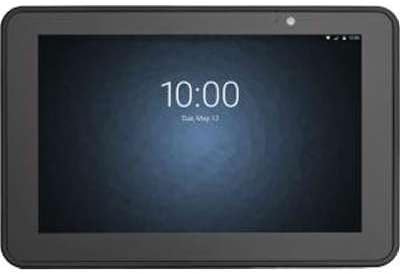
Imej: Depan view of the Zebra ET55AE-W22E ET55 8.3" Tablet. The screen displays the time "10:00" and the date "Tue, May 12". The tablet has a dark gray bezel and a front-facing camera visible at the top center.
Kandungan Pakej
Upon unpacking, verify that all items are present and undamaged. The standard package for the Zebra ET55AE-W22E includes:
- Zebra ET55AE-W22E ET55 8.3" Tablet unit
- (Additional accessories such as power adapter, USB cable, and documentation may be sold separately or included depending on region/bundle.)
Persediaan
1. Pengecasan Awal
Before first use, fully charge the tablet's battery. Connect the appropriate power adapter (not included with all models) to the tablet's charging port and then to a power outlet. The charging indicator will typically illuminate during this process.
2. Menghidupkan/Mematikan
- Untuk Menghidupkan: Tekan dan tahan butang Kuasa yang terletak di sisi tablet sehingga skrin menyala.
- Untuk Mematikan: Press and hold the Power button, then select "Shut down" from the options that appear on the screen.
3. Initial Configuration (Windows 8.1)
Upon first power-on, the tablet will guide you through the Windows 8.1 setup process. This includes:
- Memilih bahasa dan wilayah anda.
- Menerima terma lesen.
- Connecting to a Wi-Fi network (if available).
- Creating or signing in with a Microsoft account.
- Setting up basic privacy and security settings.
Arahan Operasi
Navigating Windows 8.1
The Zebra ET55AE-W22E runs on Windows 8.1, optimized for touch interaction. Key navigation elements include:
- Skrin Mula: Swipe in from the right edge of the screen or press the Windows button to access the Start screen with live tiles.
- Bar Charms: Swipe in from the right edge of the screen to access the Charms bar (Search, Share, Start, Devices, Settings).
- Penukaran Aplikasi: Swipe in from the left edge to switch between open applications.
- Desktop: Tap the Desktop tile on the Start screen to access the traditional Windows desktop environment.
Menyambung ke Rangkaian
- Wi-Fi: Access the Charms bar, select tetapan, then click the Wi-Fi icon to view available networks. Select your desired network and enter the password if prompted.
- Bluetooth: Access the Charms bar, select tetapan, kemudian Tukar tetapan PC, dan navigasi ke PC and devices > Bluetooth. Turn Bluetooth on and pair with desired devices.
- WAN (Wireless Area Network): This model supports WAN connectivity. Insert your SIM card (if applicable and provided by your service provider) into the designated slot. Follow on-screen prompts or consult your service provider for configuration details.
Menggunakan Kamera
The tablet is equipped with a camera. To use it, locate and tap the Camera application icon on the Start screen or Desktop. Follow the on-screen instructions to capture photos or record videos.
Penyelenggaraan
Membersihkan Peranti
- Gunakan kain lembut dan tidak berbulu untuk membersihkan skrin dan bahagian luar.
- Untuk tanda degil, sedikit dampen kain dengan air atau larutan pembersih skrin.
- Avoid using harsh chemicals, abrasive cleaners, or aerosol sprays directly on the device.
Penjagaan Bateri
- Elakkan daripada mendedahkan tablet kepada suhu yang melampau.
- Untuk jangka hayat bateri yang optimum, elakkan daripada kerap mencas bateri sepenuhnya.
- Jika peranti tidak akan digunakan untuk tempoh yang lama, caskannya sehingga kira-kira 50% sebelum penyimpanan.
Kemas Kini Perisian
Regularly check for and install Windows 8.1 updates to ensure system stability, security, and performance. Access Settings > Change PC settings > Update and recovery > Windows Update.
Menyelesaikan masalah
| Masalah | Penyelesaian yang Mungkin |
|---|---|
| Peranti tidak dihidupkan. | Ensure the battery is charged. Connect the tablet to a power source and attempt to power on after a few minutes. |
| Tidak dapat menyambung ke Wi-Fi. | Verify Wi-Fi is enabled in settings. Check if the network password is correct. Restart the tablet and the Wi-Fi router. |
| Skrin tidak bertindak balas. | Perform a soft reset by holding the power button until the device restarts. Ensure the screen is clean and free of debris. |
| Aplikasi perlahan atau ranap. | Close unnecessary applications. Check for and install system updates. Consider uninstalling recently installed applications that may be causing issues. |
Spesifikasi
| Ciri | Perincian |
|---|---|
| Model | Zebra ET55AE-W22E |
| Saiz Skrin | 8.3 Inci |
| Resolusi Skrin | 1920 x 1080 piksel |
| RAM | 4GB |
| Simpanan Memori | Flash 64 GB |
| Sistem Operasi | Windows 8.1 |
| Jenama Pemproses | Intel |
| Jenis Wayarles | Bluetooth, WAN |
| Berat Barang | 2 paun |
| Dimensi Produk (LxWxH) | 1 x 1 x 1 inci |
Waranti dan Sokongan
For information regarding warranty coverage, technical support, or service, please refer to the official Zebra website or contact their customer service department. Specific warranty terms may vary by region and purchase date.
Sokongan dalam talian: Visit the official Zebra support portal for drivers, FAQs, and additional documentation.
Maklumat Hubungan: Refer to your product packaging or the Zebra website for current contact details for technical assistance.


