1. Pengenalan
Thank you for choosing the LinQ PRO GO (A-S050C) Videocamera. This manual provides essential information for setting up, operating, and maintaining your device. Please read it carefully before use to ensure optimal performance and longevity of your camera.
The LinQ PRO GO (A-S050C) is a versatile action camera designed to capture high-definition videos and photos. It features a 2-inch HD LCD display, a 170-degree wide-angle fisheye lens, and a robust waterproof casing allowing submersion up to 30 meters. With its 12-megapixel sensor and Full HD 1080p video recording at 30fps, it is suitable for various outdoor activities and sports.
2. Kandungan Pakej
Sila sahkan bahawa semua item yang disenaraikan di bawah disertakan dalam pakej anda:
- LinQ PRO GO (A-S050C) Videocamera with Waterproof Housing
- Kabel Pengecas USB
- Penyesuai Kuasa
- Bateri Lithium yang boleh dicas semula (900mAh)
- Various Mounting Accessories (e.g., helmet mounts, bicycle mounts, clips, straps)
- Kain Pembersih

Rajah 2.1: LinQ PRO GO (A-S050C) Videocamera in its protective waterproof housing.
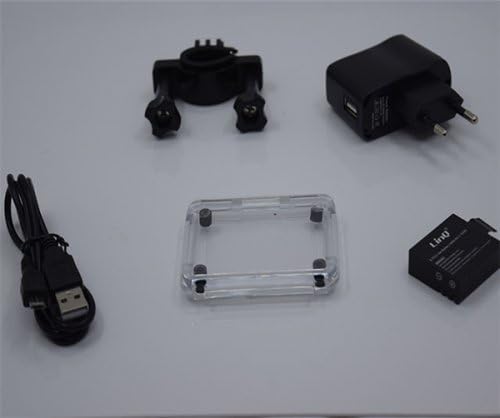
Rajah 2.2: Essential accessories including the USB cable, power adapter, rechargeable battery, and an additional frame for the waterproof housing.
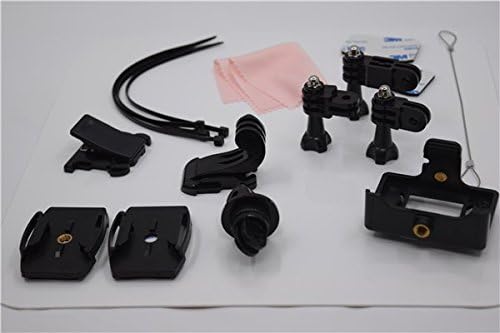
Rajah 2.3: A selection of mounting accessories, including clips, adhesive mounts, and straps, for attaching the camera to various surfaces and gear.
3. Persediaan
3.1. Mengecas Bateri
- Insert the provided 900mAh lithium battery into the camera's battery compartment.
- Sambungkan kamera ke penyesuai kuasa menggunakan kabel USB.
- Plug the power adapter into a wall outlet. The charging indicator light will illuminate.
- Allow approximately 3 hours for a full charge. The indicator light will change or turn off once charging is complete. A fully charged battery provides approximately 90 minutes of recording at 1080p@30fps.
3.2. Memasukkan Kad SD Mikro
The camera supports Micro SD cards up to 32GB. A Class 10 or higher speed rating is recommended for optimal video recording performance.
- Open the Micro SD card slot cover on the side of the camera.
- Masukkan kad Micro SD dengan sesentuh emas menghadap ke belakang kamera sehingga ia terkunci pada tempatnya.
- Tutup penutup slot kad dengan kemas.
- It is recommended to format the Micro SD card using the camera's settings menu before first use.
3.3. Menghidupkan/Mematikan
- To power on: Press and hold the Power/Mode button (usually on the front or top) for a few seconds until the screen illuminates.
- To power off: Press and hold the Power/Mode button again until the screen turns off.
4. Arahan Operasi
4.1. Operasi Asas
- Penukaran Mod: Press the Power/Mode button briefly to cycle through different modes (Video, Photo, Playback, Settings).
- Butang Pengatup/OK: Press the Shutter/OK button (usually on top) to start/stop recording video or to take a photo. In menu mode, this button confirms selections.
- Butang Navigasi: Use the Up/Down buttons (if available, often on the side) to navigate through menu options or zoom in/out.
4.2. Rakaman Video
In Video mode, the camera can record at various resolutions:
- 1920x1080 (1080p) at 30fps
- 1280x720 (720p) at 60fps
- 848x480 (WVGA) at 30fps
- 640x480 (VGA) at 30fps
Press the Shutter/OK button once to start recording. A red indicator light or on-screen icon will typically flash. Press it again to stop recording.
4.3. Tangkapan Foto
In Photo mode, the camera supports image resolutions up to 12 megapixels:
- 12M
- 10M
- 8M
- 5M
Press the Shutter/OK button once to take a photo.
4.4. Tetapan Lanjutan
Akses menu tetapan untuk melaraskan pelbagai parameter:
- Tetapan Video: Loop recording, time-lapse, motion detection.
- Tetapan Foto: Single shot, self-timer (5s/10s/20s), continuous shooting.
- Dedahan: Adjust EV compensation for brighter or darker images.
- Imbangan Putih: Select appropriate white balance for different lighting conditions (Auto, Daylight, Cloudy, Tungsten, Fluorescent).
- ISO: Adjust light sensitivity.
- Ketajaman: Control image sharpness.
- Tarikh/Masa: Tetapkan tarikh dan masa yang betul.
- Bahasa: Pilih bahasa pilihan anda.
- Format Kad SD: Erase all data on the Micro SD card.
4.5. Main balik
In Playback mode, you can review your captured videos and photos on the 1.5-inch LCD screen. Use the navigation buttons to scroll through files. Press the Shutter/OK button to play videos. Fast forward and rewind functions are supported for videos.
4.6. Connecting to a Computer/TV
- Sambungan USB: Connect the camera to a computer using the USB cable. The camera will appear as a removable disk, allowing you to transfer files. It can also function as a webcam.
- Sambungan HDMI: Connect the camera to an HDMI-compatible display (e.g., TV) using an HDMI cable (not included) to view your content on a larger screen.
5. Penyelenggaraan
- Pembersihan: Use the provided cleaning cloth or a soft, lint-free cloth to clean the camera lens and LCD screen. Do not use harsh chemicals or abrasive materials.
- Perumahan kalis air: Regularly inspect the waterproof housing for any cracks, damage, or debris on the O-ring seal. Ensure the O-ring is clean and properly seated before each use in water. Rinse the housing with fresh water after saltwater use and allow it to air dry.
- Storan: Store the camera in a cool, dry place away from direct sunlight and extreme temperatures. Remove the battery if the camera will not be used for an extended period.
- Penjagaan Bateri: Avoid fully discharging the battery frequently. Recharge the battery periodically even if not in use to maintain its health.
6. Penyelesaian masalah
- Kamera tidak dihidupkan: Ensure the battery is fully charged. Reinsert the battery.
- Tidak boleh merakam video/mengambil foto: Check if a Micro SD card is inserted and properly formatted. Ensure there is sufficient space on the card.
- Kualiti video/imej yang teruk: Ensure the lens is clean. Check the selected resolution settings. Ensure adequate lighting.
- Water leakage in housing: Immediately remove the camera from water. Inspect the waterproof housing for damage, ensure the O-ring is clean and correctly seated, and that all latches are securely closed.
- Kamera membeku: Press and hold the Power/Mode button for 10-15 seconds to force a shutdown. If the issue persists, remove and reinsert the battery.
7. Spesifikasi
| Ciri | Spesifikasi |
|---|---|
| Nombor Model | A-S050C (6970334022037) |
| Paparan | LCD HD 2 inci |
| Lensa | 170-degree Wide-Angle Fisheye, 6-glass lens |
| Chipset | Novatek 96650 + AR0330 |
| Resolusi Video | 1920x1080 (30fps), 1280x720 (60fps), 848x480 (30fps), 640x480 (30fps) |
| Format Video | MOV (H.264 compression) |
| Resolusi Imej | 12M/10M/8M/5M |
| Format Imej | JPG |
| Mod Foto | Single Shot, Self-timer (5s/10s/20s), Continuous |
| Fungsi Khas | Loop Recording, Time-lapse, Motion Detection, Dashcam/Webfungsi cam |
| Kedalaman Kalis Air | Up to 30 meters (with waterproof housing) |
| Penyimpanan | Micro SD card, up to 32GB (Class 10 recommended) |
| Bateri | Bateri Litium Boleh Dicas Semula 900mAh |
| Hayat Bateri | Approx. 90 minutes (1080p@30fps) |
| Ketersambungan | USB 2.0, HDMI |
| Dimensi | 59.2mm x 41mm x 29.8mm |
| Berat badan | 60g |
8. Maklumat Undang-undang
This product is accompanied by a regular fiscal receipt for the cost of the product. If you require an invoice, please submit a request indicating all your details by sending a message through the 'Contact Seller' option. Warranty information should be obtained directly from your point of purchase or the seller.


