pengenalan
The TASCAM MiNiSTUDIO Personal US-32 is a desktop online broadcast studio designed for podcasters, gamers, and online broadcasters. It features a professional-quality audio interface and real-time effects to enhance your audio productions.
This manual provides instructions for setting up, operating, and maintaining your US-32 MiniStudio, along with troubleshooting tips and product specifications.
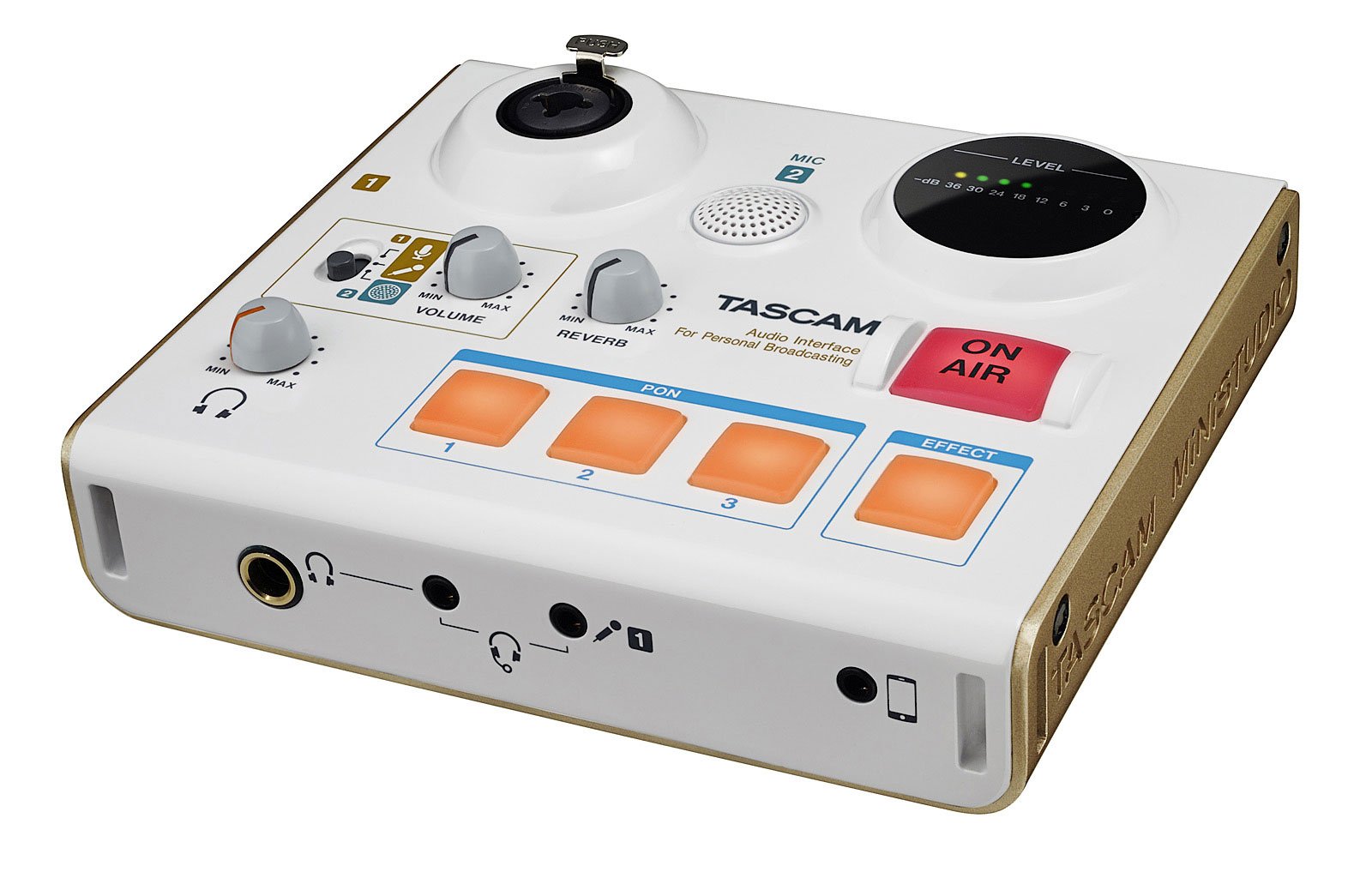
Rajah 1: The Tascam US-32 MiniStudio USB Podcasting Broadcast Audio Interface. This image provides a general overview daripada peranti itu.
Persediaan
Kandungan Pakej
Sahkan bahawa semua komponen hadir:
- Tascam US-32 MiniStudio Unit
- Kabel USB
- Manual Pengguna (dokumen ini)
Menyambung Peranti
The US-32 MiniStudio connects to your computer via a USB 2.0 cable. It can be powered by the USB bus or an optional 5V DC adapter for tablet use.
- Connect the USB cable from the US-32 MiniStudio to an available USB port on your computer.
- If using with a tablet or requiring external power, connect a 5V DC power adapter (not included) to the "DC IN 5V" port.
- Ensure the POWER switch on the rear panel is in the "ON" position.

Rajah 2: Rear panel connections of the Tascam US-32 MiniStudio. This image displays the power switch, USB 2.0 port for computer connection, and the DC IN 5V port for external power, typically used with tablets.
Pemasangan Perisian
Before using the US-32 MiniStudio, install the necessary drivers and control software from the official Tascam website. The device supports ASIO/WDM for Windows and Core Audio for Mac.
- Visit the official Tascam support webtapak.
- Locate the drivers and control software for the US-32 MiniStudio.
- Muat turun dan jalankan pemasang, ikut arahan pada skrin.
- Mulakan semula komputer anda jika digesa.
Arahan Operasi
Microphone Input Options
The US-32 MiniStudio offers versatile microphone input options:
- XLR/TRS Input Jack: For professional microphones, with switchable +48V phantom power for condenser microphones.
- Built-in Condenser Mic: For convenient, immediate use without external microphones.
- 4-pole Mini-jack: For connecting earphone/microphone headsets.
Ensure appropriate input gain is set using the dedicated knob to achieve optimal audio levels without distortion.
PON Sound Effect Buttons
The three assignable PON buttons allow for instant playback of sound effects. The unit comes with pre-loaded effects like bell, buzzer, and applause. You can also customize these buttons with your own .wav or .mp3 audio files using the control software.
- Open the US-32 MiniStudio control software on your computer.
- Navigate to the PON button assignment section.
- Double-click on a button in the software interface to select an audio file (.wav or .mp3) from your computer.
- Once assigned, press the physical PON button on the unit to trigger the sound effect during your broadcast.
Real-time Voice Effects
The US-32 MiniStudio includes real-time voice effects accessible via the control software. These effects can modify your voice with pitch shifts, echo, shortwave radio effects, and studio-quality reverb.
- Access voice effects through the control software.
- Adjust parameters such as pitch, echo depth, and reverb type.
- The "ducking" effect can automatically lower background music when you speak.

Rajah 3: Front panel of the Tascam US-32 MiniStudio. This image highlights the various control knobs for input levels, the three assignable PON sound effect buttons, and the prominent ON AIR button for broadcast control.
"ON AIR" Function
The "ON AIR" button integrates your voice and effects with other audio sources from your computer, such as music or video playback. Pressing this button activates the broadcast mix.
- Ensure all audio sources (microphone, computer audio, effects) are properly configured in the control software.
- Press the "ON AIR" button to begin broadcasting your mixed audio.
Audio Pemantauan
The US-32 MiniStudio provides two headphone outputs for monitoring: a 1/4" output and a 1/8" output (marked "headset"). Both outputs share a single volume control.

Rajah 4: Tascam US-32 MiniStudio in a typical usage scenario. The device is connected to a laptop, and headphones are plugged in, demonstrating its application in a broadcasting or podcasting setup.
Penyelenggaraan
To ensure the longevity and optimal performance of your Tascam US-32 MiniStudio, follow these maintenance guidelines:
- Pembersihan: Gunakan kain lembut dan kering untuk membersihkan bahagian luar unit. Elakkan pembersih, pelarut atau lilin yang kasar.
- Storan: Simpan unit di tempat yang sejuk dan kering jauh dari cahaya matahari langsung, suhu yang melampau dan kelembapan yang tinggi.
- Pengendalian: Kendalikan peranti dengan berhati-hati. Elakkan daripada menjatuhkannya atau terkena impak yang kuat.
- Pengudaraan: Ensure proper ventilation around the unit to prevent overheating. Do not block any vents.
- Matikan: Always power off the unit and disconnect it from the power source when not in use for extended periods or during electrical storms.
Menyelesaikan masalah
If you encounter issues with your US-32 MiniStudio, refer to the following common problems and solutions:
No Sound or Low Audio Output
- Semak Sambungan: Ensure all cables (USB, microphone, headphones) are securely connected.
- Tahap Kelantangan: Verify that the input gain knobs on the US-32 and the master volume control are turned up. Check software volume settings on your computer.
- Kuasa Hantu: If using a condenser microphone, ensure +48V phantom power is enabled for the XLR input.
- Jenis Mikrofon: Some high-end dynamic microphones may require an external preamp for optimal gain, as the built-in preamps might not provide sufficient amplification for all models.
- Tetapan Perisian: Confirm that the US-32 MiniStudio is selected as the default audio input/output device in your computer's sound settings and your broadcasting software.
Background Noise or Hum
- Gelung Tanah: Try connecting the computer and US-32 to the same power outlet or using a ground loop isolator.
- Kualiti Kabel: Use high-quality, shielded cables for microphones and other connections.
- Keuntungan Staging: Ensure input gain is set appropriately. Too high gain can ampbunyi bising.
- Persekitaran: Minimize electrical interference from other devices (e.g., fluorescent lights, power adapters).
PON Buttons or Effects Not Working
- Perisian Berjalan: The PON buttons and voice effects require the Tascam control software to be running in the background.
- Tugasan: Verify that sound files are correctly assigned to the PON buttons within the software.
- Default Audio Device: Ensure the US-32 is set as the default audio device, as some effects may route through it.
Device Not Recognized by Computer
- Sambungan USB: Cuba port USB atau kabel USB yang berbeza.
- Pemandu: Reinstall the latest drivers from the Tascam webtapak.
- Kuasa: Ensure the unit is powered on. If using external power, verify the adapter is working.
- Mulakan semula: Restart your computer and the US-32 MiniStudio.
Spesifikasi
| Ciri | Spesifikasi |
|---|---|
| Nombor Model | AS-32 |
| Berat Barang | 13.4 auns |
| Dimensi Produk | 5.11 x 5.9 x 1.57 inci |
| Antara Muka Perkakasan | USB |
| Teknologi Ketersambungan | USB |
| Bilangan Saluran | 4 |
| Peranti Serasi | Komputer Peribadi |
| Perisian yang Disokong | ASIO/WDM (for Windows), Core Audio (for Mac) |
| Sistem Operasi | Windows (and Mac via Core Audio) |
| Voltage | 48 Volt (untuk kuasa hantu) |
| Bateri | 6 bateri AA diperlukan |
| Tarikh Mula-mula Tersedia | 6 Mei 2016 |
Note: While specifications mention "6 AA batteries required," the primary power source for the US-32 is typically USB bus power or an optional 5V DC adapter. Please refer to the official Tascam documentation for definitive power requirements.
Waranti dan Sokongan
For warranty information, technical support, or service inquiries, please contact Tascam customer support directly or visit their official webtapak. Simpan bukti pembelian anda untuk tuntutan waranti.
Tascam Official Webtapak: https://tascam.com/us/


