1. Pengenalan
This manual provides detailed instructions for the Plugable USB-C to DisplayPort Bi-Directional Cable (Model USBC-DP). This cable is designed to connect USB-C enabled devices to DisplayPort monitors or DisplayPort enabled devices to USB-C displays, supporting high-resolution video and audio transmission.

Image: The Plugable USB-C to DisplayPort Bi-Directional Cable, showcasing both the USB-C and DisplayPort connectors.
2. Ciri-ciri Utama
- Bi-Directional Connectivity: Supports both USB-C to DisplayPort and DisplayPort to USB-C video output, offering flexible connection options.
- Sokongan Resolusi Tinggi: Enables resolutions up to 4K at 60Hz (3840x2160).
- Plug-and-Play: Tiada pemacu atau pemasangan perisian diperlukan untuk operasi.
- Reka bentuk tahan lasak: Features an aluminum shell on both connectors and a nylon braided cable for enhanced durability.
- Keserasian Luas: Compatible with systems supporting DisplayPort Alt Mode over USB-C, USB4, or Thunderbolt 3/4, including various MacBooks, iPads, HP, Dell, Lenovo, Microsoft Surface, and LG Gram models.
3. Arahan Persediaan
Follow these steps to connect your device using the Plugable USB-C to DisplayPort Bi-Directional Cable:
- Kenal pasti Pelabuhan: Ensure your source device (e.g., laptop, tablet) has a USB-C port that supports DisplayPort Alt Mode, USB4, or Thunderbolt 3/4. Ensure your display device (e.g., monitor, TV) has a DisplayPort input.
- Sambungkan Hujung USB-C: Insert the USB-C connector of the cable into the compatible USB-C port on your source device.
- Connect DisplayPort End: Insert the DisplayPort connector of the cable into the DisplayPort input on your display device.
- Hidupkan Peranti: Ensure both your source device and display device are powered on.
- Konfigurasikan Tetapan Paparan: Your display should automatically detect the connection. If not, you may need to manually select the DisplayPort input on your monitor or adjust display settings on your source device (e.g., extend, mirror, or primary display mode).

Imej: Jarak dekat view of the USB-C and DisplayPort connectors, illustrating the connection process.
4. Arahan Operasi
Once connected, the cable facilitates video and audio transmission between your devices. Here are common operating modes:
- Mod Cermin: Menduakan skrin peranti sumber anda pada paparan luaran. Ini berguna untuk pembentangan atau perkongsian kandungan.
- Mod Lanjutkan: Extends your desktop across multiple screens, allowing for increased workspace and multitasking.
- Primary Display Mode: Uses the external display as the sole output, with the source device's screen turned off.
To switch between these modes, access your operating system's display settings:
- Windows: Right-click on the desktop, select "Display settings," and choose your preferred display option.
- macOS: Go to "System Settings" (or "System Preferences"), then "Displays," and adjust the arrangement or mirroring options.

Image: A laptop connected to an external monitor, demonstrating both extend and mirror display modes for enhanced productivity.
5. Keserasian
The Plugable USB-C to DisplayPort Bi-Directional Cable is compatible with a wide range of devices and operating systems:
Peranti yang Disokong:
- M1–M4 MacBooks (base and Pro/Max models)
- Intel Thunderbolt Macs (late 2016 and newer)
- iPhone 15/16 and Pro models
- iPad Pro/Air/mini
- HP ProBook/EliteBook/Spectre x360
- Dell XPS/Latitude/Inspiron
- Lenovo ThinkPad/IdeaPad/Yoga
- Microsoft Surface Pro/Go/Book/Laptop
- LG Gram
- Thousands of other standards-compliant USB-C laptops.
Sistem Operasi yang Disokong:
- Windows 10/11
- macOS 11+
- ChromeOS 100+
- Linux
Nota:
- Requires a system with DisplayPort Alt Mode over USB-C, USB4, or Thunderbolt 3/4.
- Fully compatible with DisplayPort source devices and full-featured USB-C displays.
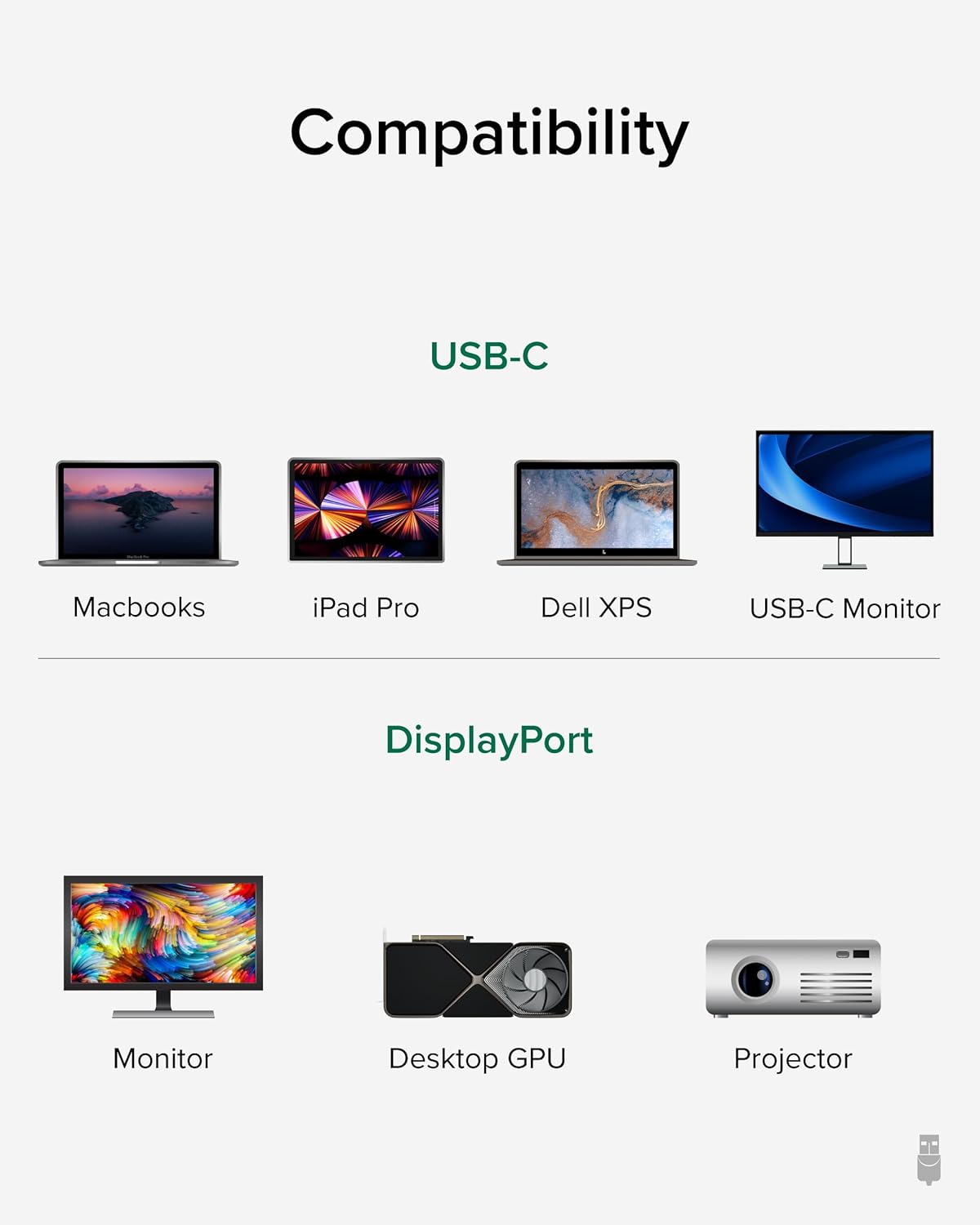
Image: A visual guide illustrating compatibility with various USB-C devices (MacBooks, iPad Pro, Dell XPS, USB-C Monitor) and DisplayPort devices (Monitor, Desktop GPU, Projector).
6. Penyelenggaraan
To ensure the longevity and optimal performance of your Plugable USB-C to DisplayPort Bi-Directional Cable, follow these maintenance guidelines:
- Tangani dengan Berhati-hati: Elakkan lenturan, memutar atau menarik kabel secara berlebihan, terutamanya berhampiran penyambung.
- Simpan dengan Betul: When not in use, coil the cable loosely and secure it with the included cable tie or a similar fastener. Avoid tight coiling that can stress the internal wires.
- Jaga kebersihan: Lap kabel dan penyambung secara berkala dengan kain lembut dan kering untuk mengeluarkan habuk dan serpihan. Elakkan menggunakan bahan kimia yang keras atau bahan yang melelas.
- Lindungi Penyambung: Ensure connectors are not exposed to liquids or extreme temperatures.
7. Penyelesaian masalah
If you encounter issues with your Plugable USB-C to DisplayPort Bi-Directional Cable, consider the following troubleshooting steps:
- Tiada Paparan/Isyarat:
- Ensure both devices are powered on and the cable is securely connected at both ends.
- Verify that your source device's USB-C port supports DisplayPort Alt Mode, USB4, or Thunderbolt 3/4. Not all USB-C ports support video output.
- Check your display's input source settings and ensure the correct DisplayPort input is selected.
- Test with another compatible cable or device to isolate the issue.
- Flickering or Intermittent Display:
- Pastikan kabel tidak rosak atau bengkok.
- Reduce the display resolution or refresh rate in your device's display settings to see if stability improves.
- Update your graphics drivers on your source device.
- Tiada Audio:
- Check your computer's sound settings and ensure the DisplayPort output is selected as the audio device.
- Ensure your monitor has built-in speakers or is connected to external audio.
- Resolution/Refresh Rate Not as Expected:
- Verify that both your source device and display support the desired resolution and refresh rate.
- Ensure your device's display settings are configured for the desired output.
8. Spesifikasi
| Ciri | Perincian |
|---|---|
| Jenama | Boleh pasang |
| Nombor Model | USBC-DP |
| Panjang Kabel | 6 kaki (1.8m) |
| Resolusi Maks | 4K (3840x2160) pada 60Hz |
| Penyambung 1 | Lelaki USB-C |
| Penyambung 2 | DisplayPort Lelaki |
| Keserasian | DisplayPort Alt Mode over USB-C, USB4, Thunderbolt 3/4 |
| bahan | Aluminum connector shells, Nylon braided cable |
| Berat Barang | 1.6 auns |
| Dimensi Produk | 0.39 x 6 x 6.5 inci |
9. Video Produk Rasmi
Video: Product Summary: Plugable USB-C to DisplayPort Adapter Cable. This video provides a comprehensive overview of the cable's features, functionality, and benefits.
10. Waranti dan Sokongan
Plugable products are designed for reliability and ease of use. This device includes lifetime support from our North American team of connectivity experts.
For further assistance, please visit the Plugable support webtapak atau hubungi perkhidmatan pelanggan mereka.


