1. Pengenalan
This manual provides detailed instructions for the installation, configuration, and operation of your TOTOLINK A3002RU-V2 Dual-Band Gigabit Wireless Router. The A3002RU-V2 is designed to deliver high-speed wireless connectivity and robust network performance for homes and offices. It complies with the latest IEEE 802.11ac Wave 2 standards, supporting simultaneous dual-band operation (2.4 GHz and 5 GHz) for a combined Wi-Fi speed of up to 1167 Mbps. Equipped with full gigabit WAN and LAN ports, it ensures fast wired connections, while its multi-functional USB 2.0 port offers versatile capabilities such as FTP, Samba, and DLNA server functions, as well as device charging.
2. Kandungan Pakej
Please verify that all items are present in your package. If any item is missing or damaged, contact your retailer for assistance.
- TOTOLINK A3002RU-V2 Wireless Router
- Penyesuai Kuasa
- Ethernet (RJ-45) Cable
- Panduan Pemasangan Pantas
3. Produk Lebihview
Familiarize yourself with the physical components of your TOTOLINK A3002RU-V2 router.

Rajah 3.1: Depan dan atas view of the TOTOLINK A3002RU-V2 router, showing the four external antennas and ventilation design.

Rajah 3.2: Rear panel of the TOTOLINK A3002RU-V2 router, displaying the power switch, DC input, Reset button, USB 2.0 port, WAN port, and four LAN ports.
3.1. Port dan Butang
- Suis Hidup/Mati Kuasa: Menukar kuasa penghala.
- DC Dalam: Menyambung kepada penyesuai kuasa yang disediakan.
- Butang RST (Tetap Semula): Press and hold for approximately 5-10 seconds to restore factory default settings.
- Port USB 2.0: For connecting USB storage devices to enable FTP, Samba, or DLNA server functions, or for charging compatible devices.
- Port WAN (Kuning): Menyambung ke modem anda atau rangkaian pembekal perkhidmatan internet.
- Port LAN (Jingga): Connects to wired devices such as computers, smart TVs, or gaming consoles.
4. Persediaan
4.1. Sambungan Perkakasan
- Matikan: Ensure your modem and router are powered off.
- Sambungkan Modem ke Penghala: Connect one end of the Ethernet cable to the LAN port of your modem and the other end to the WAN (yellow) port of the TOTOLINK A3002RU-V2 router.
- Sambungkan Kuasa: Connect the power adapter to the DC In port of the router and plug it into a power outlet.
- Hidupkan kuasa: Power on your modem first, then power on the TOTOLINK A3002RU-V2 router using the On/Off switch. Wait for the indicator lights to stabilize, typically indicating a successful connection.
- Sambungkan Peranti (Pilihan): For wired connections, connect your computer or other network devices to any of the LAN (orange) ports using Ethernet cables.
4.2. Konfigurasi Awal (Web Antara muka)
To configure your router, you will need to access its webantara muka pengurusan berasaskan.
- Sambung ke Penghala: Connect your computer to the router either via an Ethernet cable to a LAN port or wirelessly using the default Wi-Fi network name (SSID) and password found on the router's label.
- Buka Web pelayar: Pelancaran a web penyemak imbas (cth, Chrome, Firefox, Edge).
- Access Login Page: Dalam bar alamat, taip
http://192.168.1.1(or the IP address specified on the router's label) and press Enter. - log masuk: Masukkan nama pengguna dan kata laluan lalai. Ini biasanya
adminfor both, but refer to the router's label or quick installation guide for exact credentials. - Ikuti Wizard Persediaan: Upon successful login, you will likely be guided through a Quick Setup Wizard to configure your internet connection type, Wi-Fi network name (SSID), and password. It is highly recommended to change the default Wi-Fi password and router login password for security.
5. Arahan Operasi
5.1. Konfigurasi Rangkaian Tanpa Wayar
The A3002RU-V2 operates on two frequency bands simultaneously:
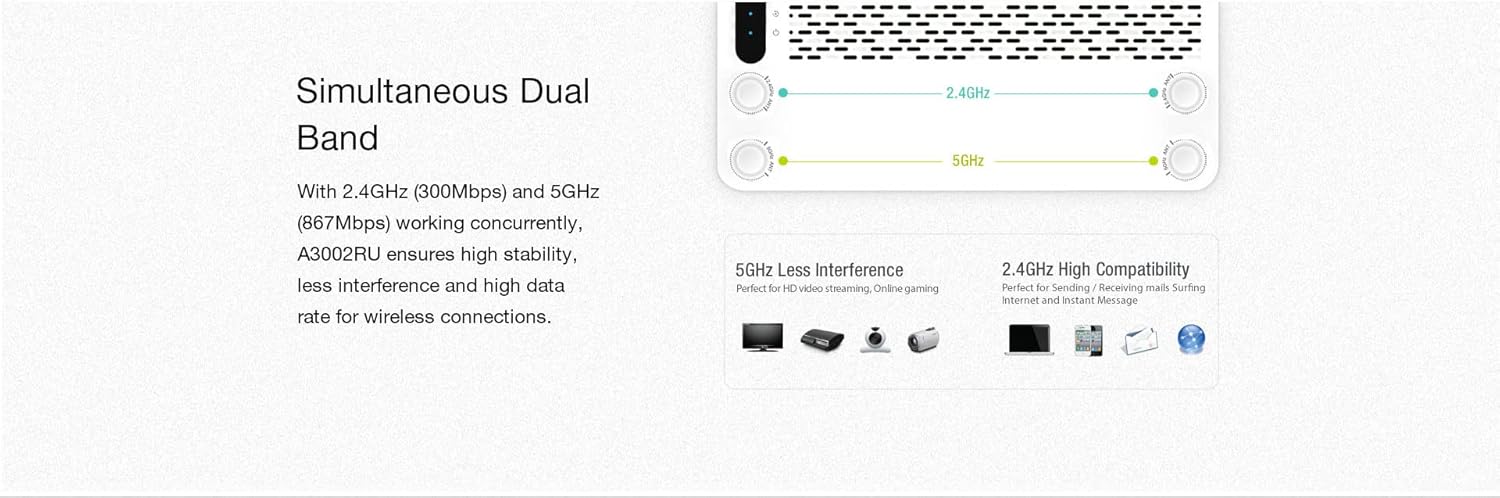
Rajah 5.1: Illustration of the router's simultaneous dual-band capability, showing 2.4GHz for wider coverage and 5GHz for higher speed and less interference.
- Jalur 2.4 GHz: Offers wider coverage and better penetration through walls, suitable for general internet use, browsing, and connecting devices further away.
- Jalur 5 GHz: Provides faster speeds and less interference, ideal for bandwidth-intensive activities like HD video streaming, online gaming, and connecting devices in closer proximity to the router.
You can configure separate SSIDs and passwords for each band or use a single SSID with band steering enabled (if available in your firmware) through the router's web interface under the Wireless Settings section.
5.2. Multi-functional USB 2.0 Port
The USB 2.0 port on the rear panel offers several functionalities when a USB storage device (e.g., flash drive, external hard drive) is connected.

Rajah 5.2: Visual representation of the USB 2.0 port's capabilities, including FTP server, Samba server, DLNA server, and USB charging.
- Pelayan FTP: Membolehkan anda mengakses files on the connected USB storage device from anywhere over the internet (requires proper configuration and port forwarding).
- Samba Server (Network Share): Enables local network users to access and share files on the connected USB storage device.
- Pelayan DLNA: Allows compatible media players (e.g., smart TVs, game consoles) to stream multimedia content (photos, music, videos) directly from the connected USB storage device.
- Pengecasan USB: The port can also be used to charge compatible smartphones or tablets.
These features can be configured and managed through the router's web interface, typically found under 'USB Application' or 'Storage Sharing' settings.
6. Penyelenggaraan
6.1. Peningkatan Firmware
Regularly updating the router's firmware can improve performance, add new features, and enhance security. Visit the official TOTOLINK website for the latest firmware version for your A3002RU-V2 model. The upgrade process is typically performed through the router's web interface under 'System Tools' or 'Firmware Upgrade'. Follow the instructions provided with the firmware file berhati-hati.
6.2. Tetapan Semula Kilang
A factory reset will revert all router settings to their default values. This can be useful for troubleshooting persistent issues or when preparing to transfer ownership of the router. To perform a factory reset:
- Dengan penghala dihidupkan, cari RST butang pada panel belakang.
- Use a paperclip or a thin object to press and hold the RST button for approximately 5-10 seconds until the indicator lights flash.
- Release the button and wait for the router to restart. All settings will be reset.
7. Penyelesaian masalah
Bahagian ini menangani isu biasa yang mungkin anda hadapi dengan penghala anda.
- Tiada Akses Internet:
- Periksa sama ada LED port WAN menyala. Jika tidak, pastikan kabel Ethernet daripada modem anda disambungkan dengan selamat.
- Sahkan modem anda berfungsi dengan betul.
- Log masuk ke penghala web interface and check the WAN status. Ensure your internet connection settings (e.g., PPPoE, Dynamic IP) are correctly configured.
- Mulakan semula modem dan penghala anda.
- Tidak Dapat Menyambung ke Wi-Fi:
- Ensure the Wi-Fi LED on the router is lit.
- Verify you are selecting the correct Wi-Fi network name (SSID) and entering the correct password.
- Bergerak lebih dekat ke penghala untuk memeriksa masalah kekuatan isyarat.
- Mulakan semula penghala.
- Kelajuan Wi-Fi Perlahan:
- Ensure your device is connected to the 5 GHz band for optimal speed, especially for close-range use.
- Reduce interference by placing the router away from other electronic devices (microwaves, cordless phones).
- Consider changing the Wi-Fi channel in the router's settings to avoid congestion with neighboring networks.
- Semak kemas kini perisian tegar.
- Lupa Kata Laluan Log Masuk Penghala:
- Perform a factory reset (refer to Section 6.2) to revert to the default login credentials. Note that this will erase all your custom settings.
8. Spesifikasi
Below are the technical specifications for the TOTOLINK A3002RU-V2 Dual-Band Gigabit Wireless Router.
| Ciri | Penerangan |
|---|---|
| Jenama | TOTOLINK |
| Nama Model | A3002RU-V2 |
| Standard Tanpa Wayar | IEEE 802.11ac Gelombang 2, 802.11a/b/g/n |
| Jalur Kekerapan | Jalur Dwi (2.4 GHz & 5 GHz) |
| Kelajuan Wi-Fi | Up to 1167 Mbps (300 Mbps @ 2.4 GHz, 867 Mbps @ 5 GHz) |
| Antena | 4 x Antena Omni-arah |
| Pelabuhan WAN | 1 x 10/100/1000 Mbps Gigabit Ethernet |
| Pelabuhan LAN | 4 x 10/100/1000 Mbps Gigabit Ethernet |
| Port USB | 1 x USB 2.0 (for FTP, Samba, DLNA server, charging) |
| Teknologi Ketersambungan | Ethernet, Wi-Fi |
| Peranti Serasi | Komputer riba, Telefon Pintar, Tablet |
| warna | Hitam |
| Sistem Operasi | RouterOS (berasaskan perisian tegar) |
| Bekalan Kuasa | Penyesuai Kuasa Luaran |
9. Waranti dan Sokongan
For warranty information and technical support, please refer to the warranty card included with your product or visit the official TOTOLINK weblaman web. Sumber sokongan biasanya merangkumi Soalan Lazim, panduan penyelesaian masalah dan maklumat hubungan untuk khidmat pelanggan.


