pengenalan
The Zeta Geeetech Prusa I3 M201 STM32 is an advanced FDM (Fused Deposition Modeling) 3D printer designed for versatile and high-quality 3D printing. This model features a unique 2-in-1 hot end, enabling mixed-color and gradient printing, offering enhanced creative possibilities. It is equipped with a self-developed control system based on the STM32 processor, ensuring stable and efficient performance.
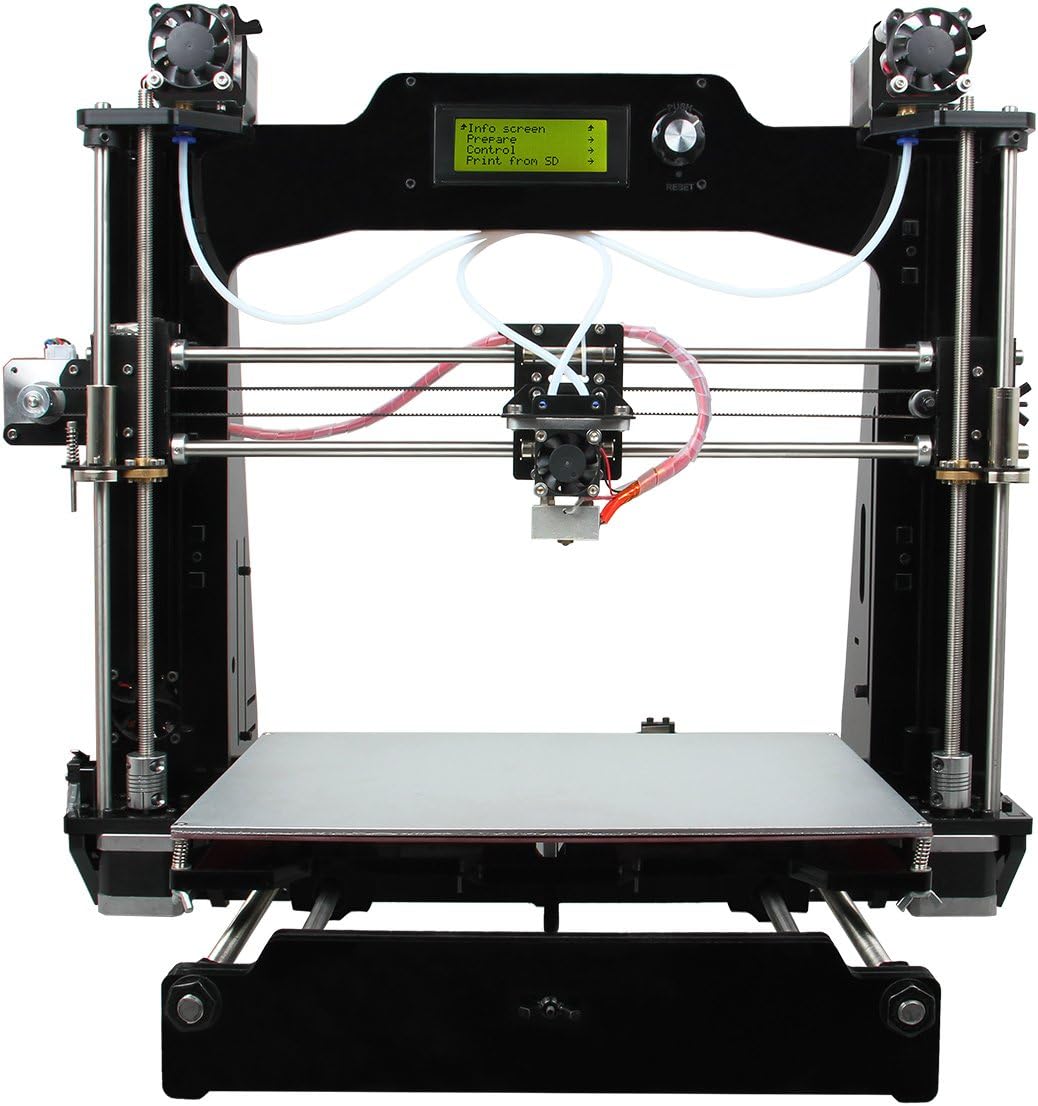
Rajah 1: Depan view of the Zeta Geeetech Prusa I3 M201 STM32 3D Printer, showcasing its sturdy black acrylic frame and the dual-extruder setup.
Ciri-ciri Utama:
- STM32 Control System: Utilizes an ARM Cortex M3 processor with a 72 MHz frequency for improved printing performance.
- Optimized Firmware: Allows adjustment of feed rate ratios for two extruders, enabling mixed or gradient color prints.
- 2-in-1 Switchable Hot End: Functions as a color palette for printing items in two distinct colors or gradients.
- Large Print Volume: Offers a build volume of 280 x 210 x 200 mm.
- High Printing Precision: Achieves up to 0.1 mm printing accuracy.
Panduan Persediaan
This section provides general guidelines for setting up your 3D printer. For detailed assembly instructions, please refer to the specific assembly manual provided with your printer or the manufacturer's official wiki.
1. Membongkar dan Pemeriksaan
- Keluarkan semua komponen dari pembungkusan dengan berhati-hati.
- Sahkan bahawa semua bahagian yang disenaraikan dalam senarai pembungkusan ada dan tidak rosak.
- Report any missing or damaged parts to the manufacturer immediately.

Rajah 2: Bersudut view of the Geeetech Prusa I3 M201 3D Printer, showing the overall structure and components before assembly.
2. Pemasangan (jika berkenaan)
If your printer is a kit or partially assembled, follow the provided assembly guide. Ensure all screws are tightened and connections are secure. Pay close attention to the wiring of stepper motors, endstops, and the hot end/heated bed.
3. Sambungan Kuasa
- Pastikan suis kuasa berada dalam kedudukan OFF.
- Sambungkan kabel kuasa ke input kuasa pencetak.
- Plug the power cable into a suitable electrical outlet. Verify the voltage setting on the power supply matches your local mains voltage (115V atau 230V).

Rajah 3: Jarak dekat view of the printer's power supply unit, showing the power input, switch, and wiring connections. Note the "NOTICE" label regarding the built-in fan control circuit.
4. Pemasangan Perisian
Install the necessary software on your computer. The recommended control software includes Repetier-Host and Printrun. These are compatible with Windows, Mac, and Linux operating systems. You will also need a slicing software to convert 3D models (STL files) into G-code for printing.
Arahan Operasi
1. Memuatkan Filamen
- Ensure the hot end is preheated to the appropriate temperature for your filament type (e.g., 200-220°C for PLA).
- Insert the filament into the extruder's input hole.
- Push the filament through until it is gripped by the extruder gears and begins to feed through the Bowden tube towards the hot end.
- Continue feeding until molten filament extrudes from the nozzle, indicating it is properly loaded.
2. Meratakan Katil
Accurate bed leveling is crucial for successful prints. Use the manual leveling screws under the print bed to adjust the distance between the nozzle and the bed at multiple points (typically 4 or 5 points). A piece of paper should slide with slight friction between the nozzle and the bed.
3. Memulakan Cetakan
- Prepare your 3D model (STL file) using slicing software to generate G-code.
- Simpan kod G file to an SD card or connect the printer to your computer via USB.
- From SD Card: Insert the SD card into the printer's slot. Navigate the printer's menu to "Print from SD" and select your file.
- Melalui USB: Connect the printer to your computer. Use Repetier-Host or Printrun to connect to the printer and initiate the print.
- Monitor the first layer of the print to ensure proper adhesion and adjust as needed.

Figure 4: The Geeetech Prusa I3 M201 3D Printer in operation, demonstrating its capability to print objects with mixed or gradient colors, as shown by the orange and yellow vase on the print bed.
4. Color Mixing and Gradient Printing
The M201's optimized firmware (version 1.0.0 or later) allows for advanced color mixing. You can customize gradient templates to achieve various color effects. This involves setting the gradient start percentage, end percentage for two filaments, and the start and end heights. There are 6 customizable templates available under the "Mixer > Customizable" menu option. Refer to the manufacturer's wiki for detailed instructions on configuring these settings.
Penyelenggaraan
Penyelenggaraan berkala memastikan ketahanan dan prestasi optimum pencetak 3D anda.
- Bersihkan Katil Cetakan: After each print, clean the print bed to remove any residue. Use isopropyl alcohol for glass beds.
- Pembersihan muncung: Periodically clean the nozzle to prevent clogs. A brass brush can be used for external cleaning, and cold pulls or needle cleaning for internal clogs.
- Pelincir Bahagian Bergerak: Sapukan sedikit gris litium atau pelincir yang serupa pada rod licin dan skru plumbum setiap beberapa bulan untuk memastikan pergerakan yang lancar.
- Periksa Tali Pinggang dan Takal: Ensure that the timing belts are properly tensioned and that pulleys are securely fastened.
- Periksa Pendawaian: Periodically check all electrical connections for any loose wires or signs of wear.
Menyelesaikan masalah
Bahagian ini menangani isu biasa yang mungkin anda hadapi semasa operasi.
- Problem: Filament not extruding or inconsistent extrusion.
- Punca yang mungkin: Clogged nozzle, tangled filament, incorrect temperature, extruder motor issue.
Penyelesaian: Clean the nozzle, check filament path, verify hot end temperature, inspect extruder gears and motor connection. - Problem: Poor first layer adhesion.
- Punca yang mungkin: Unlevel print bed, incorrect nozzle height, dirty print surface, wrong bed temperature.
Penyelesaian: Re-level the print bed, adjust Z-offset, clean the print surface, ensure heated bed is at optimal temperature for filament type. - Problem: Prints detaching from the bed mid-print.
- Punca yang mungkin: Similar to poor first layer adhesion, drafts, insufficient bed adhesion.
Penyelesaian: Ensure proper bed adhesion (e.g., glue stick, hairspray), avoid drafts, check bed temperature consistency. - Problem: Layer shifting.
- Punca yang mungkin: Loose belts, motor skipping steps, obstruction in movement path.
Penyelesaian: Tighten X and Y axis belts, check motor drivers and current, ensure smooth rod movement.
Spesifikasi
Detailed technical specifications for the Zeta Geeetech Prusa I3 M201 STM32 3D Printer.

Rajah 5: Sisi view of the Geeetech Prusa I3 M201 3D Printer, illustrating its physical dimensions and the placement of the power supply unit.
| Ciri | Perincian |
|---|---|
| Teknologi Percetakan | FDM (Pemodelan Pemendapan Bersatu) |
| Membina Kelantangan | 280 x 210 x 200 mm |
| Resolusi Cetakan | 0.1 – 0.3 mm |
| Kelajuan Mencetak | 60-110 mm/s |
| Diameter Filamen | 1.75 mm |
| Diameter muncung | 0.4 mm |
| Jenis Filamen | PLA, ABS |
| Ciri | Perincian |
|---|---|
| Sistem Operasi | Windows/Mac/Linux |
| Perisian Kawalan | Repetier-Host, Printrun |
| File Format | STL, kod-G |
| Ketersambungan | USB, SD Card (supports standalone printing) |
| Ciri | Perincian |
|---|---|
| Max Heated Bed Temperature | ~110 °C |
| Suhu Extruder Maks | 275 °C |
| Input Bekalan Kuasa | 115 V/1.5 A atau 230 V/0.75 A |
| Output Bekalan Kuasa | 24 V DC, 0 – 15 A |
| Ciri | Perincian |
|---|---|
| Bingkai | 8 mm thick laser-cut acrylic plate |
| Platform | Super-flat aluminum alloy + heatbed |
| XYZ Rods | Wear-resistant, stainless steel |
| Motor Stepper | Sudut langkah 1.8° dengan langkah mikro 1/16 |
| Dimensi Mesin | 510 x 450 x 450 mm |
| Berat Bersih | 9.5 kg |
Waranti dan Sokongan
For information regarding warranty coverage, technical support, and service, please refer to the official Zeta or Geeetech website, or contact their customer service directly. Keep your purchase receipt as proof of purchase for warranty claims.
Additional resources such as firmware updates, software downloads, and detailed assembly guides can often be found on the manufacturer's official wiki or support pages.


