1. Pengenalan
This manual provides essential information for the safe and efficient use of your InFocus IF195a Touch Pad. Please read this manual thoroughly before operating the device and retain it for future reference.
2. Maklumat Keselamatan
- Jangan dedahkan peranti kepada suhu yang melampau, cahaya matahari langsung atau kelembapan yang tinggi.
- Elakkan daripada menjatuhkan atau meletakkan peranti kepada kesan yang kuat.
- Use only the charger provided or approved by InFocus.
- Jangan cuba membuka atau membaiki peranti ini sendiri. Rujuk semua servis kepada kakitangan yang berkelayakan.
- Jauhkan peranti daripada air dan cecair lain.
- Buang peranti dan baterinya secara bertanggungjawab mengikut peraturan tempatan.
3. Produk Lebihview
The InFocus IF195a is a 20-inch Android-powered touch pad designed for interactive use. Familiarize yourself with its components.
3.1 Depan View

Rajah 1: Depan view of the InFocus IF195a Touch Pad. This image shows the large 20-inch display with the Android operating system interface, including various app icons and the Google search bar. The device features a sleek bezel around the screen.
- paparan: 20-inch multi-touch screen.
- Kamera Depan: Located at the top center bezel.
- mikrofon: Bersepadu untuk input suara.
3.2 Bahagian View dan Pelabuhan
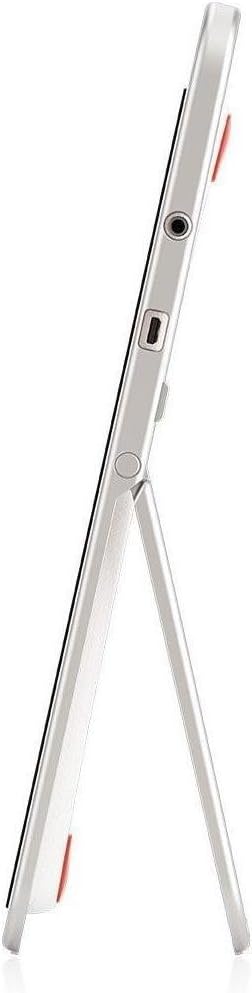
Rajah 2: sebelah view of the InFocus IF195a Touch Pad. This image highlights the device's slim profile and the integrated kickstand, which allows for upright positioning. Visible ports include a headphone jack and a USB port.
- Butang Kuasa: Used to turn the device on/off or put it to sleep.
- Butang Kelantangan: Adjust the device's audio output.
- Bicu Fon Kepala (3.5mm): Untuk menyambungkan peranti audio luaran.
- Port USB Mikro: Untuk pengecasan dan pemindahan data.
- Kickstand Bersepadu: Allows the device to stand upright.
4. Persediaan
4.1 Membuka Kotak dan Caj Permulaan
- Carefully remove the InFocus IF195a Touch Pad and all accessories from the packaging.
- Connect the provided power adapter to the Micro-USB port on the device and plug it into a power outlet. Allow the device to charge fully before first use. The charging indicator will typically show a full battery when complete.
4.2 Menghidupkan/Mematikan
- Untuk Menghidupkan: Press and hold the Power button until the InFocus logo appears on the screen.
- Untuk Mematikan: Press and hold the Power button until a power-off menu appears. Select "Power off" and confirm.
- Untuk Tidur/Bangun: Briefly press the Power button to put the device into sleep mode or wake it up.
4.3 Wizard Persediaan Awal
Upon first power-on, the device will guide you through an initial setup process:
- Pemilihan Bahasa: Pilih bahasa pilihan anda.
- Sambungan Wi-Fi: Select your Wi-Fi network from the list and enter the password. A stable internet connection is required for many features.
- Akaun Google: Sign in with an existing Google account or create a new one. This is necessary to download apps from the Google Play Store and access Google services.
- Tarikh dan Masa: Set the correct date and time or allow the device to set it automatically via the network.
- Tetapan Privasi: Review dan laraskan tetapan privasi seperti yang dikehendaki.
5. Mengendalikan Peranti
5.1 Gerak Isyarat Sentuh
- Ketik: Sentuh skrin sekali untuk memilih item atau membuka aplikasi.
- Sentuh & Tahan: Tekan dan tahan item untuk mengakses menu kontekstual atau seret item.
- Leret: Seret jari anda merentasi skrin untuk menatal senarai atau bertukar antara skrin utama.
- Cubit-untuk-Zum: Use two fingers to zoom in or out on images, maps, or web muka surat.
5.2 Home Screen and Navigation
- Butang rumah: Returns you to the main home screen.
- Butang Belakang: Kembali ke skrin sebelumnya atau menutup aplikasi semasa.
- Butang Apl Terkini: Displays a list of recently used applications for quick switching.
- Panel Pemberitahuan: Leret ke bawah dari bahagian atas skrin untuk mengakses pemberitahuan dan tetapan pantas.
5.3 Memasang dan Mengurus Aplikasi
- Gedung Google Play: Open the "Play Store" app to browse and download applications. A Google account is required.
- Memasang Apl: Select an app and tap "Install." Follow on-screen prompts for permissions.
- Menyahpasang Apl: Pergi ke Tetapan > Apl, select the desired app, and tap "Uninstall." Alternatively, touch and hold an app icon on the home screen and drag it to the "Uninstall" option (if available).
5.4 Connecting to External Devices
- Fon kepala: Palamkan fon kepala 3.5mm ke dalam bicu fon kepala.
- Peranti USB: Connect compatible USB devices (e.g., flash drives, keyboards) to the Micro-USB port using an appropriate adapter if necessary. The device supports USB On-The-Go (OTG).
6. Penyelenggaraan
6.1 Membersihkan Peranti
- Gunakan kain lembut dan tidak berbulu untuk membersihkan skrin dan badan peranti.
- Untuk tanda degil, sedikit dampen kain dengan air atau pembersih skrin yang direka khusus untuk elektronik.
- Elakkan menggunakan bahan kimia yang keras, pembersih yang melelas, atau semburan aerosol.
6.2 Penjagaan Bateri
- Untuk memanjangkan hayat bateri, elakkan daripada menyahcas sepenuhnya bateri dengan kerap.
- Jangan biarkan peranti disambungkan kepada pengecas untuk tempoh yang lama selepas ia dicas sepenuhnya.
- Store the device in a cool, dry place if not used for a long time, with the battery charged to about 50%.
6.3 Kemas Kini Perisian
Semak kemas kini perisian secara berkala untuk memastikan prestasi dan keselamatan yang optimum. Pergi ke Settings > About tablet > System updates to check for and install available updates. Ensure your device is connected to Wi-Fi and has sufficient battery charge before starting an update.
7. Penyelesaian masalah
| Masalah | Penyelesaian yang Mungkin |
|---|---|
| Device will not power on. | Ensure the device is charged. Connect the charger and wait a few minutes before attempting to power on again. If unresponsive, perform a hard reset by holding the power button for 10-15 seconds. |
| Isu sambungan Wi-Fi. | Periksa sama ada Wi-Fi diaktifkan dalam tetapan. Mulakan semula penghala Wi-Fi anda. Lupakan rangkaian dan sambung semula. Pastikan anda berada dalam julat isyarat Wi-Fi. |
| Applications are crashing or freezing. | Close and restart the application. Clear the app's cache (Tetapan > Apl > [Nama Apl] > Storan > Kosongkan cache). If the problem persists, uninstall and reinstall the app. |
| Skrin tidak bertindak balas. | Restart the device. Ensure the screen is clean and free of debris. If the issue continues, contact support. |
| Prestasi perlahan. | Close unnecessary background applications. Clear cache for frequently used apps. Check available storage (Tetapan > Storan) and free up space if needed. Consider a factory reset as a last resort. |
7.1 Tetapan Semula Kilang
Tetapan semula kilang akan memadamkan semua data daripada peranti anda dan mengembalikannya kepada tetapan kilang asalnya. Sandarkan semua data penting sebelum meneruskan.
- Pergi ke Tetapan > Sandaran & tetapkan semula > Tetapan semula data kilang.
- Read the warning message carefully.
- Tap "Reset tablet" and then "Erase everything" to confirm.
- Peranti akan dimulakan semula dan memulakan proses tetapan semula.
8. Spesifikasi Teknikal
| Ciri | Spesifikasi |
|---|---|
| Model | IF195a |
| Jenama | InFokus |
| Saiz Paparan | 20 Inci |
| Resolusi Maksimum | 1600 x 900 |
| Pemproses | ARM Cortex-A15 Quad-Core 1.8 GHz |
| Kapasiti RAM | 2 GB |
| Kapasiti Storan | 16 GB |
| Sistem Operasi | Android 4.4 KitKat |
| Resolusi Kamera Belakang | 5 MP |
| Dimensi (L x W x H) | 61.6 x 47 x 8.6 cm |
| Berat badan | 3.7 kg |
| warna | Kelabu |
9. Waranti dan Sokongan
For warranty information, please refer to the warranty card included with your product or visit the official InFocus website. For technical support, product registration, or service inquiries, please contact InFocus customer service through their official channels.
Please note that warranty terms may vary by region and retailer. Keep your proof of purchase for warranty claims.