pengenalan
This manual provides comprehensive instructions for the setup, operation, and maintenance of your Logitech Unifying USB Receiver. This receiver allows you to connect multiple compatible Logitech wireless devices, such as mice and keyboards, to your computer using a single USB port.
The Logitech Unifying Receiver is identifiable by the orange star icon (Unifying Logo) on the receiver itself and on compatible devices.
Bermula: Persediaan
1. Unpacking the Receiver
Carefully remove the Logitech Unifying USB Receiver from its packaging. Ensure no components are missing or damaged.
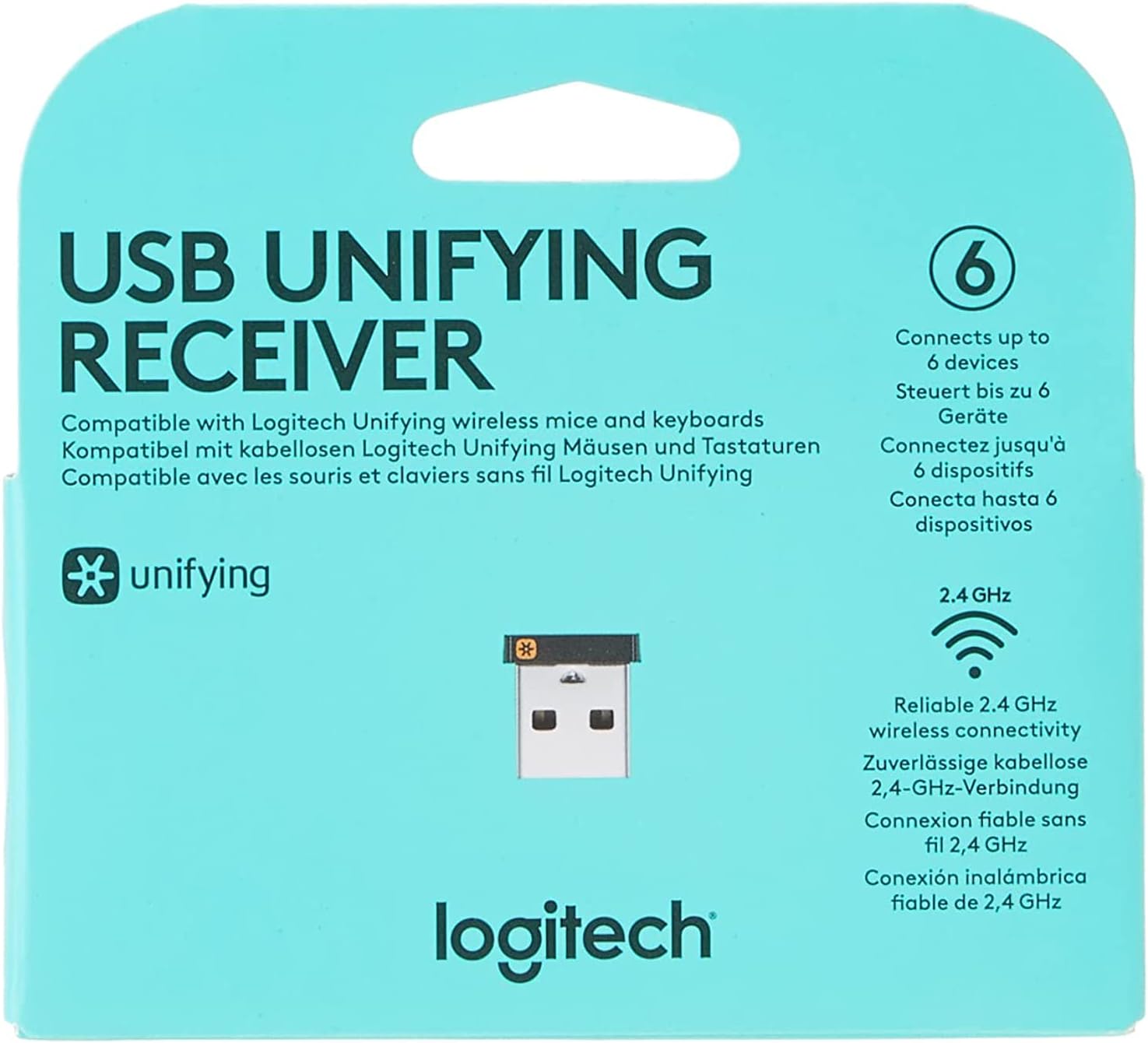
Imej: Depan view of the Logitech Unifying USB Receiver packaging, highlighting its ability to connect up to 6 devices and 2.4 GHz wireless connectivity.

Imej: Dari dekat view of the Logitech Unifying USB Receiver, showing its compact size and the Unifying logo. Regulatory information is visible on the metal casing.
2. Connecting the Receiver to Your Computer
- Locate an available USB Type-A port on your computer.
- Insert the Logitech Unifying USB Receiver firmly into the USB port. The receiver is designed to be small and can remain plugged in without obstructing other ports.
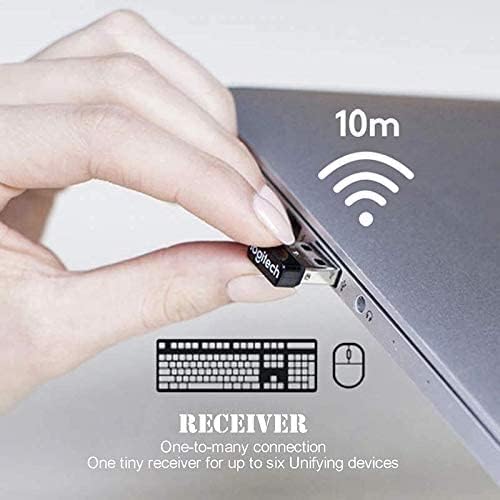
Image: A hand inserting the compact Logitech Unifying USB Receiver into a laptop's USB port, illustrating its discreet profile when connected. The image also indicates a 10-meter wireless range.
3. Installing Logitech Unifying Software (Recommended)
While the receiver is plug-and-play for basic functionality, installing the Logitech Unifying Software provides advanced features, such as pairing new devices, managing existing connections, and checking battery levels. You can download the software from the official Logitech support webtapak.
- Lawati sokongan rasmi Logitech webtapak.
- Cari untuk "Logitech Unifying Software" or navigate to the support page for your specific device.
- Muat turun dan jalankan pemasang, mengikut gesaan pada skrin.
Operating: Pairing Devices
The Logitech Unifying Receiver can connect up to six compatible Logitech wireless devices simultaneously. This allows you to use a single receiver for multiple peripherals, freeing up USB ports.

Image: A diagram illustrating the Logitech Unifying USB Receiver as a central hub, wirelessly connecting to a keyboard, a mouse, and a gamepad, emphasizing its 2.4 GHz wireless capability.

Image: A visual representation of the Logitech Unifying USB Receiver's capability to connect up to six devices simultaneously, showing three mice and three keyboards paired to a single receiver.
Memasangkan Peranti Baru:
- Ensure your Logitech Unifying Receiver is plugged into your computer.
- Turn on the Logitech device you wish to pair.
- Open the Logitech Unifying Software on your computer.
- Follow the on-screen instructions within the software to add a new device. This typically involves turning the device off and on, or pressing a connect button on the device.
- Once successfully paired, the software will confirm the connection.
Peranti Serasi:
The Unifying Receiver is compatible with any Logitech product that features the orange Unifying Logo (an orange star). This includes, but is not limited to, the following models:
- Logitech wireless mouse M505
- Tetikus Marathon M705
- Logitech Mouse M905
- Logitech keyboard K340
- Logitech keyboard K350
- Logitech Mouse MX M950
- Logitech Mouse M510
- Logitech Mouse M525
- Logitech Mouse M305
- Logitech Mouse M310
- Logitech Mouse M315
- Logitech Mouse M325
- Logitech Mouse M345
- Logitech Mouse M215

Image: The back of the Logitech Unifying USB Receiver packaging, detailing compatibility with various Logitech Unifying compatible devices and operating systems (Windows 10 or later, Windows 8, Windows 7, macOS 10.10 or later).
Penyelenggaraan
The Logitech Unifying USB Receiver requires minimal maintenance. Follow these guidelines to ensure its longevity and optimal performance:
- Pastikan ia bersih: Periodically wipe the receiver with a soft, dry cloth to remove dust or debris. Avoid using liquid cleaners or abrasive materials.
- Lindungi daripada Kerosakan: While designed to be durable, avoid dropping the receiver or exposing it to excessive force. When transporting your laptop, it is generally safe to leave the receiver plugged in due to its low profile.
- Elakkan Keadaan Melampau: Jangan dedahkan penerima kepada suhu, kelembapan atau cahaya matahari langsung yang melampau.
Menyelesaikan masalah
If you encounter issues with your Logitech Unifying USB Receiver, try the following troubleshooting steps:
Device Not Connecting or Losing Connection:
- Pasangkan semula Peranti: Open the Logitech Unifying Software and attempt to re-pair your device. Sometimes, the connection might be lost and needs to be re-established.
- Periksa Bateri: Ensure the batteries in your wireless mouse or keyboard are not depleted. Replace them if necessary.
- Cuba Port USB yang Berbeza: Plug the Unifying Receiver into a different USB port on your computer. This can help rule out issues with a specific port.
- Kurangkan Gangguan: Move the receiver closer to your wireless devices. Avoid placing the receiver near other electronic devices that might cause interference (e.g., Wi-Fi routers, cordless phones, microwave ovens).
- Kemas kini Pemacu: Ensure your computer's USB drivers are up to date. You can usually do this through your operating system's Device Manager.
- Mulakan semula Komputer: A simple restart of your computer can often resolve minor connectivity issues.
Unifying Software Not Recognizing Receiver:
- Pasang semula Perisian: Uninstall and then reinstall the Logitech Unifying Software from the official Logitech webtapak.
- Semak Sambungan USB: Ensure the receiver is securely plugged into a functioning USB port.
Spesifikasi
| Ciri | Spesifikasi |
|---|---|
| Nombor Model | FBA_993-000439 |
| Jenama | Logitech |
| Antara Muka Perkakasan | USB |
| Protokol Pautan Data | USB |
| Berat Barang | 0.317 auns (lebih kurang 9 Gram) |
| Dimensi Produk (LxWxH) | 1.1 x 9.7 x 6.5 inci |
| Voltage | 5 Volt |
| Peranti Serasi | Logitech Unifying compatible mice and keyboards |
| Tarikh Mula-mula Tersedia | 29 Jun 2011 |
| UPC | 073257010740, 097855087577 |
| GTIN | 05099206091627 |
Waranti dan Sokongan
Maklumat Waranti:
The Logitech Unifying USB Receiver typically comes with a Jaminan pengilang 2 tahun. Please refer to the product packaging or Logitech's official weblaman web ini untuk terma dan syarat jaminan terkini dan terperinci yang terpakai di rantau anda.
Sokongan Pelanggan:
For further assistance, technical support, or warranty claims, please visit the official Logitech support webtapak:
You can also find drivers, software, and FAQs on their support portal.


