1. Pengenalan
This manual provides detailed instructions for the assembly, operation, and maintenance of your Sharkoon VS4-W Series ATX/MicroATX Mid-Tower PC Case, model SHA-VS4-WBK. Please read this manual thoroughly before beginning installation to ensure proper setup and to maximize the lifespan of your product.
The Sharkoon VS4-W Series is designed for users seeking a cost-effective and functional PC case. It features a full-black aesthetic with an acrylic side window panel, offering a clear view of your internal components. The case supports ATX and Micro-ATX motherboards and provides ample space for various components, including multiple storage drives and long graphics cards.
2. Produk Lebihview
2.1. Ciri-ciri Utama
- Acrylic side window panel for component visibility.
- Full-black interior and exterior design.
- Support for ATX and Micro-ATX motherboards.
- Three 5.25-inch drive bays, two with tool-less mechanisms.
- Seven drive bays for storage: three 3.5-inch and four 2.5-inch.
- Generous expansion card space, up to 385mm with 2.5-inch cage removed.
- Cable management space behind the motherboard tray due to a bulged side panel design.
- Supports CPU coolers up to 160mm in height.
- Front I/O panel with 2x USB 3.0 and 2x USB 2.0 ports, plus HD Audio.
- Pre-installed 120mm front fan and 120mm blue LED rear fan.
2.2. Pengenalan Komponen

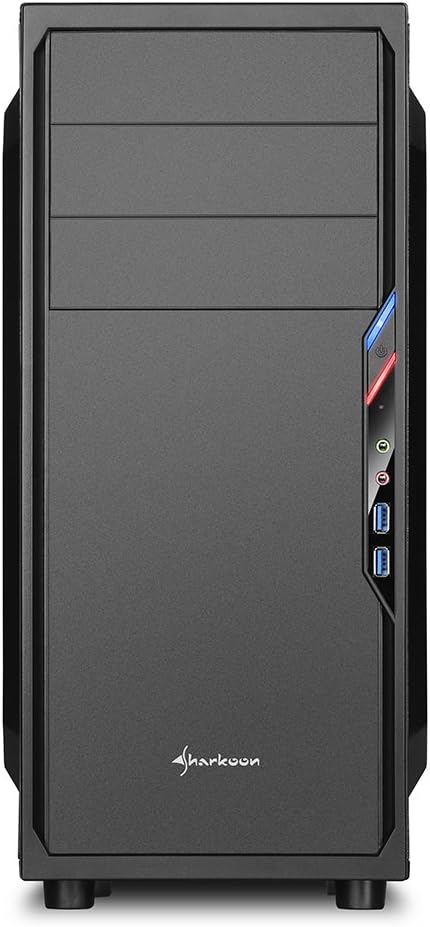


3. Persediaan dan Pemasangan
3.1. Menyediakan Kes
- Unpack the PC case and remove all packaging materials.
- Letakkan bekas di atas permukaan yang stabil dan rata.
- Remove the side panels by unscrewing the thumbscrews at the rear of the case.
3.2. Pemasangan Papan Induk
- Install the I/O shield provided with your motherboard into the cutout at the rear of the case.
- Ensure standoffs are correctly aligned for your ATX or Micro-ATX motherboard. Install additional standoffs if necessary.
- Carefully place the motherboard into the case, aligning it with the standoffs and I/O shield.
- Selamatkan papan induk dengan skru.
3.3. Pemasangan Bekalan Kuasa
- Mount the power supply unit (PSU) in the designated area at the bottom rear of the case.
- Selamatkan PSU dengan skru dari belakang kes itu.
- Route necessary power cables through the cable management cutouts.
3.4. Pemasangan Drive
- Pemacu 5.25 inci: For tool-less bays, slide the drive in until it clicks into place. For other bays, secure with screws.
- Pemacu 3.5 inci: Slide the 3.5-inch drives into the designated bays and secure them.
- Pemacu 2.5 inci: Mount 2.5-inch SSDs/HDDs onto the dedicated mounting points.
3.5. Pemasangan Kad Pengembangan
- Tanggalkan penutup slot PCI yang diperlukan dari bahagian belakang casing.
- Insert your graphics card or other expansion cards into the appropriate PCI-E slots on the motherboard.
- Secure the cards with screws. For longer graphics cards, the 2.5-inch drive cage can be removed to provide up to 385mm of space.
3.6. Pengurusan Kabel
Utilize the space behind the motherboard tray and the various cable routing holes to organize cables. This improves airflow and aesthetics.
4. Arahan Operasi
Once all components are installed and connected, replace the side panels and secure them with the thumbscrews. Connect your peripherals (monitor, keyboard, mouse, etc.) to the motherboard's I/O ports. Connect the power cable to the PSU and a wall outlet. Press the power button on the front panel to start your system.
5. Penyelenggaraan
5.1. Pembersihan
- Regularly clean dust filters (if present) to maintain optimal airflow.
- Use compressed air to remove dust from internal components and fans.
- Lap bahagian luar bekas dengan lembut, damp kain. Elakkan pembersih yang kasar.
5.2. Penyelenggaraan Kipas
Ensure fans are free from obstructions and spinning correctly. If a fan becomes noisy or stops working, consider replacing it to maintain proper cooling.
6. Penyelesaian masalah
6.1. Sistem Tidak Menghidupkan
- Check all power connections, including the PSU to the wall, and internal connections to the motherboard and components.
- Pastikan kabel butang kuasa daripada bekas disambungkan dengan betul ke pengepala panel hadapan papan induk.
- Sahkan suis PSU berada dalam kedudukan 'HIDUP'.
6.2. Poor Airflow/Overheating
- Bersihkan sebarang penapis habuk dan komponen dalaman.
- Ensure fans are operating correctly and oriented for optimal airflow (intake/exhaust).
- Memperbaik pengurusan kabel untuk mengurangkan halangan kepada aliran udara.
6.3. Panel Depan USB/Audio Tidak Berfungsi
- Verify that the front panel USB and HD Audio cables are securely connected to the corresponding headers on your motherboard.
7. Spesifikasi
| Nama Model | VS4-W Series |
| Nombor Model Produk | SHA-VS4-WBK |
| Jenis Kes | Mid Tower |
| bahan | Keluli, Plastik, Akrilik |
| warna | Hitam |
| Keserasian Papan Induk | ATX, Mikro-ATX |
| 5.25" Teluk Pandu | 3 (2 with tool-less mechanism) |
| 3.5" Internal Drive Bays | 3 |
| 2.5" Teluk Pandu | 4 |
| Slot Pengembangan PCI | 7 |
| Maks. Panjang Kad Grafik | 310mm (385mm with 2.5" cage removed) |
| Maks. Ketinggian Penyejuk CPU | 160mm |
| Maks. Panjang PSU | 260mm |
| Pelabuhan I / O Depan | 2x USB 3.0, 2x USB 2.0, HD Audio (Mic/Headphone) |
| Peminat prapasang | Front: 1x 120mm, Rear: 1x 120mm Blue LED |
| Kaedah Penyejukan | Penyejukan Udara |
| Dimensi Produk (L x W x H) | 44.5 x 20 x 43 cm |
| Berat Barang | 3.5 kg |
8. Waranti dan Sokongan
For warranty information and technical support, please refer to the official Sharkoon webtapak atau hubungi peruncit tempatan anda. Simpan bukti pembelian anda untuk tuntutan waranti.
Official Sharkoon Webtapak: www.sharkoon.com


